
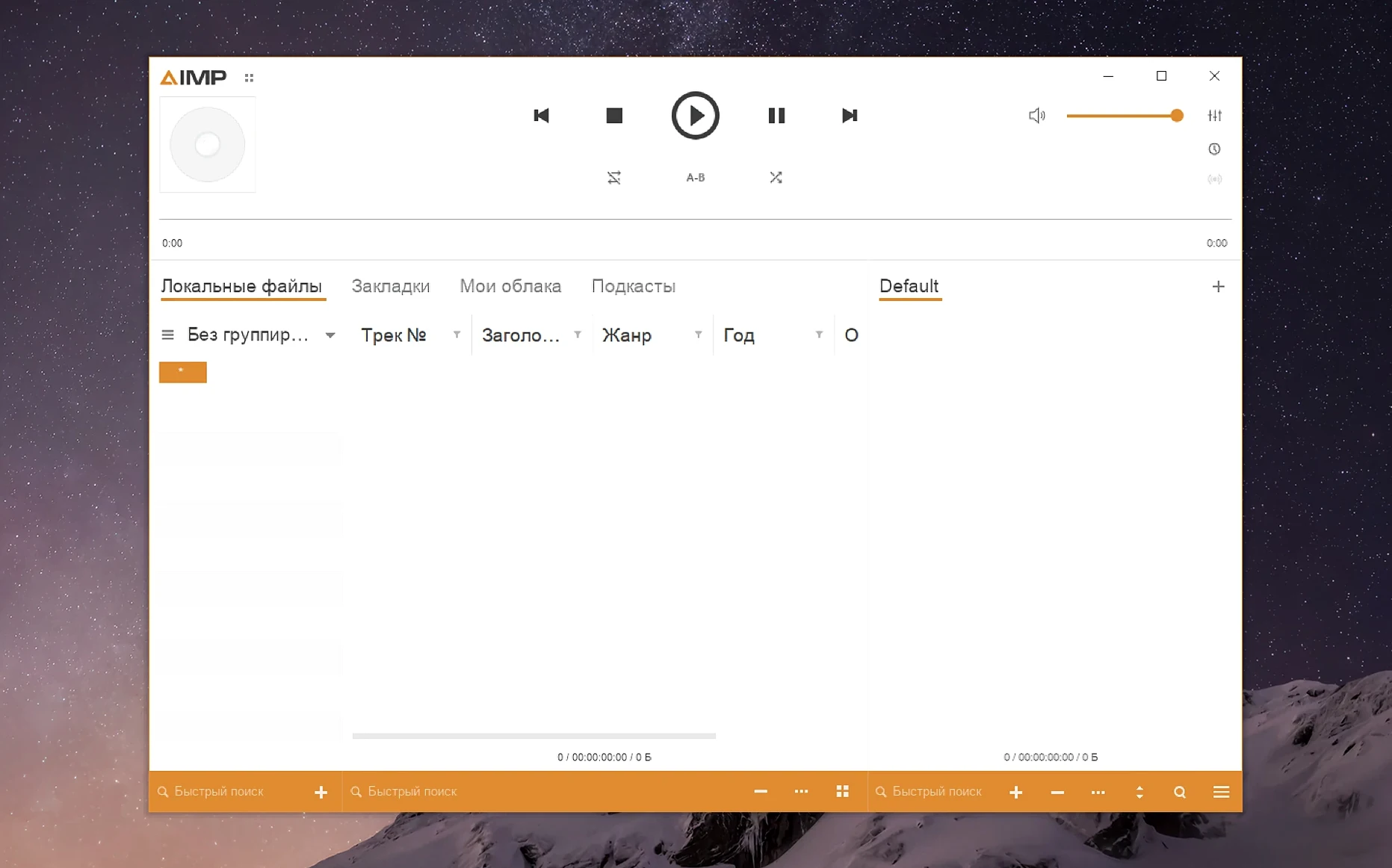
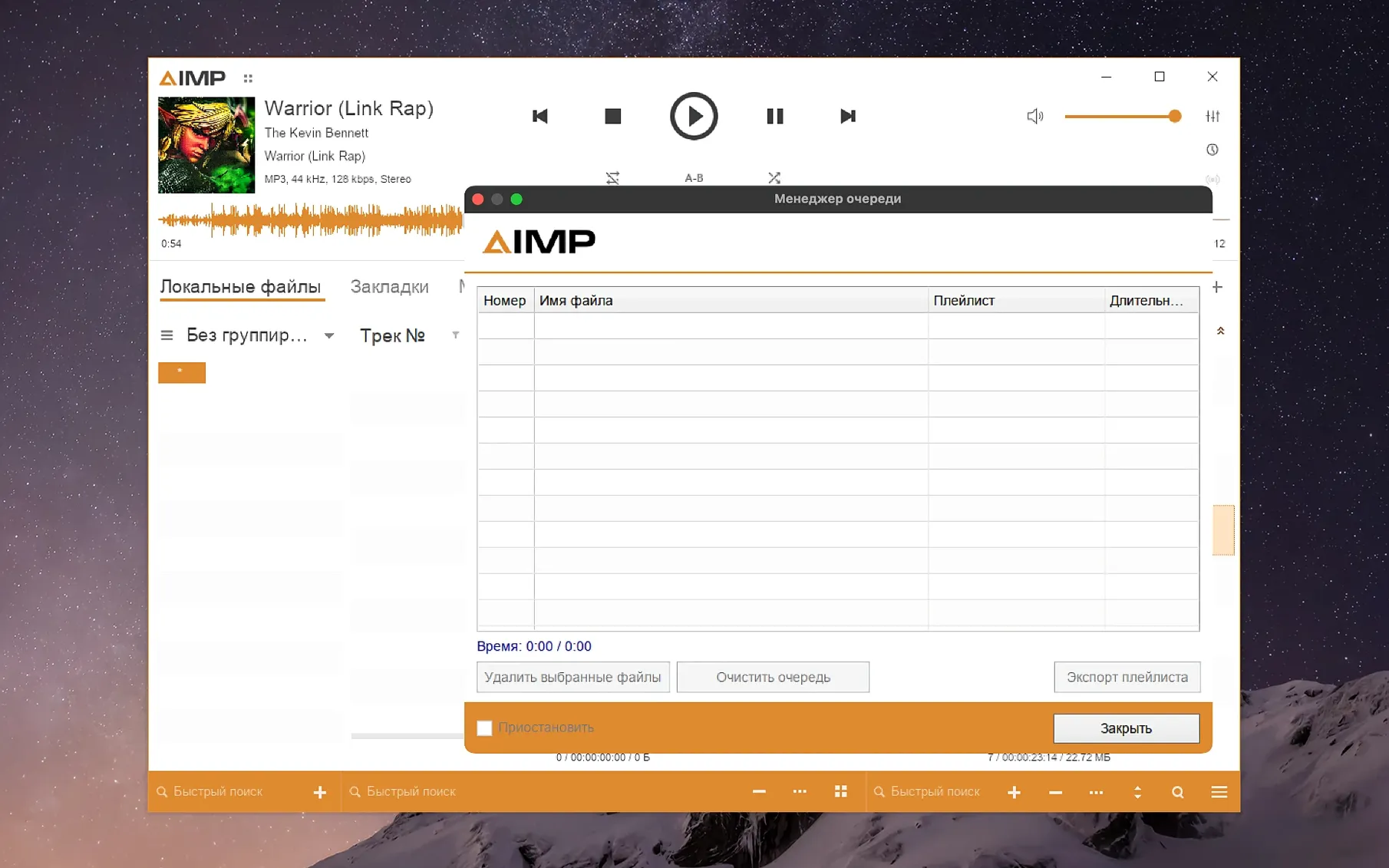
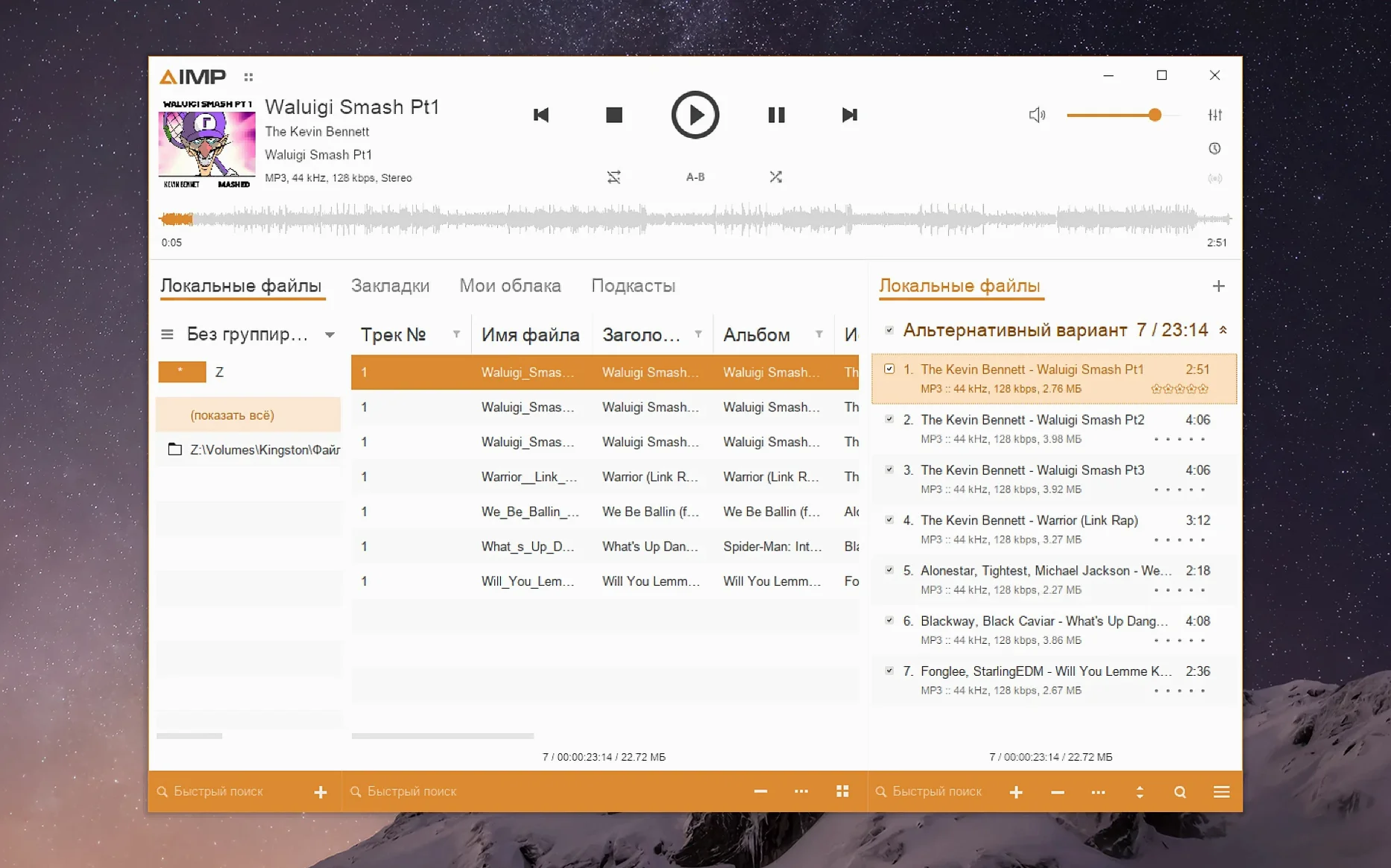
AIMP is a feature-packed audio player, and the macOS build brings it to your MacBook through a Wineskin wrapper.
Sampling frequency fix — Version 5.40.2675 corrected a bug where changing the sample rate left old audio buffers unflushed, so switching playback settings mid-session now behaves properly.
Monkey's Audio 11.08 — The updated codec means smoother playback for APE files, a format that still turns up in older lossless collections.
Faster waveforms — Waveform calculation got a speed bump. If you like seeing the visual overview of a track, it'll draw quicker than before.
Interface scaling trick — Because it runs through Wineskin, the UI can look tiny on a Retina display. You can enlarge it by opening the app package, going into Contents, launching KegworksConfig, then under Tools picking Config Utility. In the Graphics tab, set the screen resolution between 122 and 144 dpi, apply, and restart. It makes a real difference on a MacBook screen.
Language support — The interface speaks over 20 languages, including English, Simplified Chinese, Japanese, Portuguese, German, Turkish, Hungarian, Czech, Swedish, and Belarusian. Switch it right away from the preferences if the default isn't yours.
Middle-click tabs and other tucked-away touches
AIMP packs a lot of thoughtful touches into its interface, and a few of them hide just below the surface. The playlist tabs at the bottom work like browser tabs — middle-click one to close it, or drag to reorder. If you manage separate lists for different projects or moods, that alone saves a surprising number of clicks.
The queue panel is another quiet helper. Drag any track onto the small queue icon near the playback controls and it plays next, without disturbing your main playlist order. Handy when a customer walks in and you need to switch the shop music for one song without rebuilding anything.
Keyboard shortcuts are surprisingly thorough. A few worth memorizing:
Ctrl+Shift+F— jump to the search box in the current playlistCtrl+Alt+Right— skip to the next playlist tabZ— previous trackX— play/pauseC— next track
Those last three are right in a row on the keyboard, which is a small gift when you're editing photos and don't want to lift your hands to reach for a mouse. The systray controls also give you play, pause, and skip from the menu bar area — right-click the AIMP icon to see them. On a busy workday, that beats switching windows every time you want to change tracks.
An afternoon with Lightroom, linen pouches, and AIMP
Picture a late afternoon in the shop. I've got a fresh batch of linen pouches to photograph, which means an hour of Lightroom ahead. I launch AIMP from the dock, and it opens right where I left off — a playlist called "Afternoon Studio" that I built last week.
The first thing I do is drag a folder of newly downloaded tracks from Finder straight onto the playlist area. AIMP reads the folder structure and adds everything in order, no import wizard needed. I tap Ctrl+Shift+F, type "ambient," and it filters the list down to three albums I forgot I had. I queue two of them into the queue panel so they play after the current track finishes, leaving the rest of the playlist untouched.
Mid-session, I notice a track has no album art. I right-click it, choose Tag Editor, and the built-in tag panel slides open on the right. I paste in the artwork I grabbed earlier, fix the year field, and hit save — done in under a minute without opening another program. The waveform that drew quickly when I loaded the file now shows me a nice quiet section near the end, which tells me where to fade the volume for a clean store-closing sequence.
When things get busy and I need the computer for invoices, I minimize AIMP and control playback entirely from the menu bar icon — pause, skip, adjust volume — while QuickBooks fills the screen. By closing time, the playlist has drifted through three hours of music without a single hiccup or beachball, and the Monkey's Audio tracks from an old backup drive played as smoothly as the MP3s.
Fading and other tweaks that make AIMP feel Mac-native
Out of the box, AIMP works fine, but a few quick adjustments make it feel more at home on a Mac. Head to Preferences (the gear icon) and consider these changes right away:
- Playback > Fading — enable a short crossfade of 2–4 seconds. It eliminates the dead air between tracks and gives the shop a more polished, continuous sound. You can also enable a separate fade on pause and resume, which is gentler on the ears when a customer asks a question mid-song.
- Interface > Language — if the installer defaulted to Russian, switch it here. The list is long and covers everything from Finnish to Arabic, so pick what you read naturally.
- System > Integration — tell AIMP to show in the menu bar and minimize to the system tray instead of the dock. This keeps your dock clean and puts playback controls one click away.
- Playlist > Saving — check "Automatically save playlists on exit." If you close the app by habit, this keeps you from losing an afternoon's worth of queued tracks.
One more that's easy to miss: in the Tag Editor panel, you can configure which fields appear by default. If you only ever edit artist, album, and artwork, strip the view down to those three and save yourself the visual clutter. AIMP for Mac remembers that layout next time you open it, so your workspace stays tidy session after session.
A few nice refinements landed in this update:
- Localizations got a refresh across several languages.
- Monkey's Audio codec updated to version 11.08.
- Waveform calculation is noticeably quicker now.
- A libVorbis conflict with third-party plugins was sorted out.
- Changing the sampling frequency no longer leaves already filled buffers unflushed.
- macOS 11 or later
- Apple Silicon
Notes from other shops 0
Sign in or open a shop account to leave a note.
No notes yet. If you've used this on a shop Mac, tell me how it went.