
Version 1.14.10 is a small maintenance release that fixes pandoc export from source mode and a clipped welcome panel, but it arrives on the heels of the 1.14 update, which quietly changed how files appear in the sidebar — you can now show non-Markdown files there — and added context-menu style settings on macOS. If you’ve been sitting on an older build, the current stable release pulls those two together.
No markup noise, just styled text
- Writing without markup noise: Typora strips away source syntax symbols, preview windows and mode switchers so the styled text is all you see.
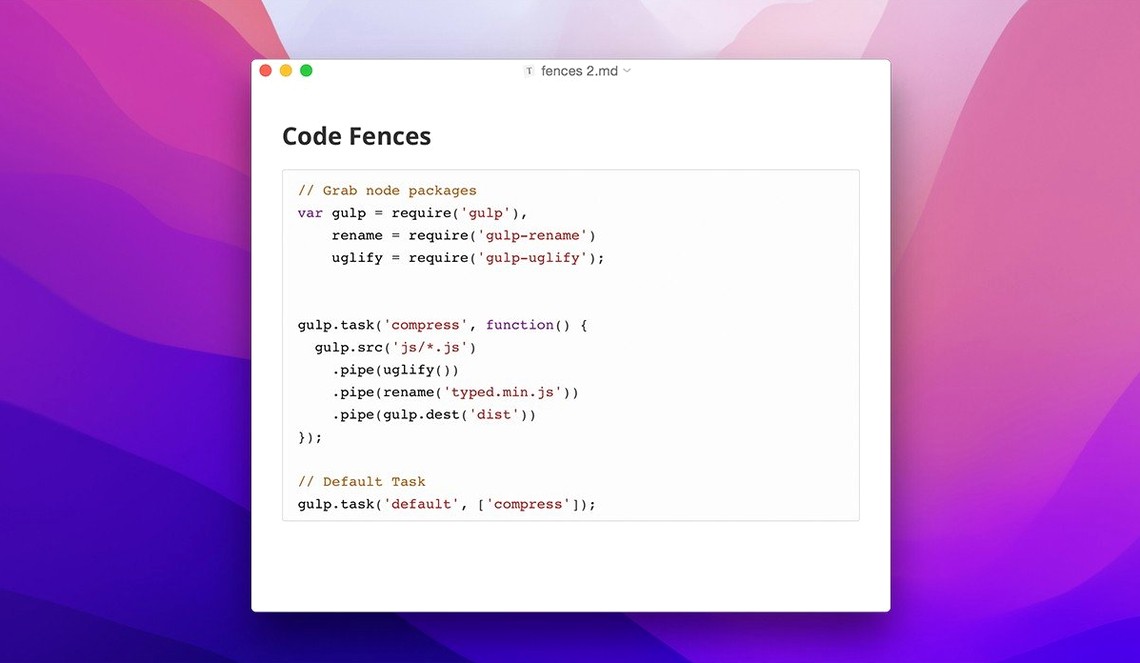
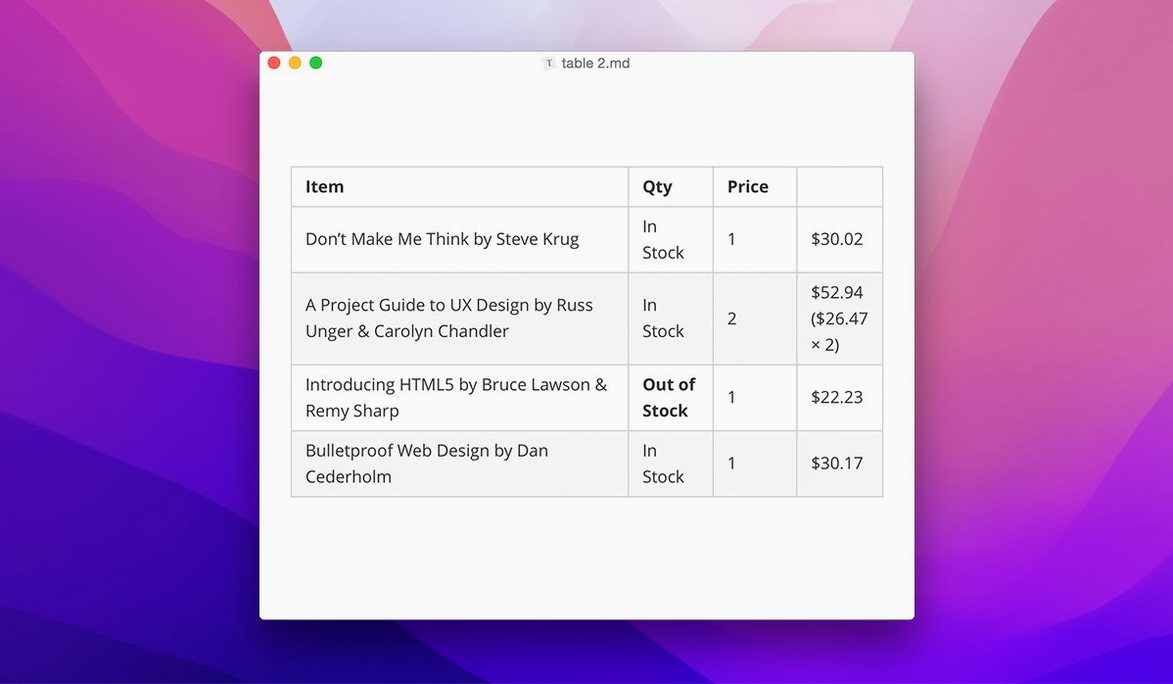
- Long-form work that mixes prose with code, math or tables. Fenced code blocks get syntax highlighting, LaTeX renders inline, and tables behave like real tables.
- People who want export without heavy tooling. Lightweight export works for common formats, and pandoc export is patched in the latest build.
- Creating a custom look. Custom CSS themes are supported, so you can match the editor to a site style or just make it easier on your eyes.
- Working across languages. The interface ships in over thirty languages, from Arabic to Vietnamese.
macOS 10.13.6 minimum, but fixes may lag on older systems
- Requires macOS 10.13.6 or later and runs on both Intel and Apple Silicon Macs.
- The official support site lists macOS 11.0 as the supported minimum for the latest version, so older systems may not get fixes even if the app runs.
- A table-of-contents sidebar is built in, but it depends on heading structure — flat documents won’t benefit much.
I usually settle into Typora with a single folder open in the sidebar. That habit started almost by accident, but now it’s how I start every working session. I drag a project folder onto the app icon, the file tree slides out on the left, and I get an immediate read on what’s in progress — finished drafts, stray notes, a couple of YAML files I forgot to move. If I’m on the current version, non-Markdown files are visible right there alongside the .md documents, so a config.yml or a notes.txt doesn’t hide from me anymore.
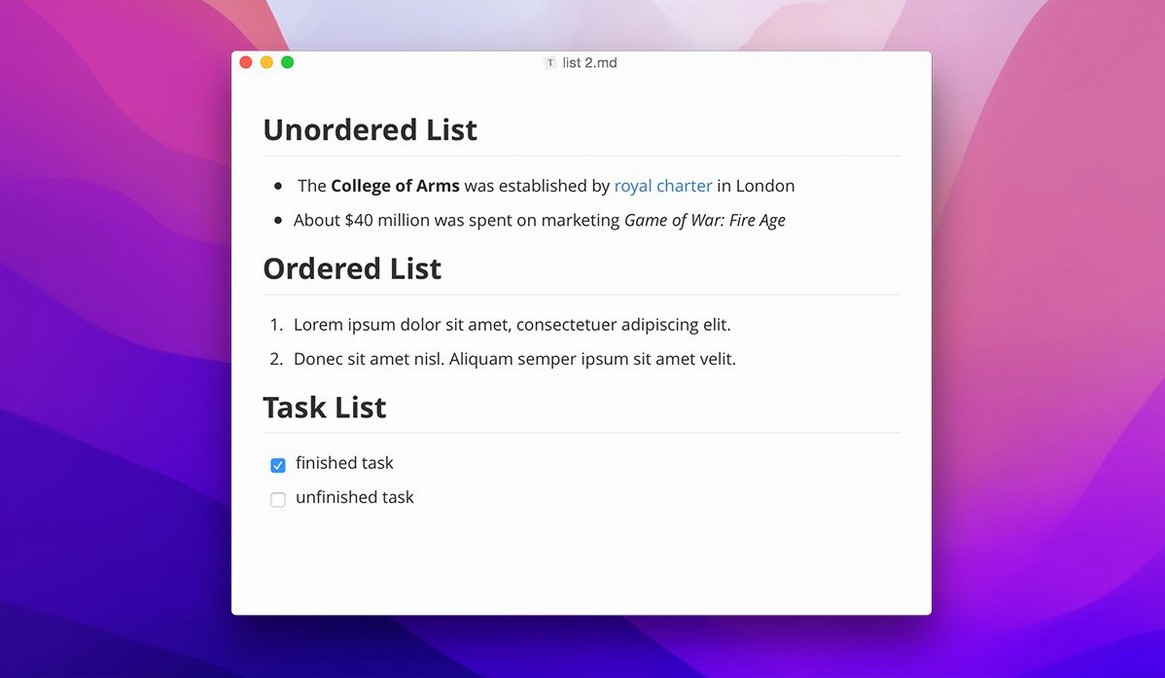
Once the folder is loaded, I pick a file and the writing surface fills the rest of the window. No mode buttons, no split panes, no raw hash marks staring back at me. Headings go bold and scale up the moment I type the space after ##. I can see the structure taking shape while my hands stay on the keyboard. If I’m revising something long, I’ll open the table of contents from the sidebar and jump between sections without scrolling past a dozen code blocks. The floating editor toolbar that arrived in 1.14 stays collapsed most of the time for me, but when I need to nudge a list or drop in a link without typing the syntax, it’s two clicks away.
The session usually ends with an export. I hit File → Export and pick a format — PDF or HTML most days. The lightweight export is fast enough that I don’t drift to another task, and the pandoc path, which was patched in 1.14.10, feels more reliable now when I need .docx output for someone who won’t touch plain text. I close the app without saving; Typora remembered every keystroke anyway.
Building a project readme from scratch
A common task in my shop is turning a messy collection of notes into a clean project readme. Here’s the flow I follow, start to finish.
- Gather the scraps. I open a new file and dump links, API notes, a screenshot filename and a rough outline — no formatting, just lines separated by returns.
- Shape the headings. I scan the outline and add
##and###markers. Because Typora renders them inline, I can tell immediately if the hierarchy makes sense or if a section is lopsided. - Insert code examples. I paste terminal commands and a short JSON response into fenced blocks. Syntax highlighting kicks in as soon as I tag the fence with
jsonorbash, so I spot a missing comma before the file ever leaves my Mac. - Build a table. I type
| Parameter | Type | Notes |and press Return. Typora draws the column separators and keeps the alignment tidy while I fill in rows. No pipe-counting, no preview toggle. - Check the structure. I open the table-of-contents sidebar and click through the headings. A flat section without sub-points stands out right away, and I merge it into the paragraph above.
- Style the export. I switch to a minimal CSS theme I tweaked for documentation — small type, tight spacing, no serif flourishes. A quick PDF export shows what a reader will see, and I adjust a heading or two before calling it done.
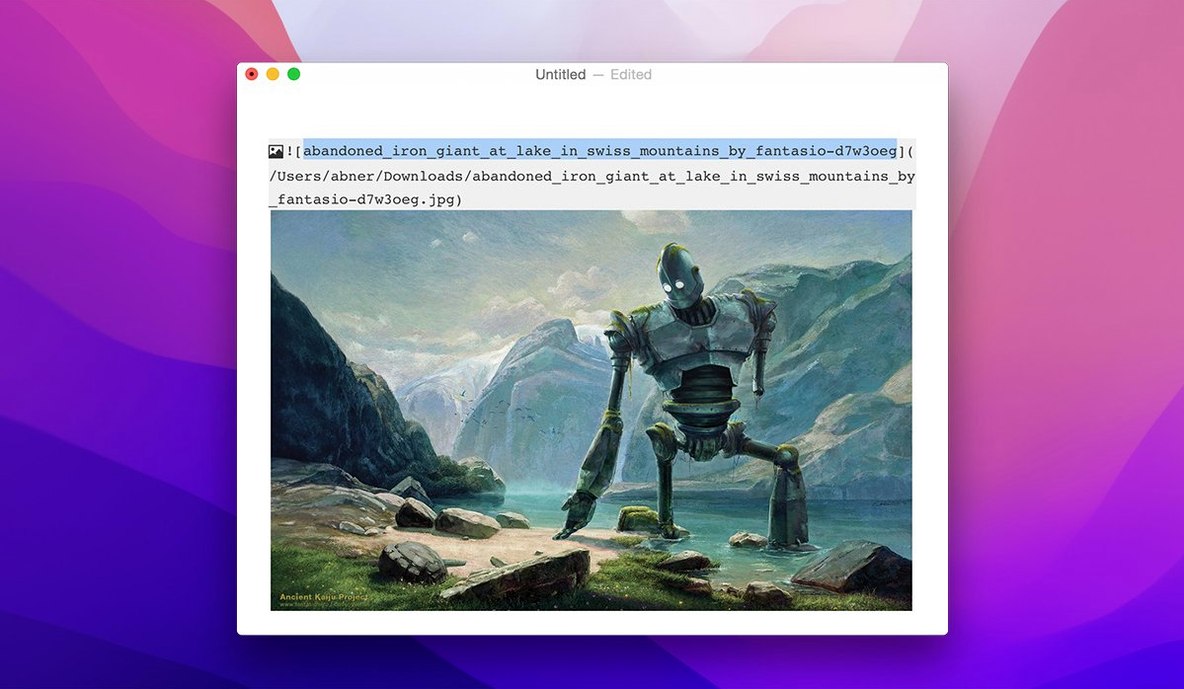
Tip: If your readme references files that aren’t Markdown — a .png screenshot or a .csv data sample — enable “Show non-Markdown files” in the sidebar. You can’t edit them, but seeing them listed keeps you from forgetting to link them.
An editor’s afternoon
Imagine someone who edits a bilingual newsletter. The January issue is due, and the contributors sent articles in English and Spanish, each as a separate .md file. The editor drops the whole folder into Typora on a MacBook Air. The sidebar now shows every piece, plus a couple of stray .pages files a contributor included by mistake — visible because the 1.14 sidebar options are turned on. Those get ignored, and the editor works through the English articles first.
Inline preview means a heading that should be bold but isn’t stands out immediately. A missing space after # looks wrong on screen, not just in source. The editor fixes it and moves on. When a sentence needs a rewrite, there’s no cursor-jumping between raw text and a rendered view — the paragraph reflows right under the edit. Switching to a Spanish article, the interface stays in whatever language the editor prefers; Typora ships with over thirty, so the menus don’t become a puzzle.
Before sending the draft to layout, the editor exports the whole batch to HTML. The lightweight export runs quickly, and the output is clean enough that the newsletter’s CMS accepts it without stripping tags. One article includes a LaTeX formula for a sidebar on exchange rates — it renders correctly in the exported file. The editor zips the folder and moves on to February.
- macOS 10.13.6 or later
- Works natively on Apple Silicon and Intel 64-bit Macs
Notes from other shops 0
Sign in or open a shop account to leave a note.
No notes yet. If you've used this on a shop Mac, tell me how it went.