
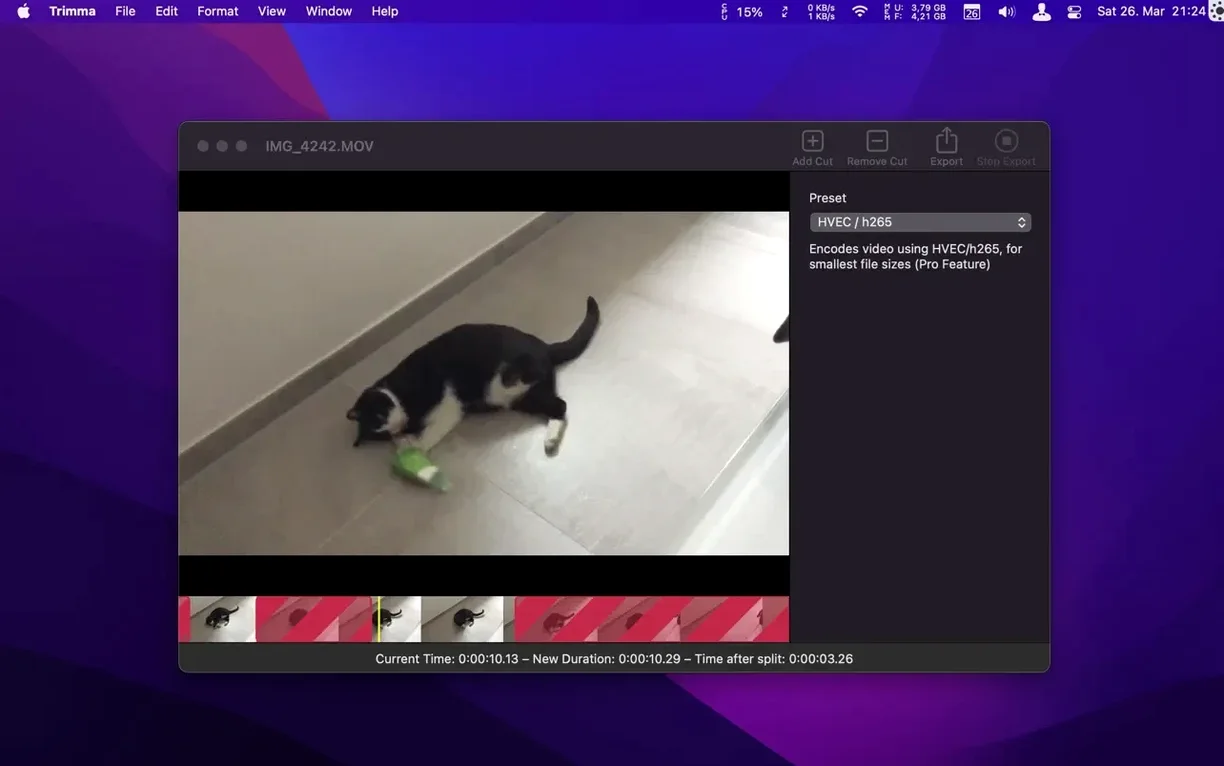
You just pulled a long clip off your camera and the only thing between you and a clean upload is a shaky start and a few dead seconds at the end. No timeline, no project library — you just want the usable bit.
Does it re-encode my video or keep the original quality?
Trimma offers passthrough export, which copies the video stream instead of re-encoding it. The process is fast and the resolution stays exactly as it was in the source file.
How precise are the cuts?
You can step through footage frame by frame with the cursor keys, and adding or removing cut points is a single keypress — A to add, S to remove. The details panel now includes a frame counter while you scrub, so you always know exactly where you are.
What's the catch with an older Mac?
The app needs macOS 10.14.6 or later and runs on Intel Macs. Version 2.2.2064 also fixed an issue where exported MP4 files wouldn't play nicely with QuickTime Player, so compatibility is solid on the current build.
People often wonder whether Trimma can handle the file types their camera spits out. It works with common video containers like MP4 and MOV, and because the passthrough export doesn't meddle with the codec, anything your Mac can play should cut cleanly. A related question is whether cuts are frame-accurate. The short answer is yes — the cursor-key stepping moves one frame at a time in both directions, so you can land exactly between a door slam and the first word of dialogue without guessing.
Another thing that comes up is the difference between passthrough and the re-encode options. Passthrough is what you pick when you just want the trimmed clip to look exactly like the original — same size, same quality, finished in seconds. The AVC (H.264) and HEVC (H.265) export modes are there when you actually need a smaller file or a different codec, and Trimma handles those without burying the choice in a settings maze.
Some users also ask whether they can preview the result before committing. The app plays back the kept segments in sequence so you can check every cut point before exporting, which saves you from discovering a clipped syllable after the file is already written.
A quick trim workflow
Say you recorded a ten-minute screen capture and only need a two-minute section starting around the four-minute mark. Open the file in Trimma — it loads the video directly, no import wizard, no library. Scrub to roughly where your section begins, then tap the cursor keys to step frame by frame until the exact starting frame is on screen. Press A to drop the first cut; the segment before it dims.
Now jump to the end of the section you want to keep, step precisely again, and press A once more. The dimmed areas at the head and tail are marked for removal. Hit the spacebar to preview the remaining middle portion. If the timing feels off, you can arrow-key back to a cut, press S to remove it, and add a new one. With passthrough selected, export writes the trimmed clip almost instantly — same quality, no re-encoding, ready to drop into your project folder or upload.
Version 2.2.2064 brings a couple of practical fixes:
- A frame counter now appears in the details panel while you scrub or edit, so you can place cuts with real precision.
- Fixed an issue where exported MP4 files weren't fully compatible with QuickTime Player.
- macOS 10.14.6 or newer
- Intel-based Mac
Questions from the stall
Does Trimma collect any data?
The developer states the app does not collect or submit any user data.
Do I need to create a project before I can cut a video?
No, Trimma works directly on the file without requiring project creation, unlike some heavier editors.
Notes from other shops 0
Sign in or open a shop account to leave a note.
No notes yet. If you've used this on a shop Mac, tell me how it went.