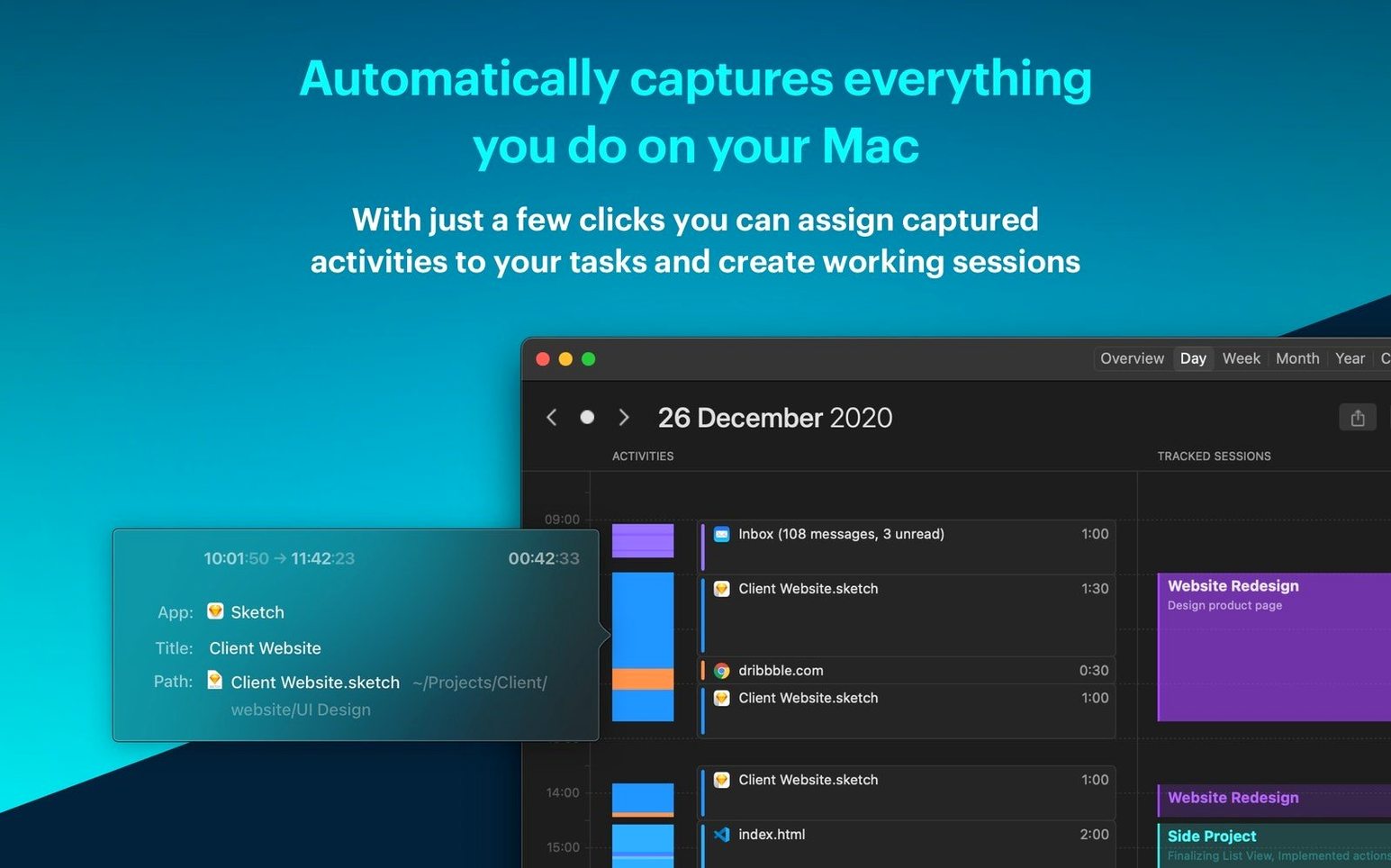
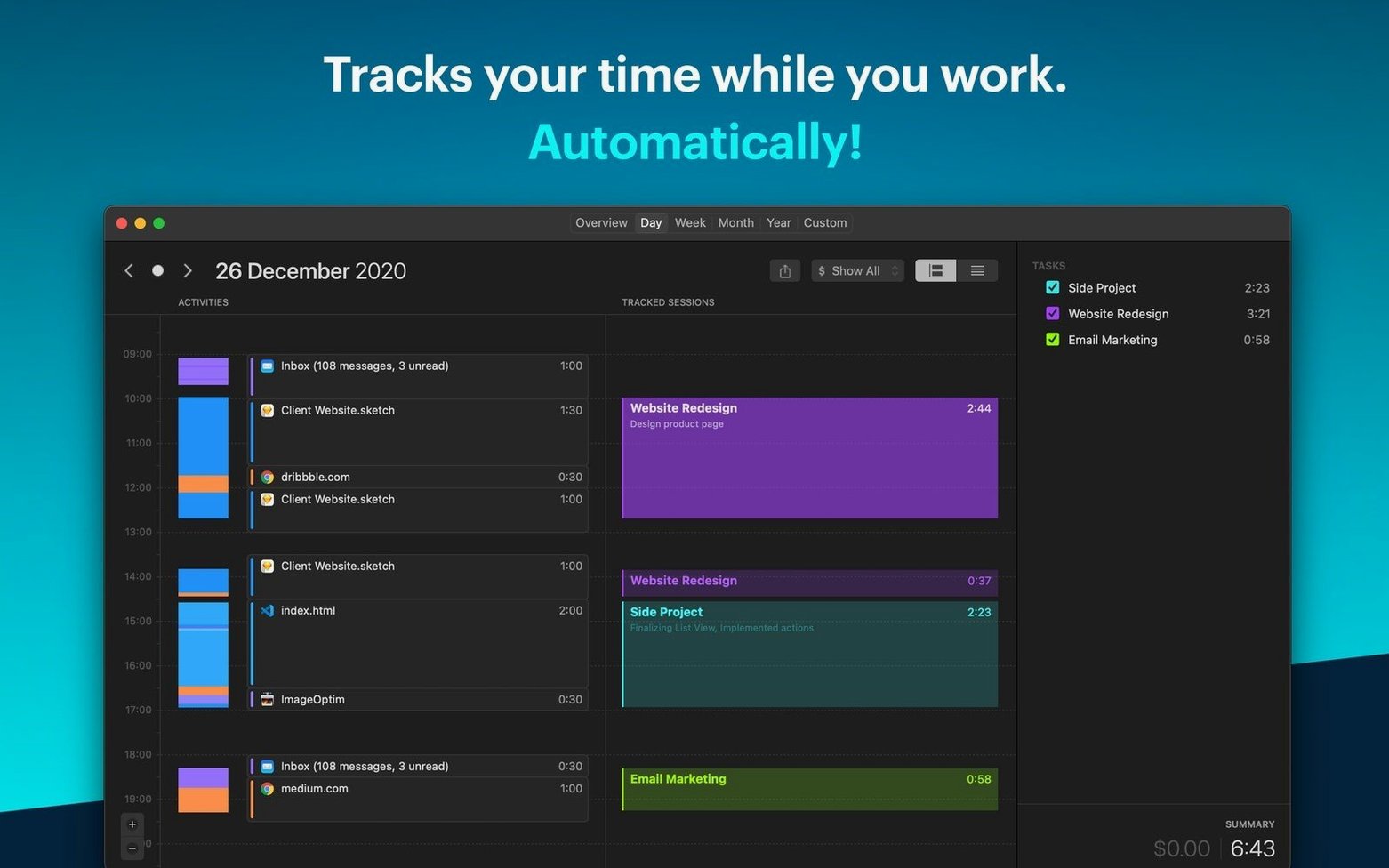
Timemator captures over 200 data points per tracked session — the app you’re in, the document title, the website domain — so you get a detailed record without babysitting a timer. It’s built for freelancers and small-shop owners who need to bill accurately but can’t afford to log every minute by hand.
Automatic capture that stays out of your way
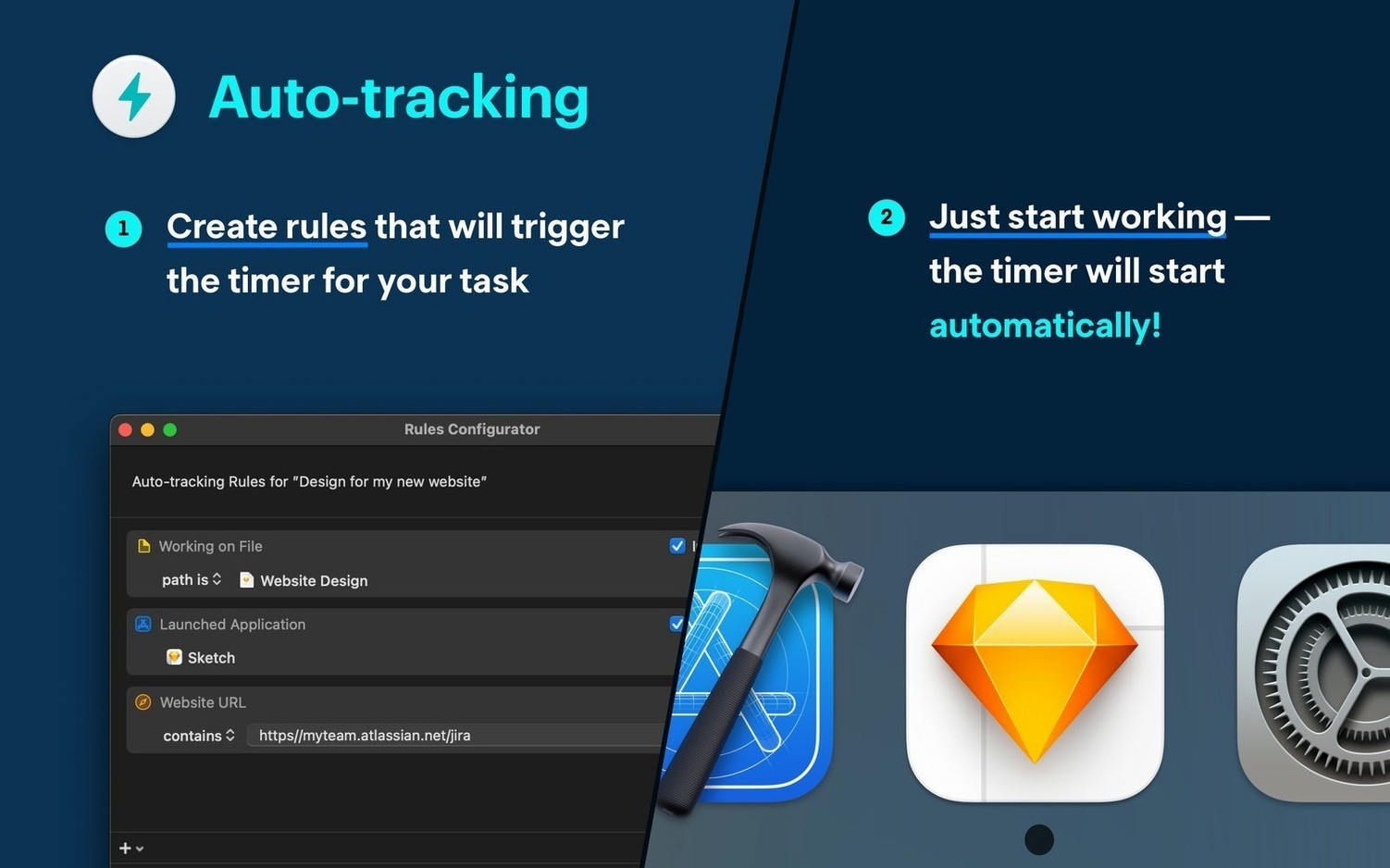
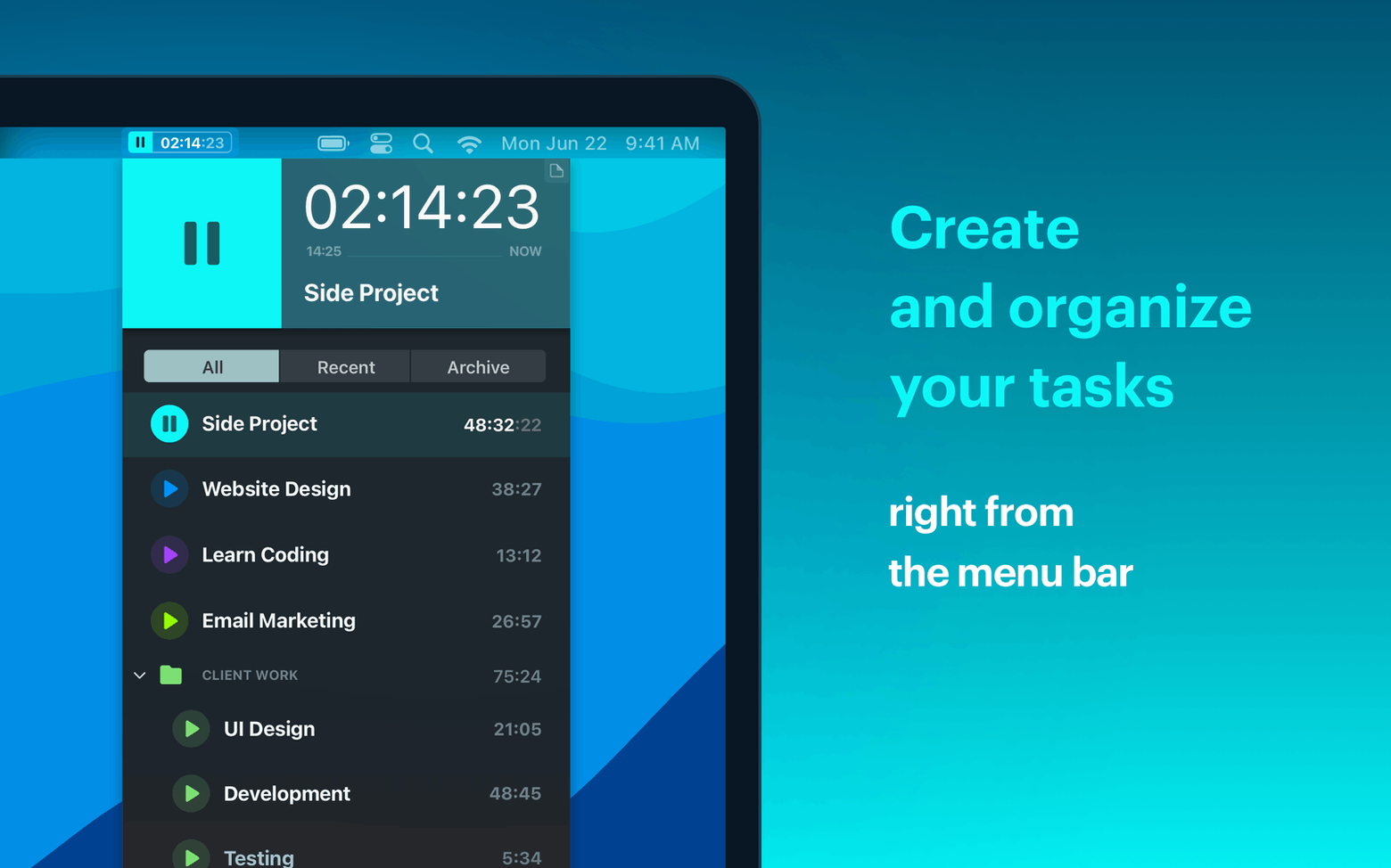
The core job here is replacing the mental load of time tracking. You set up a few rules once — say, “when I’m in Sketch, log it to Client X” — and Timemator quietly builds your timesheet in the background. A clean day view shows your recent activity in blocks, and the reports break everything down by project. If a task doesn’t fit a rule, manual start/stop controls are always available.
Hourly rates and earnings, without a separate spreadsheet
Another job Timemator handles well is connecting time directly to money. You assign an hourly rate per project, and the app calculates earnings as you go. That means when a client asks for a breakdown, you’re not stitching together data from three places — the numbers are already sitting in the reports. The companion iPhone app keeps things synced when you’re away from the desk, though the Mac app is where the heavy lifting happens.
A typical working session with Timemator is less about using it and more about it simply being present. I’ll sit down, open Sketch and a few Finder windows for a branding project. Timemator notices those three apps launch within a minute of each other, matches them against my “Client X – Branding” rule, and starts the clock. I’m not thinking about tracking; I’m thinking about kerning. Mid-morning, I jump into Safari to grab stock photos from a domain I’ve also added to the same rule — the session stays intact. Around lunch, I reply to emails that belong to no project, so Timemator leaves them untracked. When I’m back, a glance at the menu bar shows the session is still running. By 3 p.m., I switch to a different client’s Figma file, and the app automatically closes the first session and opens a new one. End of day, I open the report, see 4.7 hours on branding and 2.1 on the other project, and I’m done — no manual entries, no guesswork.
Drop idle detection to 3 minutes
Out of the box, Timemator works, but a few tweaks make it fit tighter.
- Adjust the idle detection timeout. The default is a bit generous for someone who steps away often. I’d drop it to 3 minutes so coffee breaks don’t inflate a client’s invoice.
- Set up a catch-all rule. For any app I always want tracked — like Terminal or my bookkeeping software — I create one rule that assigns them to “Admin.” That way stray minutes don’t vanish from reports.
- Clean up the day view grouping. By default, tracked blocks can look granular. I prefer merging adjacent entries for the same project, which you can toggle in the view options. It makes the timeline easier to scan at a glance.
- Assign a rate to every project immediately. Even if you’re not billing by the hour, setting a placeholder rate populates the earnings column and shows you the value of your time in real numbers — it changes how you prioritize.
Version 3.2.2 is a maintenance release with bug fixes and small improvements to keep things running smoothly.
- macOS 10.15 Catalina or later
- Intel or Apple Silicon Mac
Questions from the stall
Does Timemator work on older Macs?
Yes, Timemator requires macOS 10.15 Catalina or later, so it runs on a wide range of Macs from the last several years.
Can I track time manually when I need to?
Absolutely. While the app is built around automatic tracking, you can start and stop the timer manually any time a session doesn’t match your rules.
Notes from other shops 0
Sign in or open a shop account to leave a note.
No notes yet. If you've used this on a shop Mac, tell me how it went.