
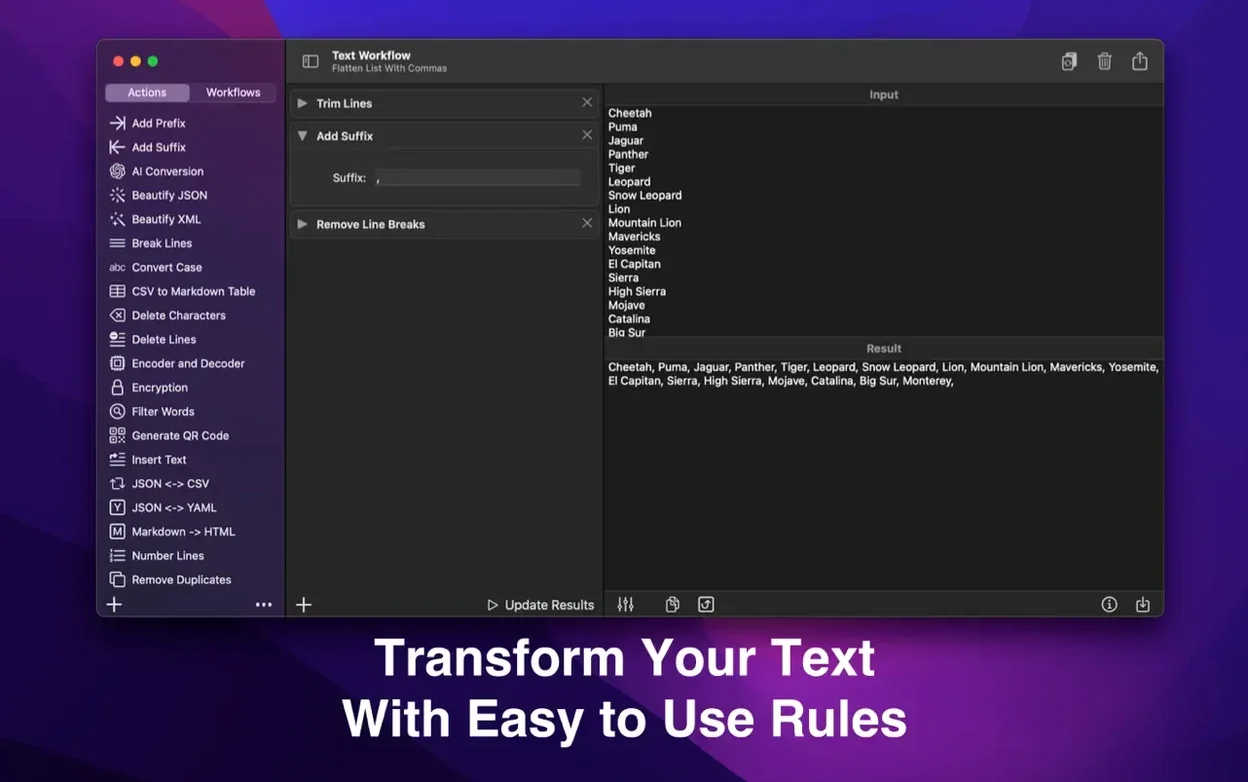
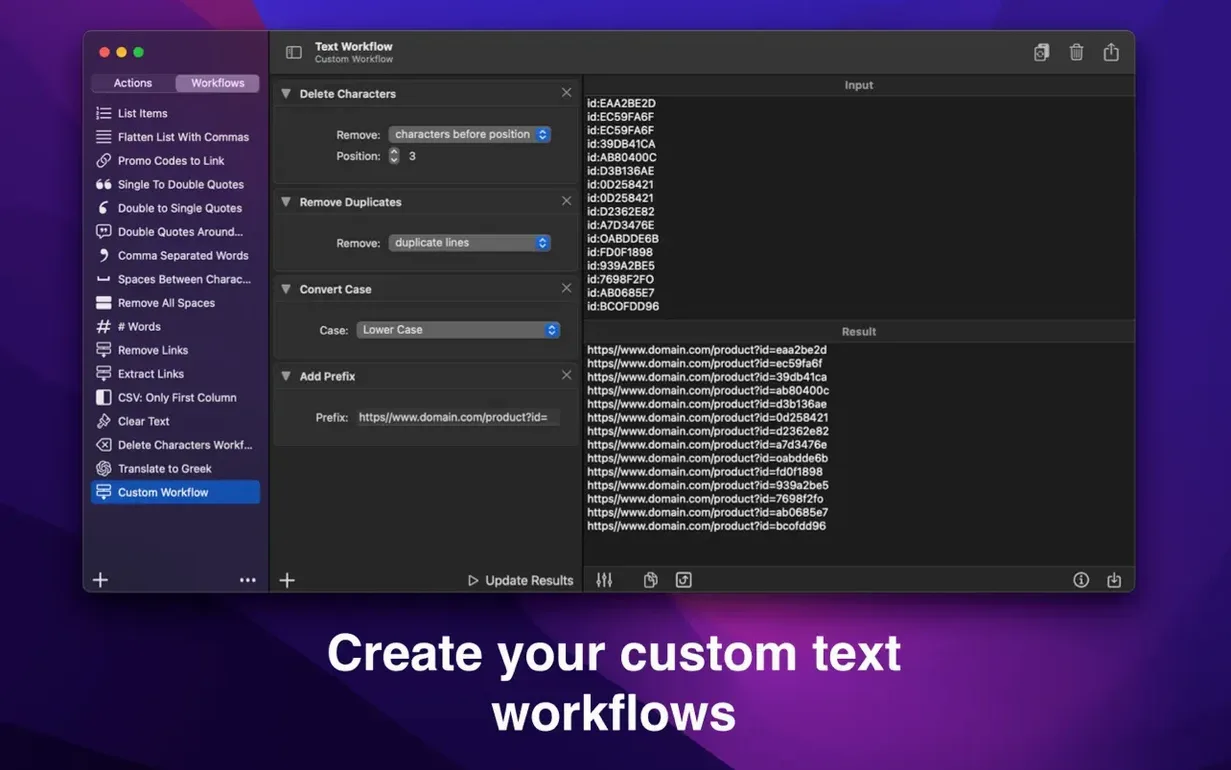
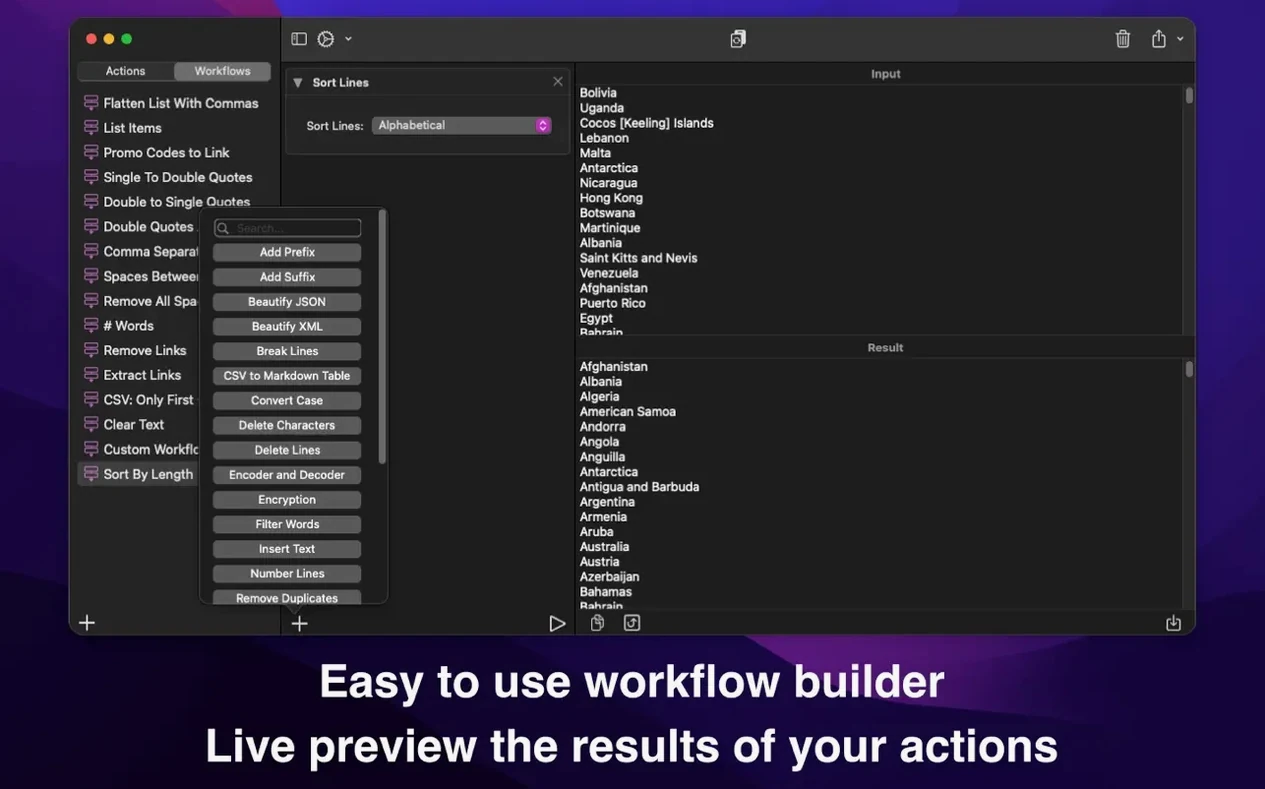
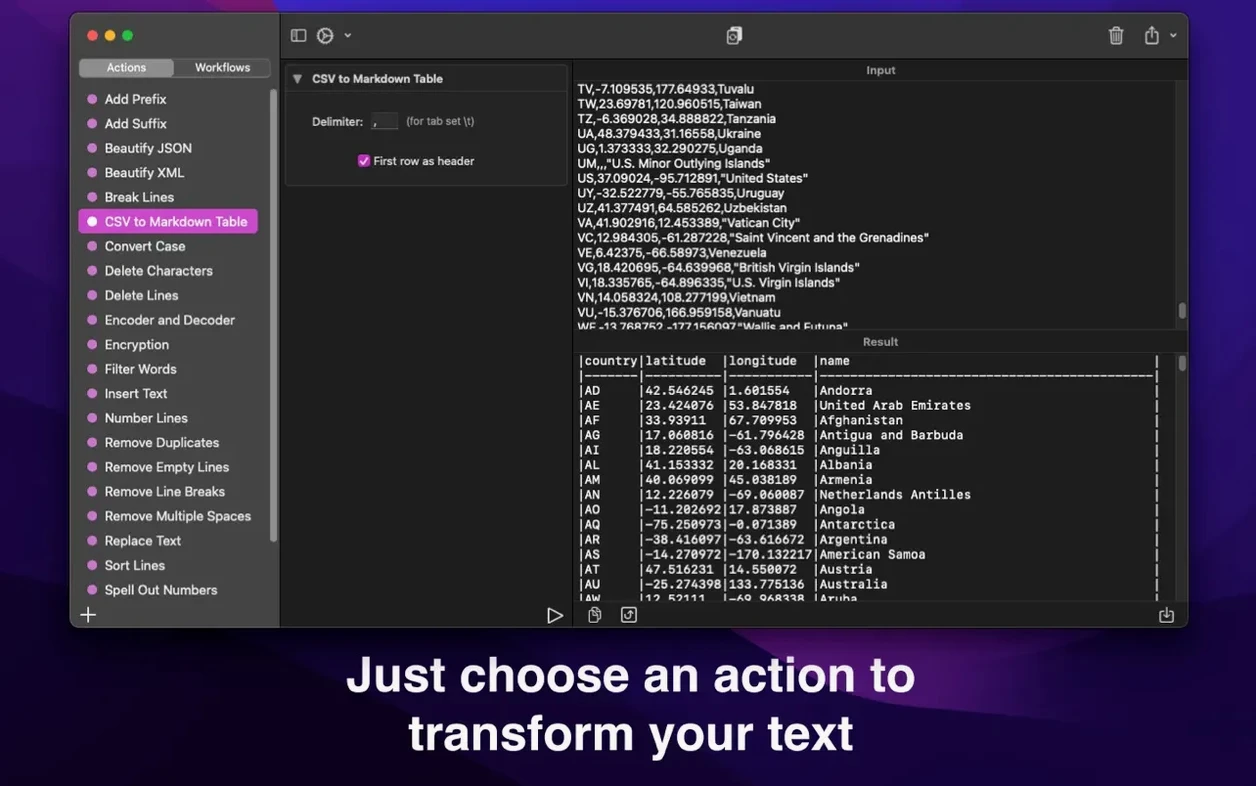
The 'Remove lines containing text' action alone saves me from manually cleaning contact lists and server logs. That's the real strength of Text Workflow: it breaks text transformation into discrete, configurable steps you can save and reuse. Drag actions into a chain, tweak their settings, and run the whole workflow on whatever text you drop in next time.
Actions that do one job well
Each action is a single, clear operation. You can strip duplicate words or empty lines, trim whitespace from line edges, or insert line breaks after every sentence. Case changes cover uppercase, lowercase, title, camel, and Pascal. There are also actions for adding prefixes and suffixes, and a set of line-removal filters that work on conditions — remove lines starting with, not starting with, containing, or not containing a given string. If you handle sensitive notes, the encrypt and decrypt actions password-protect text right inside a workflow step.
Workflows you build once
All the power comes from chaining. You might build a cleanup workflow that removes empty lines, trims spaces, and converts to title case — then save it for every weekly report. Because workflows persist, you're not rebuilding the same chain each time. The app runs on macOS 13 or later, supports both Apple Silicon and Intel Macs, and syncs with the iPhone version over iCloud if you work across devices.
Piling on too many actions before testing
The most common stumble is piling too many actions into one workflow before testing. You drop in six steps, run the whole chain on a long document, and the output makes no sense — then you have to figure out which action caused the drift. Work one or two actions at a time, check the result, and only add more when that first stretch behaves.
Another early mix-up is confusing line-based actions with character-based ones. "Remove empty lines" works on line breaks, so it won't touch a paragraph with five spaces masquerading as emptiness. Trim actions handle that, but you need to sequence them before the line removal step. Getting the order right matters more than most people expect.
Beginners also overlook that the "Remove lines containing text" and "Remove lines not containing text" pair interprets the search string literally — no wildcard or regex shortcuts. Typing a partial word will catch it anywhere on the line, which is great until it snags unintended matches and strips data you meant to keep. Test the string on a small sample before running it wide.
Exporting a workflow to share with someone else
If you export a workflow file on one Mac and bring it to another, remember that iCloud sync handles sharing automatically across your own devices, but a manual export is the path for sending a workflow to someone else. The file lands as a .textworkflow — just double-click it on the receiving Mac while Text Workflow is installed and it imports into the library. If nothing happens, check that the app is already in the Applications folder before opening the file.
When a workflow runs and seems to do nothing, the culprit is often an unexpected line break or trailing space you didn't account for. Actions like "Sort lines alphabetically" behave oddly if invisible characters pad the start of each line. Add a trim step near the top of your chain to strip that gunk early. For anyone building a text workflow on a shared Mac, this is the single habit that prevents half the confusion.
Encryption trips people up when they forget the password they set inside a workflow step — there's no recovery mechanism, so the text is gone if you lose it. A safe habit is to keep an unencrypted original in a separate note until you're certain the encrypted output is stored and the password is one you'll remember. If you're working with decoded Base64 or URL strings and the result looks garbled, check whether the source text was already encoded; double-encoding produces output that no decoder step will untangle cleanly.
Version 3.3.0 is here with a handful of genuinely useful new actions and a smart way to protect parts of your text while the rest gets transformed.
- Marked text. Select words in the Input field and press Shift-Command-M, or right-click and choose Mark Selected Text. Keep marked text leaves those words untouched while the workflow changes everything else. Change only marked text does the opposite. Command-drag to mark several pieces at once — handy when you need to reformat a paragraph but preserve names, product codes or fixed phrases.
- Show Invisible Characters. Pasted text that behaves oddly often hides no-break spaces or zero-width spaces. This action reveals them as [NBSP] and [ZWSP] tags, with a list of everything it found.
- Compare Lists. Feed it two lists and see what appears only in the first, only in the second, or in both. Great for spotting duplicates or missing entries across spreadsheets.
- Convert Units. Transform kilometres and miles, kilograms and pounds, Celsius and Fahrenheit, cups and spoons, plus areas and data sizes, right inside your text.
- URL Parser. Breaks a link into its parts, with each query parameter on its own line so you can read and edit messy URLs without squinting.
- Developer-friendly additions. A Number Base Converter (decimal, hex, binary, octal), Generate Hash (MD5 and SHA), and Generate Password join the action list.
- Convert Case now supports snake_case, kebab-case, CONSTANT_CASE, dot.case and URL Slug.
- Encoder and Decoder adds backslash escapes for JSON strings and code.
- Extract Text can pull out numbers, IP addresses, hashtags, mentions and colour values, and sort the results.
- Cleaner options. Labels, fields and checkboxes in every action's settings are neatly aligned, with enough room for any language.
- macOS 13 or later
- Works on Apple Silicon and Intel 64-bit Macs
Notes from other shops 0
Sign in or open a shop account to leave a note.
No notes yet. If you've used this on a shop Mac, tell me how it went.