
If you rely on macOS's built-in screenshot tool for quick grabs, Snagit is the natural next step when you need those grabs to do more—like telling a story or explaining a step. It’s built for people who create tutorials, send visual feedback, or just want to capture a scrolling web page without stitching five images together.
- Capture the long page. The scrolling window capture grabs an entire webpage or tall document in one shot, saving you from multiple screenshots.
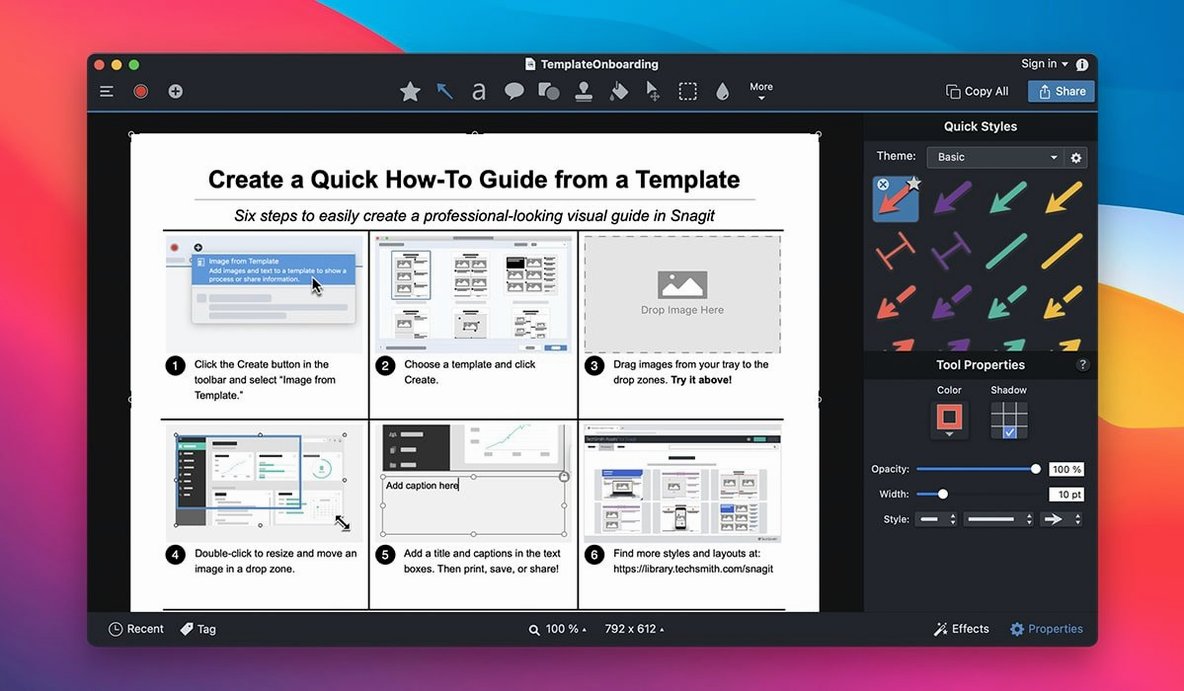
- Make a quick how-to collage. Combine several captured images into a single tidy collage right inside the app—great for comparing mockups or building a visual guide.
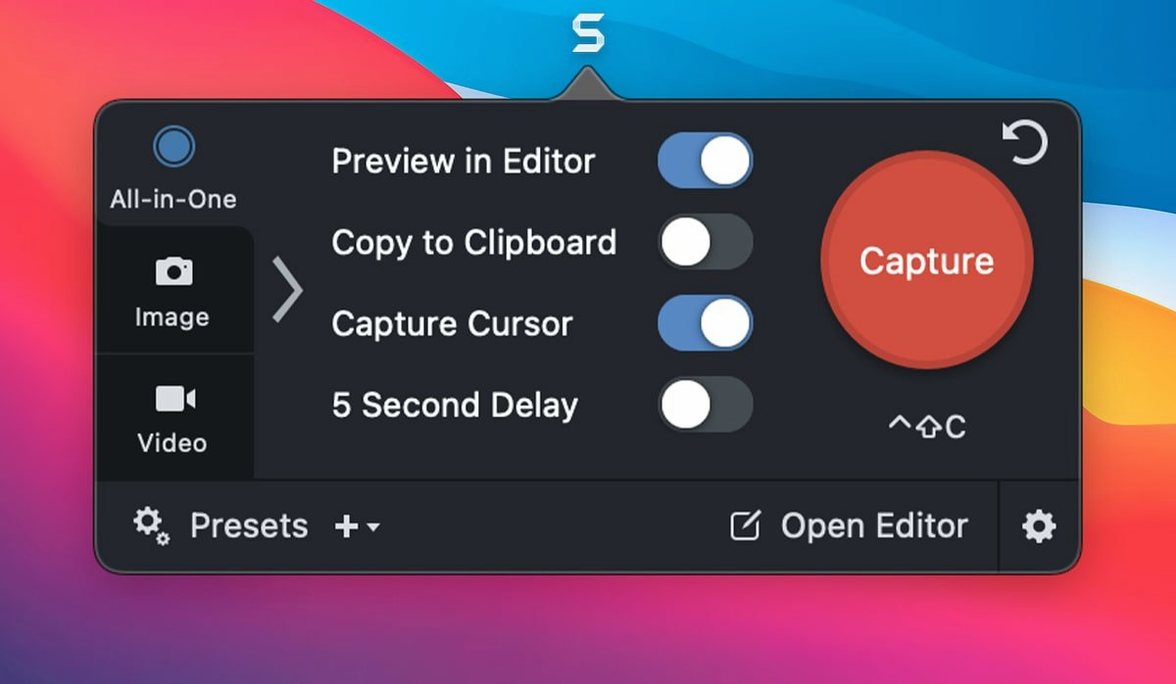
- Record a short walkthrough. Switch to video recording to capture your screen, mouse clicks, and a voiceover. Perfect for showing a client a quick fix without writing a long email.
- Keep captures organized for you. The app automatically sorts everything into its library by date and app, so you can find last week’s web clippings without hunting through folders.
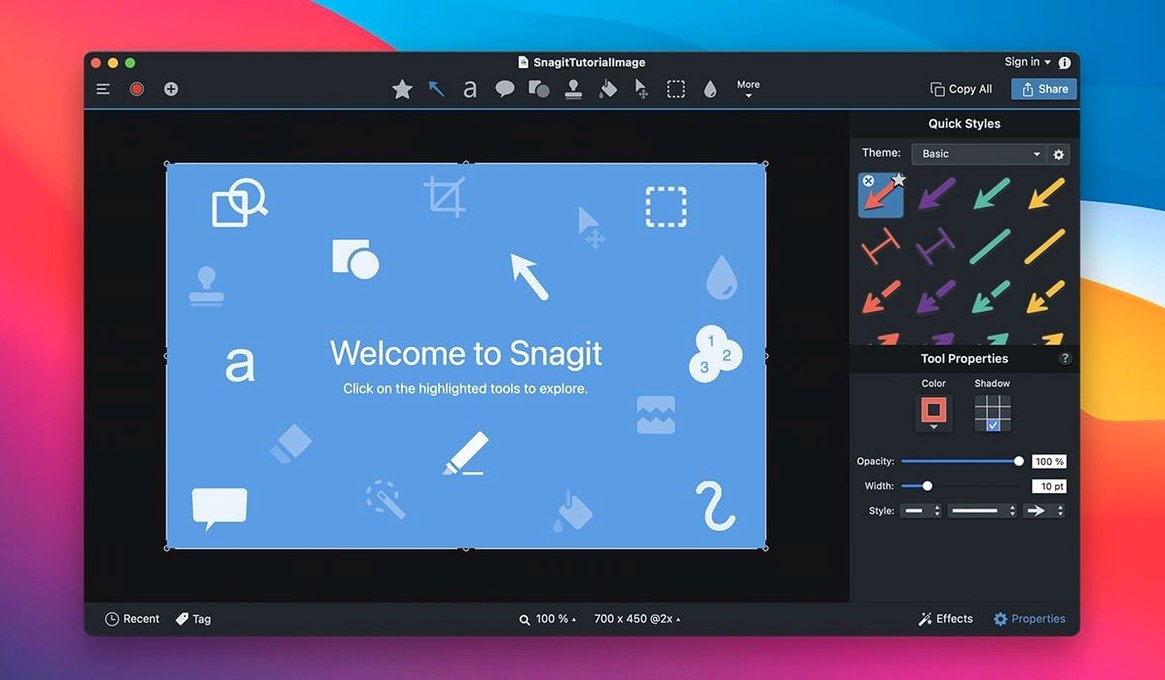
- Add subtle focus with effects. Use shadow, highlight, or dimming to direct attention to a specific part of an image—handy when annotating a design for feedback.
- Share straight from the tray. Send captures via email, publish to a blog, or push them to apps like OneNote without bouncing through the Finder.
Instant crosshairs from the menu bar with zero lag
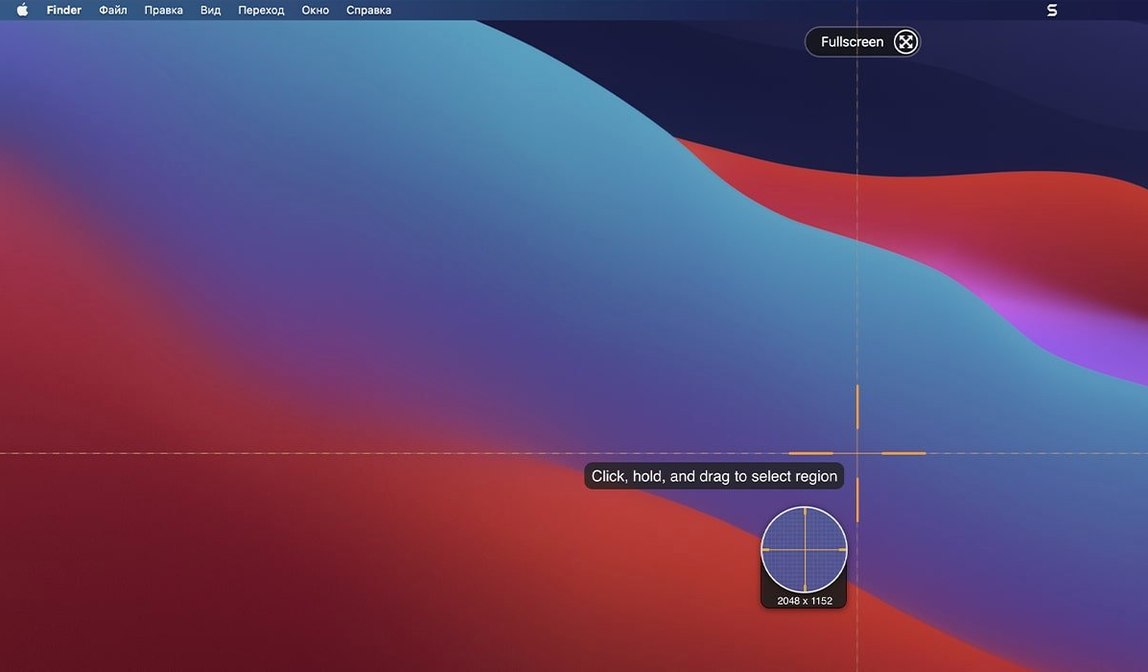
Snagit sits in the menu bar quietly, not in the way. Launch it at login and forget it’s there until you need it. Capture is instant—hit a shortcut and the crosshairs appear without the pause some heavier recording apps bring. On an Apple Silicon Mac, the editor opens captures in under a second; on Intel, it’s still snappy, though scrubbing through a long video recording can warm up the fans a little.
Memory use stays reasonable. With a library of a few hundred annotated screenshots, I see it hovering around 200–300 MB. That’s more than a lightweight Markdown editor, sure, but it’s pulling cataloguing duties and holding an undo stack for every image you’ve tweaked. It doesn’t creep up over a workday, and quitting and reopening resets things cleanly. For a tool that does capture, editing, library management, and video playback, that’s a fair trade.
Stability on macOS 15 and later has been solid through the 2026.3.x cycle. I haven’t hit a crash when capturing a scrolling window or switching between image and video modes—two spots where earlier versions sometimes stumbled. The editor’s undo behaves predictably, and exports to PNG or JPEG finish without corrupting a file even when you stack several effects on one capture.
What the 2026.3.3 fixes mean day to day
The three fixes in version 2026.3.3 are small on paper but solve annoyances anyone on macOS 27 would bump into. Video playback controls that used to ignore clicks now respond the first time, so pausing a screen recording to check a frame doesn’t turn into a test of patience. Arrow keys work again when you’re previewing captures with QuickLook in the Snagit Library—helpful when you’re flipping through a dozen screenshots to find the right one. And the capture toolbars, which could get stubbornly stuck in one spot on macOS 27, can now be dragged to wherever suits your layout.
None of these were headline features, but together they remove the small friction that makes a tool feel less polished than it is. If you’re a Snagit Mac torrent user who stayed on an older build because of toolbar glitches, this is the version that smooths those out.
A support rep’s afternoon with Snagit
Imagine a support specialist at a small SaaS company. A customer emails about a confusing settings page—three steps that aren’t obvious from the interface. Instead of typing a wall of text, she hits her preset shortcut for region capture, grabs the first screen, and immediately opens the editor. She adds a numbered step label, draws a red arrow pointing at the dropdown menu, and dims the rest of the window so the control pops. Another capture for step two, a quick highlight for step three, and then she drags both images into the collage tool. Five minutes after the email arrived, a single annotated image is on its way back to the customer, with the collage sitting in her library tagged #settings-walkthrough for reuse later. She never touched Photoshop or opened Preview. That kind of flow—capture, annotate, share, file—is where Snagit feels less like a utility and more like a second language for explaining things visually.
If you’re looking for a snagit for mac download that handles this kind of quick-turnaround documentation, the current build handles it without the little interface quirks that used to interrupt the rhythm.
With presets tied to keyboard shortcuts, you can also lock in your favorite capture styles and fire them off without touching a menu.
Snagit 2026.4.3 is here with the developer's latest fixes and improvements — check the release notes at TechSmith for the full breakdown.
- macOS 15 (Sequoia) or later
- Works on both Apple Silicon and Intel 64-bit Macs
Questions from the stall
Does Snagit capture scrolling web pages on a Mac?
Yes, it includes a scrolling window capture mode that grabs the full content of a window or webpage in one continuous image.
Can I record my screen with Snagit?
Absolutely, you can switch to video mode to record your screen, mouse movements, and voice audio for quick walkthroughs and demos.
Notes from other shops 0
Sign in or open a shop account to leave a note.
No notes yet. If you've used this on a shop Mac, tell me how it went.