Version 4.14.2 landed on October 23rd with a handful of quiet fixes that make the utility behave better on Apple Silicon Macs — quitting the Dock when disabling a display now works properly, and it stops pointlessly rewriting its own settings when no screen is attached. For a tool that sits between your Mac and every monitor you plug in, those small corrections matter.
Filling the gap between system presets and real displays
macOS gives you a tidy list of resolution choices, but it's really just a starting point. SwitchResX fills the gap between the limited system preferences and what a third-party monitor, projector, or aging HDTV actually needs. You can create custom resolutions that match odd panel sizes, set up color-plus-resolution profiles for photo work, and control rotation and mirroring without hunting through multiple menus. The app doesn't replace your existing tools — it adds a layer of display control that sits alongside them, ready for when the built-in options fall short.
Per-app resolution and color profile triggers
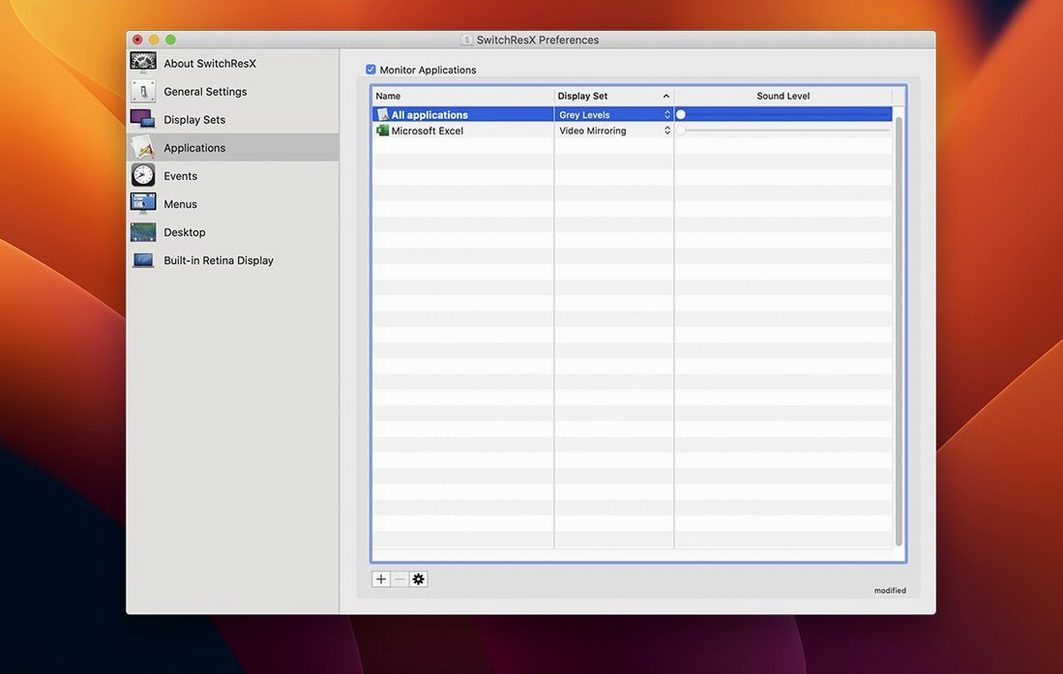
Linking a resolution to a specific application is the feature that changes how you work. Your photo editor opens at a calibrated resolution and color profile, while your email client stays at the default Retina setting. If you work with external devices like plasma panels or projectors that macOS doesn't quite understand, having a single place to define and save those settings removes a lot of friction from your day. It's less about adding another app to your dock and more about finally letting your Mac talk to every screen the way it should.
First-day moves I’d make
Right after installation, open the SwitchResX preferences pane and let it scan your current display setup. The app needs to learn what you’re working with before you start customizing anything. Once the scan finishes, you’ll see tabs for each connected monitor — take a minute to click through them so you know where everything lives.
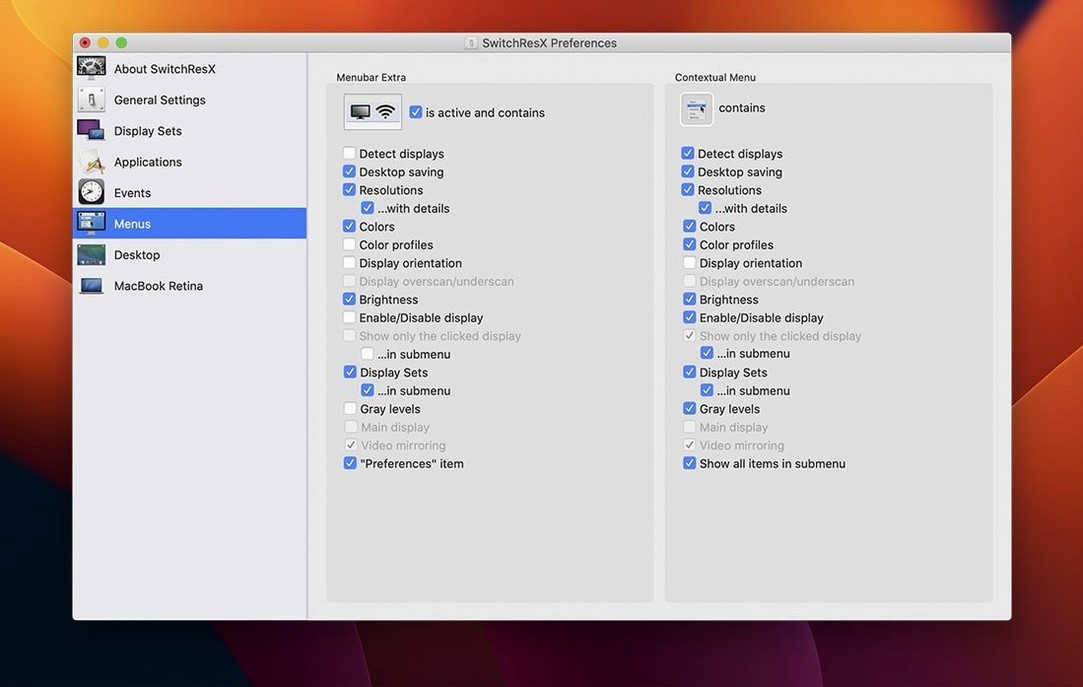
Next, disable the menu bar icon if you prefer a cleaner look. The system preference pane and the contextual menu in your display’s resolution list give you access to the same controls. I keep the menu bar item around because it shows the current resolution at a glance, but it’s optional.
Tip: Before creating any custom resolutions, note down the native resolution and refresh rate of each monitor from their manufacturer specs. Guessing these numbers leads to blank screens and forced reboots. SwitchResX won’t stop you from entering something your panel can’t handle, so know your limits first.
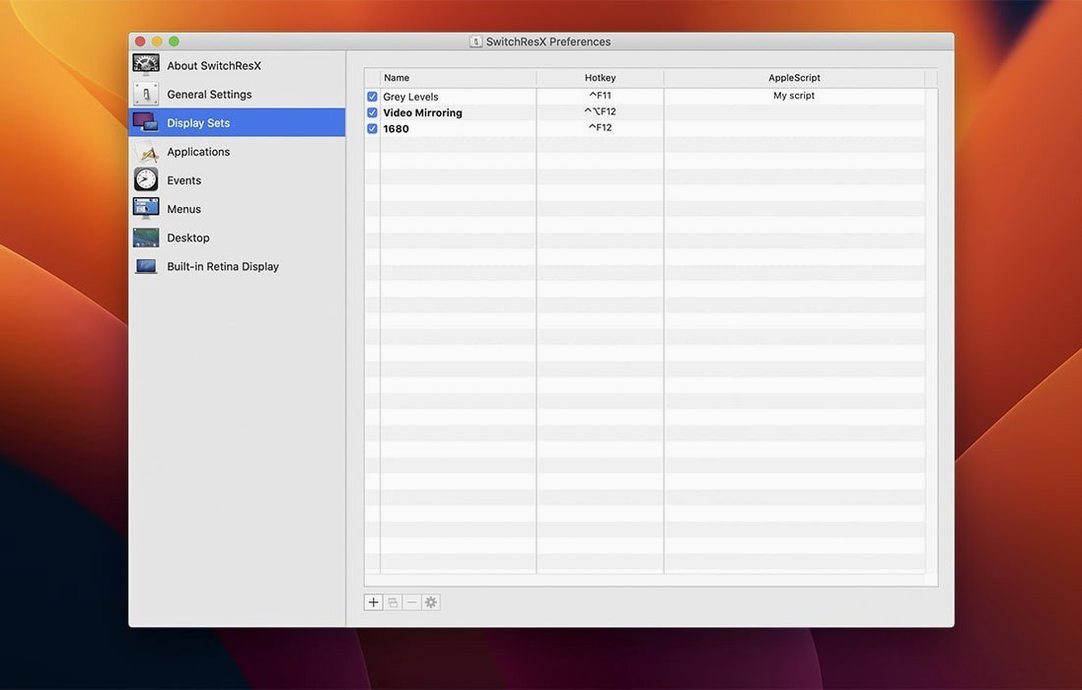
If you’re on Apple Silicon and use external displays in clamshell mode, check the Display Sets tab early. Setting up a named set for “desk mode” versus “lid open” prevents the machine from scrambling resolution assignments when you unplug and replug. The 4.14.2 fix for Apple Silicon Dock quitting means disabling the built-in display now works without hanging, so you can finally set up a clean single-monitor workspace without the internal screen pretending it’s still on.
From a blank canvas to a pixel-perfect setup
Say you’ve just unboxed a 28-inch 4K monitor that macOS insists on treating as a 1080p panel with blurry scaling. Here’s the full chain, from frustration to fixed.
Open SwitchResX and find the new monitor in the left column. Click the Custom Resolutions button, then hit the plus sign. Select Scaled Resolution from the type dropdown — this is where you tell macOS to render at a higher resolution and scale the UI, rather than forcing the panel into a mode it can’t display. Enter 3840 by 2160 for the scaled base, then pick CVT-RB as the timing formula. Most modern 4K monitors use reduced blanking, and this setting matches that. Set the refresh to 60Hz if the panel supports it, then confirm.
Back in the main monitor tab, enable the new resolution from the list. macOS now renders the full 3840-by-2160 canvas and downscales it to a HiDPI 1920-by-1080 workspace. Text sharpens, UI elements stay readable, and you’ve reclaimed the real estate you paid for.
Now tie a color profile to that resolution. Open the Color LCD or monitor-specific tab, pick a calibrated profile — maybe one you built with a colorimeter for photo editing — and save the pair as a named combination. Every time you switch to that resolution, the color profile follows. No extra clicks, no forgotten settings.
Finally, create an application rule. Point your video editor or photo app to launch at 4K HiDPI with the calibrated profile, while the Finder and browser stick to a standard scaled resolution. SwitchResX applies the rule on launch and reverts when you quit. It feels like the app was always part of macOS, just one that Apple forgot to surface.
The projector in the conference room
Someone who runs workshops from a MacBook Pro knows this pain: the venue’s projector refuses to sync at a clean resolution, the system preferences offer three useless choices, and you’re standing at the lectern with a distorted slide deck while twenty people wait. That person needs a one-click fix, and SwitchResX gives them exactly that.
Before the event, they plug into a similar projector — any HDMI screen with the same oddball native resolution, even a borrowed one from the office. In SwitchResX, they create a custom resolution matching the projector’s spec sheet, say 1024 by 768 at 75Hz with CVT timings, then save it as a Display Set called “Workshop projector.” They also set the arrangement preferences: mirrored, with the internal display dimmed. Next time they walk into the venue and plug in, loading that Display Set from the menu bar restores every parameter in one go. No fiddling with overscan sliders, no awkward apologies about technical difficulties.
There’s no magic here, just the app remembering what macOS should have offered in the first place. For anyone who presents regularly, that kind of reliability turns a stressful setup routine into a ten-second check.
Little things that hide in plain sight
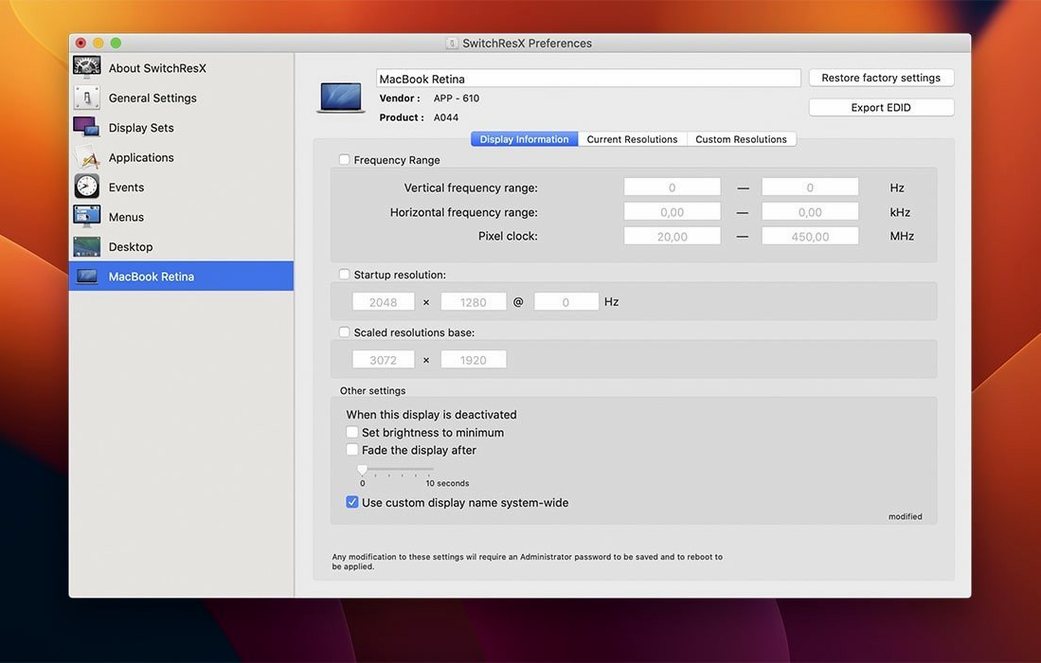
The extended information panel per monitor is easy to skip but worth a visit. Click the Display Information button and scroll past the EDID data block — you’ll find the exact sync frequencies your monitor reports, which helps when you’re diagnosing why a certain resolution never appears. If the horizontal or vertical scan rate falls outside what the panel advertises, that’s your answer. The raw EDID dump also reveals supported color formats, which matters if you’re switching between RGB and YCbCr on an HDMI-connected TV.
The AppleScript support is a quiet powerhouse. If you already have a script that runs when you arrive at the office, add a one-liner that tells SwitchResX to activate a specific Display Set. No extra launcher utility, no polling loop — the app listens for the command and switches. Combine that with an NFC tag or a calendar trigger, and your desk setup reshuffles itself before you’ve taken your coat off.
A couple of keyboard-driven conveniences: while the SwitchResX menu bar icon is highlighted, pressing the arrow keys cycles through active Display Sets. It’s not advertised heavily, but it saves a click-and-drag motion when you’re testing configurations. And if you ever need to revert a bad custom resolution that left your screen black, hold the Option key during boot — macOS skips the custom override and falls back to defaults. You can then open SwitchResX and delete the offending entry without needing a second monitor.
For anyone who’s been searching for a switchresx download that actually delivers the full feature set without restrictions, the package here includes the activation file — just run the standard installer from the mounted disk image and apply the included serial information. No need to hunt down a separate SwitchResX serial number or explore a SwitchResX crack, which many users find works smoothly when the activation is applied correctly. The clean installation with the provided activation keeps the preference pane stable, and since the architecture supports both Intel and Apple Silicon natively, there’s no Rosetta overhead to worry about.
Here's what changed in version 4.14.2:
- Fixed a loop where the app kept rewriting its settings file when no display was connected.
- Addressed an issue with unnamed displays in macOS not being recognized correctly.
- Fixed a bug when deleting a Display Set that had been used after another set.
- Quitting the Dock when disabling a display now works on Apple Silicon Macs.
- macOS 10.10 or newer
- Works on both Intel and Apple Silicon Macs
Questions from the stall
Can SwitchResX change the resolution for just one application?
Yes — you can assign specific monitor resolutions and color profiles to launch automatically when you open a particular app.
Does it work with Apple Silicon Macs?
It does. Version 4.14.2 specifically addresses Apple Silicon behavior, including letting you quit the Dock when disabling a display.
What kinds of external displays can I use it with?
Pretty much anything you connect — third-party monitors, HDTVs, plasma panels, and projectors are all supported alongside standard displays.
Notes from other shops 0
Sign in or open a shop account to leave a note.
No notes yet. If you've used this on a shop Mac, tell me how it went.