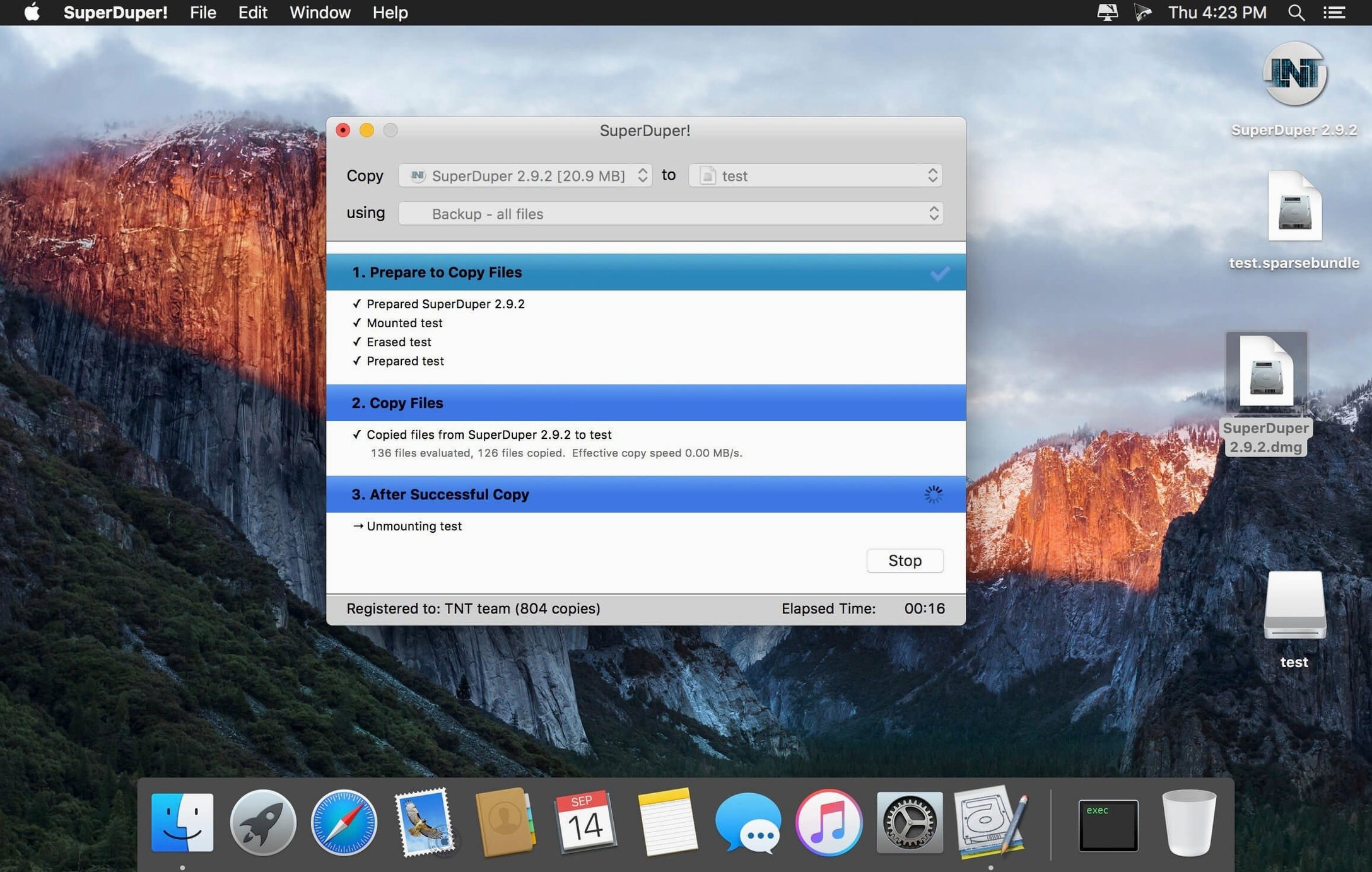
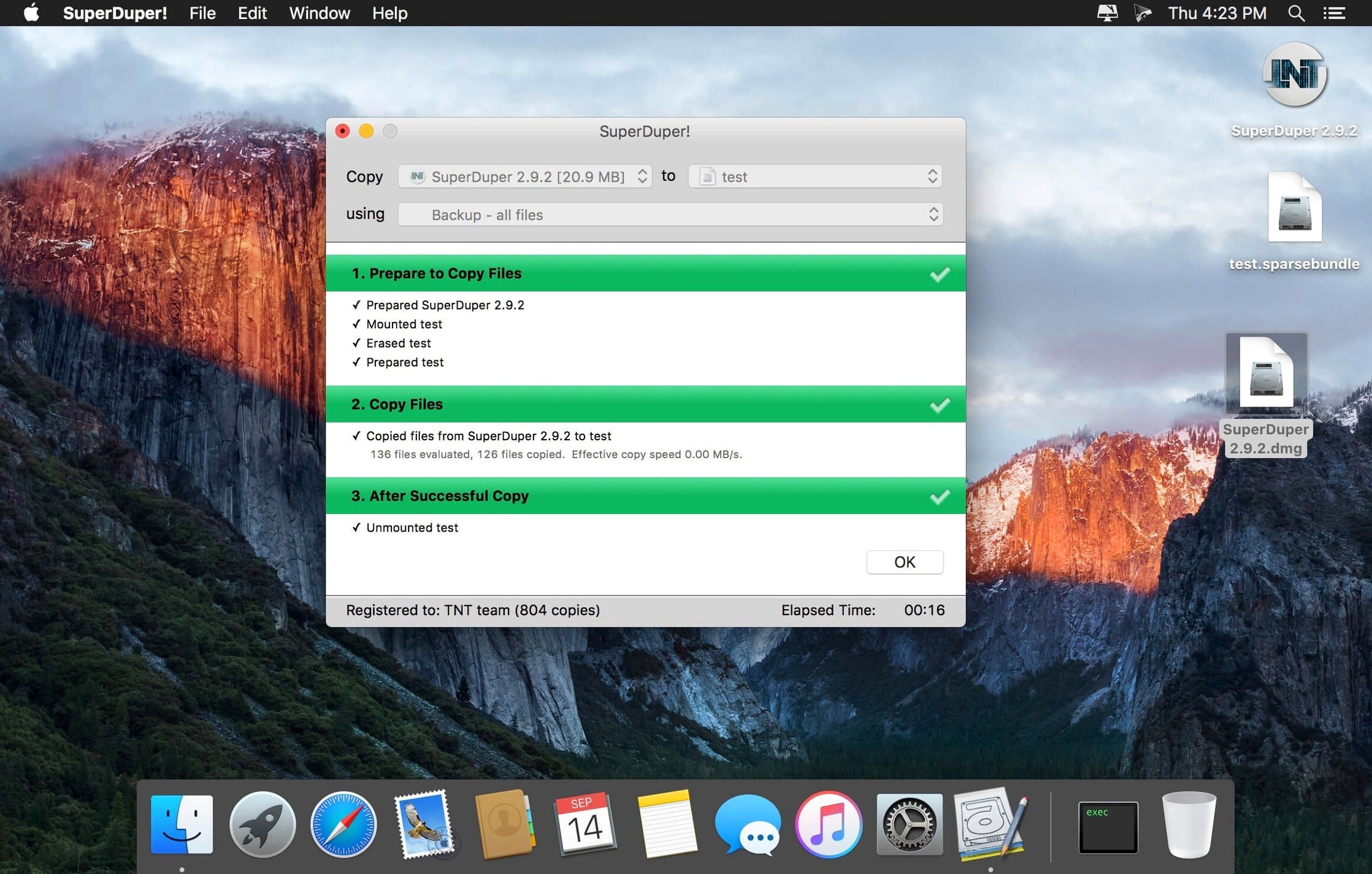
Smart Update is the feature that quietly makes SuperDuper! a tool you reach for without overthinking. It scans what changed since the last copy and moves only those files, so refreshing a full bootable clone takes minutes instead of hours. That clone sits on an external drive, fully bootable—if your internal drive fails, you hold Option at startup, pick the backup, and keep working from exactly where you left off.
Plenty of backup tools live in their own universe. This one sits comfortably alongside whatever else you use—Time Machine for version history, a cloud sync for offsite copies, a file-level duplicator for quick drag-and-drop jobs. SuperDuper! fills the bootable-clone gap those tools leave open. It writes a complete, mountable copy of your drive that does not need any restore process to become useful.
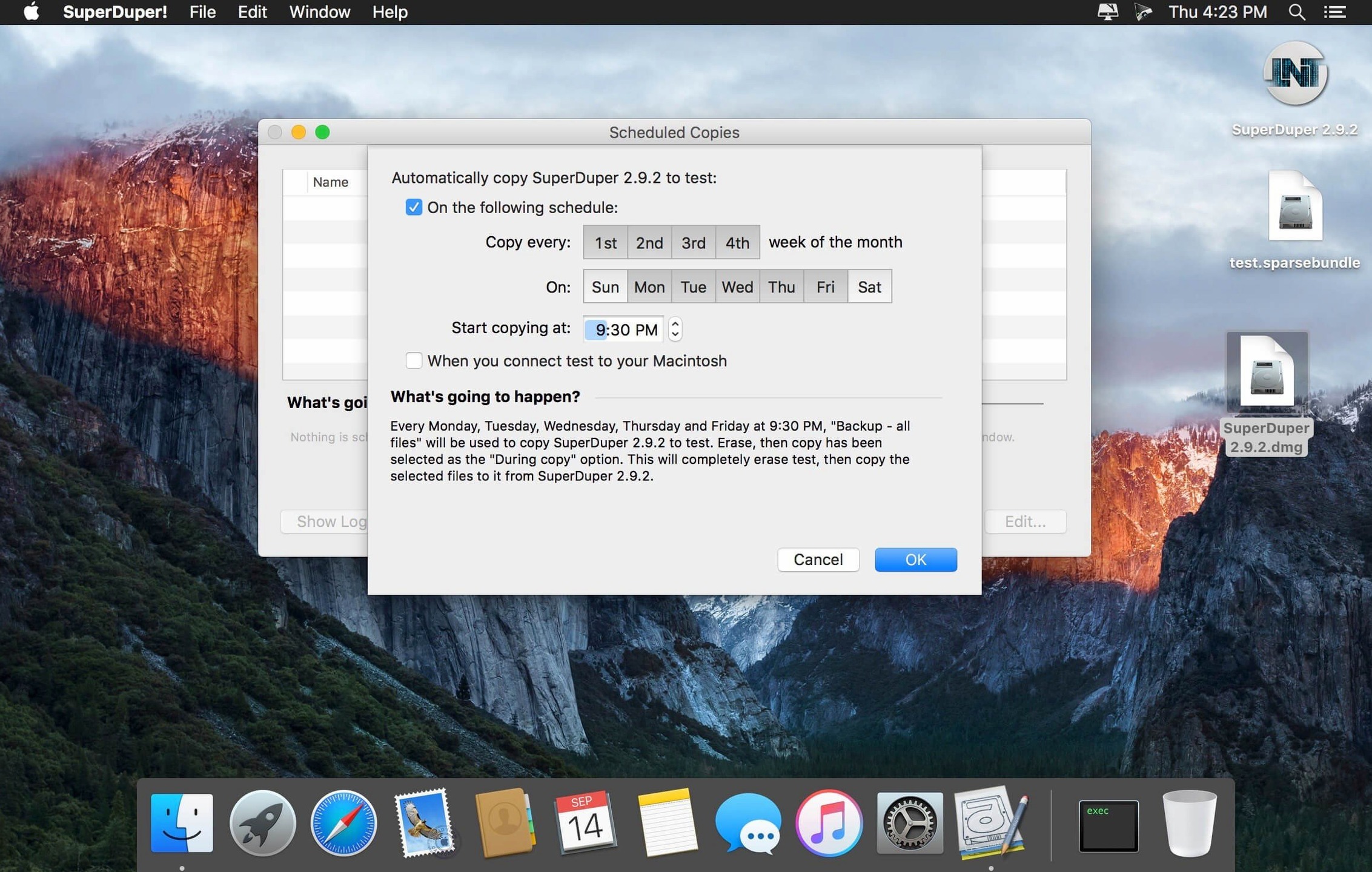
Scripts give you control when a simple full-disk copy is not quite right. You can tell it to skip a giant media folder, copy only a specific volume, or run a shell script after the job finishes. The scheduler lets you set that scripted copy to run overnight, so the backup is ready before you pour your morning coffee. Checkpoints add a safety net for major system updates—snap a full system copy, try the update, and roll back in minutes if something breaks.
It is a focused tool. No cloud dashboard, no trying to be an all-in-one suite. Just the job of making a disk copy that boots, and doing it reliably on the same Mac that runs your design software, your bookkeeping app, and whatever else keeps your shop running.
Switching from erase-then-copy to Smart Update
Out of the box, SuperDuper! defaults to a full erase-then-copy routine. That is safe but slow on repeat runs. The first thing I change is switching the During copy method from "Erase, then copy" to Smart Update. You find it in the Options panel before you start a copy. It compares source and destination, writes only what changed, and leaves the rest alone. A 500 GB drive that took an hour the first time refreshes in ten minutes the next morning.
Next stop is Scheduling. The default schedule is none—you copy manually or you forget. I set a weekly overnight job for the bootable clone and a daily one for a smaller working-files volume. The scheduler handles both without fuss. Under Options, I also check Run shell script after copy completes if I want the Mac to send a notification or unmount the drive once it is done. No need to babysit.
One checkbox that is easy to miss: Repair permissions on destination. I leave it off for data-only volumes and turn it on for bootable system clones. It adds a few minutes but saves head-scratching later if the backup drive acts odd at startup. If you are copying to an SSD over USB-C, the default block size is fine. For older spinning drives, I sometimes bump it up in the advanced copy settings—fewer, larger writes suit that hardware better.
Running a bootable clone alongside Time Machine
Will it conflict with Time Machine? Not at all. Time Machine handles versioned backups and keeps hourly snapshots. SuperDuper! makes a full bootable clone. The two write to different destinations and do not interfere. I run both on the same Mac; one catches the accidental deletion from last Tuesday, the other gets me booted and working in two minutes when a drive dies.
Does the external drive need to be dedicated? It does not, but I strongly recommend it for a bootable clone. Partitioning a large external drive works: one partition for the SuperDuper! backup, another for media storage or a superduper download archive. Just keep enough free space for the full source volume plus a comfortable margin. The app warns you before copying if the destination is too small.
What happens if I unplug the backup drive mid-copy? The job stops. No damage to the source, and the destination may be incomplete until the next full pass. Smart Update catches whatever was missed. The app does not leave your system in a half-broken state—it either finishes the copy or it does not.
Can I restore to a different Mac? Yes, as long as the hardware and macOS version are compatible. People use superduper mac full clones to migrate an entire setup to a new machine. Boot the destination Mac from the clone, confirm everything works, then copy it back to the internal drive with the same tool. One license, one workflow.
Turning a drive failure into a one-hour fix
Shop owners and independents who cannot afford downtime. If your Mac runs the business—design files, invoices, customer records—a bootable backup means a drive failure costs you the price of a new SSD and an hour of setup, not a lost workday. You plug the clone into a borrowed Mac, boot, and open your bookkeeping app exactly where you left it.
Mac users testing beta system updates. A checkpoint before installing a developer beta or a major numbered release turns a risky evening into a reversible experiment. The rollback takes as long as a reboot. No restore wizard, no migration assistant waiting to surprise you.
IT staff managing fleets of identical machines. A single clean system image, configured with company settings, copied to a stack of external drives, ready to deploy. Scripts let them skip user folders or add a post-copy configuration step. It is the kind of super duper 4 workflow that larger tools overcomplicate with server components and licensing headaches.
Anyone with a large media library on a separate volume. You can clone just that volume to a portable drive for travel, run scripts to exclude cache folders, and schedule it weekly. No need to drag and drop folders by hand and wonder if you missed something.
If your backup needs are fully met by cloud sync and Time Machine, the tool may sit unused. But if you have ever held your breath during a macOS update or stared at a flashing folder icon at startup, it slots into your routine quickly. The people who stick with it are the ones who learned—sometimes the hard way—that a backup you cannot boot from is a project, not a safety net.
Version 4.0.7 adds a workaround for a startup-drive visibility issue that appeared under macOS 27 Golden Gate.
- macOS 10.13 or later
- Runs on Intel and Apple Silicon Macs
- Interface: English
Notes from other shops 0
Sign in or open a shop account to leave a note.
No notes yet. If you've used this on a shop Mac, tell me how it went.