Version 2.103 restores your manual fan speeds right after Siri or voice dictation finishes.
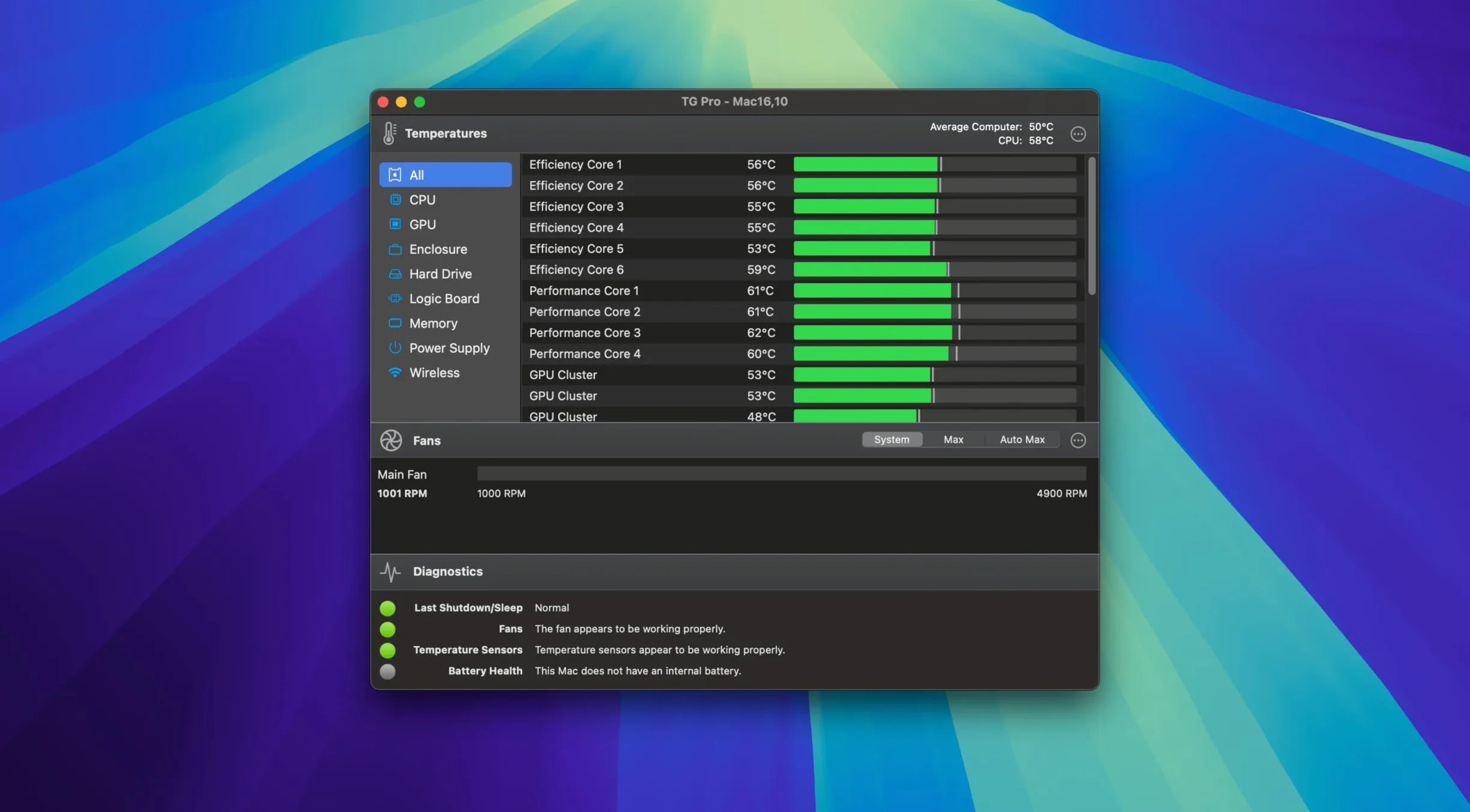
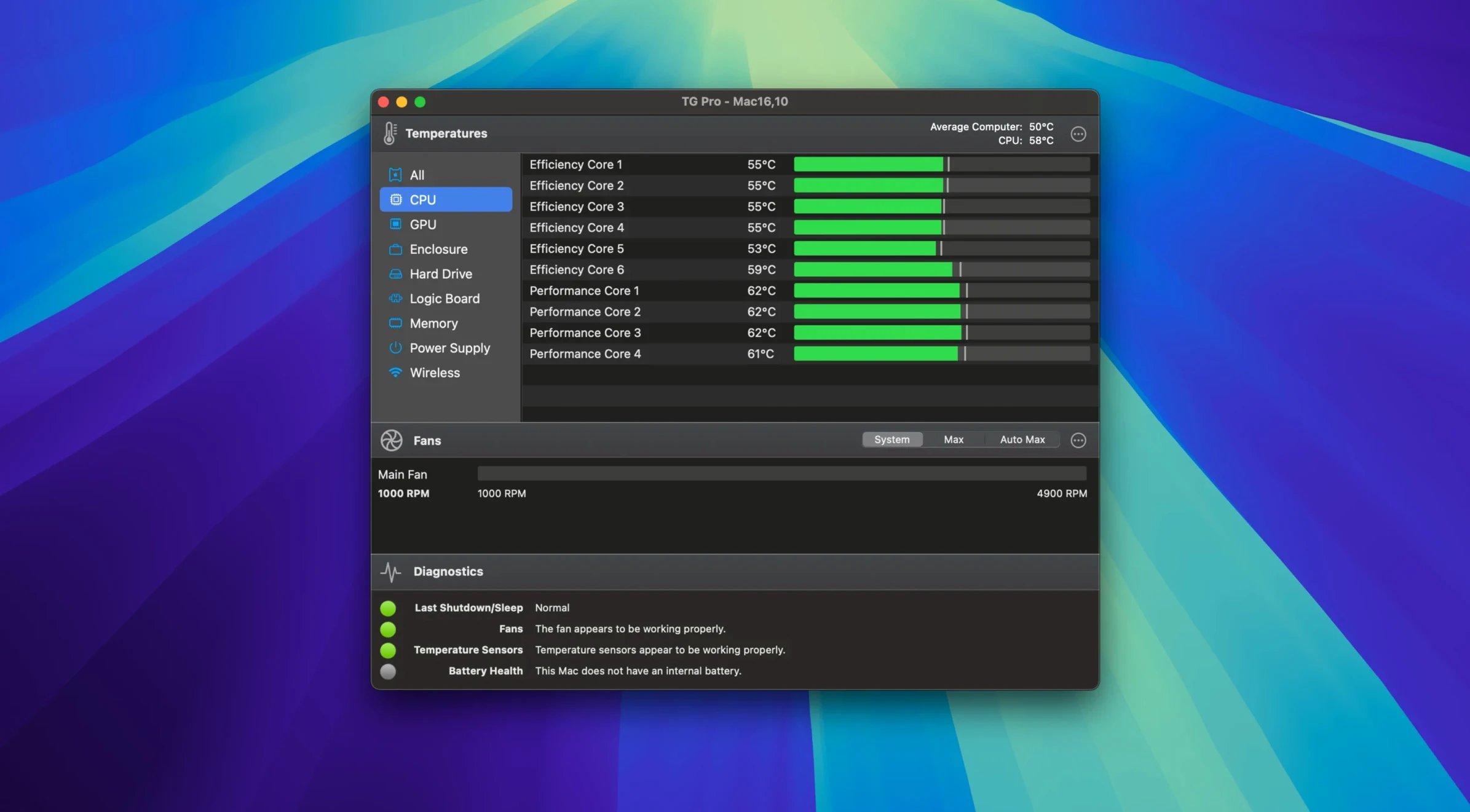
TG Pro — a Mac utility for reading every internal temperature sensor and setting custom fan behavior.
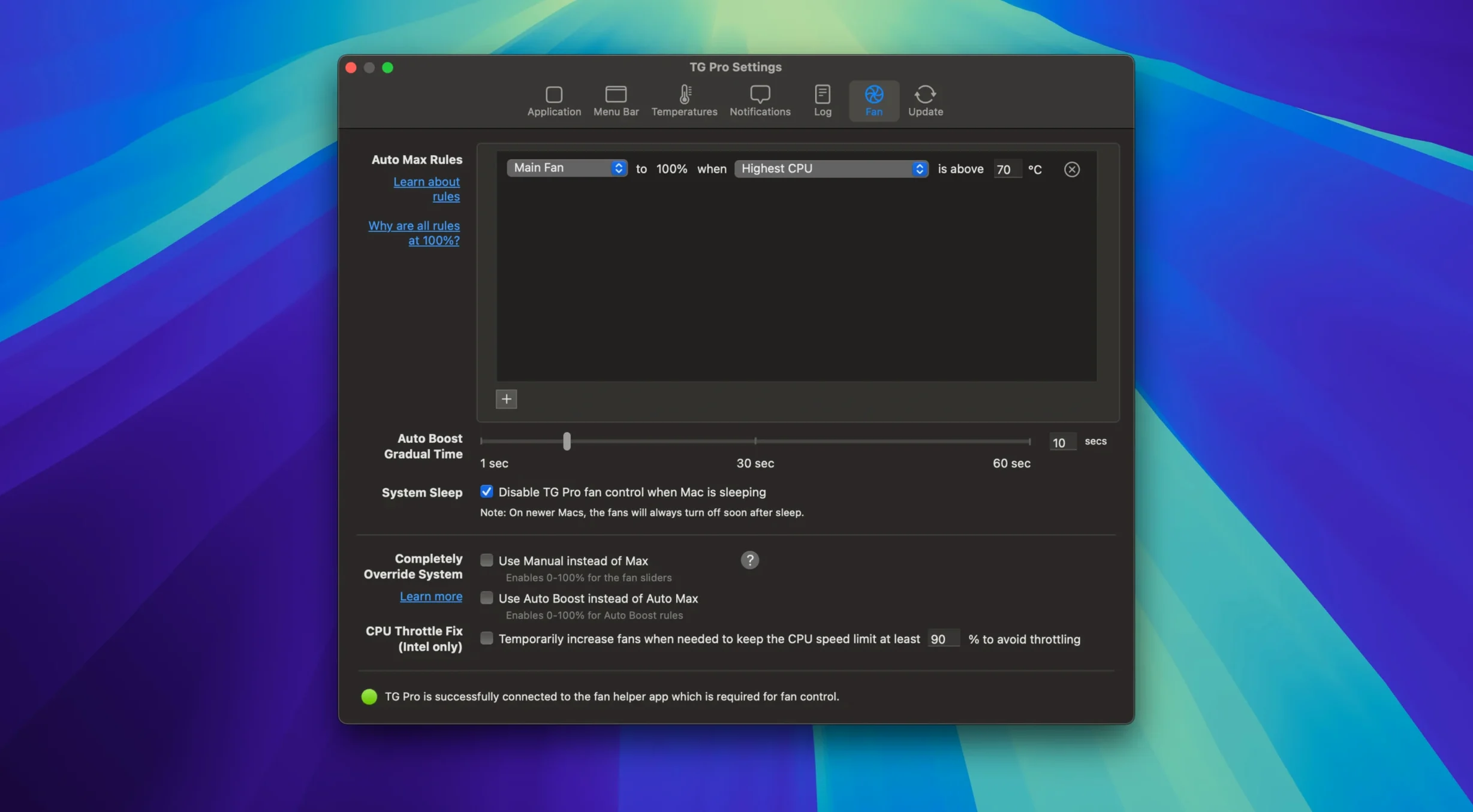
Fan control rules — conditions you build around any temperature sensor; when a component hits your threshold, the fans react your way.
Auto Boost — a rule type that can now handle switching between battery and power adapter without breaking.
Menu bar data — live fan speeds and the hottest CPU temperature, visible without opening the main window.
Hackintosh support — a toggle in preferences for systems where the usual sensor mapping doesn't apply.
Event logging — a running record of temperature spikes and fan responses, with optional on-screen alerts.
Workflow: quieting a Mac that ramps up too early
Some Macs spin the fans audibly the moment you open a handful of browser tabs, even though the CPU is barely warm. The built-in cooling curve leans conservative — Apple would rather move air early than risk a hot spot. TG Pro lets you take that curve and reshape it.
Here's a start-to-finish way to build a fan rule that keeps things quiet during light work but still protects the machine when temperatures genuinely climb.
- Open the main window and watch for a few minutes. Switch to the All Sensors tab. Note which sensor climbs first under your normal workload — usually CPU Proximity, GPU Die, or one of the logic board thermals. That's the sensor your rule will listen to.
- Find the temperature where the fans currently kick in. Hover over the fan speed graph line in the status area and note at what sensor temperature the RPM jumps above idle. On many Intel MacBook Pros, it's around 65–70°C for the CPU.
- Create a new Auto Boost rule. Click the + button in the Fan Rules section, choose your target fan (usually the left fan on laptops), and set the controlled sensor to the one you identified.
- Shift the curve to the right. Instead of ramping at 65°C, set the first step to around 75°C at 3000 RPM, and a second step at 85°C that pushes to maximum. Below 75°C, keep the fan at its lowest stable speed — typically 1300–1800 RPM depending on the model.
- Set a safety floor. Add a constant minimum speed rule for the same fan at 1200 RPM. That prevents the fan from ever dropping to zero if a sensor misreads. TG Pro enforces the highest active rule at any moment, so the safety floor only takes over when no other rule demands more cooling.
- Test under load. Fire up something that usually triggers the fans — a 4K YouTube video, a compile job, a game. Watch the temperatures. If anything crosses 90°C and stays there, lower the threshold on your first step by 5 degrees.
- Save a profile. Once the curve feels right, export it from the Fan Rules menu. You can switch between a quiet daily profile and a cooler profile for sustained heavy work without rebuilding the rules each time.
The goal isn't to silence the fans completely — that's a fast track to throttling. It's to stop the machine from treating every small task like a thermal emergency.
M4 fan control finally arrives
The jump to version 2.103 brought a handful of fixes that you notice in daily use rather than in a feature list.
The most visible one is M4 fan control. Before this update, owners of M4, M4 Pro, and M4 Max Macs could see temperatures but couldn't set custom fan speeds. Now the full rule system works on those machines, same as it does on M1, M2, and M3 models. If you upgraded your Mac and found TG Pro suddenly read-only, that's been resolved.
A smaller but surprisingly frequent annoyance got patched: Siri and voice dictation interference. On earlier builds, using "Hey Siri" or the dictation shortcut would override manual fan speeds and sometimes leave them stuck at system defaults afterward. You'd finish a dictation session and find your carefully tuned 2500 RPM dropped back to Apple's automatic curve. Version 2.103 restores your fan settings once the audio session ends, so you don't have to re-apply them manually.
The Auto Boost power source fix matters if you move between desk and couch. A rule tied to a sensor could fail to re-evaluate when you plugged in or unplugged the power adapter. The symptom was simple: fans would either stay at the wrong speed after switching power sources, or the rule would appear active but not actually control the fans. That's now handled properly on both Intel and Apple Silicon.
On the startup side, version 2.103 smoothed the first-launch flow for new installations. The helper tool installation prompt — the one that grants fan control permissions — is clearer about what it needs and why. For fresh setups or machines where TG Pro had never been installed before, the permission-granting sequence is harder to miss or dismiss by accident.
The zero-rpm trap that ignores one crucial rule
A few patterns show up again and again when people first install TG Pro. Most of them come from good intentions and a misunderstanding of how the rules stack.
Setting all fans to zero. It's tempting to drag every fan slider to minimum thinking that equals silence. On some Macs, fans can't physically spin below a certain RPM — the motor stalls, the system detects it as a fault, and macOS overrides your setting with a default high speed. You end up louder than before. A floor of 1000–1200 RPM avoids this entirely.
One rule for everything. A single Auto Boost rule tied to the CPU sensor ignores what's happening elsewhere. The GPU can cook while the CPU reads 55°C, and the fans won't budge. At minimum, set one rule for a CPU-related sensor and one for a GPU or logic board sensor. They can control the same fan; TG Pro picks the highest demand.
Ignoring the menu bar. People open the main window, set a rule, close the window, and then keep checking Activity Monitor to see if it's working. The menu bar icon — when configured to show the hottest CPU temperature and current fan speed — tells you more at a glance and uses almost no screen real estate. Right-click the icon and pick your display options once, then leave the main window closed.
Disabling SIP or messing with kexts unnecessarily. TG Pro on modern macOS uses Apple's DriverKit and system extensions for fan control; it doesn't require disabling System Integrity Protection. If a forum post from 2017 tells you to turn off SIP to make fan control work, that advice is outdated. The helper tool TG Pro asks to install handles permissions through the standard Security & Privacy flow.
Not testing after a macOS update. Apple occasionally changes sensor naming or access paths between major macOS versions. After a system update, open TG Pro and confirm that all sensors you rely on still report values. If a rule goes silent after an update, the sensor it was tied to may have been renamed — deleting and rebuilding the rule against the current sensor list fixes it in under a minute.
Helper tool blocked after a fresh install
Most support threads boil down to the same few situations. Here's what's actually happening and what to do about it.
Fans run at full speed after install. This usually means the helper tool didn't finish installing, or macOS blocked it silently. Open System Settings → Privacy & Security and look for a prompt about Tunabelly Software toward the bottom of the window. Allow it, then quit and reopen TG Pro. If fans stay pinned at maximum, uninstall the helper from TG Pro's preferences, restart the Mac, and install it fresh.
Temperatures look stuck or wrong. A sensor reporting a flat 127°C or 0°C is a read error, not a real reading — the sensor isn't accessible to software at that moment. This happens on some Hackintosh builds and on Macs where a component (like a removable GPU) isn't present. Ignore those sensors in your rules. The preference toggle for Hackintosh mode can also clean up sensor lists on non-Apple hardware.
Fan rules won't save across restarts. TG Pro needs to be set as a login item to re-apply your rules after a reboot. Add it in System Settings → General → Login Items or from TG Pro's own preferences. Without this, the fans revert to Apple's default curve every time you start the machine.
The app doesn't show fan controls on Apple Silicon. On M-series Macs, TG Pro requires the helper tool even to display fan speeds for some models. If you skipped the helper installation during setup, you'll see temperatures but no fan sliders. Re-run the helper installation from TG Pro's preferences menu.
Logging fills up and slows things down. The event log is useful for diagnostics but writes a lot of entries if you leave it running at maximum detail for days. Switch the logging level to "Errors only" once you've confirmed your rules work correctly. The log file stays small and the background CPU hit stays near zero.
- macOS 10.13 or later
- Intel 64-bit Mac
Questions from the stall
Will this read sensors on an M4 Mac?
Yes. Version 2.103 added complete fan control and temperature reading for M4, M4 Pro, and M4 Max Macs, covering the whole current Apple Silicon lineup alongside Intel 64-bit models.
Can I set it and forget it, or do I need to watch it?
You can set custom fan rules and temperature alerts, then leave it. The app logs events and can notify you if something passes a limit, so you don't have to keep the window open.
Notes from other shops 0
Sign in or open a shop account to leave a note.
No notes yet. If you've used this on a shop Mac, tell me how it went.
Also on the shop Mac
The tools other makers open most here.