The Quick Entry window is still my favorite part of Things. A hotkey brings up a floating box, you type what's on your mind, and it lands in the Inbox for sorting later. That alone keeps my shop to-do list from falling apart before lunch.
How it's organized
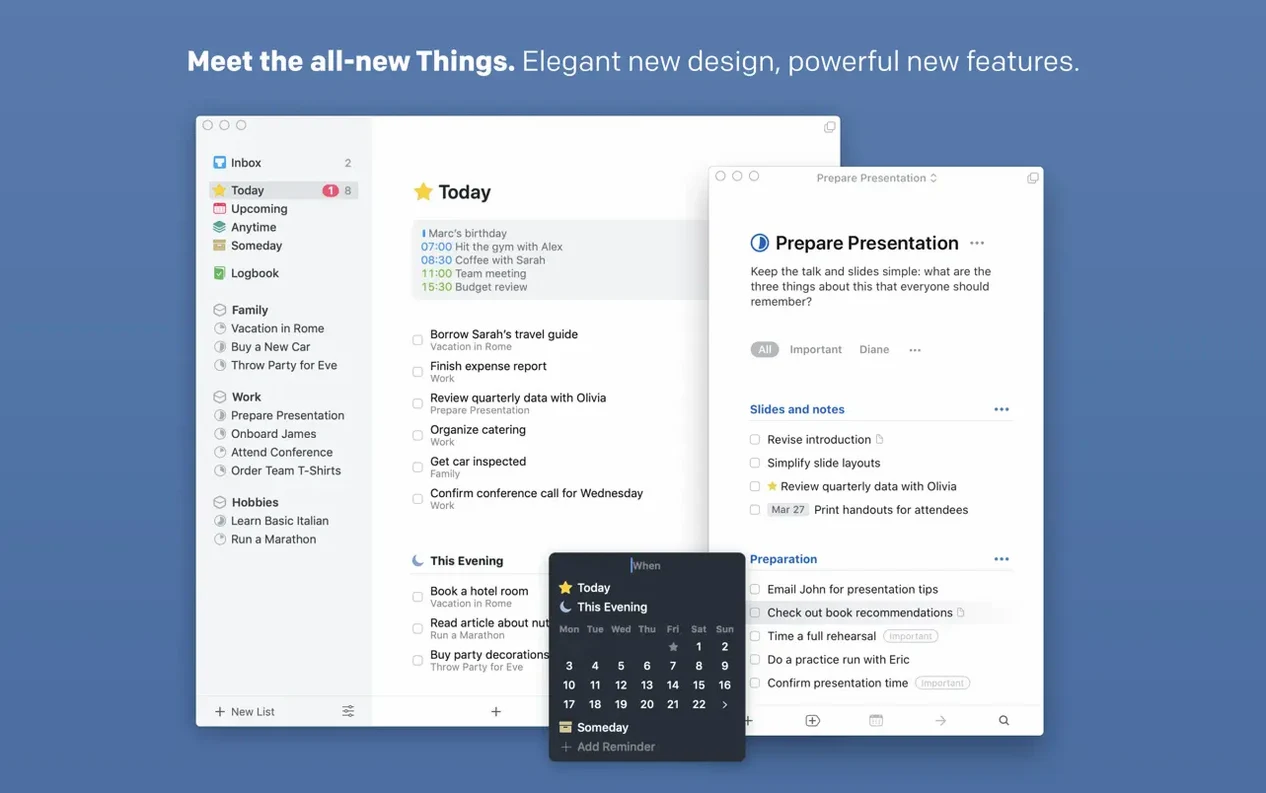
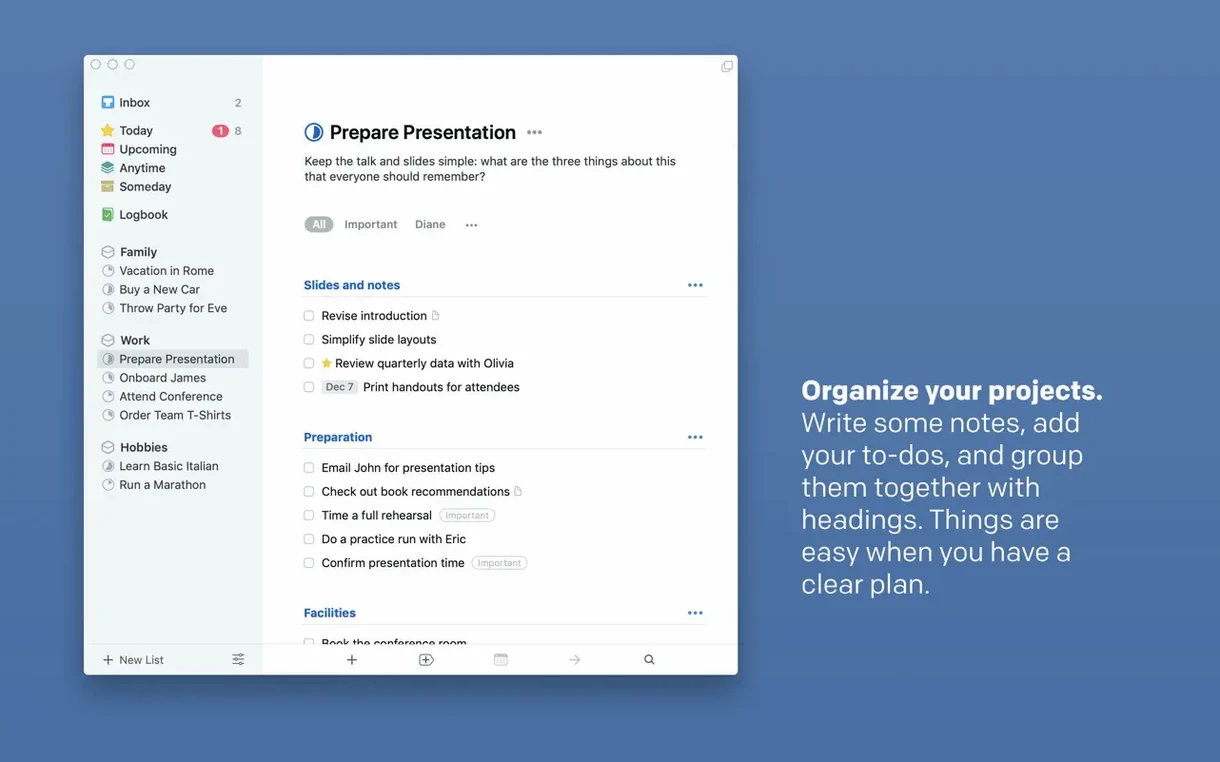
- Inbox. A holding pen for everything you capture before deciding where it belongs.
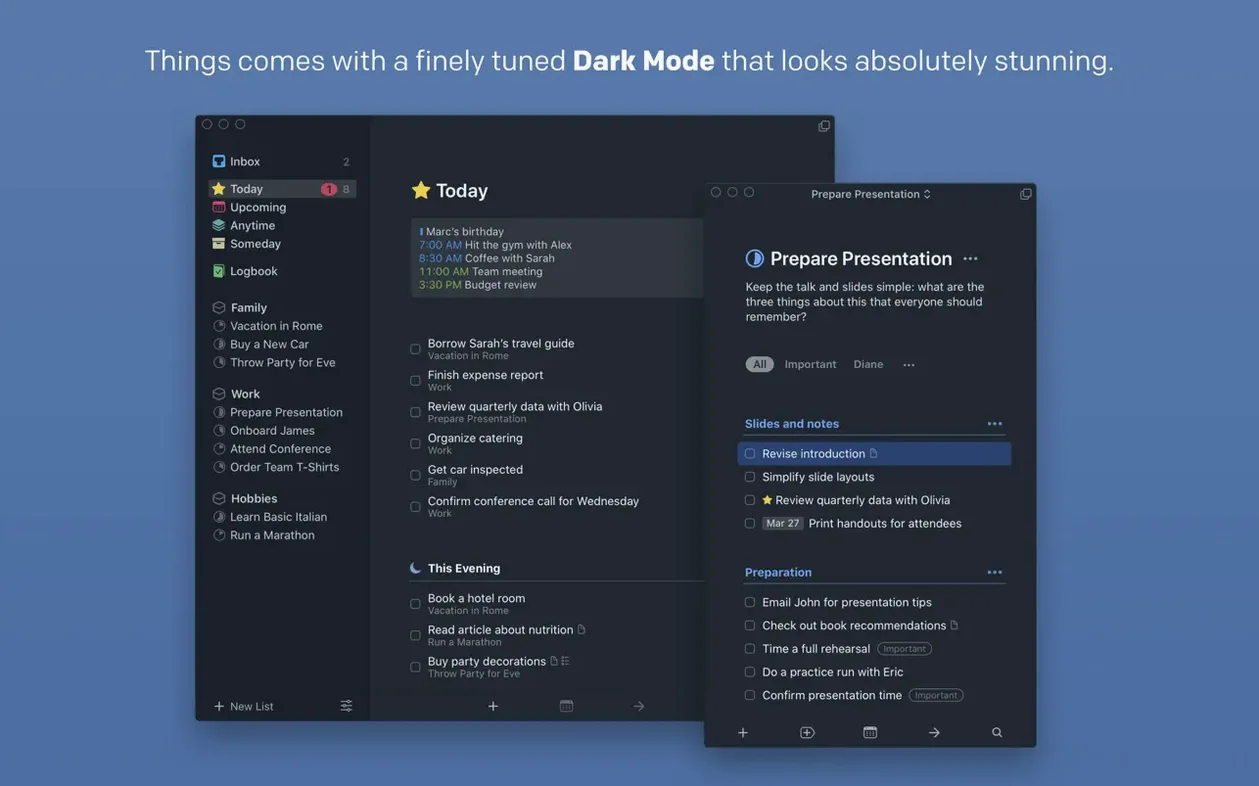
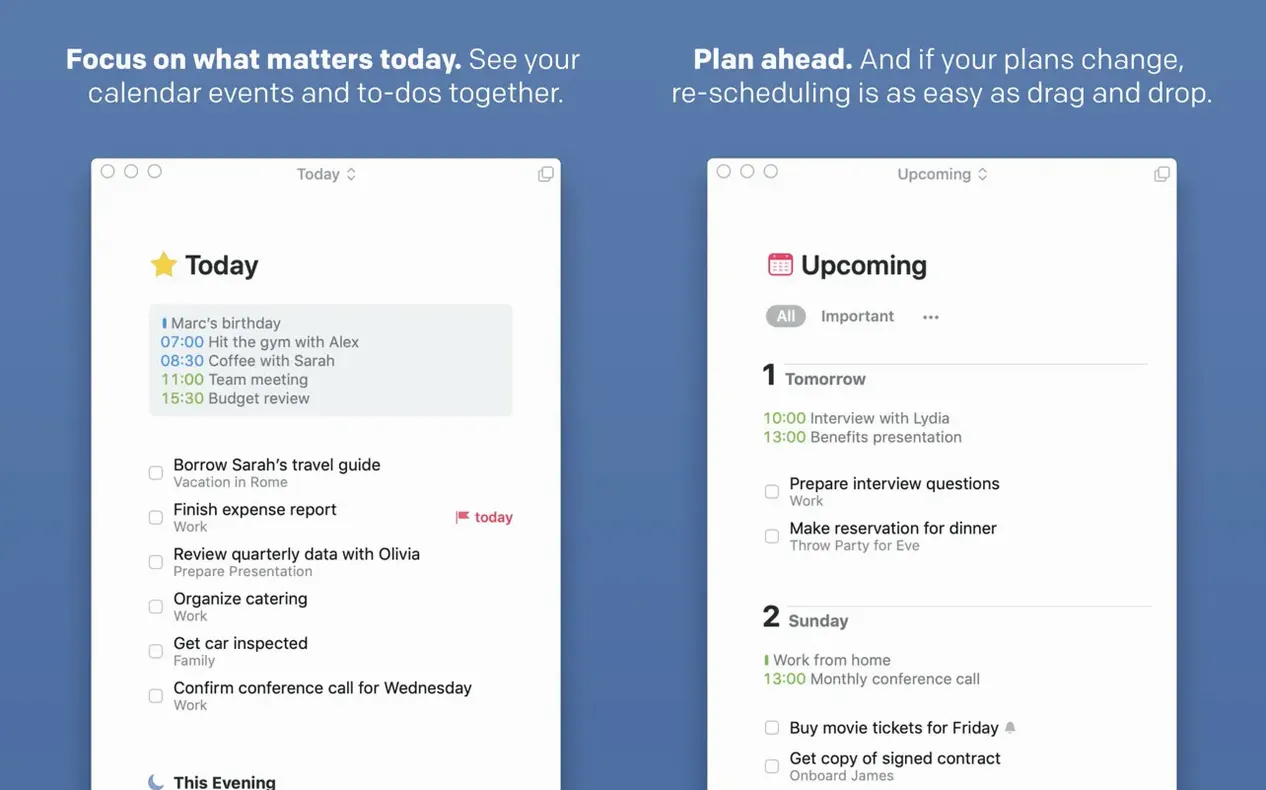
- Today. Morning planning with tasks and calendar events shown together in one list.
- Upcoming. A week-ahead view that mixes deadlines and scheduled tasks.
- Areas and Projects. Areas group ongoing responsibilities; projects break larger goals into smaller steps.
Structured without the weight
Things works best when you like structure but don't want the app to feel heavy. Notes, subtasks, deadlines, and reminders all sit right on a task without extra panels. AppleScript support means I can tie it into my invoicing routine, and Handoff lets me switch to the iPad version while packing orders. If you need collaboration or file attachments, this isn't that tool. But for a solo maker tracking orders, supply runs, and bookkeeping tasks, it fits.
Little touches that save clicks
Some of the most helpful bits in Things are the ones that never announce themselves. Here are a few I'd hate to lose:
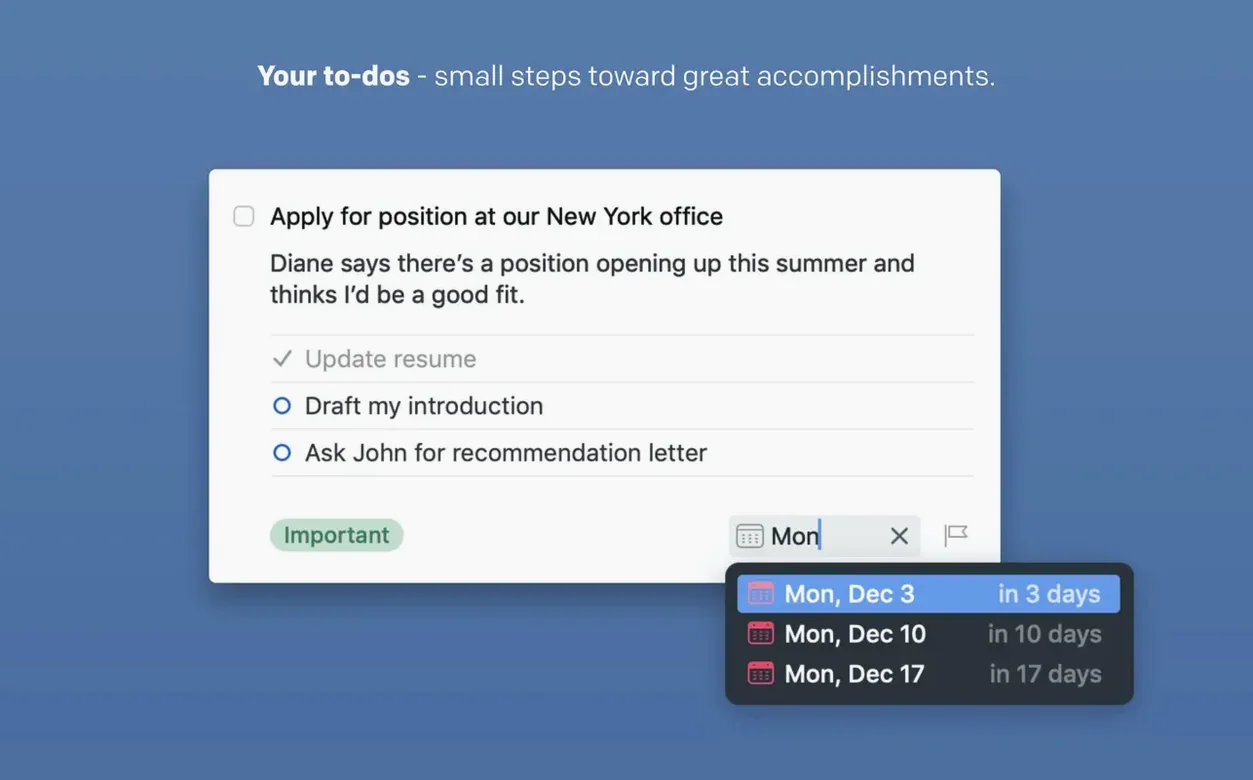
- Drag a task onto the calendar icon in the sidebar and it instantly gets a date. No menu diving required.
- Paste a URL onto a task and Things grabs the page title automatically. When I'm collecting fabric sources, this turns a messy Inbox into something readable in seconds.
- Type natural dates into the jump bar or Quick Entry. "next tuesday" or "feb 14" gets parsed without a date picker. I barely touch the calendar widget anymore.
- Swipe right with two fingers on a Magic Mouse or trackpad to mark a task complete from any list. Same motion as Mail, which makes it muscle memory fast.
- Press Space on a selected task for Quick Look. The notes pane pops open like Finder previews, great for skimming a recipe link or a supply list without leaving the keyboard.
One tip: if you hold the Option key while clicking a project's progress circle, the whole project completes. I learned that by accident and now use it for recurring weekly routines.
Quick Entry fills Today before coffee
Mornings in the shop start with coffee and the Today list. I hit the Quick Entry hotkey three or four times while the kettle boils — things I remembered overnight, a supplier I need to call, a packaging idea that came up at dinner. All of them drop into the Inbox untouched.
Once I'm at the desk, I open the Inbox and sort. First pass: anything with a hard deadline gets a date dragged onto the calendar icon. Second pass: tasks that belong together get moved into existing projects — a "Holiday restock" project absorbs three supplier reminders, one of which becomes a subtask under a bigger shipment milestone. One stray thought about updating the shop banner gets tagged website and lands in an Area called "Online storefront," no due date, just a nudge for later.
With the Inbox empty, I flip to Today. Three things sit there from yesterday's planning, plus the supplier call I just assigned. I drag them into the order that matches my energy: the call first because it involves another person's schedule, then packaging prep, then bookkeeping. I check off two before lunch. The third rolls over to tomorrow with a quick keyboard shortcut — no guilt, just honest rescheduling.
Late afternoon is for Upcoming. I scan the next three days, see a market event I'd forgotten about, and pull a few prep tasks forward. The whole rhythm takes about five minutes of planning and the rest is just doing.
How a freelance illustrator might set things up
A commission-based illustrator I know uses Things a little sideways. Her Areas are named after clients: one for a children's book publisher, one for a regular editorial magazine, one for personal projects. Inside each Area live the projects — individual book spreads, a series of spot illustrations, a gallery show.
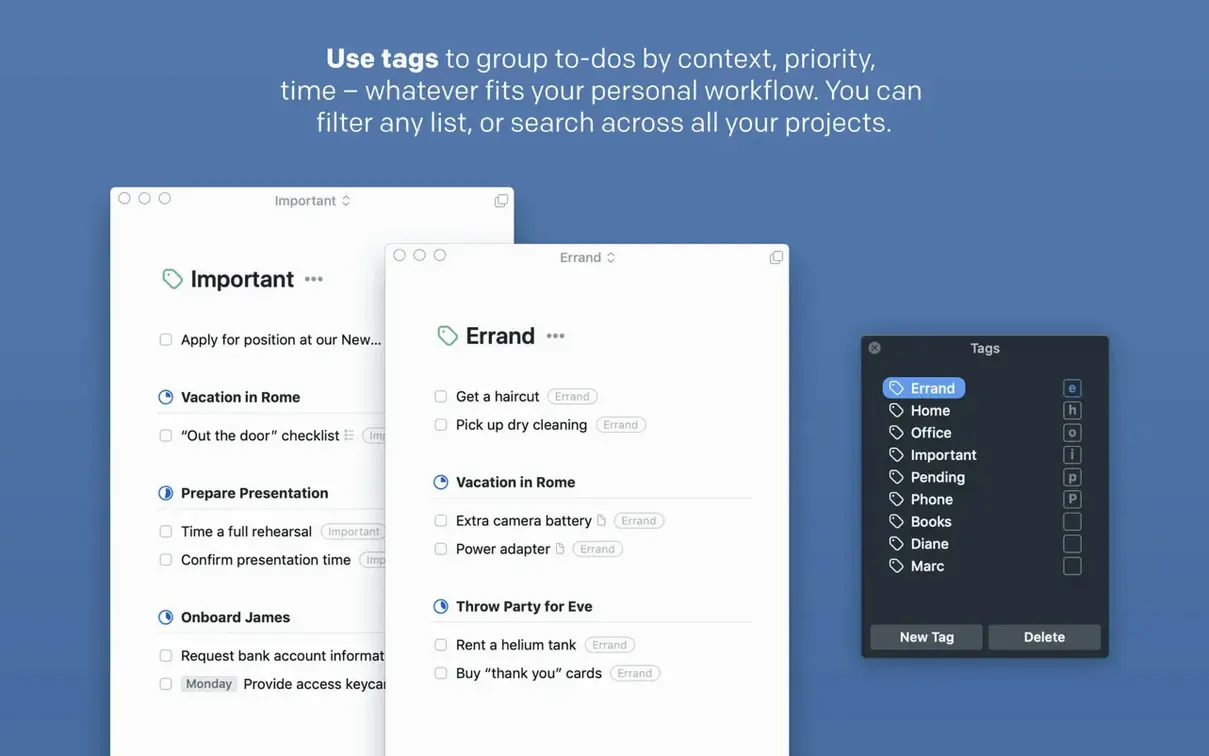
Tags do the heavy lifting for her workflow. She uses sketch, ink, color, and deliver to mark stages, not urgency. On a Tuesday morning she filters by ink and works straight through the list across clients, batch-processing similar tasks instead of context-switching. The deadlines sit on the tasks, not the projects, because a book spread might have four internal milestones before the final due date. She keeps the macOS Things widget in the extra-tall size on her notification pane, showing only tasks tagged deliver — a simple way to keep the day's hand-off list visible without opening the full app.
This latest update from Cultured Code rolls in a round of under-the-hood fixes that keep your task lists running smoothly.
- macOS 10.15 or newer
- Works on both Apple Silicon and Intel 64-bit Macs
Questions from the stall
Does the Mac version work on Apple Silicon?
Yes, Things runs natively on both Apple Silicon and 64-bit Intel Macs.
Is the Mac app included with the iPhone or iPad purchase?
No, the Mac version is sold separately from the iPhone, iPad, and Vision editions.
What do I need to sync tasks across devices?
A free Things Cloud account is required to keep tasks in sync between your Mac and other devices.
Notes from other shops 0
Sign in or open a shop account to leave a note.
No notes yet. If you've used this on a shop Mac, tell me how it went.