
Sensei 2.1.2 runs on any Mac with macOS 14 or later, Apple Silicon or Intel. I see it as a two-in-one toolkit for shop owners who need to keep their workhorse running smoothly. Let’s walk through a quick health check when the machine feels sluggish.
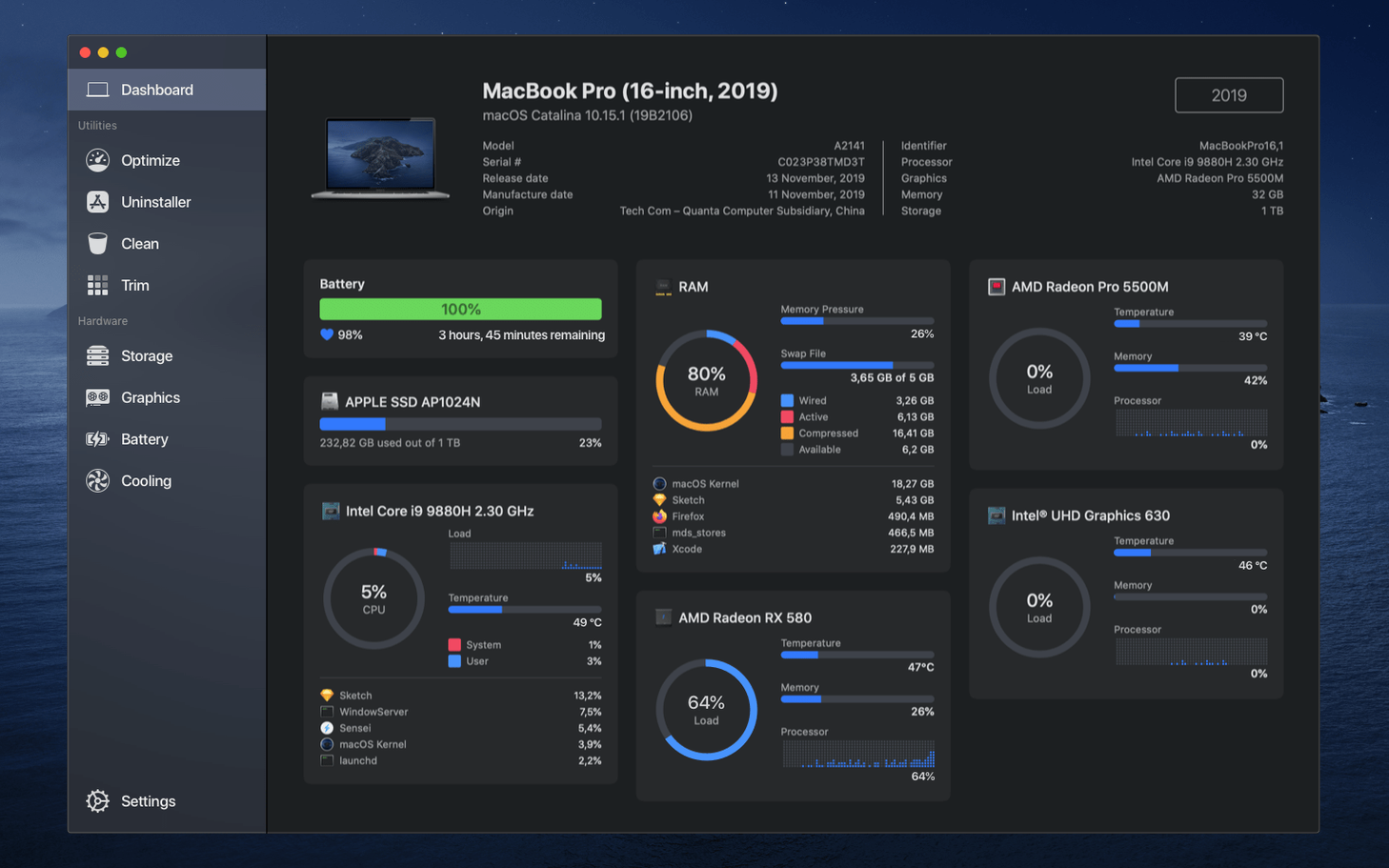
- Open the menu bar monitor to peek at CPU, GPU, and RAM pressure right now.
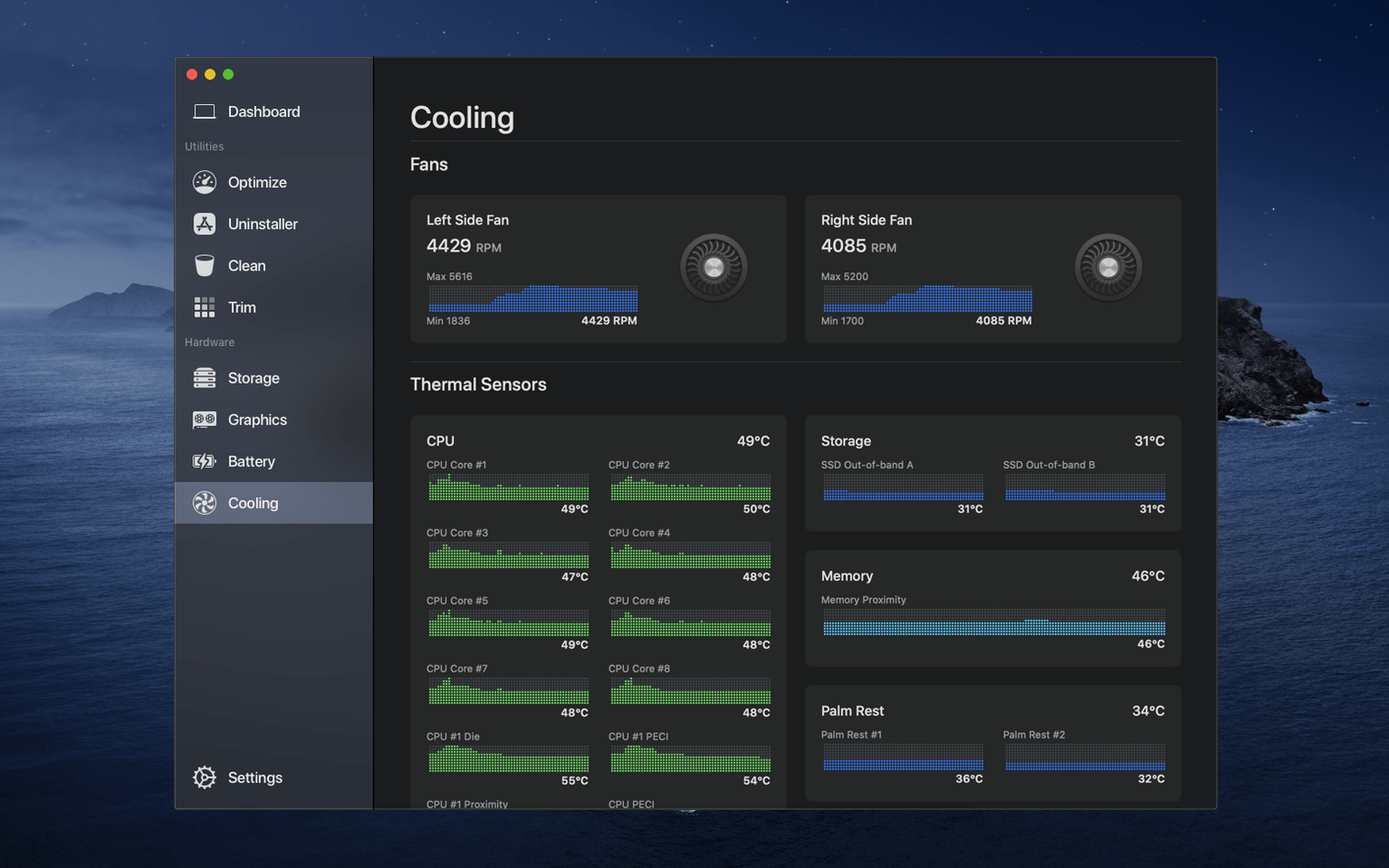
- Spot a temperature spike? Hop over to the fan control and bump the curve up a little.
- Head to the cleanup section and scan for system junk or old caches taking up space.
- Review the detailed drive breakdown before confirming what to clear out.
- Check the hardware tab to verify battery health and SSD wear level.
Nothing feels buried. I’d use that menu bar glance several times a day, then run a cleanup once a week before closing the shop laptop. The monitoring and tidying live in one place, so I don’t need separate utilities competing for resources.
Fixing a sluggish Mac between orders
Picture a product photographer who shoots tethered to a MacBook Pro, edits raw files, uploads client galleries, and handles the bookkeeping. In the middle of a tight turnaround, the fans spin up and Lightroom starts lagging. Instead of guessing, she opens Sensei’s menu bar monitor. The CPU graph shows a sustained spike, and the temperature tab confirms the machine is throttling. She switches to the fan control, ramps up the curve manually, and watches the temperature drop within a few minutes. Before the next import, she runs a quick disk cleanup to flush render caches and old iOS backups eating free space. The whole interruption takes about five minutes, and the machine settles back into a usable state without a full restart.
What I like about this scenario is that the photographer never leaves the app. She diagnoses the problem, cools the machine, and reclaims space in a single session. For anyone billing by the hour, that’s real time saved.
Who clicks with Sensei most
Sensei suits a particular kind of Mac user: someone who wants detailed hardware insight without a command line. From what I’ve seen, three groups gravitate toward it.
- Freelancers and small-shop creatives. Photographers, illustrators, video editors. Their machines run hot under load. They need to know when the GPU memory is maxed out or when the SSD is filling with scratch files. Sensei shows them plainly.
- Refurbishers and second-hand buyers. If you evaluate used Macs for a living, or just bought one, the battery health and SSD wear indicators give you solid numbers. You can check cycle count and drive lifespan before you commit to a purchase or resell.
- Curious tinkerers who run older hardware. Enabling TRIM on a third-party SSD is a one-click checkbox here. That alone keeps certain older machines usable longer, and Sensei makes it accessible to people who’d never open Terminal for it.
It’s less suited to users who want a hands-off cleaner that runs silently in the background. Sensei expects you to look at the data and decide. The trade-off is control, and for the right person, that’s the whole appeal.
Workflow: a weekly maintenance routine
Here’s how I’d run a Friday-afternoon cleanup for a Mac that handles orders, email, design work, and Lightroom exports. The goal is to end the week with a cool, tidy machine.
- Start with the Dashboard. Open the full app and glance at the overview. Check CPU temperature, memory pressure, and drive free space. If anything looks off—heat above 80°C or less than 10% free space—note it for the next steps.
- Run the cleanup tool. Switch to the Clean section and let it scan. I look for system logs, user caches, Xcode junk if it’s installed, and old iOS software updates. Deselect anything I want to keep, then run the cleanup. It usually frees several gigabytes.
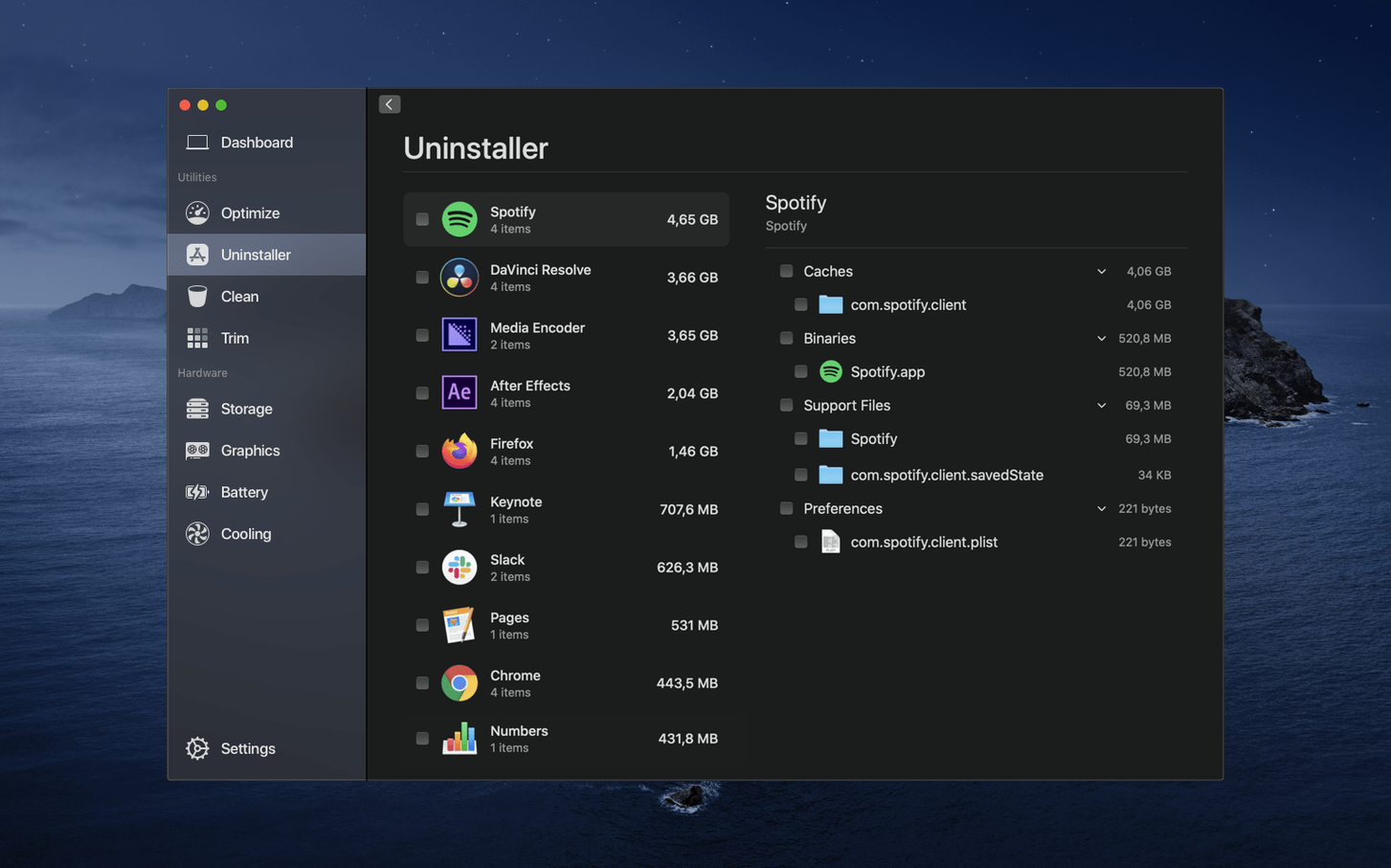
- Review installed apps. Move to the uninstaller tab. Sort by last-used date. Any app I haven’t touched in six months gets uninstalled, including leftover preference files and support folders that a simple drag to Trash would miss.
- Check the hardware report. Open the hardware section. Verify battery health percentage and cycle count. For desktops or machines with aftermarket SSDs, confirm that TRIM is enabled. If the drive supports S.M.A.R.T., review the wear leveling count.
- Adjust fan behavior if needed. If the machine runs hot during the workweek, I’d set a slightly more aggressive fan curve here. Sensei lets you tie fan speed to specific temperature sensors, so you can prioritize the CPU or GPU depending on your workload.
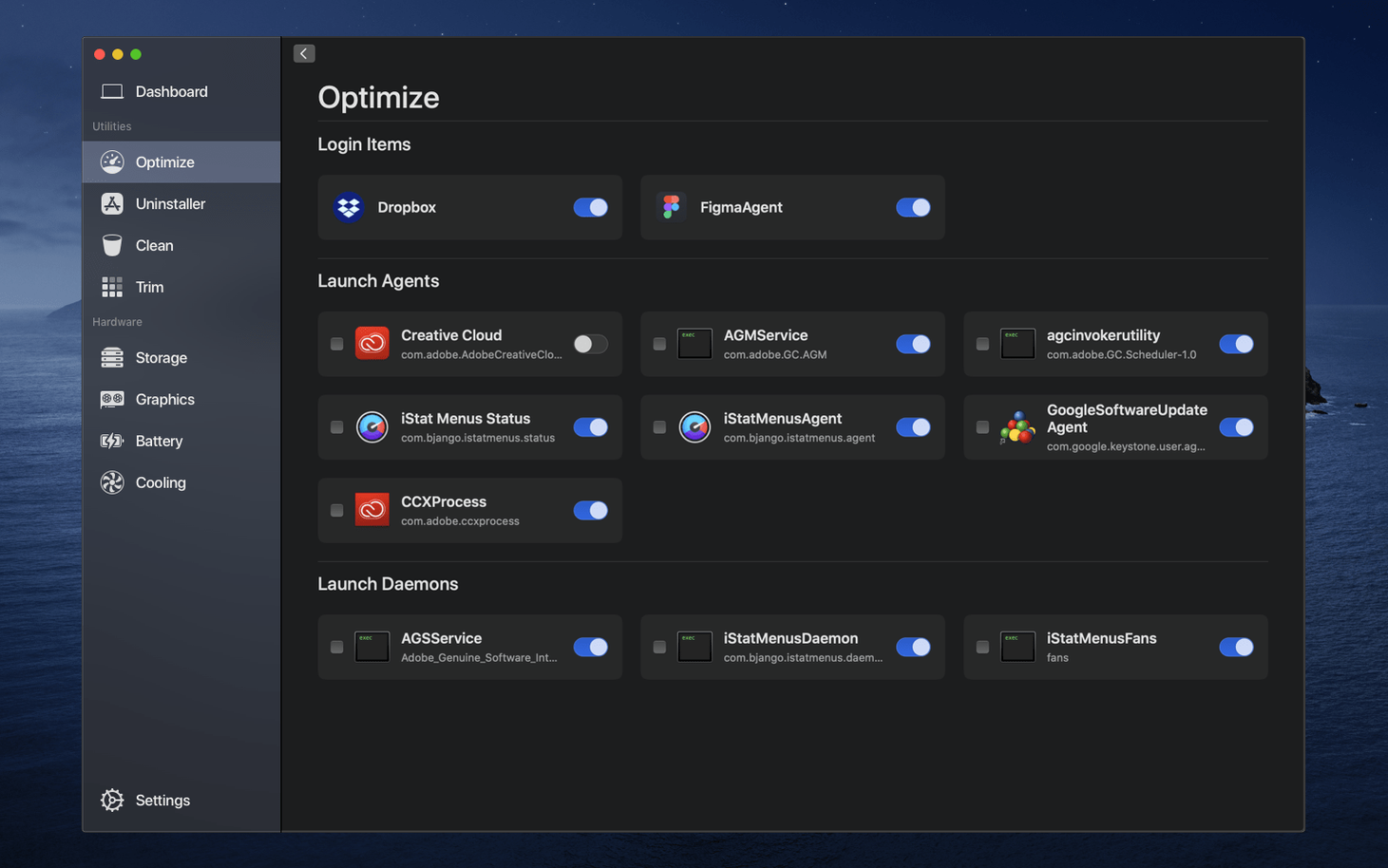
- Quit and rely on the menu bar. Close the main window. The menu bar monitor keeps a small CPU, memory, and network readout visible all week. If I notice a spike, I can jump back into the full app in one click.
Tip: Run the weekly cleanup after your backup finishes. That way you’re clearing temporary files that are already safely duplicated elsewhere.
- macOS 14 or newer
- Apple Silicon or Intel processor
Notes from other shops 0
Sign in or open a shop account to leave a note.
No notes yet. If you've used this on a shop Mac, tell me how it went.