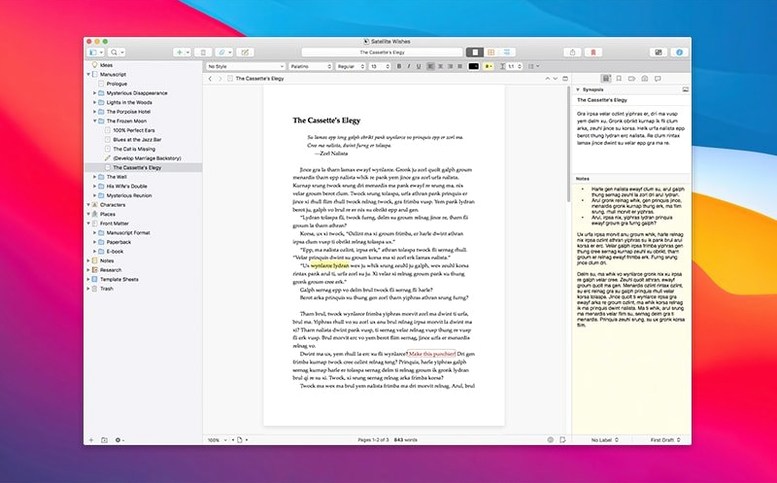
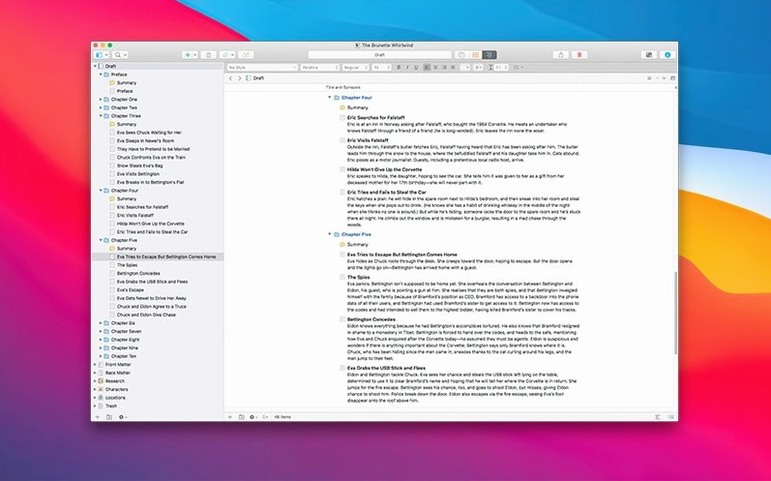
The binder alone changes how you navigate a manuscript—every draft and scrap of research lives in one sidebar, not scattered across folders. Before chasing a Scrivener 3 torrent, make sure your Mac can actually run it.
macOS 10.13 — oldest supported system
Intel & Apple Silicon — runs natively on both
English — interface and content language
Research folder — holds PDFs, audio, images, and notes
Version 3.5.2 — a bug-fix release, dated 18 December 2025
It is a word processor built for long-form work, pairing a project management layer with the text editor. You can organize notes, photos, links, and drafts side by side without leaving the window. If you work with large volumes of text, that structure matters more than raw formatting features.
Turn on typewriter scrolling and pick a composition width
Scrivener ships with sensible defaults, but a few tweaks make it feel like your own workspace within the first hour. Head to Scrivener > Settings (or Preferences, depending on your macOS version) and start with these.
Under Editor, turn on Show page view if you like seeing where page breaks land while drafting. It is off by default, so new users sometimes print or export and discover odd breaks they never saw coming. While you are there, set the default font for new documents to whatever you actually write in—Gill Sans or Palatino instead of the system font saves you from reformatting every new scene.
Switch to the General tab and check Automatically quit after last project window closes only if you like that behavior; I leave it off because I often close a project to open another without quitting the app. Right below it, Warn before emptying the Trash is on by default—keep it that way. You will occasionally delete a folder thinking it held notes when it held three chapters.
In Editing > Options, enable Typewriter scrolling. This keeps your current line centered vertically as you type, so you are never staring at the bottom edge of the screen. It is a small thing that reduces neck tension during long sessions. While there, I set Scroll past bottom of document to about 40%—it gives breathing room at the end of a section without scrolling the last line to the top of the window.
Finally, under Backup, bump the backup retention to at least 10 copies. The default of five is fine for light use, but if you write every day, a week's worth of snapshots disappears fast. I point backups to a folder that syncs to an external drive, not just the local Documents folder.
Drag a file from Finder straight into your binder
Scrivener does not try to replace your whole toolkit, and it works best when you let it hand off to other apps for specific jobs. The integration points are quiet but useful.
Drag and drop from Finder is the simplest one. Grab a PDF, an image, or a voice memo and drop it into the binder's Research folder. The file copies into the project package, so the original stays untouched and the project stays portable. You can do the same with web archives from Safari—save a page as a .webarchive file and drop it in for offline reference while drafting.
Spotlight and Quick Look work with Scrivener projects once you enable them. In Settings under General, check Allow Spotlight to search project content. After indexing, you can find a scene by a character name or a phrase straight from the Finder. Quick Look previews the project synopsis and word count, which helps when you have a dozen projects and cannot remember which draft is which.
Backups play nicely with Time Machine without extra setup. Each project is a package file, so Time Machine versions it as a single unit. If you also set Scrivener's internal backup to a folder that Time Machine watches, you get two layers of recovery for the price of one habit.
For final formatting, Scrivener compiles to RTF, DOCX, or plain text. I draft in Scrivener, then compile to DOCX and finish layout in Pages or Word. The compile settings let you strip comments and annotations on export, so the manuscript lands clean without manual scrubbing. If you use a reference manager like Bookends or Zotero, they run alongside Scrivener rather than inside it—paste temporary citations while drafting, then scan the exported document later. It is not as tight as dedicated academic tools, but it works for books and long essays.
There is a small but important macOS interaction: Dictation. Press the dictation key (default is double-press Fn) while in Scrivener's editor, and macOS dictation types straight into your document. It respects Scrivener's text engine, so styles and formatting stay intact. A handy trick for capturing dialogue when your fingers need a break.
Leaning into the binder instead of mirroring your file system
Scrivener rewards patience, and most early frustration comes from fighting its structure instead of leaning into it. Here are the patterns I see most often.
Treating the binder like a file system. New users create a folder called "Novel" and then another folder called "Draft 1" and then another called "Scenes," nesting four levels deep. The binder is not Finder. Use folders for broad sections—Parts or Chapters—and put documents directly inside them. If you need more organization, use labels and status stamps instead of adding folder depth. Deep nesting makes the compile step confusing later.
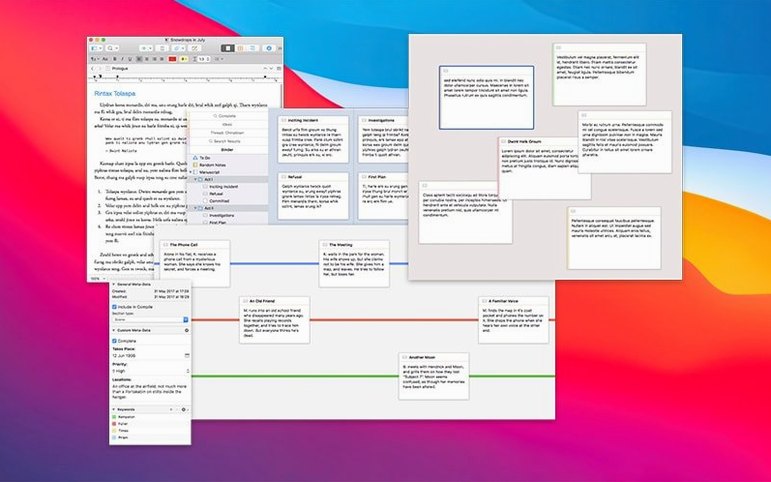
Ignoring the Inspector. The right-hand panel holds synopsis cards, notes, snapshots, and metadata. Beginners collapse it to maximize editor width, then wonder why they cannot track character arcs or remember what a scene was supposed to accomplish. Keep the Inspector open at least a sliver. The synopsis card alone—a few lines per document—gives you an outline view from the corkboard without switching modes.
Not using snapshots before big edits. Scrivener auto-saves, but auto-save overwrites. If you are about to restructure three chapters or cut a character, take a snapshot first. It takes one keystroke (Cmd-5) and stores the document as it was, right in the Inspector. You can roll back a single scene without touching the rest of the project. People discover this feature after their first regret, not before.
Compiling too late. Waiting until the manuscript is finished to learn the compile dialog is a recipe for a bad evening. Compile a draft early—even just a chapter—to understand how your binder structure maps to an exported document. The compile preview shows exactly what the output will look like, and fixing section layouts early means no surprises at deadline.
And a quiet note: if you search for a Scrivener torrent or Scrivener 3 torrent to test the waters before committing, you inherit whatever modifications came with that package. Some cracked versions floating around carry altered compile templates or missing components that produce odd output—something to keep in mind if you go that route. A Scrivener Mac crack or Scrivener Mac torrent can be a quick way in, and if you do, double-check that your compile presets are intact before relying on them for a deadline. The bug-fix release at 3.5.2 exists partly because the developer patches real issues—you want those patches.
Toggle typewriter scrolling without opening settings
Some of the best features in Scrivener are not on any toolbar. They sit in menus or key combinations that you stumble across months in, then use daily.
- Typewriter scrolling toggle: Already mentioned in settings, but you can toggle it on and off with
Ctrl-Cmd-Twithout opening preferences. Useful when you switch between drafting and reviewing a finished page. - Copy without formatting:
Shift-Option-Cmd-Vpastes text and matches the surrounding style. When you drop a quote from a PDF into your draft, this keeps the font and size consistent without manual cleanup. - Split editor: Click the small split button in the editor header (or press
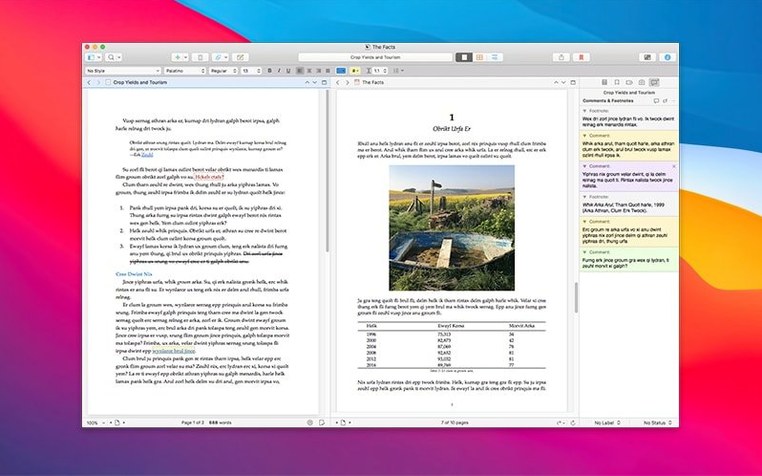
Cmd-') to view two documents side by side, or two parts of the same document. I keep research notes in the top pane and the draft in the bottom, scrolling independently. - Scrivenings mode: Select multiple documents in the binder and click the Scrivenings button (or press
Cmd-1). Scrivener stitches them into a single scrolling view, so you can read a whole chapter as one continuous text without moving anything in the binder. HitCmd-0to return to single-document view. - Project statistics and text statistics:
Shift-Cmd-Topens text stats for the current document;Ctrl-Shift-Cmd-Topens project-wide statistics. The project version breaks down word count per section and shows a draft progress bar. The text version counts characters, words, and estimated reading time. - Navigate by history:
Cmd-[andCmd-]step backward and forward through your document history, browser-style. After jumping between three scenes and a research note, this gets you back to where you were writing without hunting through the binder. - Quick reference panels: Select a document and press the Space bar. It opens in a floating Quick Reference panel that stays on top of other windows. Drag several research items into Quick Reference panels and arrange them around your editor—no split-view clutter, just floating windows you close when done.
- Label and status columns in outline view: Switch to outline mode (
Cmd-3) and right-click the column headers. Add Label and Status columns if they are hidden. Now you can sort scenes by POV character or completion status directly in the outline, which doubles as a lightweight progress tracker. - Session
Scrivener 3.5.2 is a bug-fix release. No new features—just tidying up loose ends from the previous build.
- macOS 10.13 or newer
- Intel or Apple Silicon Mac
- English language interface
Questions from the stall
Can Scrivener 3.5.2 open older Scrivener files?
Yes, Scrivener 3 opens projects from Scrivener 2 and can export in several formats for older versions.
Does Scrivener run on Apple Silicon Macs?
Yes, the app supports both Intel and Apple Silicon architecture natively.
Notes from other shops 0
Sign in or open a shop account to leave a note.
No notes yet. If you've used this on a shop Mac, tell me how it went.