Sketch a messy first draft
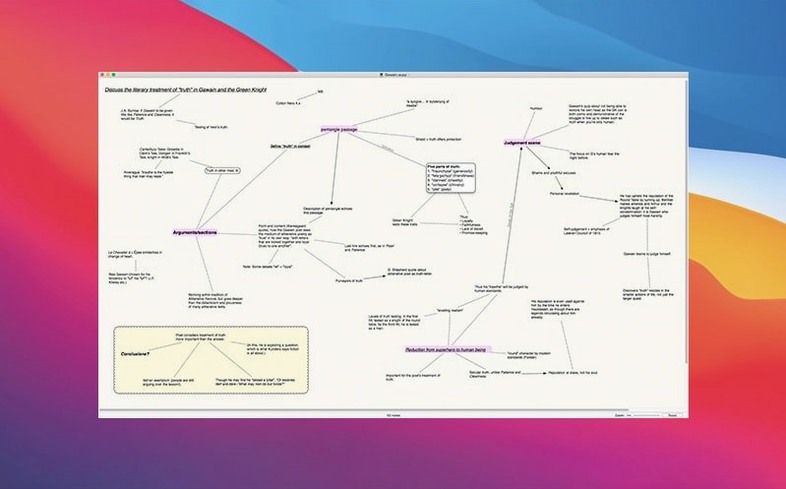
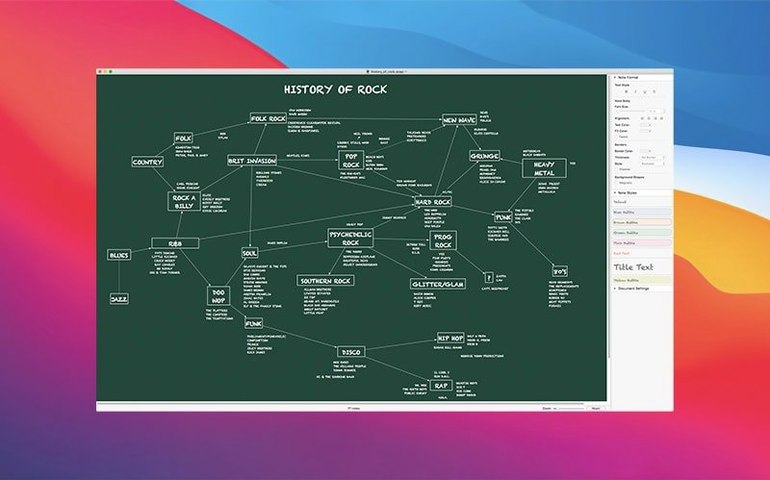
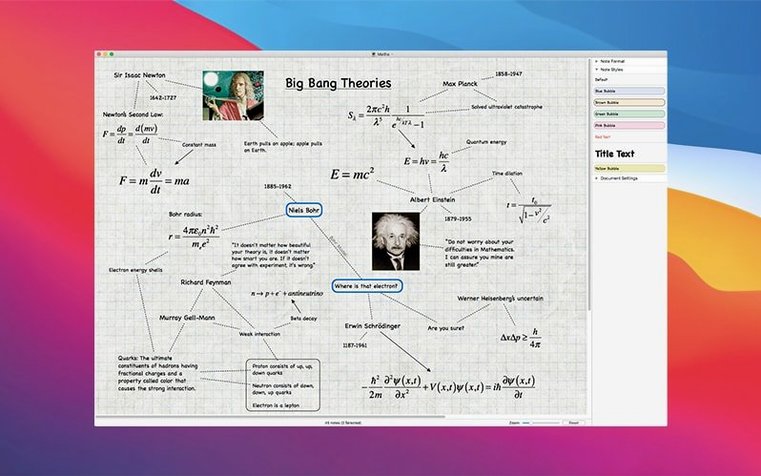
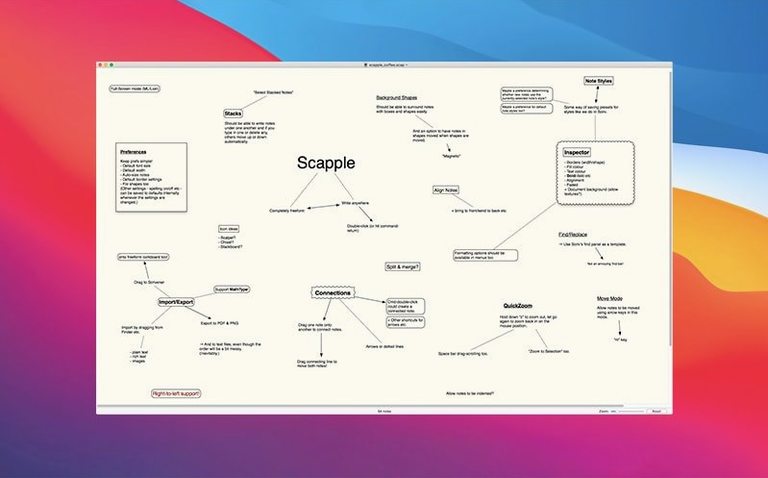
Start by double-clicking anywhere on the infinite canvas and typing. Each note exists as its own little island—no templates, no forced hierarchies, just thoughts placed where they make sense to you right now.
Draw connections that mean something
Drag one note onto another and a line appears. Bend it, label it, add an arrow—the connection is yours to define. It's the kind of visual linking that feels natural next to a word processor or a notebook app you already use for long-form writing.
Rearrange without breaking anything
Move a note and its lines follow. Group related ideas into clusters, then shift the whole cluster when the structure changes. The board stays readable even as your thinking evolves, which makes it easy to bring the result back into your main project tools.
Dumping tangled thoughts onto a blank board
I open a blank board when I'm stuck on a project that's too tangled to think through linearly. The first thing I do is dump everything out—double-click, type a phrase, double-click somewhere else, drop another stray thought. No editing yet. Just scatter.
Once the obvious pieces are on the canvas, I start dragging notes that belong together into loose clusters. A research thread goes top-right. Character motivations sit center-left. Things I'm not sure about hover near the edges. The drag-to-connect gesture becomes second nature: I pull one note over another, release, and a dotted line snaps between them. If the relationship needs clarifying, I double-click the line and type a short label—"contradicts," "supports," "happens after."
Then comes the rearranging. I'll grab a cluster and slide it to make breathing room, or shift a single note from one group into another when I realize it belongs there all along. The connections stretch and re-route without complaint. By the end, I have something that looks messy to an outsider but reads like a map to me—a visual outline I can glance at before opening Scrivener or my writing app of choice. The board itself becomes the reference I keep on a second screen while I work.
Where Scapple sits among your other tools
Scapple doesn't try to replace anything. It fills the gap between the moment an idea arrives and the moment it needs structure. I treat it as a scratchpad that lives alongside my main apps, not instead of them.
From the macOS side, I rely on familiar gestures: pinch-to-zoom on the trackpad for the big picture, two-finger scroll to navigate a sprawling board, and drag-and-drop from other apps when I want to pull a snippet of text in. The app respects standard system behaviors—copy and paste work across applications as expected, and the zooming improvements in recent versions make scrolling through dense boards feel light rather than jittery.
For writers using Scrivener, the pairing is natural. A Scapple board can sit open while you draft in Scrivener's editor, and you can drag notes between them. Even without that pairing, the board exports cleanly enough that I'll screenshot a cluster or copy text directly into a project outline. Some people drop a Scapple torrent Mac search into their browser hoping to test that workflow before committing—a practical impulse if you're building a writing toolkit piece by piece.
The crashing and vanishing bugs that got patched
If you used Scapple during the 1.5.x run, you probably remember a few rough edges. Clicking notes and getting a crash—rare, but maddening when it happened. Entering Full Screen on an Intel Mac and watching the app vanish. Those are gone now. The 1.5.4 update quietly made the board feel reliable again, which matters more than feature lists suggest. You stop thinking about the tool and just use it.
The drag-and-drop stability improvements are the kind of thing you don't notice until you realize you haven't lost a style paste or a connection line all week. Copying styles between boards by dragging actually works now—handy when you've established a color scheme on one project and want to carry it over to another without rebuilding it note by note.
Connections behave more predictably too. When you add a note to an existing connection, the arrow doesn't disappear on you anymore, and undo actually reverses connection commands the way you'd expect. On non-Retina displays, those thin connection lines are easier to grab and adjust—a small fix that saves a surprising amount of squinting and re-clicking when you're tidying a board before sharing it.
Version 1.5.4 is a stability-focused update with welcome fixes for everyday nuisances. Here's what's changed:
- Compatibility improvements for macOS 26.
- Fixed a sporadic crash when clicking notes and another caused by incompatible color storage.
- Fixed lost edits when closing some boards that had open notes.
- Full Screen mode no longer crashes on Intel Macs.
- Copying styles between boards via drag and drop is smoother and more stable.
- Squashed bugs in file loading, undo, and redo behavior.
- macOS 11 or newer
- Apple Silicon or Intel 64-bit Mac
Notes from other shops 0
Sign in or open a shop account to leave a note.
No notes yet. If you've used this on a shop Mac, tell me how it went.