
A batch of new downloads lands in your music folder with filenames like 03-FinalMix_v2.mp3 and empty artist fields. Before they disappear into your library, Mp3tag gives you a tidy way to sort them out. Here's the workflow I'd reach for.
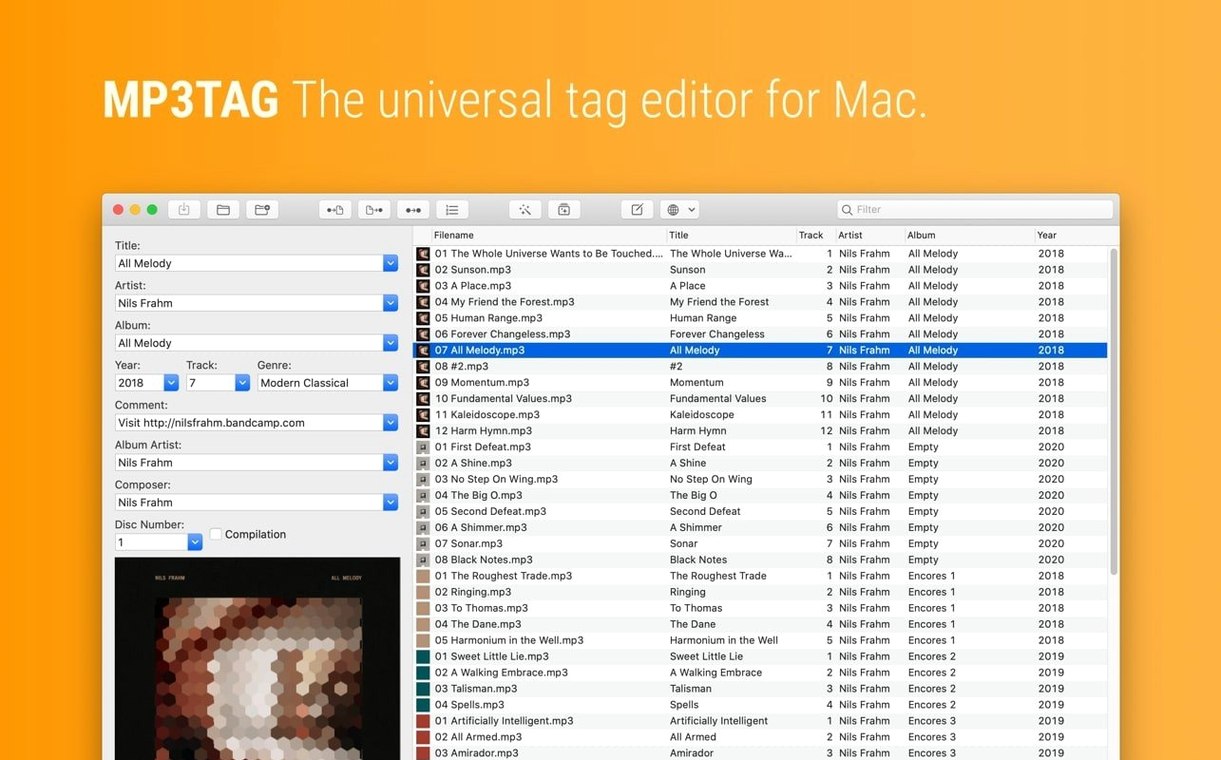
- Load the folder. Mp3tag shows every track in a spreadsheet-style list, so you can see which tags are missing at a glance.
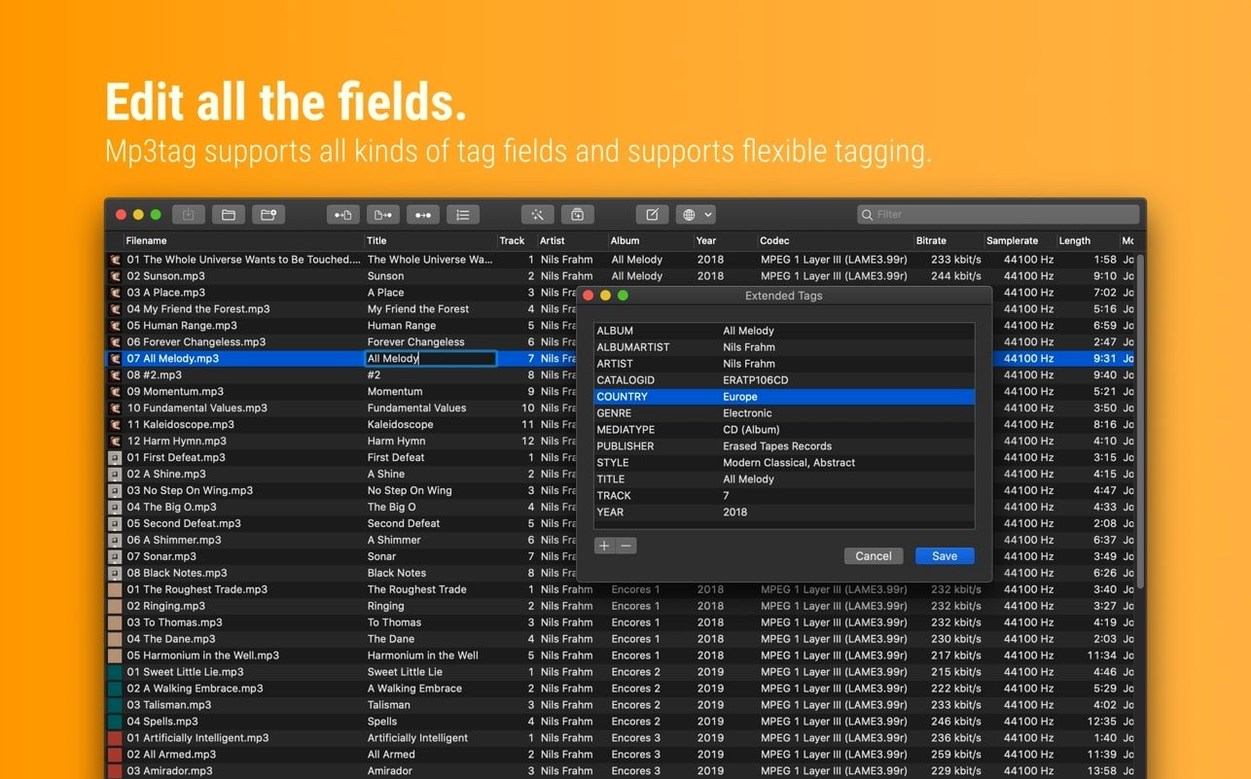
- Fill in or correct tags. Edit artist, album, title, and more directly in the table. You can also replace characters or words across tags and filenames in one pass.
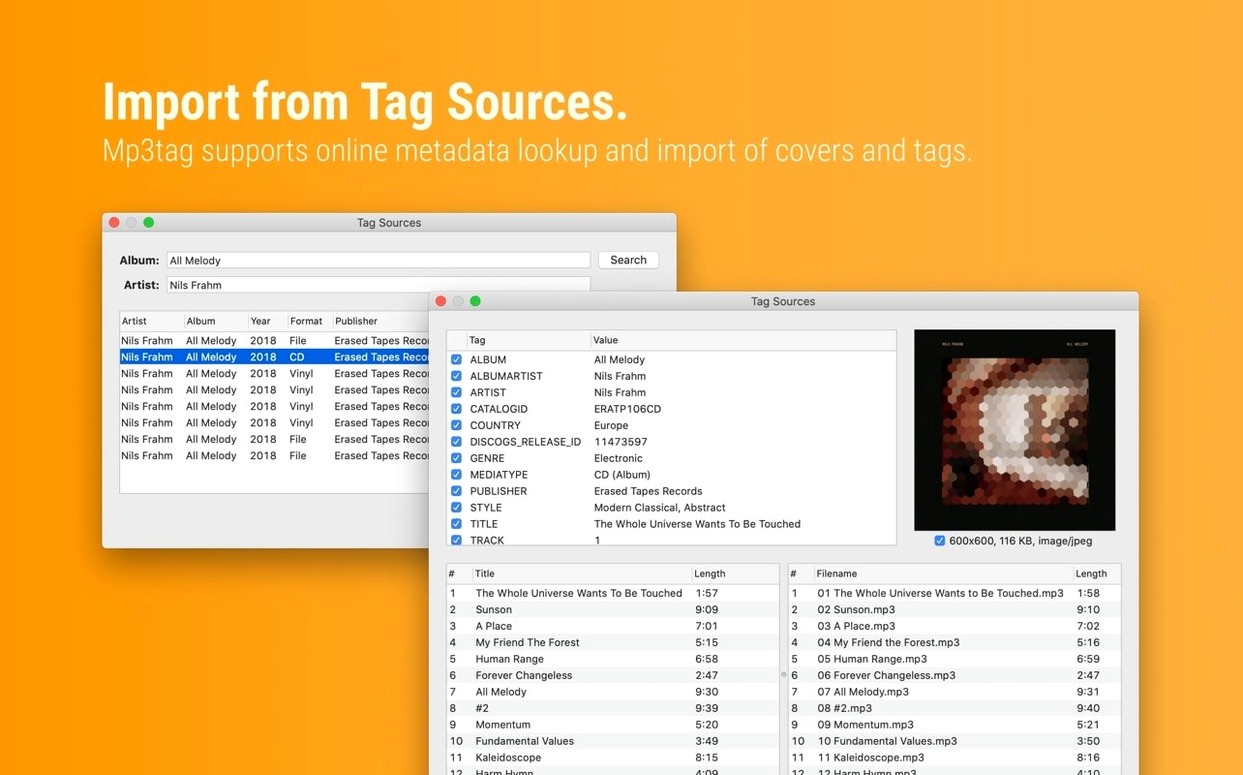
- Import tag information from online sources or text files when the metadata is already sitting somewhere else.
- Rename files from the tags. Turn that messy filename into
Artist - Album - 03 - Title.mp3automatically.
Version 1.14.1 keeps that core workflow intact and fixes a few edge cases: cover changes made in the Tag Panel are no longer discarded if Extended Tags was opened first, unsaved changes are respected by Converters and Actions, decimal BPM values now write to MP4 tags as decimals, and a crash on macOS 27 when adding action groups is gone. Native Apple Silicon support is already here, so the app feels at home on current Macs.
Turning messy podcast filenames into a clean, tagged library
Say you have a folder of podcast episodes someone sent over. Filenames are inconsistent, guests aren't listed, and half the tracks show "Unknown Album." The goal is a clean library where every file has a show title, episode number, guest name, and a sensible filename — without touching each file one by one.
Here's how that plays out in Mp3tag:
- Drag the folder in. Every file appears as a row. You immediately see which columns are blank, so you know what needs filling.
- Select all files and set the album tag to the show's name. One edit in the Tag Panel on the left populates every selected track at once.
- Use the track-number column for episode numbers. If episodes are already numbered in the filenames, Mp3tag can pull those digits into the tag with a converter — no retyping.
- Add guest names to the artist or comment field. For recurring guests, a quick character replacement cleans up inconsistent spellings across the batch.
- Search MusicBrainz or Discogs if the podcast has a release entry there. Cover art and additional metadata come back in a few seconds. You can adjust the embedded cover's size right inside the app so files don't bloat.
- Rename everything. Build a format string like
%album% - E%track% - %title%and Mp3tag rewrites every filename to match. The messy folder you started with now sorts itself alphabetically by guest and episode.
The whole process takes a few minutes. You're not fighting individual text fields or renaming files in Finder; the batch logic handles the repetition while you decide what matters.
Right-click the column headers to hide clutter you don’t need
The interface is a lot like a spreadsheet, which makes the first hour less intimidating than it could be. A few things I'd do early on:
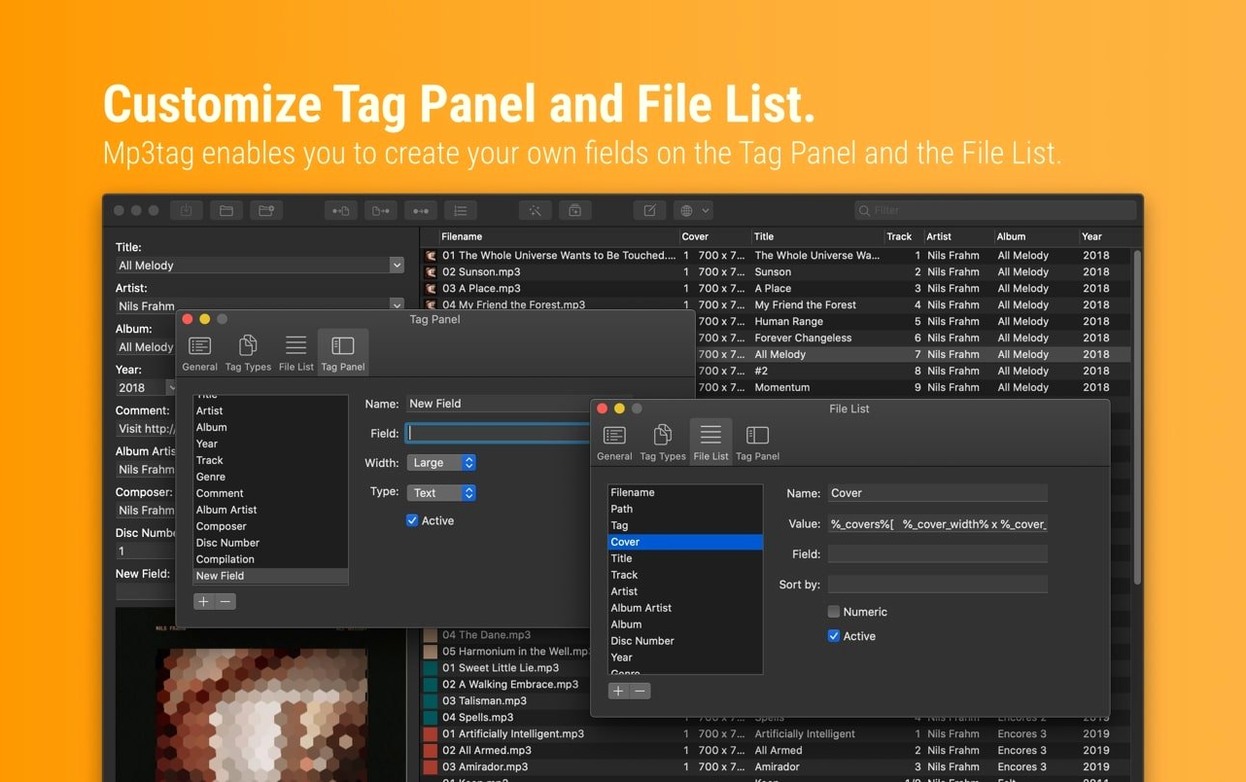
- Spend ten minutes with the column layout. Right-click the column headers and hide the fields you never use. A narrower set of visible columns means less scrolling and fewer distractions when you're scanning for missing tags.
- Set up one or two action groups. If you regularly apply the same sequence — say, "format track numbers as two digits, then rename from tags" — save it as an action group. Later you'll trigger the whole chain with a single click instead of stepping through each command.
- Learn one converter. The Format value converter handles everyday tasks like padding track numbers with leading zeros or capitalizing artist names. Once you've used it twice, it becomes muscle memory.
- Check the cover-art behavior. By default, Mp3tag keeps embedded covers as they are. If you want every cover resized to a maximum width, set that preference before you process a big batch. Changing it later means re-saving files.
- Back up a small test folder and experiment. Try a character replacement, apply an action group, then undo. Knowing that Undo works across multiple files takes the pressure off while you're learning.
These small setup steps mean the app fits your habits from day two, rather than you fitting yourself to the app.
Why edited tags sometimes show no change in your apps
Most friction people hit isn't about bugs — it's about the gap between what they expect and how tag formats work for different file types. Here are the ones I hear about most:
"I edited the tags and nothing changed in Finder." Finder reads a limited set of audio metadata and sometimes caches old values. The tags are written — check them in Mp3tag itself or another audio app to confirm. A quick relaunch of Finder (or just moving the files to a different folder and back) often forces a refresh.
"My WAV files lost their tags." WAV tagging is less standardized than MP3 or FLAC. Some apps write WAV tags in chunks that other software ignores. If you're moving WAV files between different players, test one file first. Mp3tag writes what the format supports, but the playback app decides whether to read it.
"The Discogs search returned the wrong release." This happens when an album has multiple pressings. Narrow the search by including the catalog number or country in the query. If that still pulls the wrong version, open the release in your browser, copy the release ID from the URL, and paste it into Mp3tag's search dialog.
"I renamed files and now my DJ software can't find them." Serato, Rekordbox, and others store file paths in their own databases. Renaming tracks outside those apps breaks the link. Rename in Mp3tag before importing into DJ software, or be prepared to relocate files inside the DJ app afterward. The same goes for playlists that reference absolute paths.
"The app feels sluggish with a huge folder." Loading thousands of files at once means reading every file's metadata. Split very large collections into subfolders and work on batches of a few hundred at a time. The app stays snappy, and you keep a clearer sense of progress.
The crash that could eat your unsaved action-group setup is gone
Version 1.14.1 is a stability release, and the fixes address things that could quietly eat your time. The crash when adding action groups on macOS 27 meant you could lose an unsaved action-group setup; that's resolved now. The fix for cover changes being discarded when Extended Tags was opened before saving closes a gap that could leave you with the wrong artwork embedded and no obvious clue why.
More importantly for routine work, unsaved Tag Panel changes are now respected across Tag Sources, Converters, Auto-Numbering, and Actions. Before, you might adjust a tag, trigger a converter that read the old value, and wonder why the output didn't match. That flow now behaves as you'd expect.
The decimal-BPM fix for MP4 files is subtle but matters if you're tagging DJ tracks. BPM values like 128.5 now stay as decimals instead of silently truncating to 128. Over a large library, those half-beats add up to noticeably different beat-grid alignments in performance software.
Apple Silicon support arrived a while back, so on current Macs the app launches without Rosetta overhead. Scrolling through large tag tables and applying batch operations feels responsive even on lower-RAM machines.
A few long-standing quirks got ironed out in 1.14.1, and none of them touch the editing flow in a disruptive way.
- Fixed a crash on macOS 27 that could appear when adding action groups in the Actions Groups window.
- Cover changes made in the Tag Panel are no longer discarded if Extended Tags was opened before saving.
- Unsaved Tag Panel changes are now kept when using Cover Search, Tag Sources, Converters, Auto-Numbering, or Actions before saving.
- Decimal BPM values now write to MP4 tags without being truncated to integers.
- macOS 10.14 or later
- Intel 64-bit or Apple Silicon Mac
- Interface languages: English, German, Spanish, Italian, Chinese (Simplified), Portuguese, French, Czech, Japanese
Questions from the stall
What macOS version does Mp3tag require?
Mp3tag 1.14.1 requires macOS 10.14 or later and runs on both Intel 64-bit and Apple Silicon Macs.
Notes from other shops 0
Sign in or open a shop account to leave a note.
No notes yet. If you've used this on a shop Mac, tell me how it went.