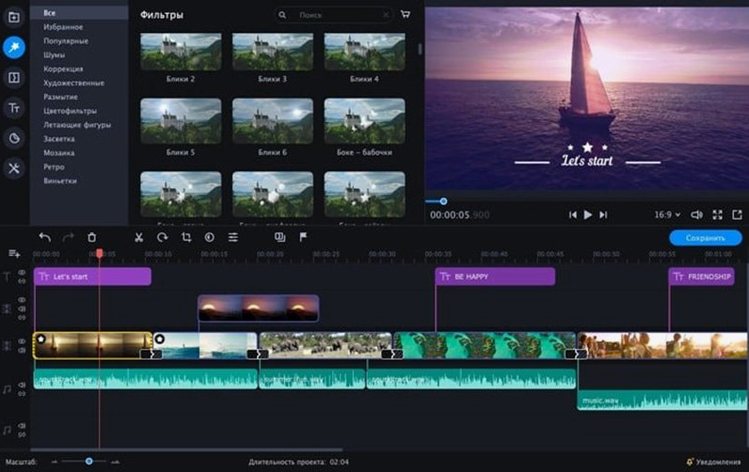
You shot a birthday clip on your phone, transferred it to your Mac, and now you want to cut the shaky start and play the funny moment in reverse before sharing it. Movavi Video Editor handles that kind of quick edit without a steep learning curve.
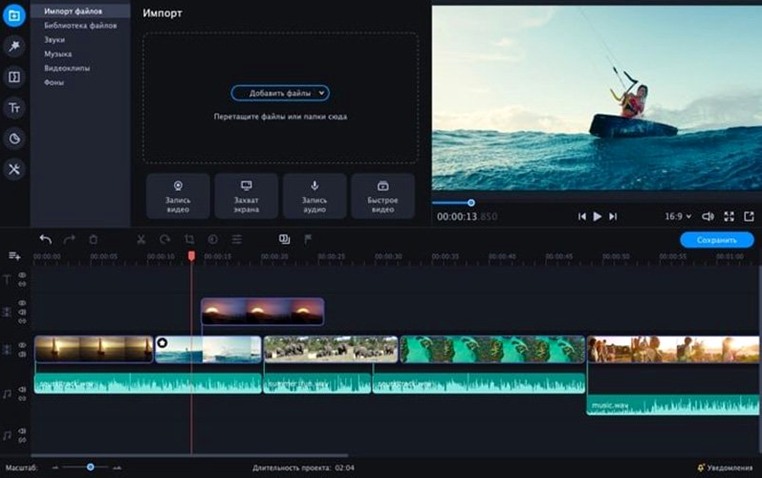
What exactly is it? — A Mac video editor built for cutting clips, applying effects, and polishing casual projects. It offers reverse and slow-motion playback, built-in effects and AI tools, and chroma key so you can swap out a green-screen background. The interface is designed to be clean and approachable.
Which Macs can run it? — Movavi’s official Mac version needs an Intel processor and macOS 10.13 or newer. It speaks English plus a dozen other languages including German, Spanish, Japanese, and both simplified and traditional Chinese.
How the install works — You open the downloaded disk image, drag the app into Applications, and launch it from Launchpad once copying finishes. No extra helpers to run.
How it handles everyday work
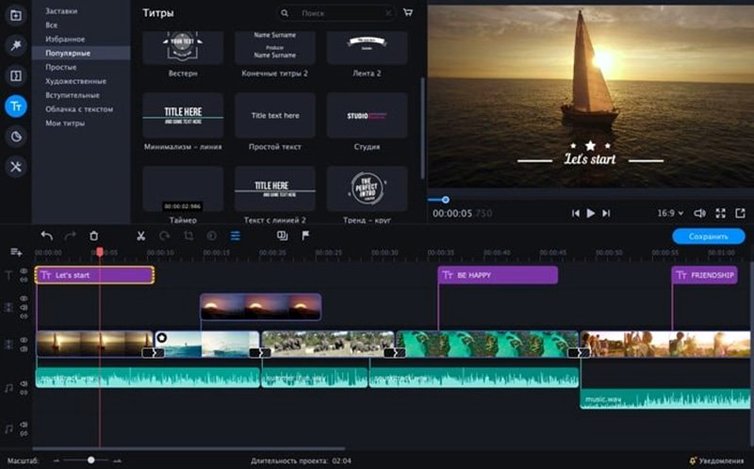
I’ve used plenty of editors that turn my MacBook into a hairdryer within minutes. Movavi sits in a more polite spot. The interface stays responsive when you scrub through a 10‑minute clip or stack a few titles onto the timeline, though the fan does wake up during export. Playback of 1080p footage with a colour LUT and a fade applied feels smooth — not silky, but never choppy enough to disrupt the rhythm of editing.
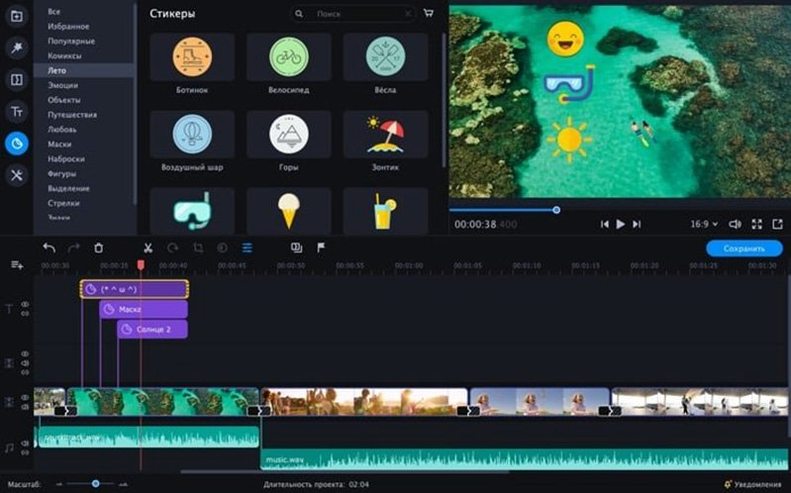
Memory use hovers around what you’d expect from an Intel‑era app doing video work. On an older iMac with 8 GB of RAM, I keep Safari and Mail closed and the editor runs without beachballing. One quirk: the preview window can lag for a second when you drop a heavy sticker onto a 4K clip. Switching the preview quality to “Fast” in the settings clears that up immediately.
Stability has been steady across a dozen projects. No sudden quits while dragging transitions or reordering tracks. The autosave is quiet — you won’t notice it until you need it — and it saved a rough cut once after a family member yanked the power cord.
Drag in footage from Photos or a USB drive and start cutting
Movavi doesn’t try to own your whole workflow, and that’s a strength. It opens files straight from Photos and the Finder sidebar, so footage from an iPhone or a USB drive starts editing almost as fast as you can drag it in. Export presets line up with the resolutions and frame rates QuickTime Player and iMovie expect, which makes a two‑step process — cut in Movavi, trim or convert in another tool — painless.
It also respects macOS conventions that small‑shop owners rely on: standard open/save dialogs, scroll behaviour that matches System Preferences, and support for the Media section of the file browser. If you already use Keynote for titles, you can export a slide as a still image and drop it onto the timeline as an overlay. Audio cleaned up in GarageBand or Audacity slots in just as easily. It’s not a plugin host, but drag‑and‑drop interchange covers most real‑world needs.
AirDrop‑friendly output sizes are another quiet bonus. A one‑minute clip under 50 MB lands on an iPhone in seconds, ready for Instagram or a family group chat.
Match your project frame rate to your footage before placing clips
The default canvas is set to 16:9 at 30 fps, which matches most phone footage. Before you cut anything, check that under Project Settings — switching to 25 fps after you’ve placed clips can nudge timing out of sync. Same goes for the working folder: point it to an external drive if your Mac’s internal storage is tight. Generated proxy files don’t warn you when space runs low.
Spend ten minutes with the sticker and text‑overlay libraries on your first afternoon. The animated callouts look canned if you overuse them, but one or two — a “New!” badge or a location tag — give a vlog snippet polish without extra work. The chroma key tool is tucked under Tools, not the effects panel, and it’s best to light your green screen evenly before recording; the default spill suppression handles a bit of shadow but not harsh wrinkles.
Tip: right‑click any clip on the timeline and pick “Detach Audio” before you apply slow motion. That way you can pitch‑correct the voice separately or drop in background music without the original track warping.
No sound in your export? Check the per‑track mute icons
Exported video has no sound. This almost always traces back to a muted track strip on the timeline. The little speaker icon toggles per track, and it’s easy to bump it when adding effects. Double‑check that the master audio isn’t pulled to zero in the mixer panel too.
Stickers or text disappear after export. Overlays placed outside the visible canvas area — beyond the black bars — won’t show in the final file. Use the “Fit to frame” button in the preview window to see the whole working area before you export.
Green screen edges look fuzzy or tinted. Open the chroma key settings and nudge the Similarity slider in small steps. If the background isn’t a solid green, try the eyedropper on a mid‑tone area. Adding a slight blur to the mask edge hides leftover fringing without softening your subject.
Updates and activation. Official updates can reset the activation state — something to keep in mind if you download a version like the movavi video editor plus 21 personal download package or a movavi video editor torrent. People searching for a movavi torrent or movavi mac torrent often find this happens after a point update, so a good workflow is to finish a project before applying anything new. A movavi video editor plus torrent bundle may include extra effects packs; those stay available as long as the underlying version isn't overwritten.
Project file won’t open after a reinstall. Projects are tied to the version that created them. If you move between builds, export a finished master and start fresh rather than trying to rescue an old project file. It saves an afternoon of frustration.
- macOS 10.13 or later
- Intel processor
Questions from the stall
Does Movavi Video Editor handle green-screen footage?
Yes, it includes chroma key so you can replace the background in clips shot against a green screen.
What languages is the interface available in?
It supports English, German, Spanish, Italian, French, Dutch, Polish, Portuguese, Turkish, Japanese, Korean, and both traditional and simplified Chinese.
Notes from other shops 0
Sign in or open a shop account to leave a note.
No notes yet. If you've used this on a shop Mac, tell me how it went.