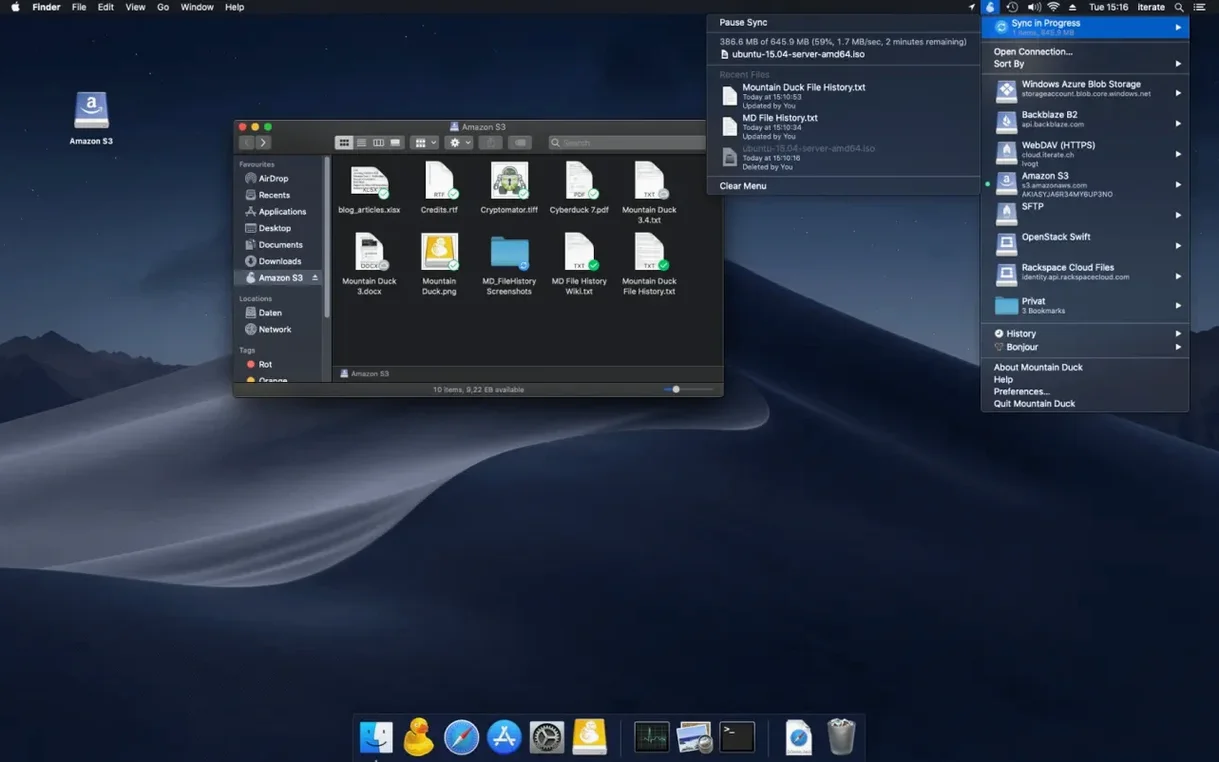
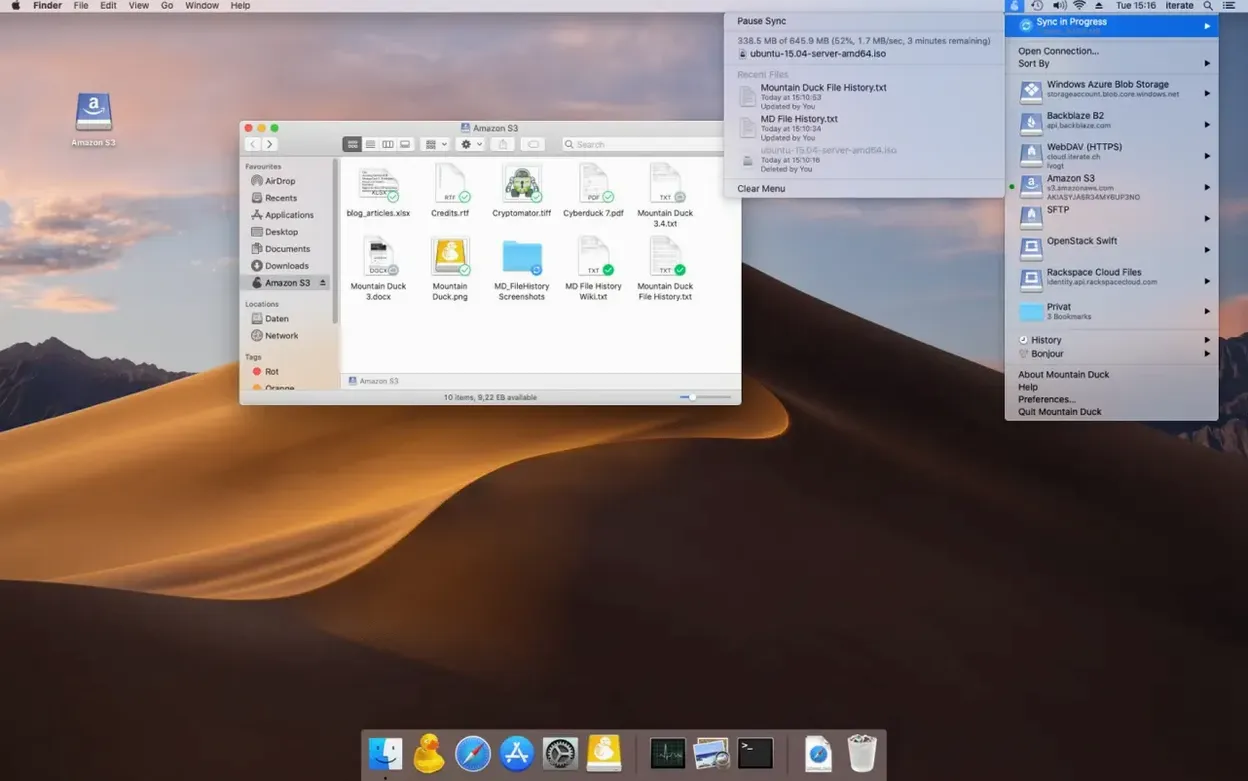
You keep project assets on an S3 bucket. A collaborator in Berlin drops a revised set of logos into the shared folder at 10 p.m. your time. By the time you sit down with coffee the next morning, those files are already sitting in a local folder on your desktop—no browser, no separate transfer client, just Finder. That’s the daily rhythm Mountain Duck settles into.
A workflow built for people who live in Finder
- Choose your protocol once. Mountain Duck connects to S3, SFTP, WebDAV, Azure, Backblaze B2, Dropbox, Google Drive, and more. Version 5 added SMB support, which means the office NAS fits right in alongside cloud storage.
- Enable Smart Synchronization. Files don’t flood your drive on connect. Mountain Duck caches only what you open, then frees space when you’re done. It’s the opposite of a bulk sync client—files arrive when you need them, not before.
- Switch on Integrated Connect Mode (v5). This isn’t a menu-bar-only utility anymore. The connection integrates deeper with the system, so mounted volumes behave more like a plugged-in drive for apps that expect local paths.
- Work offline, upload later. Make your edits. Close the file. As soon as a connection is available, Mountain Duck pushes changes in the background. No manual queuing, no “sync now” button to babysit.
- Share bookmarks with Cyberduck. If you use Cyberduck for heavy transfers, your saved server profiles sync across both apps. You set up credentials once.
What I’d use it for: keeping a working folder of print-ready PDFs on Wasabi or B2 that a few freelancers can drop into directly, without teaching anyone a new interface. The disk-in-Finder approach means any Mac app—Lightroom, InDesign, a plain text editor—can open and save straight to cloud storage as if it were a local drive. No bridge software required.
Which Mac users really click with it
People who split their work across several machines get the most obvious win. A designer who moves between an iMac in the studio and a MacBook Air at home can mount the same S3 bucket on both without syncing settings twice. The bookmarks travel with Cyberduck if you already use it, so you're not rebuilding connection profiles on the second Mac.
Photographers who cull and edit straight from a server volume are another natural fit. You open a RAW file from the mounted share, work on it in Capture One or Lightroom, and save. Mountain Duck caches only that file locally, then uploads the finished edit when you close it. No duplicate libraries, no "which version is the real one" confusion.
Small teams that share a NAS or a Backblaze B2 bucket through Finder also do well here. You're not asking anyone to learn a transfer client—it's just another drive icon. For someone running a product shop and juggling supplier files, inventory spreadsheets, and packaging artwork across a handful of freelancers, that simplicity cuts down on support requests before they start.
Dragging a 40 GB project and expecting SSD speed
The biggest one is treating a mounted Mountain Duck volume like an external SSD. People drag a 40 GB video project onto it and expect instant local performance. The volume behaves local, but bandwidth still matters. Smart Synchronization helps—it only pulls what you open—but if you open everything at once, you're waiting on your internet connection, not the app.
Another misstep: forgetting to mark frequently used folders for offline storage. You can right-click any folder inside a mounted volume and pin it locally. Beginners often skip this, then wonder why a file won't open on a plane. Set your active project folders to stay offline ahead of time and the problem disappears.
Some users install the Mountain Duck torrent they found on a forum, then notice bookmarks don't sync or Cryptomator encryption layers refuse to mount. A mismatched or outdated build can behave differently with those integrations, so it helps to verify the build number matches the latest stable release and that all helper tools are present. The app expects a clean, current installation to negotiate encryption and share profiles properly.
Make your shares appear at login
- Switch on "Open at login" from the menu bar icon. If Mountain Duck isn't running, your mounted volumes aren't there. Making it launch at startup means your shares appear before you even think about them.
- Adjust the cache threshold. Under Preferences > Sync, you can cap the local cache size. On a Mac with a smaller internal drive, dropping this to a few gigabytes prevents sudden surprises when disk space runs low.
- Enable encryption for sensitive buckets. If you're mounting cloud storage for client contracts, accounting records, or anything you'd rather not expose plain, set up Cryptomator encryption on the bookmark before you connect. The files land on the remote server scrambled; Mountain Duck decrypts them on the fly in Finder.
- Disable notifications per-volume. A busy shared drive can ping you with every upload. In the bookmark settings, uncheck connection notifications for volumes where constant activity is normal—otherwise you'll tune them out entirely.
- macOS 13 or later
- Apple Silicon or Intel 64-bit Mac
Questions from the stall
Does Mountain Duck download everything in my cloud storage to my Mac?
No. Smart Synchronization only downloads files when you open them and caches other files on demand, so local storage doesn't fill up unnecessarily.
Can I keep using it if I also work with Cyberduck?
Yes. Bookmarks are automatically shared between Mountain Duck and Cyberduck when both are installed, so you don't have to set up connections twice.
Notes from other shops 0
Sign in or open a shop account to leave a note.
No notes yet. If you've used this on a shop Mac, tell me how it went.