Setting a tech-forward tone
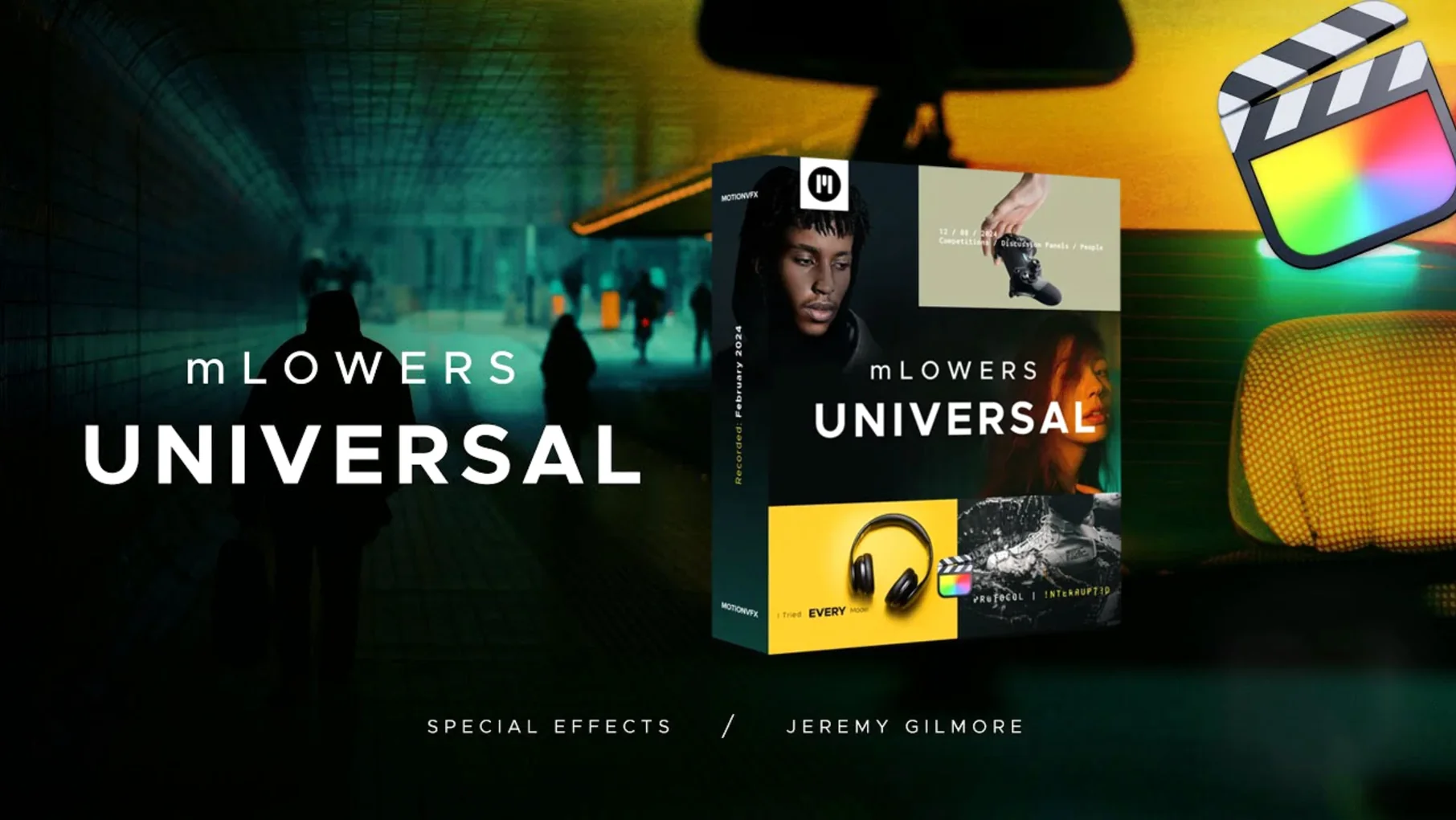
Drag in one of the high-tech-style designs when a project needs a digital edge. The glitch effects shift and flicker with real energy, giving corporate explainers or sizzle reels a look that feels assembled by a machine that's thinking fast.
Layering information cleanly
Place a lower third over interview footage and it anchors names and titles without stealing the frame. The pack gives you 70 animated options, so you can match a crisp, minimal layout to one segment and a busier data-style bar to the next.
Keeping the edit moving
Apply a preset and the animation runs on its own, so trimming clips or shuffling the story order doesn't break anything. It stays responsive as you nudge things around the magnetic timeline.
Turning a rough timeline into a client-ready cut in minutes
You open a project that needs a quick turnaround — maybe a product walkthrough with three interview cuts and some b‑roll. The timeline is rough but the story is there. You head to the Titles browser, find the mLowers Universal folder, and skim the thumbnails while the coffee kicks in. Thirty seconds later you've grabbed a clean lower third with a thin animated line that draws itself across the bottom.
You drop it above the first speaker. The name field is already highlighted, so you type "Mina K., Lead Designer" and hit Enter. The title fades in with a subtle glitch shimmer — just enough to feel current but not enough to distract from her face. You skim across to the second interview clip, option‑drag the same title, change the name and title, and keep moving. No keyframes touched, no parameter windows opened, just typing and dragging.
By the time you hit the b‑roll section, the energy feels flat. You pull in one of the retro‑style markers — a chunky badge with a VHS‑era color split — and drop it over a close‑up of the device. It lands with a quick chromatic flicker that makes the cut feel intentional, like a beat in the edit rather than a patch over a gap. You add two more markers at key transitions, all from the same family so the language stays consistent.
The last pass is social. You grab a cross‑platform marker, place it over the final five seconds, and type the handle. The animation pops it in with a fast scale‑up that'll catch a thumb mid‑scroll. You skim the whole thing once, adjust two title durations by dragging the edges, and export. The titles didn't fight the timeline once.
Slip‑ups I see beginners make
Treating the presets as finished designs. The templates arrive looking sharp, but they're starting points. New editors sometimes drop a title over a bright window or a white shirt and wonder why the text disappears. A quick trip to the Inspector to switch the text color or add a soft drop shadow, and the name reads clearly again. The animation stays intact — only the surface changes.
Ignoring the font size controls. Some of the high‑tech designs ship with small default type that works beautifully on a 27‑inch monitor but vanishes on a phone screen held at arm's length. Beginners often leave the size untouched, then get notes that the lower thirds are illegible. Bumping the point size by ten or twelve takes seconds and transforms legibility without breaking the motion design.
Stacking too many glitch effects in one sequence. The dynamic glitch‑style presets are addictive. I've watched new editors layer three or four across consecutive clips, and the result reads as a rendering error rather than a style choice. One glitch title every couple of minutes keeps it fresh. Between those, the cleaner movie‑screen designs do the heavy lifting.
Putting the templates in the wrong folder. The install path is /Users/Your Name/Movies/Motion Templates/Titles, and if the folder structure isn't exact, Final Cut Pro won't see the pack. Beginners sometimes drop the whole downloaded folder straight into the Titles directory without opening it first, or they place it one level too deep. If the presets don't appear in the browser after a restart, the folder hierarchy is almost always the culprit.
Pre-built variety that keeps freelance editors off the design clock
Final Cut Pro editors juggling client work. If you edit for small businesses, nonprofits, or agencies, you're building multiple projects a week and nobody's paying you to design lower thirds from scratch. This pack hands you 70 ready‑to‑go options that cover interview titles, product callouts, and social handles in one trip to the browser. You audition a few, pick one, and get back to the story edit.
Social media producers running cross‑platform campaigns. The built‑in social markers make sense if you're cutting the same message for Instagram, YouTube, and a website hero section. You drop the handle once, and the animation adjusts itself. No exporting to After Effects, no round‑tripping — it lives on the Final Cut timeline where the rest of the edit happens.
Creators who learned design the hands‑on way. Shop owners, course makers, and self‑taught video folks — anyone who figured out editing by doing rather than by training — tend to connect with mLowers Universal quickly. The presets don't require you to understand Motion's interface or keyframe curves. You drag, you type, you tweak a color if needed, and the result looks like you hired a motion designer for the titles alone.
Editors building tech or gaming content. The glitch and high‑tech designs lean into a digital aesthetic that fits hardware reviews, dev logs, and gameplay commentary without extra work. If your B‑roll is full of screens and circuitry, these lower thirds feel native to the material rather than pasted on top of it.
- Final Cut Pro installed on a compatible Mac
Questions from the stall
What kind of projects suit the mLowers Universal pack?
The high-tech and glitch-style designs work well for tech reviews, event recaps, corporate videos, and any project that benefits from a clean, modern information display.
Do I need to keyframe these lower thirds myself?
No, the pack is built from pre-animated presets. You drop one onto the timeline, type your text, and the motion plays back without manual keyframing.
Notes from other shops 0
Sign in or open a shop account to leave a note.
No notes yet. If you've used this on a shop Mac, tell me how it went.