
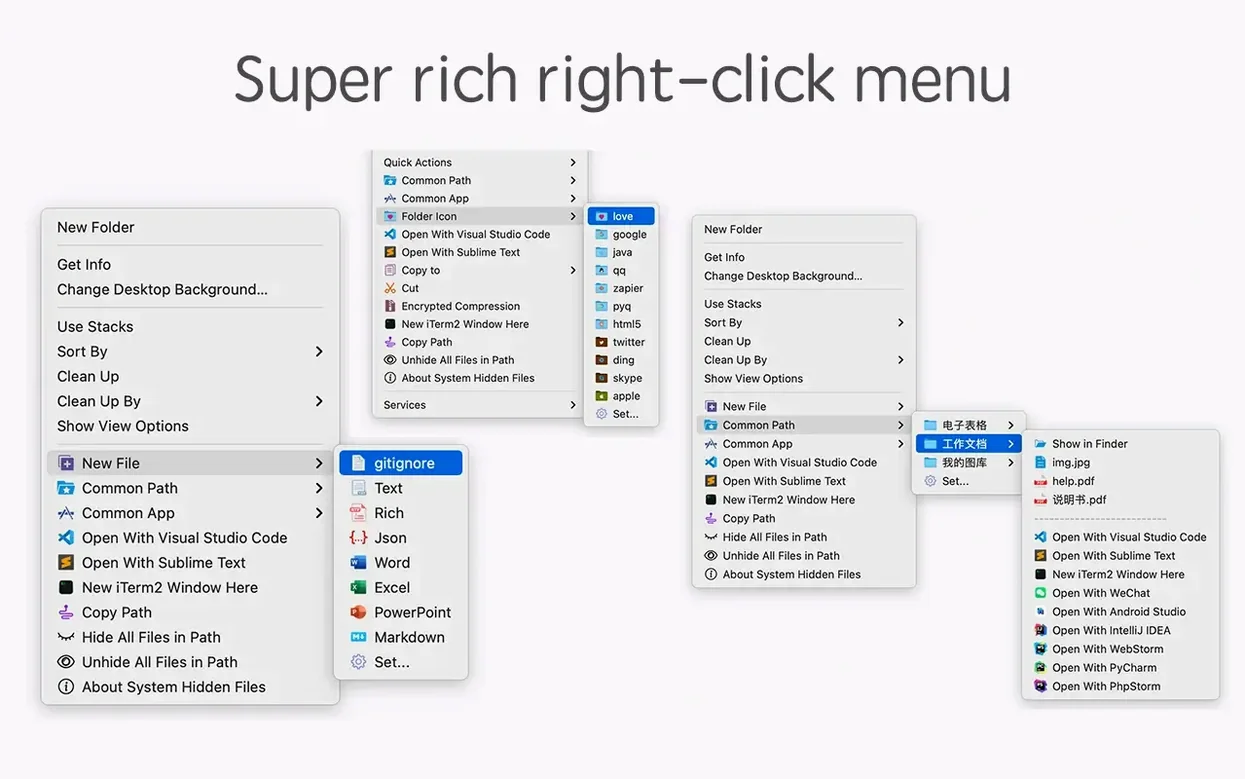
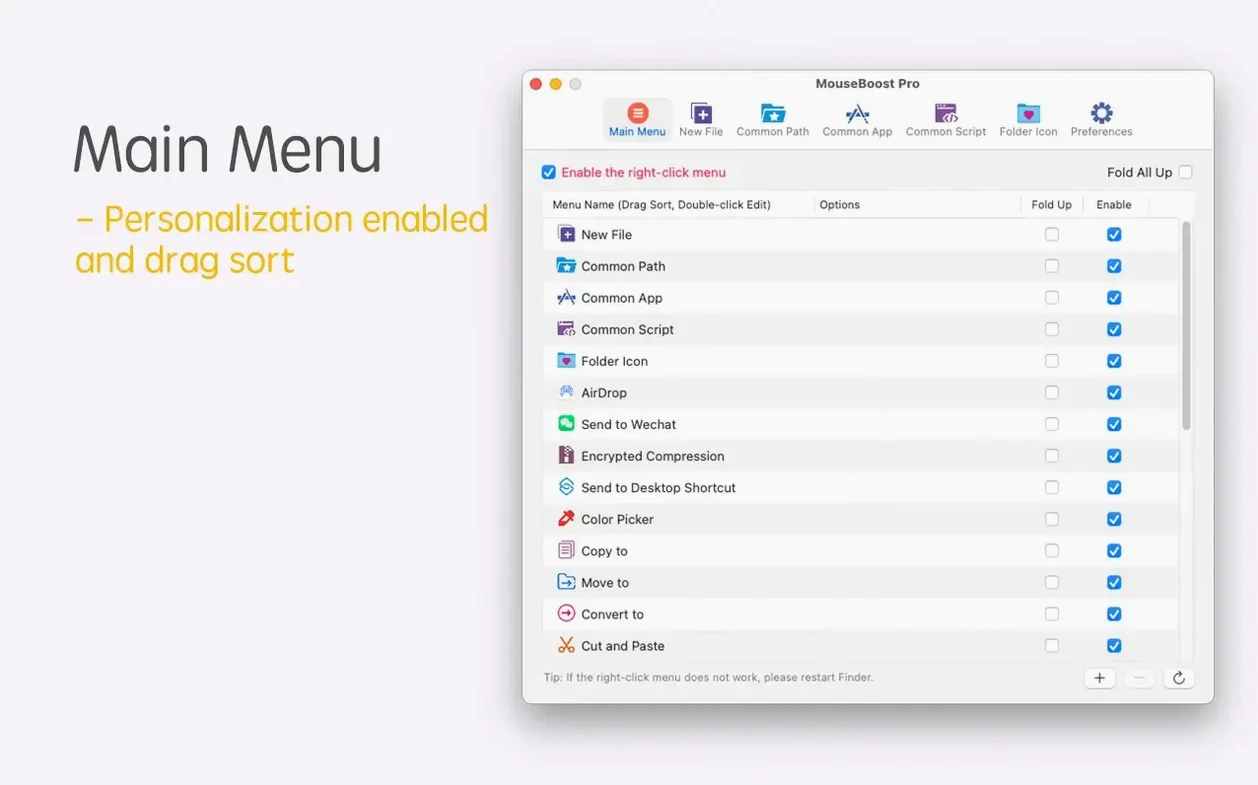
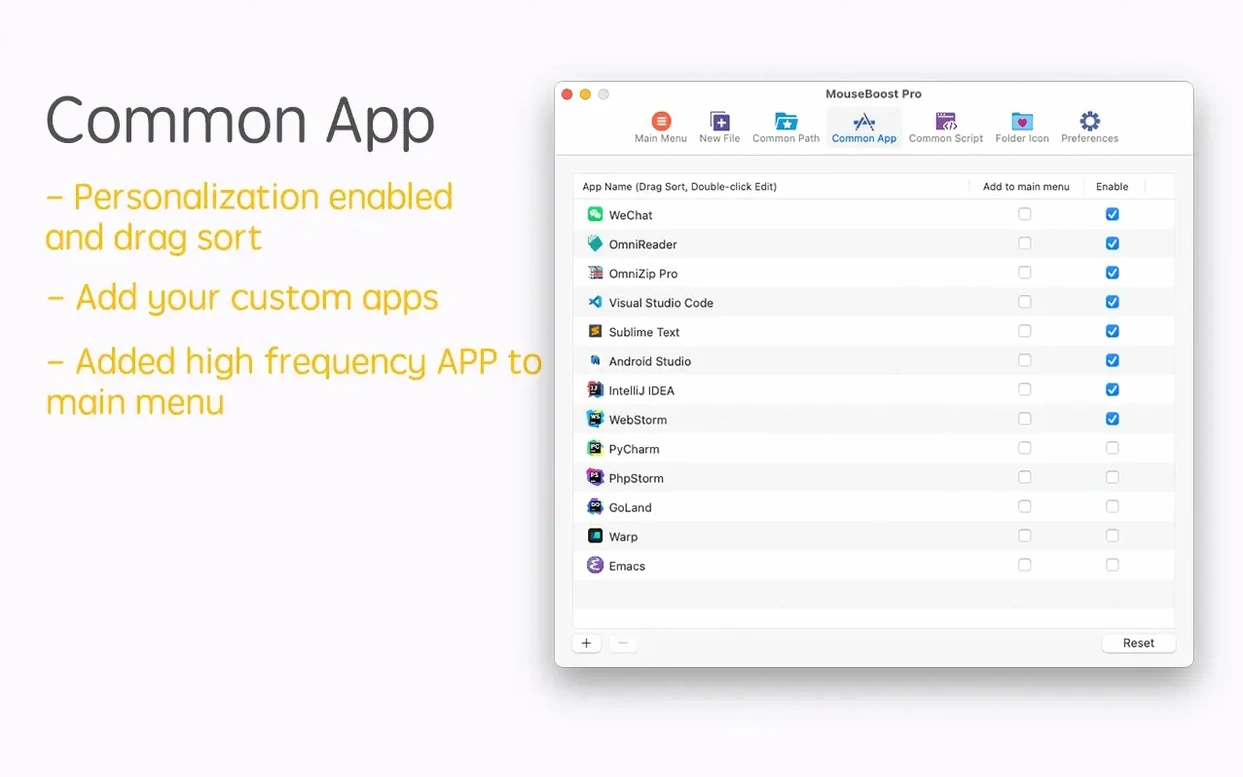
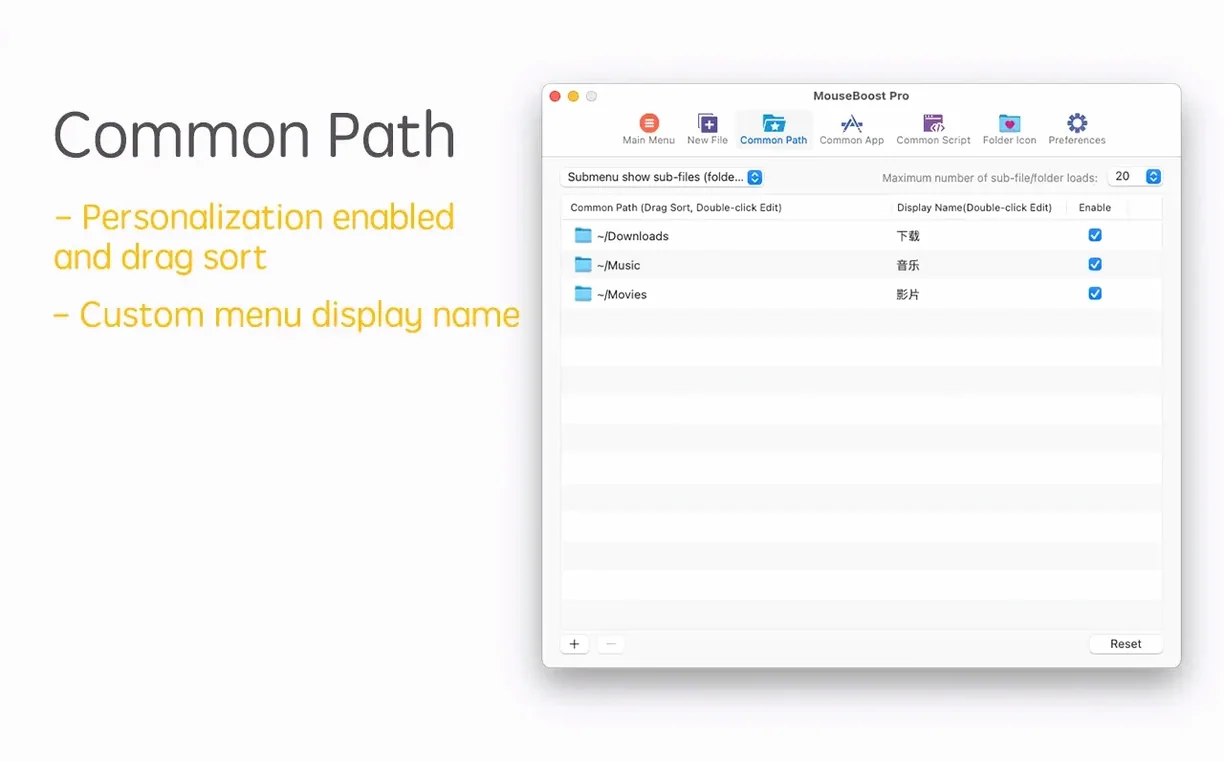
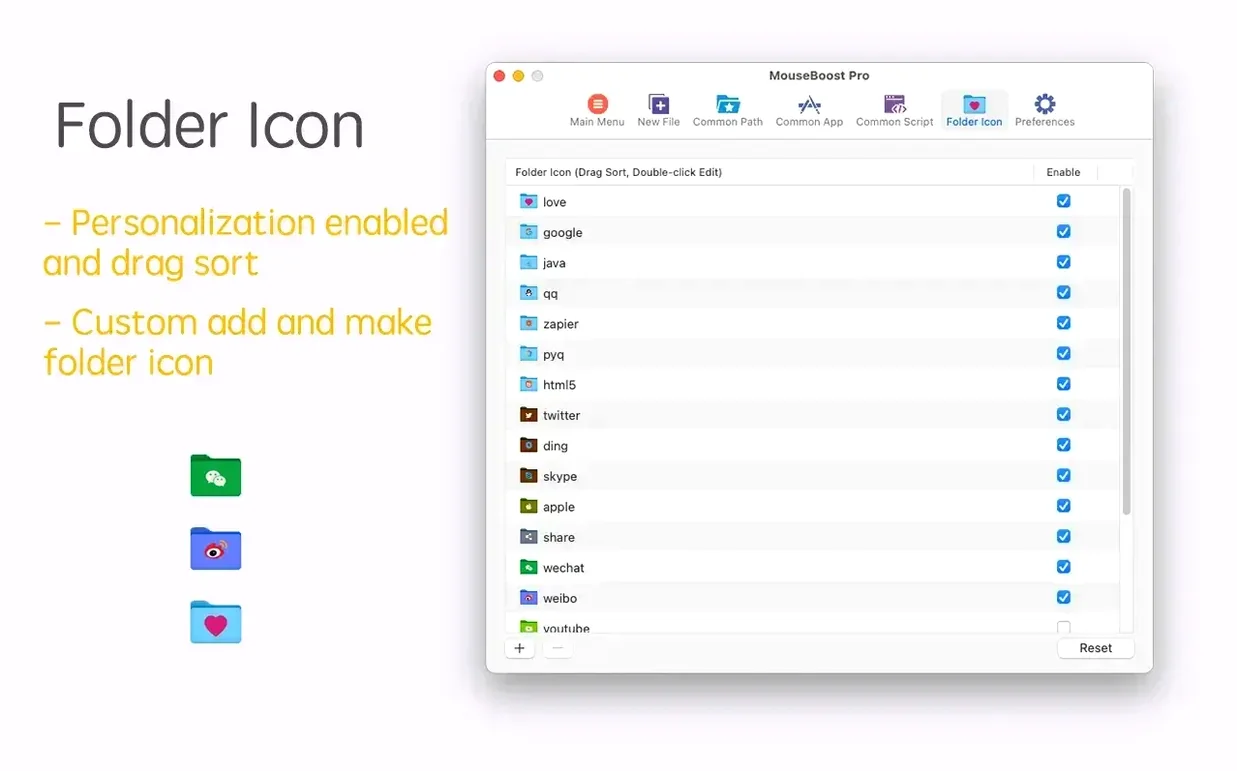
It works where you already right-click, turning the Finder’s standard menu into a set of tools you actually choose. MouseBoost Pro lives in that menu, but the actions are yours to pick and sort.
Four things I’d set up first
- Copy the current path. One click puts the full file or folder path on your clipboard — useful when you’re writing instructions or sending a location to someone.
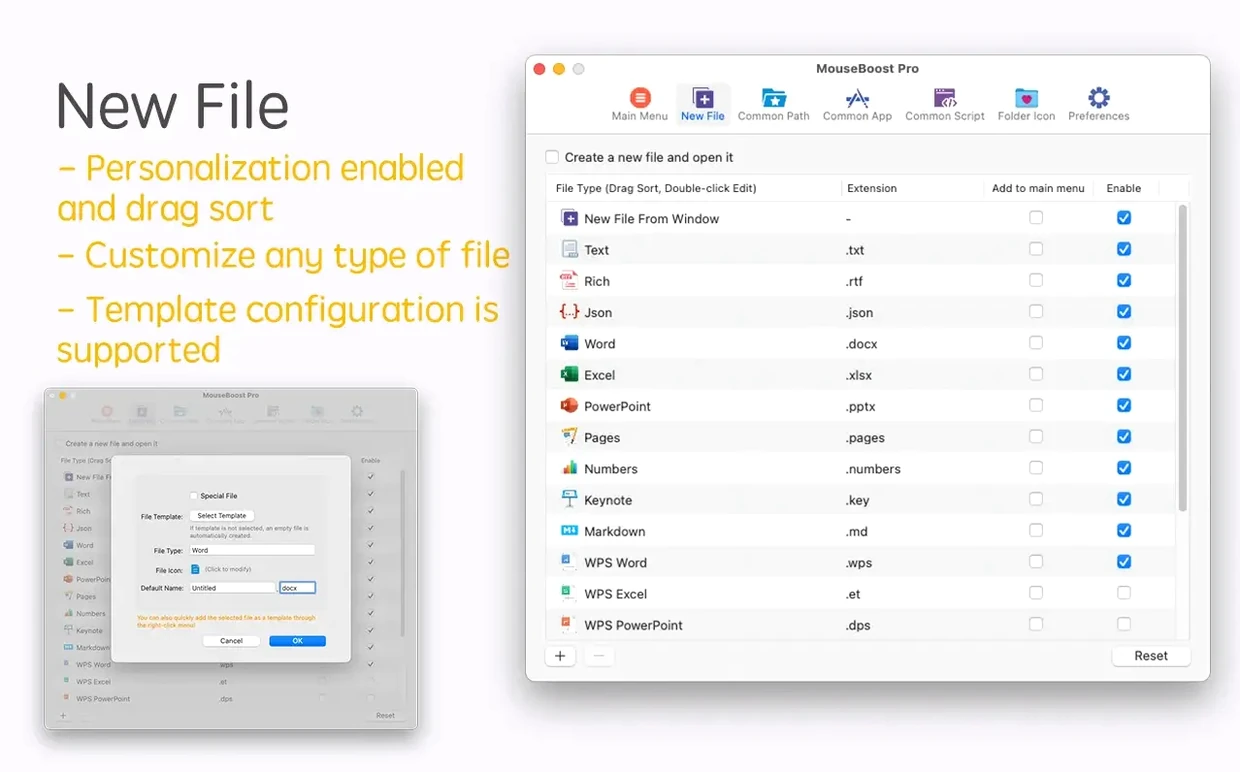
- New file shortcuts. Create a plain text file, a Markdown doc, or a Zip archive right where you are, no need to open another app first.
- Favorite folder access. Pin the folders you open most often and jump to them from the right-click menu without digging through Finder’s sidebar.
- Encrypted compression. Zip a file with password protection in two clicks, handy when you’re emailing client documents or private design assets.
Beyond those, you can permanently delete files, change a folder’s icon, or pull up MD5 and SHA256 checksums without launching Terminal. Every item in the menu can be reordered so the actions you use daily sit at the top and the rest stay out of the way. It feels less like an extra utility and more like the Finder menu finally doing what a small shop needs.
Prune the menu first so it feels like yours
After the extension is running, the right-click menu gains a long list of new options. That list can feel like a lot on day one. My advice: don’t try to use all thirty-something tools at once.
Start by pruning. Open the preferences and hide anything you won’t reach for this week. If you don’t code in Emacs, hide that terminal shortcut. If you rarely touch checksums, tuck it away. MouseBoost Pro lets you sort menus however you like, so pull the four or five things you actually need right to the top. For me, that’s copy path, new text file, encrypted zip, and move to….
Tip: In the first few days, keep the menu short. You can always add items back later. A lean menu trains your fingers faster, and you’ll build the right-click habit sooner when the menu doesn’t scroll off the screen.
Also worth doing early: set your favorite folders. Right-click on any folder you visit daily — project directories, a shared drive, a client assets folder — and add it. After that, opening them is two clicks from any Finder window.
If you batch rename often, spend ten minutes with the new rename-from-list and insert-at-position features added in 5.2.8. Paste a list of names, pick a position for extra text, and the heavy lifting is done inside the right-click panel instead of a separate renamer app.
Repetitive Finder file wranglers who skip the Terminal
Mouse Boost Pro clicks best with people who live in Finder and prefer the mouse over memorizing Terminal commands. If you organize files by hand, manage a folder-heavy project structure, or prepare assets for clients, the extension saves a surprising number of small trips to the menu bar.
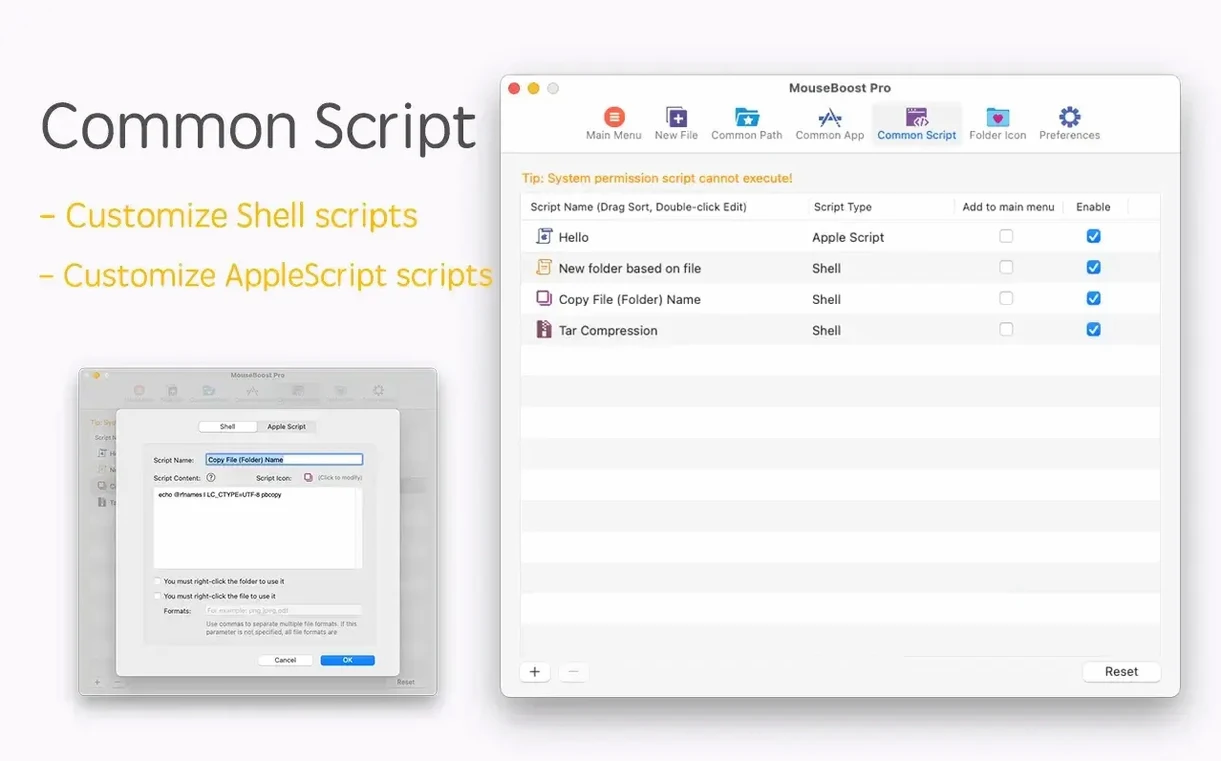
Programmers who want quick access to iTerm2, VSCode, or Sublime Text from any directory will use the terminal shortcuts daily. A right-click inside a project folder, pick your editor, and you’re coding in the right location with zero navigation.
Designers and photographers who juggle folders full of exports get a lot from the change folder icon tool, the quick file-type creation, and the encrypted compression for sending proofs. Anyone who writes documentation or instructions will lean on copy path more than they expect.
It’s less of a fit if you already do everything through a launcher and barely touch Finder icons. But for visual organizers, freelance creatives, and small-shop owners who handle their own files, mouseboost pro fills in the gaps Apple left in the right-click menu for years.
Keeping every right-click item turned on
- Leaving every menu item turned on. A cluttered right-click menu is barely better than the stock one. Hide what you don’t use. Reorder what remains. The whole point of mouseboost pro is a menu that matches your workflow, not the developer’s checklist.
- Forgetting about permanent deletion. The option to delete files without sending them to Trash is fast — and unforgiving. If you keep it visible, train yourself to pause before clicking it. Some users hide it until they need it, which isn’t a bad safety net.
- Overlooking the custom file-type creator. People see the preset new-file options and stop there. But you can add your own templates — a boilerplate HTML file, an invoice starter, a readme with your standard headings. Set it once, and it saves dozens of “open app, save as, rename” cycles.
- Not updating the favorite folders list. Projects end. Clients change. If the folder shortcuts get stale, the feature turns into noise. Treat the list as a living thing and swap entries when your directory structure shifts.
- Skipping the tree preview. The 5.2.8 update added quick preview for folder trees with a maximum depth setting. It’s an easy way to check a project structure before zipping it up or sharing it, and beginners often miss it entirely because it’s new.
Version 5.3.0 brings a handful of quietly useful additions:
- Image stitching now has grid layouts — you can set how many images per row and add or remove shots right from the layout, which makes before-and-after comparisons and quick collages much less fiddly.
- Pinned screenshots finally respond to the mouse wheel. Zoom in and out on a floating reference image without reaching for a menu.
- AVIF image support is here, and SVG conversion no longer stretches or squashes the aspect ratio — a fix that'll matter to anyone who regularly pulls icons or vector assets into their workflow.
- Smoothed out some rough edges for macOS 27 compatibility and cleaned up how the interface renders.
- OS X 10.11 or later, macOS 12.3 or later
- Apple Silicon and Intel 64-bit Macs
Notes from other shops 0
Sign in or open a shop account to leave a note.
No notes yet. If you've used this on a shop Mac, tell me how it went.