Over 180 file formats pass through this app without a hiccup. That alone tells you Movavi Video Suite was built for people who juggle footage from a dozen different sources—an old DSLR, a phone screen recording, a downloaded clip in a codec you can't quite place. It opens them all, and more importantly, it keeps them all playable while you work.
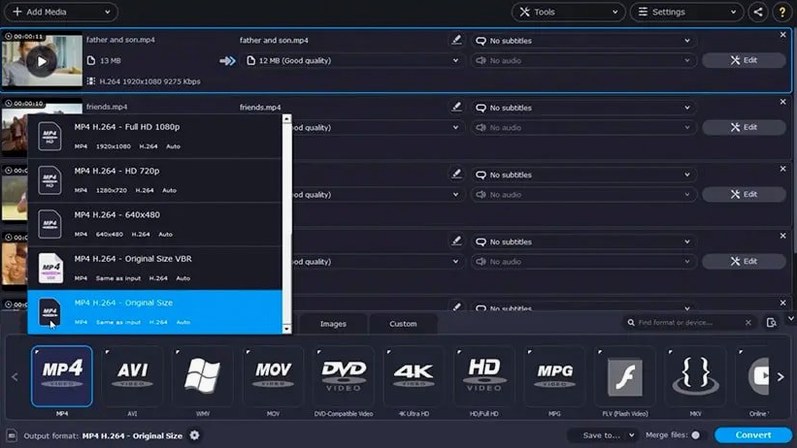
Beneath the friendly surface, there's real multi-tool depth here. You're not just trimming clips on a timeline. You can pull up the screen recorder to capture a browser demo with system audio, then layer your own voice commentary on top—without leaving the app. The converter module handles batch jobs quietly in the background, which matters when you're prepping a folder of mixed footage for a single project.
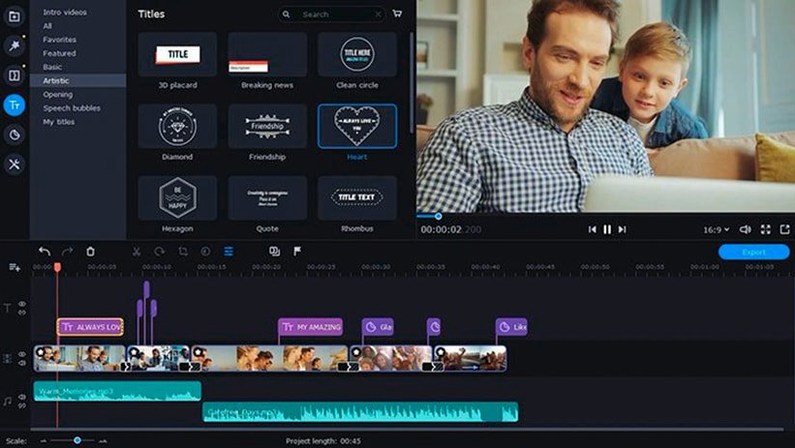
The editing panel gives experienced hands direct access to chroma key, stabilisation, and audio waveform tweaking. It's the kind of toolset you reach for when a client sends less-than-perfect source material and you need to clean it up fast. The interface stays out of your way, but nothing essential is buried.
Version 22.4.1 tightens a few loose bolts: title editing no longer trips up the app, fresh music tracks landed in the library, and applied effects now show a clearer symbol so you can scan your timeline faster. Small fixes that make a long editing session feel less like a fight with the software.
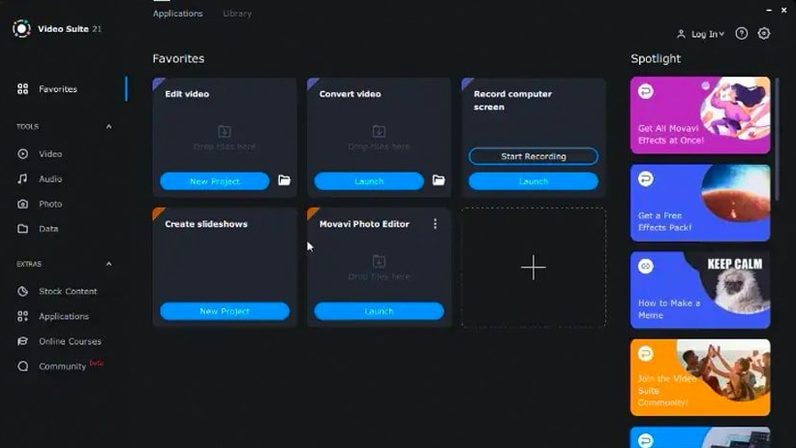
When you first open Movavi Video Suite, the sheer number of panels can feel a little like walking into a workshop where every tool is already out on the bench. Give yourself a quiet half hour on day one just to locate the three main modules—editing, conversion, and screen recording—and launch each one separately. That way, the muscle memory kicks in before a real project is on the line.
A few moves worth making early:
- Head into the converter and drop a folder of mixed clips onto it, just to watch the app parse the formats. You'll quickly see which files need renaming and which obscure codecs the app handles without complaint.
- Record a 30-second test clip of your own desktop with system audio turned on, then add a short voiceover in the same module. Play it back to check your mic level before you need it for a client walkthrough.
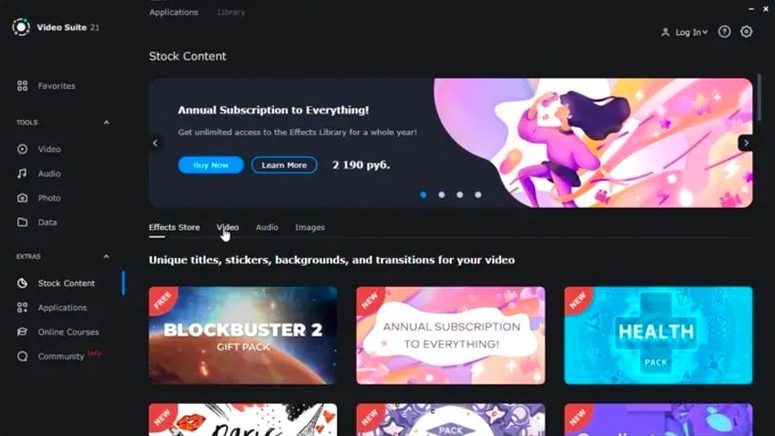
- Flip through the music library added in version 22.4.1 and mark two or three tracks as favourites. Having a go-to bed of background audio saves you from hunting later.
If you picked up the app through a movavi video suite torrent, it pays to double-check that all three modules launch cleanly on your version of macOS. On Intel machines running 10.13 or newer, the x86 build should settle in without a fuss.
Title-editing crashes are finally gone
The August 2022 release, version 22.4.1, didn't redesign the wheel, but it sanded down a couple of rough edges I used to work around. The title-editing crash was a real annoyance—you'd be nudging a lower-third graphic into place and the whole app would simply vanish. That's gone now, and the difference in a long editing day is noticeable. You stop saving after every tiny adjustment, which is how it should be.
The refreshed symbol for applied effects is the kind of tweak you don't appreciate until you're scanning a timeline with twenty-odd clips. The old indicator was easy to overlook; the new one catches your eye faster, so you can spot where you dropped a colour grade or a stabilisation pass without zooming in and squinting. Combined with the extra music tracks in the built-in library, the update makes the app feel a touch more polished for everyday use rather than just special occasions.
For anyone working from a movavi video suite torrent, these quality-of-life fixes are the reason to grab the updated version. A converter that handles over 180 formats is already useful; one that doesn't bail on you mid-edit is the one you actually finish projects in.
A full workflow: turning a phone clip and a screen recording into a tutorial
Here's a real scenario I run into often—turning raw materials into a clean explainer. Let's say you filmed a hands-on demo on your phone and recorded a supporting browser walkthrough on your Mac. Both files are sitting on your desktop, different resolutions, different frame rates.
Start in the conversion module. Drag both files in, pick a common output format like H.264 MP4, and let the batch converter level the playing field. Tick the subtitle option if you've already typed your captions in a separate text file—Movavi can burn them in during conversion, which saves a step later.
Once the files are uniform, switch to the editing module and drop them onto the timeline. Trim the phone clip down to the essential action, then splice in the screen recording where the on-screen steps need more detail. Use the chroma key tool if your phone footage has a coloured backdrop you want to replace with a clean slide graphic.
Now open the screen recording module and play the rough cut while you record a voiceover track directly into the app. The mouse cursor effects—highlight rings, click animations—can be added here too, which makes your screen recording far easier to follow. Layer that commentary under the timeline, tweak the audio waveform so your voice sits above the system sounds, and you've got a tutorial ready to export. One app, no round-tripping between different tools.
The latest update brings a few welcome refinements:
- Title work is smoother now—the program no longer shuts down while you're editing text.
- A handful of new music tracks were added to the built-in library.
- The symbol that marks applied effects got an update, making it easier to spot at a glance on your timeline.
- macOS 10.13 or later
- Intel-based Mac
Questions from the stall
Does Movavi Video Suite let me convert several video files at once?
Yes, the app includes batch file conversion so you can convert multiple files simultaneously without queuing them one by one.
Notes from other shops 0
Sign in or open a shop account to leave a note.
No notes yet. If you've used this on a shop Mac, tell me how it went.