
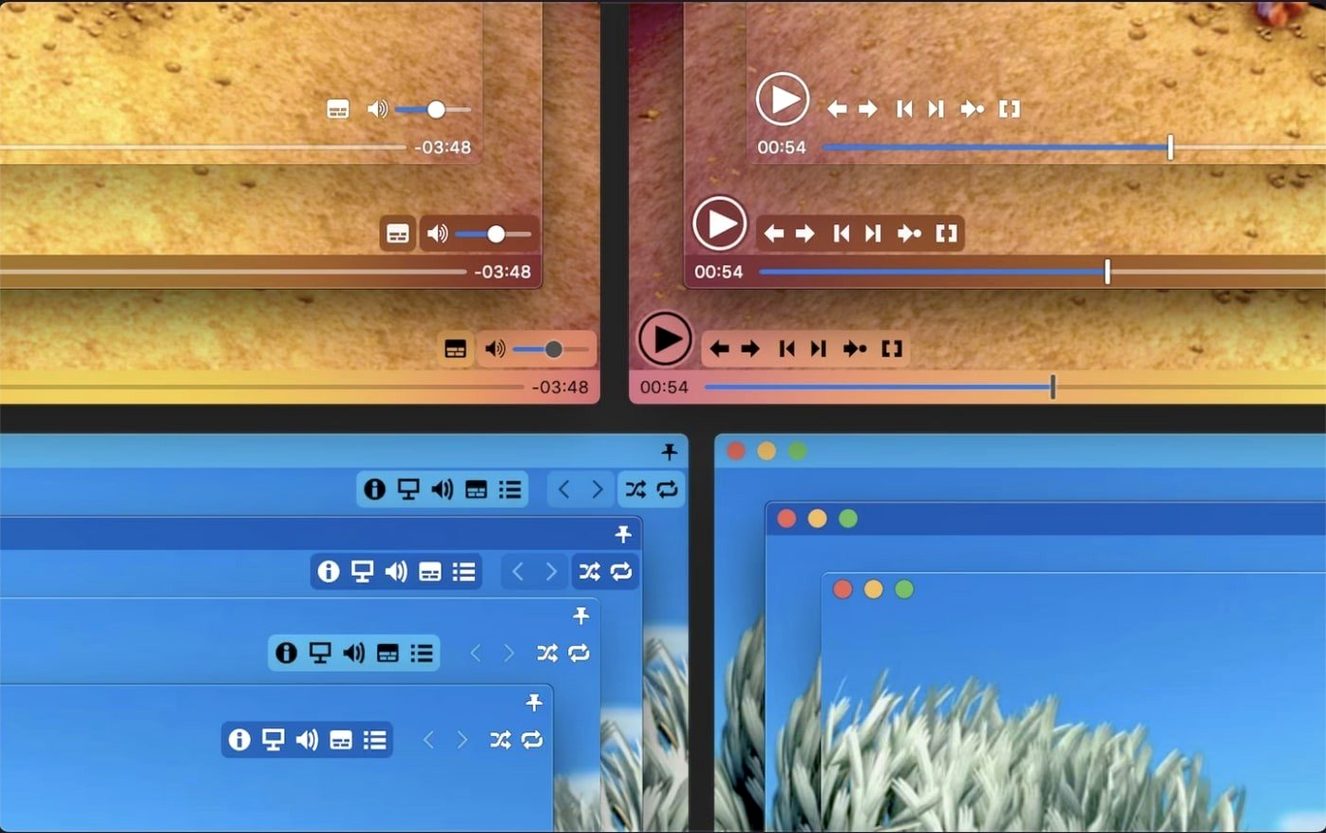
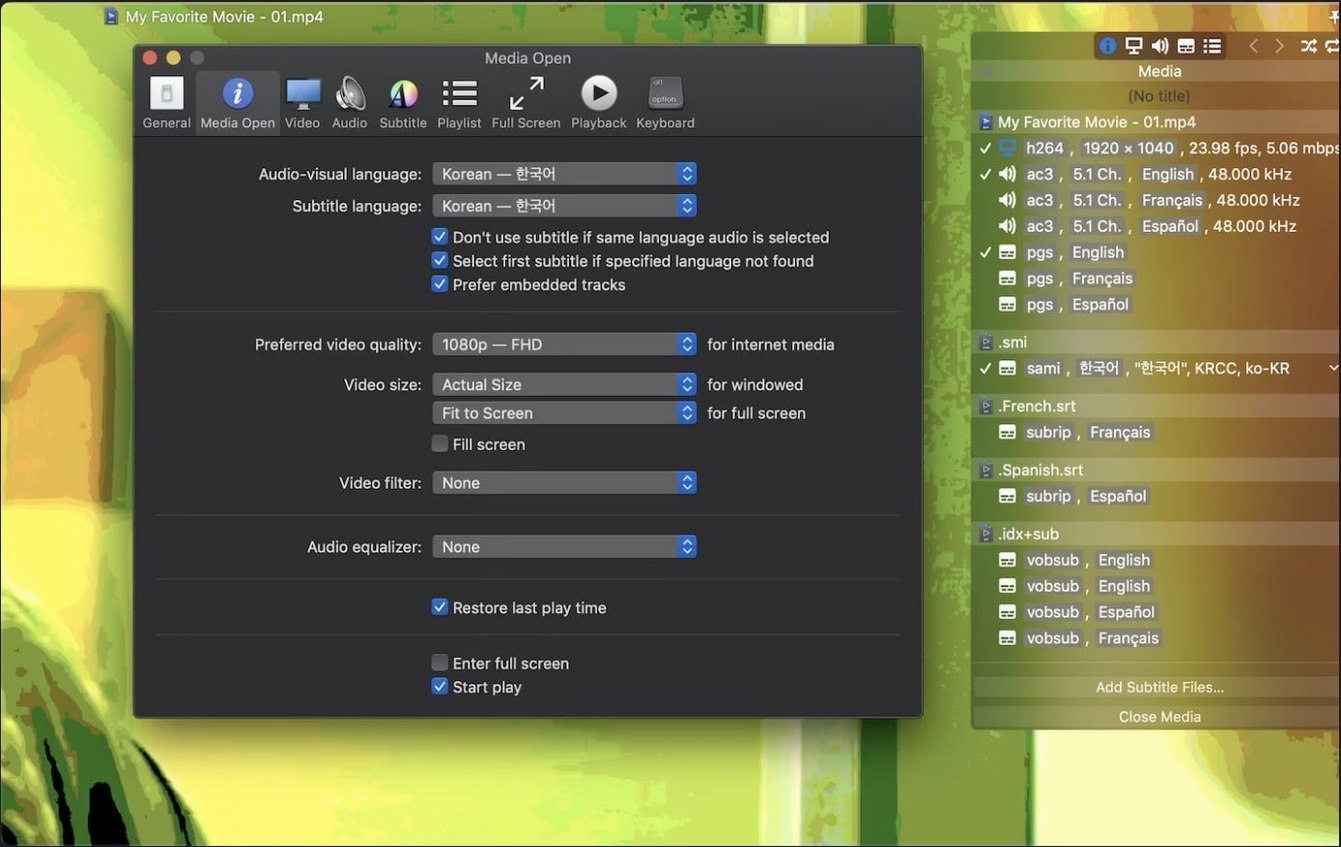
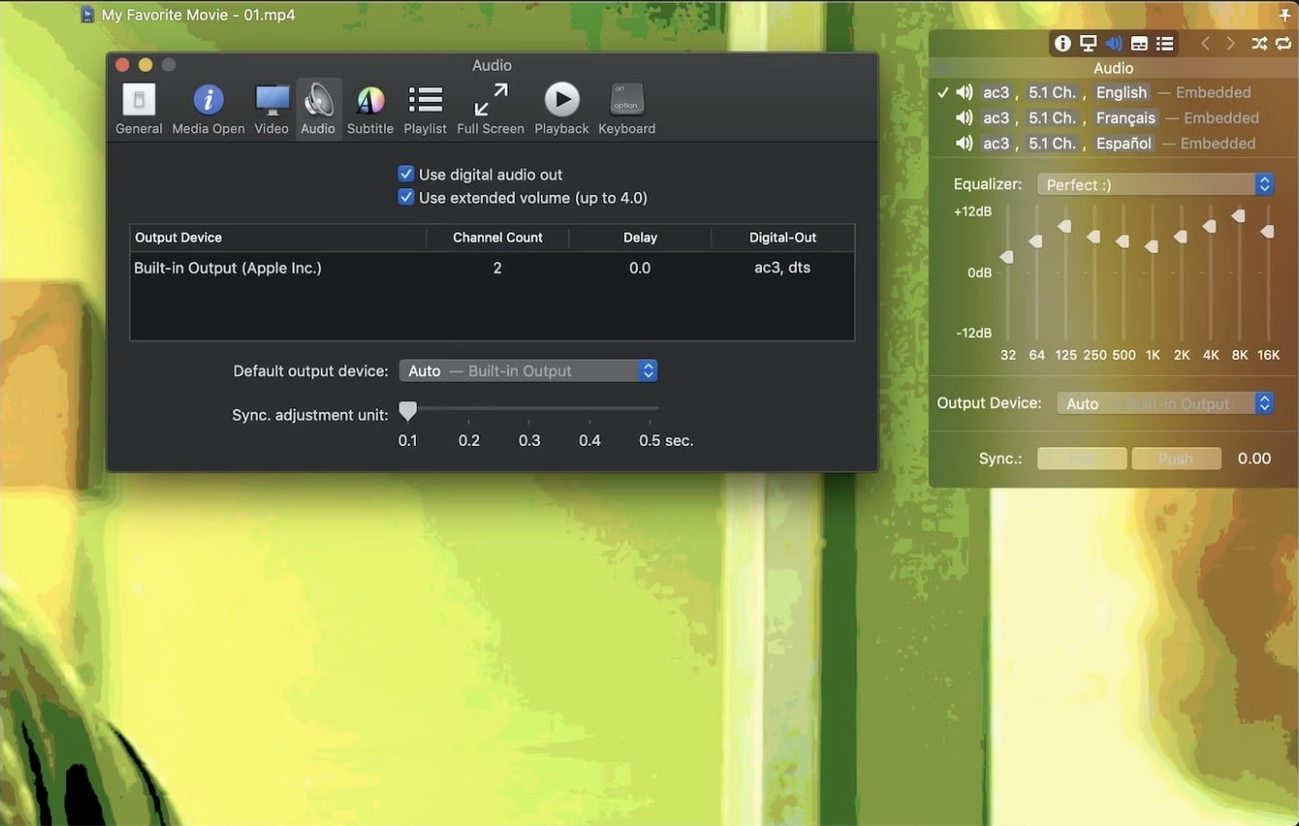
You drag a video file onto the window, and Movist Pro starts playing it right away — no dialog boxes, no extra setup. It handles the file with a plain, quiet confidence that comes from straddling two playback engines: QuickTime for system-native formats and FFmpeg for containers QuickTime never touches.
Subtitle files stay zipped, HDR looks right on SDR screens
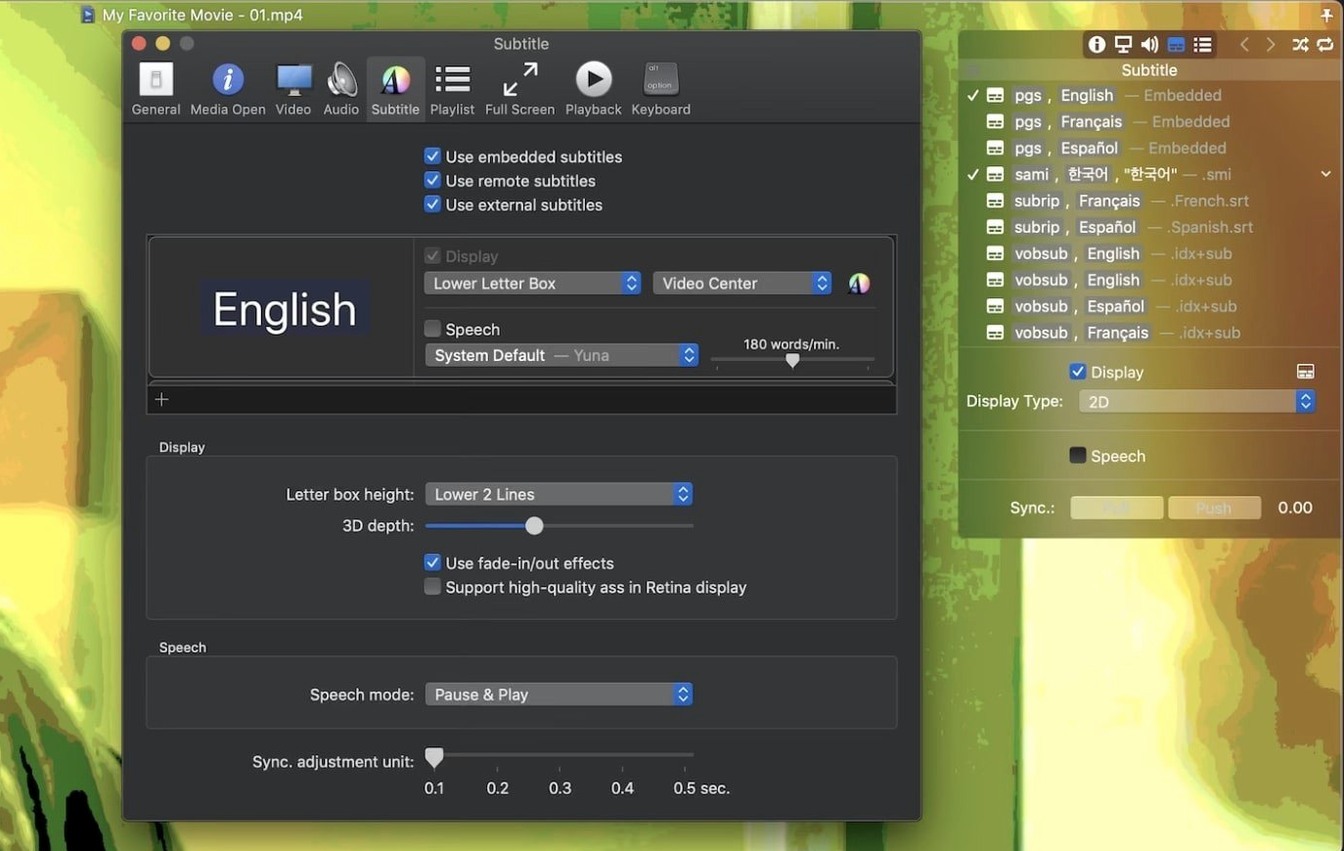
- Watching shows with downloaded subtitles. Movist Pro reads subtitles straight from .zip and .rar files without unpacking them first, and it can auto-detect the text encoding so you skip the garbled-character dance.
- HDR playback on a regular display. Its HDR tone mapping keeps scenes from looking washed out when you play high-dynamic-range files on a standard screen.
- Series bingeing without hunting for files. The playlist autocompletion sniffs out the next episode and matching subtitle files in the same folder, so a season rolls forward without you managing a queue.
- Quick screenshots for reference. A single shortcut grabs a clean still of whatever is on screen — handy for pulling visual notes from tutorials or reference footage.
Speed and sync controls hide in the menus
- Playback speed and subtitle sync are adjustable, but they live in the menus rather than on the main interface — you learn the shortcuts or you go looking.
- Playlist saving is supported, though the app works best when it can scan a tidy folder structure.
Movist Pro alongside other Mac players
People often weigh Movist Pro against IINA, VLC, and Elmedia Player — all solid Mac video apps, each with a different personality.
IINA shares the FFmpeg foundation and feels like a native Mac citizen, with a sleek single-window design that matches Movist Pro's aesthetic. Where Movist Pro pulls ahead is the dual-engine trick: QuickTime handles system-native formats while FFmpeg catches everything else. That means H.264 and HEVC hardware acceleration can kick in on the QuickTime side, and on a MacBook that translates to less fan noise during a long movie. IINA leans entirely on FFmpeg, which is capable but doesn't always route through Apple's hardware pipeline quite as directly.
VLC is the old dependable workhorse. It opens anything, on any platform, and nobody is surprised by that. What it doesn't do well is feel like a Mac app — the interface is cross-platform and it shows. Movist Pro's subtitle handling is on another level entirely: compressed subtitle archives zip open invisibly, multiple subtitle tracks can run on screen at the same time, and 3D subtitle support is built in. If you regularly juggle subtitle files, the gap is real.
Elmedia Player focuses on streaming and web video in a way Movist Pro doesn't, but for local file playback Movist Pro's playlist autocompletion alone tips the balance for series watchers. Elmedia needs you to build the list manually; Movist Pro reads the folder and assumes you want the next episode.
Friday deadline, six mixed-format files and one stubborn .ts
It's Friday evening. You have a folder of half a dozen video files from a client — some are .mkv, a couple are older .avi renders, and there's a .ts file that QuickTime Player won't even acknowledge. There's also a .zip of subtitles in three languages.
You launch Movist Pro. No project window, no welcome screen — just an empty player. You grab the whole folder and drop it onto the Dock icon. The playlist populates instantly: every video file in the folder, plus the subtitle archive matched to the first file. Press the space bar and playback starts.
Halfway through the second clip, you notice the subtitles lag a couple of seconds behind the dialogue. You tap Command-Shift-Left a few times to nudge the sync earlier — the on-screen subtitle timing adjusts in real time, no menu diving needed once you know the shortcut. You also want to see the English and Korean subtitles together to check translation alignment, so you open the subtitle menu and enable a second track. Both appear, one above the other, no clipping.
You pause to grab a screenshot of a key frame with Command-Shift-S, then let the playlist run through the remaining files. When the last clip ends, the player stops rather than looping — exactly what you wanted. You save the playlist as a .m3u file so Monday-morning you can pick up where you left off.
Playback glitches and how to smooth them out
The .ts file that refused to play
Some TS videos gave Movist Pro trouble before version 2.17.2, and if you're on an older build, a particular file might just sit there with a black screen. The fix is straightforward: update to the latest release, which addressed exactly this. If updating isn't possible, switching the playback engine manually — from QuickTime to FFmpeg or vice versa in the preferences — sometimes coaxes a stubborn transport stream into cooperating.
Crashes with System Integrity Protection off
Version 2.17.2 also fixed a crash tied to SIP being disabled. If you're running the app on a machine where SIP is off — common among developers and tinkerers — and you get unexpected quits, the update resolves it. No configuration change needed on your end.
Subtitles not loading from a .rar archive
Movist Pro handles .zip and .rar subtitle archives directly, but if a .rar file uses a newer compression format or is packed with certain third-party tools, the built-in extraction can miss it. The workaround is simple: unpack the archive with a dedicated tool like The Unarchiver, drop the extracted .srt or .ass file into the video's folder, and let playlist autocompletion pick it up. It's an extra ten seconds, and playback proceeds normally.
Letter Box subtitle placement shifting between videos
When you enable the Letter Box display mode so subtitles appear in the black bar below the frame rather than over the picture, some aspect ratios can push the text into awkward positions. The customization is tucked in the subtitle preferences: you can lock a fixed vertical offset that works for your most common file type, and the setting sticks across the playlist. It's worth spending two minutes dialing it in once rather than adjusting per video.
Tip: If you regularly search for movist pro alongside terms like movist pro mac or movist pro torrent, keep in mind that the app's sandbox mode — enabled in preferences — adds a layer of isolation that generic video players rarely offer. It's a small checkbox worth enabling when you open files from scattered sources.
This one's a maintenance release — version 2.21.0 fix tidies up whatever was misbehaving and keeps the playback smooth. No new bells or whistles, just a cleaner, more stable Movist Pro for your daily watching.
- macOS 11 or newer
- Runs natively on both Apple Silicon and Intel 64-bit Macs
Questions from the stall
Which subtitle formats does Movist Pro support?
It handles multiple common subtitle formats and renders them at high quality, including subtitles stored inside .zip and .rar archives.
Can Movist Pro play both Intel and Apple Silicon Macs?
Yes, the current version runs natively on both Intel and Apple Silicon Macs with macOS 10.13 or later.
Does Movist Pro handle HDR video?
It includes HDR tone mapping so high-dynamic-range files display with balanced contrast on standard monitors.
Notes from other shops 0
Sign in or open a shop account to leave a note.
No notes yet. If you've used this on a shop Mac, tell me how it went.