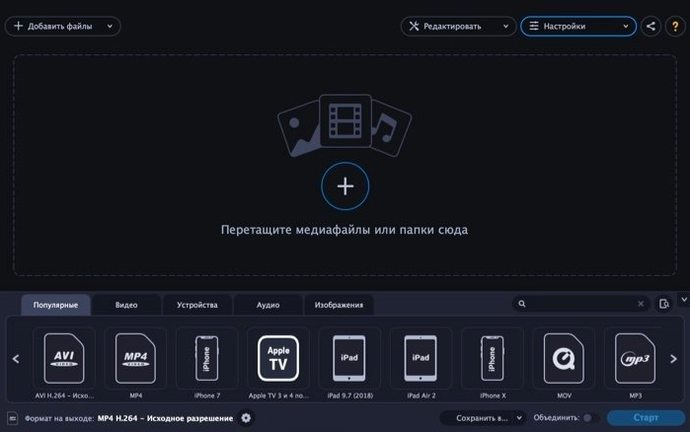
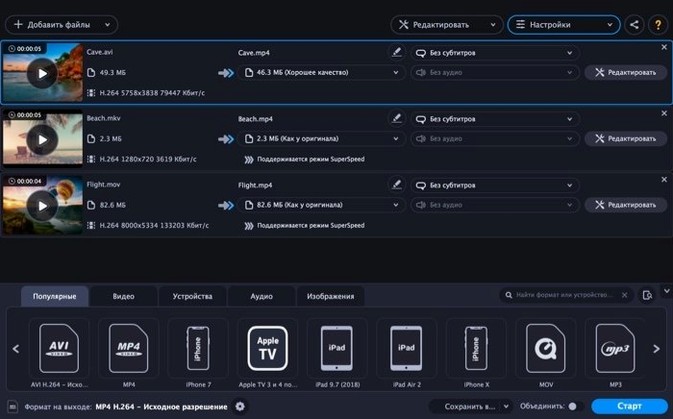
You shot a long family video on your phone, but your mom’s old laptop can’t play the high-efficiency format. With Movavi Video Converter, the fix takes about a minute. Drop the clip in, pick a universal format like MP4 from the list, and hit convert. For anyone opening the app for the first time, a few quick experiments show you what it’s really capable of.
How do I shrink a batch of videos fast?
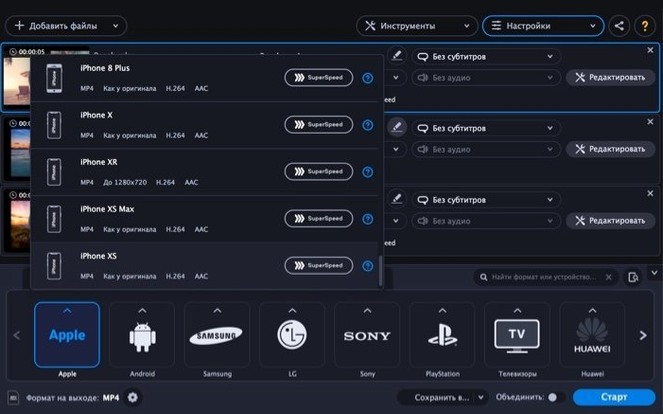
Add a whole folder of clips to the queue and pick a device-ready preset—like a profile for Samsung or Apple TVs. The app works through the list in one go, so you can step away while it crunches the files down to sizes that fit your storage.
Can I pull just the audio from a clip?
Absolutely. Choose an output like MP3 or AAC, and Movavi Video Converter strips the soundtrack from your video without touching the original file. It’s perfect for saving a lecture recording or a live music performance as a standalone audio track.
How do I clean up a shaky video?
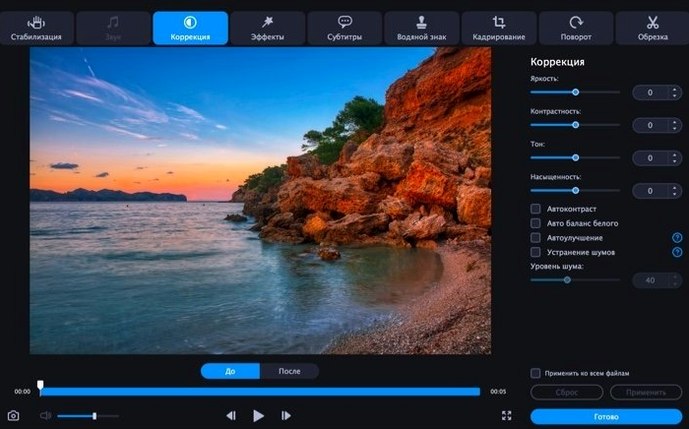
Before converting, open the editing tools and apply stabilization, crop out distractions, or add a simple text caption. You can also adjust color and reduce background noise, then save the improved clip straight into the format you need.
The gap-filler between mismatched files and your next step
Movavi Video Converter doesn't try to replace a full editor like Final Cut Pro, and it shouldn't. What it does is slot neatly between the moment you have a mismatched file and the moment you need it ready for something else. I think of it as a bridge tool.
Drag a clip onto it from Finder, pick your output, and the converted file lands where you tell it. From there you might pull it into QuickTime Player for a fast trim, drop it into Keynote for a presentation, or hand it off to iMovie for deeper editing. The SuperSpeed mode helps when you're moving between Mac apps and just need the container format changed without re-encoding everything.
It also respects the macOS share sheet. Once a file is converted, you can right-click and send it through Mail, Messages, or AirDrop without hunting through folders. And because the app lets you set a custom output folder, I keep a "Converted" folder in my Dock — new files appear there, ready to drag wherever they need to go next.
Batch-converting phone footage without the editing-suite bloat
A few groups stand out. Small-shop owners who make product videos for social media often deal with phone footage in one format and editing templates that demand another. Movavi Video Converter handles those batch conversions without adding complexity they don't have time for.
Teachers and trainers recording lessons on whatever device is handy end up with a mix of MKV, WebM, and MOV files. Running them through a single converter that also extracts audio — for a podcast version of the class — saves real hours over a semester. The built-in subtitle tool is a quiet bonus for anyone adding accessibility to recorded lectures.
Then there's the home archivist. You might have old AVI files from a camcorder or WMA audio from a long-gone music player. Movavi Video Converter reads those aging formats and writes them out as modern MP4 or MP3 files, keeping your memories playable on current Macs, tablets, and TVs. The device profiles for Apple and Samsung hardware mean you don't have to guess at the right resolution or codec.
Can you queue conversions and walk away from your Mac
Will it slow down my Mac while it converts? Any media converter uses CPU and GPU resources — that's the nature of the task. Movavi Video Converter lets you queue up work and step away. On an Intel Mac, closing other heavy apps while a batch runs keeps things responsive. The SuperSpeed mode lightens the load when you're just repackaging video rather than re-encoding it from scratch.
Does it handle the formats I actually use? The format list covers the big ones: MP4, MOV, MKV, AVI, WebM for video; MP3, AAC, FLAC, WAV for audio; and common image outputs like JPEG, PNG, and GIF. If you're pulling files from an Android phone, a DSLR, a screen recording, or an old Windows machine, you're probably covered. The app reads WMV and WMA, too, which helps when someone sends you files from a PC.
What's the difference between this and the Mac App Store version? Both come from Movavi. This download is the standalone version that runs on macOS 10.13 and later on Intel Macs. The Mac App Store listing requires macOS 11.0 or newer. If you're on an older system or prefer to install outside the App Store, you're in the right place.
Do I need to know about codecs and bitrates? Not unless you want to. The device profiles handle the technical decisions — pick "iPhone" or "Samsung TV" and the app sets the right parameters. But if you like tweaking, the custom settings let you dial in resolution, frame rate, and audio quality manually.
Check your output folder before you hit Convert
Some folks search for movavi video converter torrent or movavi mac torrent hoping to try before they commit. Fair enough. Once you have the app installed, a couple of habits will keep things running smoothly—like granting full disk access in System Settings and keeping your GPU drivers current.
Not checking the output folder first. By default, converted files land in a Movavi folder inside your Movies directory. If you don't set a custom path, you might spend five minutes wondering where your new MP4 went. I set mine to the desktop for quick access, then move files where they belong afterward.
Picking a format without thinking about the end use. Converting an MKV to MP4 for your own Mac is one thing. Sending that same file to a friend with an old Windows laptop might need a different preset. Before you hit Convert, ask yourself: where is this file going? The device profiles exist exactly for that question.
Skipping the editing tab entirely. People open the app, add files, and convert without ever clicking the Edit button. That's a missed opportunity. Trimming dead air from the start of a video, rotating a sideways phone clip, or adding a watermark takes seconds and means you don't need a separate app for those small fixes. Do the cleanup before the conversion, not after.
Running a huge batch without testing one file. When you're converting dozens of clips, run a single file through first. Check that the quality and format look right, then queue the rest. It beats discovering halfway through that you picked the wrong preset.
If you've been looking for a movavi video converter mac torrent download, you'll find the app handles the core job reliably. Start with small batches, use the presets, and let the editing tools catch the little things you'd otherwise fix later.
- macOS 10.13 or later
- Intel-based Mac
Questions from the stall
What image formats can I convert video frames into?
You can export frames as BMP, GIF, JPEG, PNG, or TIFF files, which is handy for grabbing a still from a clip or making a thumbnail without a separate photo editor.
Does the app work on older Macs?
Yes, Movavi Video Converter runs on macOS 10.13 and later, so even machines that haven’t been updated in a few years can handle the conversions.
Which languages does the interface support?
It speaks English, German, Spanish, Italian, French, Portuguese, Dutch, Polish, Turkish, Korean, Japanese, and both Traditional and Simplified Chinese.
Notes from other shops 0
Sign in or open a shop account to leave a note.
No notes yet. If you've used this on a shop Mac, tell me how it went.