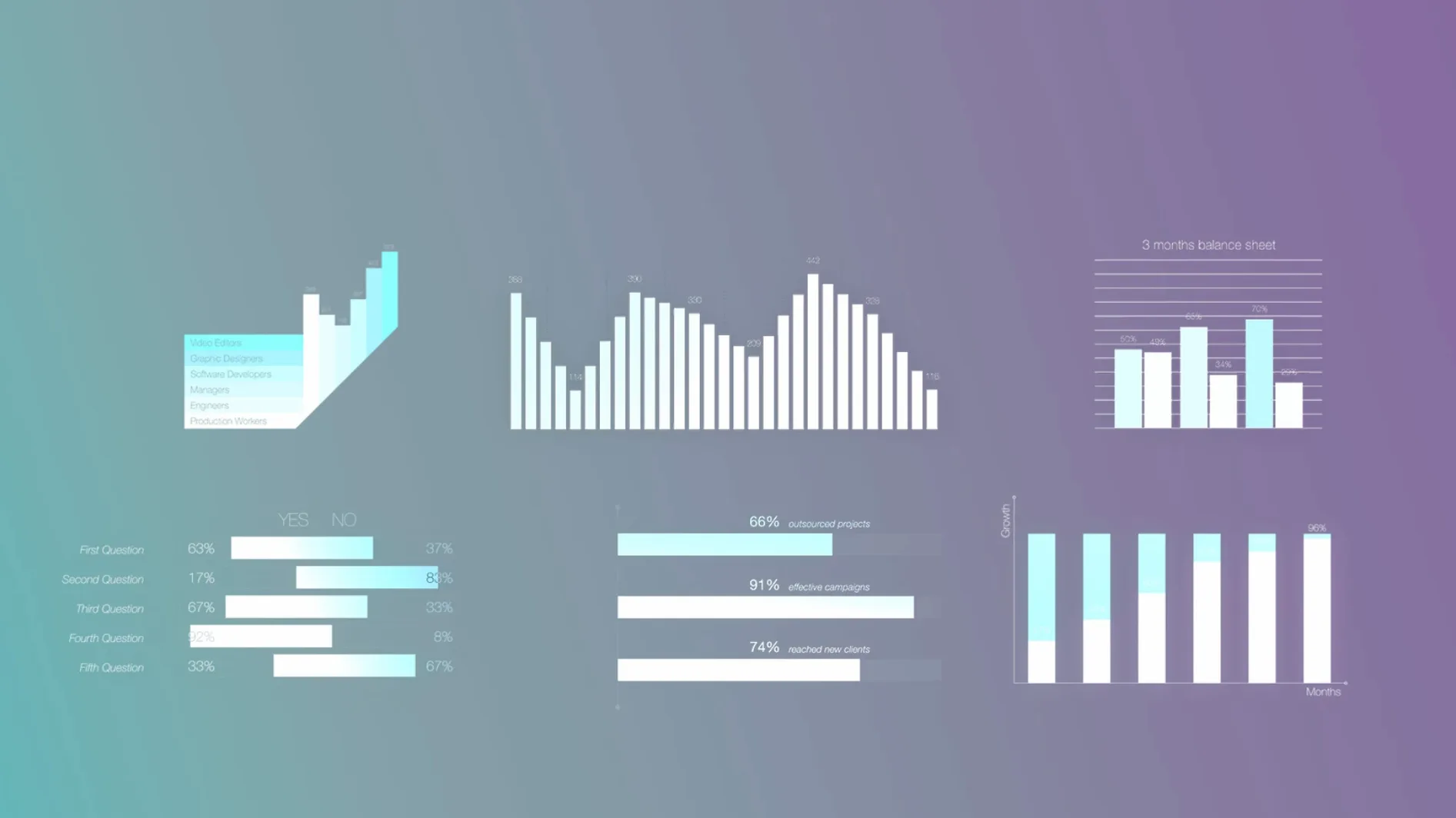
mInfographics packs 60 universal infographic elements straight into Final Cut Pro. Each element lands with its own set of on-screen controls, so you can tweak placement, timing and styling without leaving the viewer.
Good for
- Editors who build explainer sections, data callouts or branded lower-thirds quickly
- Projects that need informational captions with built-in typographic styling
- A clean, controls-first workflow — adjust everything on screen instead of digging through inspectors
Keep in mind
- Built for Final Cut Pro only; won't show up in other NLEs
- The interface uses English throughout
- Installation targets a specific Titles folder on your Mac
How mInfographics Compares to Other Mac Infographic Tools
Final Cut Pro editors looking at infographic tools usually run into three names: motionVFX mInfographics, Pixel Film Studios FCPX Infographics, and the built-in FCPX titles and generators. They solve the same problem but go about it differently.
Pixel Film Studios' take on infographics tends to be flashier out of the box — more pre-animated transitions and stylized overlays that catch attention quickly. That works when you want a distinct look someone else designed. The trade-off is that you spend more time stripping away animation presets you don't need. mInfographics stays closer to the "clean data" side of things, with on-screen controls that let you dial in the exact look rather than wrestling with a preset someone else chose. If you're building something that needs to feel integrated with your own brand rather than borrowed from a motion design template, mInfographics gives you more room to shape the result.
Apple's built-in titles and generators cover simple bar charts, basic callouts, and some stylized text. They work fine for straightforward labels, and they cost nothing extra. Where they fall short is the moment you need linked data visualization — a percentage circle that animates, a bar graph that builds in sequence, an informational caption that ties a number to a styled description block. Those are all separate elements you'd need to assemble and sync manually with the built-in tools. mInfographics bundles that logic together so the number, the graphic, and the caption move as one unit.
MotionVFX also offers mLowers and mTitles, which overlap slightly in the informational-caption territory. The distinction is that mInfographics focuses on charts, graphs and data-driven visual elements, while the other packs lean toward lower-thirds and title treatments. Someone doing quarterly report videos would reach for mInfographics; someone cutting interview segments would head for mLowers.
What to check before you download
Does this work in DaVinci Resolve or Premiere Pro?
No. The plugin targets Final Cut Pro specifically. It relies on the Motion Templates architecture that Apple uses for FCPX titles and generators. If your workflow lives in another NLE, you'd need to render elements out of Final Cut Pro and import them as clips, which defeats the purpose of having on-screen controls.
Only timeline elements hit your memory
The elements are built on Apple's Motion engine, which is generally well-optimized for Mac hardware. Sixty infographic elements won't load into memory at once — only what you place on the timeline matters. On a machine from the last few years, playback stays smooth with a handful of active elements. If you stack twenty animated data graphics simultaneously, you'll naturally want to use background rendering or proxy media, but that's standard Final Cut behavior rather than a plugin-specific limitation.
Can I change the colors to match my brand?
Yes, through the on-screen controls. Each element typically exposes fill colors, stroke colors, and sometimes gradient stops directly in the viewer rather than sending you into the inspector. The typography styling for informational captions adjusts the same way — font, weight, size and color are all reachable without opening extra panels.
Is there a motionvfx free download or motionvfx torrent available?
Some editors search for a motionvfx free download or motionvfx torrent hoping to test the elements before committing. The actual package structure is straightforward: folders that land in your Motion Templates directory. That simplicity means there is no activation step to bypass, but it also means the developer doesn't offer a time-limited trial version. If you want to see the elements in action, the developer's preview videos and documentation show each of the 60 elements in context, which gives you a realistic sense of what lands in your timeline.
Building a revenue chart from scratch
Imagine you're cutting a quarterly update video for a small consultancy — the kind of project where numbers need to feel clear without looking like a spreadsheet. You've already laid down talking-head footage and now need a section showing revenue growth across three service lines.
Place the element. From the Titles browser, you find a multi-bar chart element that fits the structure you have in mind — three bars, vertical, with room for labels underneath. Drag it above the primary storyline. The element appears as a title clip, so it overlays whatever is beneath it on the timeline.
Adjust on screen. Instead of hunting through the inspector, you click the viewer and immediately see control handles. Dragging one bar upward changes the value it represents; the associated number updates in real time. A small control near the base of each bar lets you change its color independently. Another handle adjusts the spacing between bars so they fit neatly over your speaker's shoulder without blocking their face.
Customize the data labels. The on-screen controls include a text field for each bar's label — you type "Consulting," "Research," "Workshops" right there in the viewer. Below the bars, a description block accepts a longer caption. You add "Revenue by service line, Q3" as the heading. The font matches the other captions in your project, which you set once and the element remembers across instances.
Set the animation timing. The element comes with a build-in animation: bars rise from zero to their assigned values. You adjust the duration by dragging the clip edge in the timeline, exactly like any other FCPX title. A shorter clip means snappier animation; a longer one stretches the build across more seconds. The easing is baked into the element, so you don't need to touch keyframes unless you want to offset each bar's timing manually.
Duplicate and adapt. Once the first chart element is in place, you duplicate it further down the timeline for the next data point — maybe a pie chart showing client retention percentages. The duplication preserves your color choices and font styling, so you only change the numbers and labels. In about fifteen minutes, you have four distinct infographic segments that all feel like part of the same project instead of a patchwork of mismatched styles.
Your last color tweak sticks everywhere
On-screen controls remember your last tweak. If you adjust a bar color and then duplicate the element, the copy carries the new color. This also applies across sessions — quitting Final Cut Pro and reopening the project preserves the values you set, so you don't need to reconfigure elements every time you revisit a timeline.
Informational captions handle number formatting for you. When you type a value like 1250000 into a description field, the element often formats it with commas or abbreviates it depending on the style you picked. A percentage circle element, for instance, automatically adds the % symbol so you don't have to type it. Small detail, but it saves a surprising amount of back-and-forth when you're updating data across multiple clips.
The installation path is flexible. The instructions point to /Movies/Motion Templates/Titles/, but Final Cut Pro also reads from the system-level Motion Templates folder if you prefer a shared setup. The folder structure inside the download mirrors what Final Cut expects, so you can drop it in either location and the elements appear in the Titles browser without further configuration.
No activation means no interruptions. Because the plugin doesn't phone home or ask for a license check, you won't see a popup months later telling you to re-authenticate. The elements simply stay where you put them and keep working as long as Final Cut Pro recognizes the Motion Templates folder structure. That's especially handy for editors who move
- Works on Intel and Apple Silicon Macs
- Requires Final Cut Pro
- Interface language: English
Questions from the stall
What does mInfographics include?
60 universal infographic elements for Final Cut Pro, plus informational captions with typographic styling and on-screen controls for quick adjustments.
Is mInfographics available in languages other than English?
No, the plugin interface is translated in English only.
Notes from other shops 0
Sign in or open a shop account to leave a note.
No notes yet. If you've used this on a shop Mac, tell me how it went.