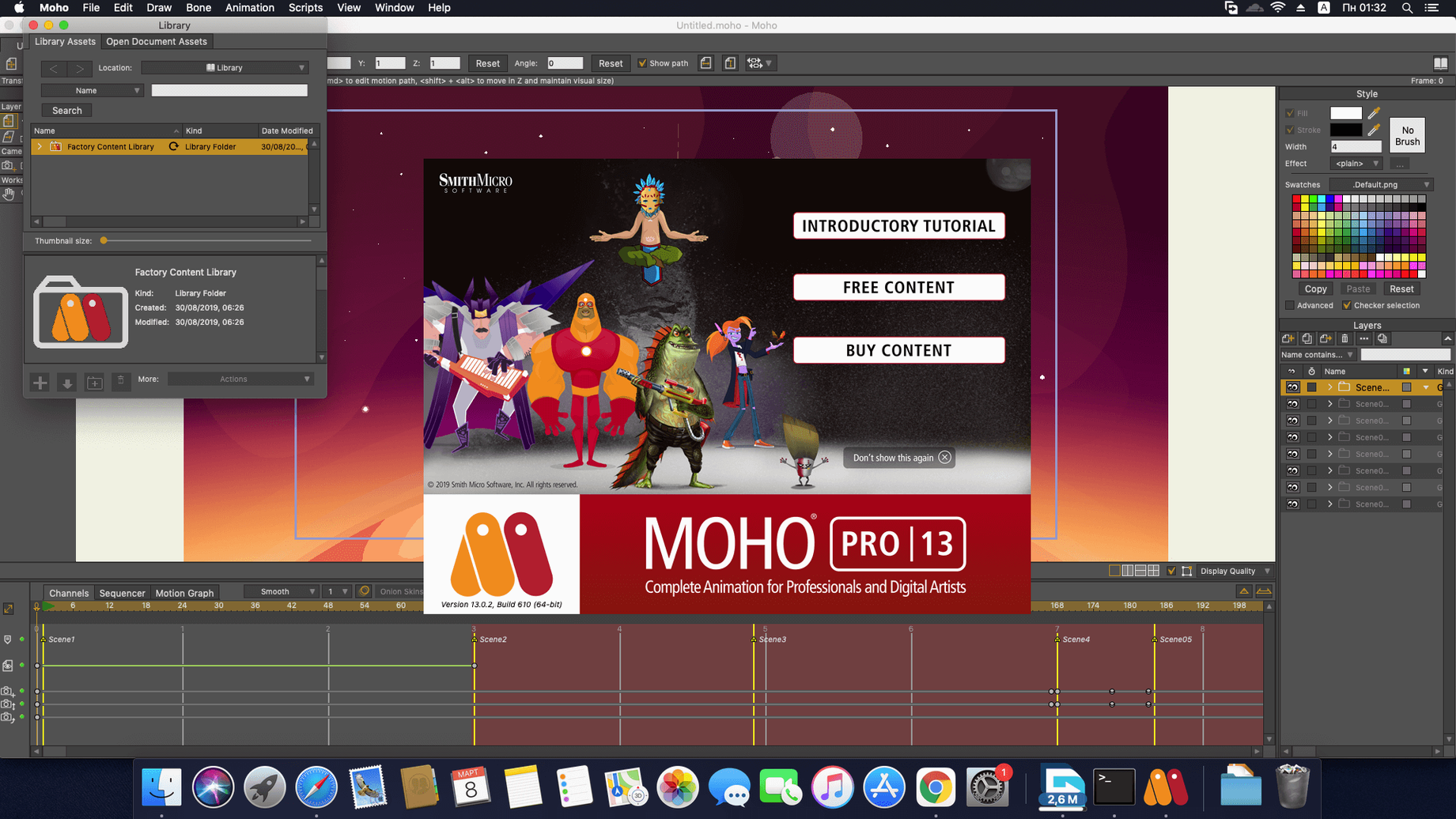
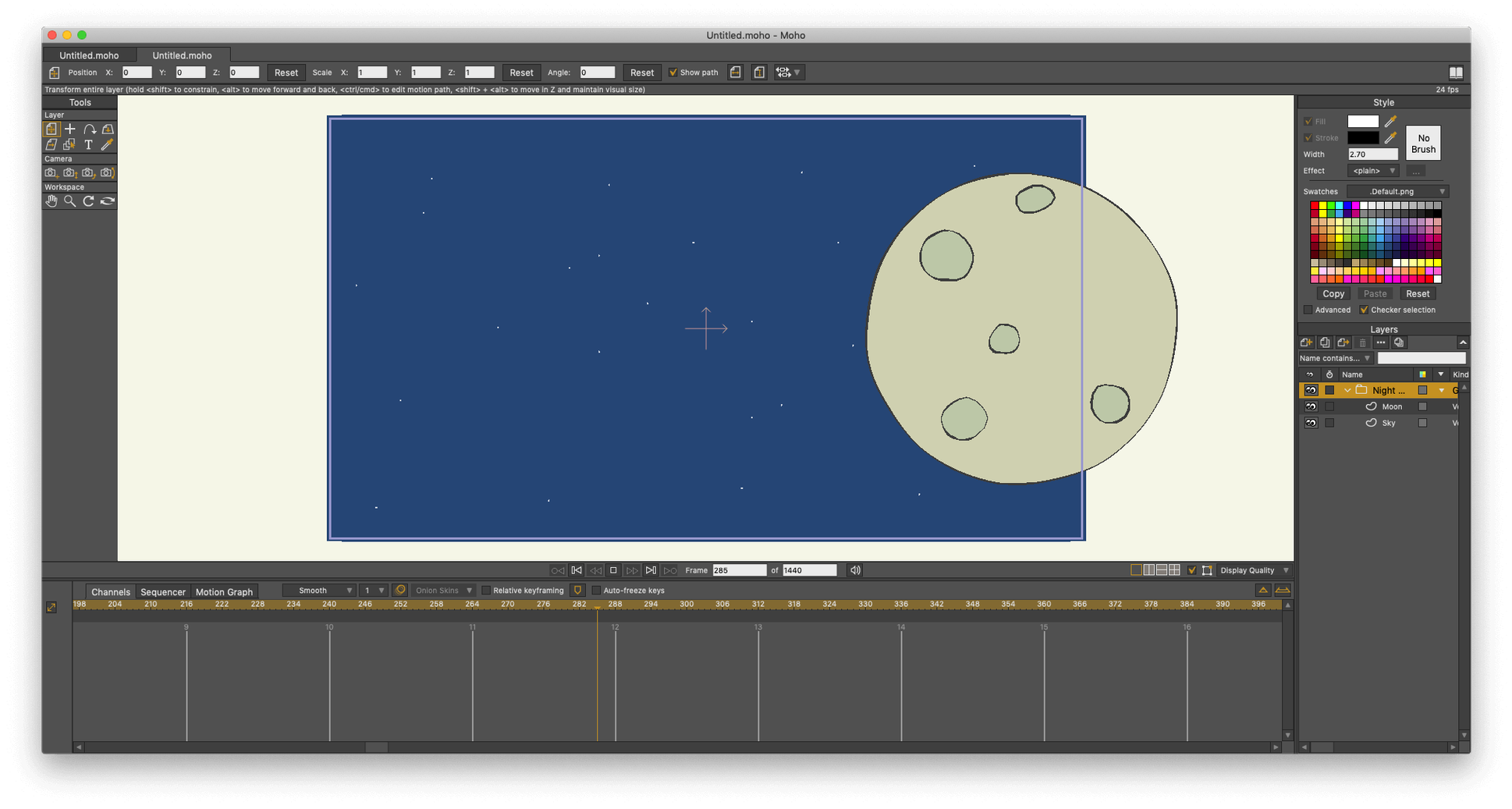
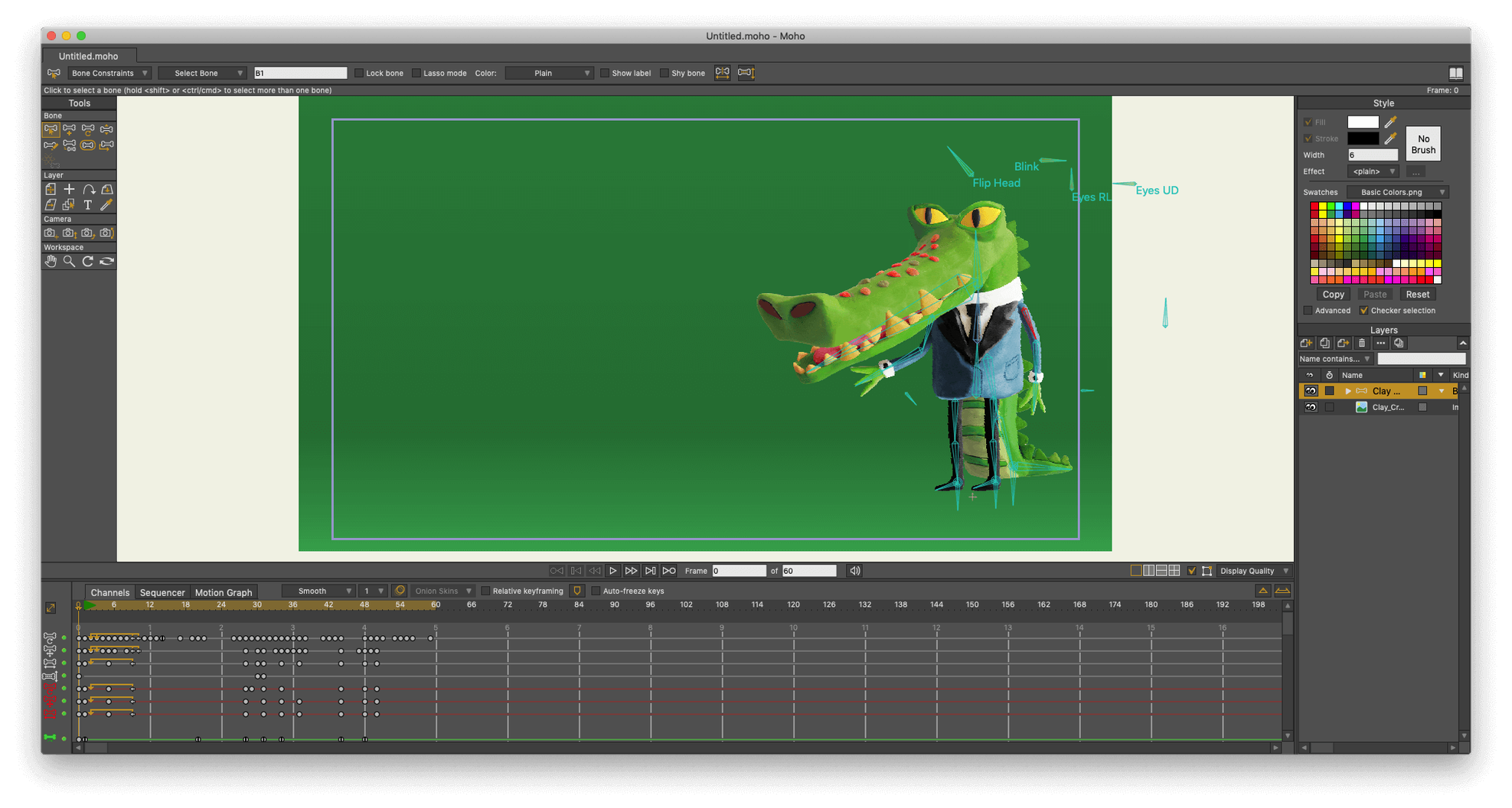
Moho Pro is a deep 2D animation workstation built for artists who rig characters, design vector assets, and create cut-out animations. It was formerly called Anime Studio Pro, and version 14.4 carries forward the same blend of drawing tools and timeline control.
Bone-rigging speed for illustrators and small studios
Illustrators, indie game developers, and small animation studios who rely on bone-rigging and smart bones to speed up character work. It is also a solid fit for YouTubers and explainer-video creators who need reusable rigs instead of frame-by-frame drawing.
What kind of animation does it handle best?
Cut-out and vector animation are its core. The physics engine lets you set density, gravity, friction, and elasticity so objects fall and bounce naturally. A built-in sequencer and full HD video import and export keep scenes organized from sketch to final render.
Can you extend it or use it with game engines?
Yes. Moho speaks Lua, and version 14 updated the scripting interface to Lua 5.4.4. The current release also added glTF/GLB export for video game engines and 3D software, so a finished rig can travel to Unity or Unreal Engine.
Why rigging too early warps your geometry
Rigging too early is the big one. A new Moho Pro user draws a character and immediately starts adding bones before they have really decided how the character needs to move. The result is a messy skeleton that warps geometry in ugly ways. I always suggest blocking out a few key poses on a scratch layer first, just rough stick-figure drawings, to feel out where the joints should bend.
Another classic slip is ignoring the z-depth ordering while setting up a rig. A character looks fine in a neutral pose, but as soon as an arm swings behind the body, it peeks out on the wrong side. Moho's animated layer ordering is there for exactly that, but new users often forget to keyframe it.
Beginners also tend to draw every single view from scratch in a single vector layer instead of using smart bones for head turns and hand switches. This builds a huge, hard-to-edit file and misses the whole point of a cut-out workflow. I have watched people redraw a hand four times in four keys when a switch layer driven by a smart bone dial would do the same thing in seconds, and stay perfectly consistent.
Vector engine keeps a dozen rigs responsive on MacBook Pro
On my MacBook Pro, Moho Pro 14.4 launches in a few seconds and feels snappy even with a dozen character rigs on screen. The vector engine is light on resources; a scene that makes a raster-based timeline choke stays responsive here. Scrubbing the timeline and dragging bones in the viewport stays smooth because Moho leans heavily on the GPU through OpenGL, so a supported graphics card matters.
Stability has been solid in this version. The fixes to the particle system ironed out some crashes I used to bump into when layering too many particle emitters, and I have not lost work to a random quit since updating. Auto-save is unobtrusive, and Moho recovers a backup without fuss.
Memory use is modest for a program that handles HD timelines. A complex project with imported Photoshop backgrounds, audio, and multiple character rigs rarely pushes past a couple of gigabytes of RAM. The 4 GB minimum is realistic for light scenes, though I would want 8 GB or more once I start stacking glTF exports and high-resolution textures for game work.
A more direct alternative to Harmony’s node-based toolset
Toon Boom Harmony is the heavyweight alternative. Harmony gives you a deeper toolset for frame-by-frame traditional animation and a node-based compositor, but it feels heavier and asks for a steeper learning curve. Moho Pro keeps things more direct, especially for one-person teams who want to rig, animate, and export without managing a node graph. I tend to reach for Moho when the project leans on smart bones and physics, and I only miss Harmony when I need its bitmap painting tools.
Adobe Animate sits somewhere else. It is comfortable for Flash veterans and HTML5 canvas output, but its rigging system is less expressive. Moho’s smart bones and pin bones give you fine control that Animate does not match without manual shape tweens. Animate wins on integration with other Adobe apps, but for a standalone character animation tool, Moho Pro feels more purpose-built.
Blender is the wildcard. It is free, 3D, and has a capable 2D grease pencil workflow. But using Blender for pure 2D cut-out animation is like driving a cargo truck to pick up groceries. Moho Pro is lighter, faster to rig a character in, and exports cleanly to game engines with the same glTF format Blender uses, so the two actually complement each other nicely instead of competing head-on.
Squash and stretch meshes instantly with pin bones
Pin bones are easy to overlook when you are comfortable with regular bones, but they let you squash and stretch parts of a mesh without adding a whole new bone chain. I use them all the time for belly wobbles and cheek puffs, tiny secondary motions that bring a rig to life.
- Hold Option while clicking a bone to select its parent chain in one go, a quick way to adjust an entire arm or leg rig.
- The Style window lets you save stroke and fill presets and apply them across projects, so you are not rebuilding your color palette every time you start fresh.
- Right-click any keyframe in the timeline to access the motion graph editor directly, skipping the menu dive.
- The built-in visual library is not just clip art. You can drag in a pre-rigged character, study its bone setup, and learn rigging tricks from it.
Lua scripting is a power feature that hides in plain sight. Even a short script that renames layers in bulk or offsets keyframes by a custom number of frames can save an afternoon of repetitive clicking. You do not need to be a programmer; the scripting console logs errors clearly, and the Moho community shares snippets freely. A quick search for Moho torrent or Moho Pro 14 torrent often surfaces community forums where animators swap these little time-savers alongside rigs and brushes.
One last thing: the glTF export panel has a checkbox for embedding textures. If you skip it, your game engine sees a grey ghost of your character. It is a tiny setting that is easy to scroll past, and it has tripped up more than one person doing their first export to Godot or Unreal Engine.
Version 14.4 adds glTF and GLB export aimed at game engines and 3D software. The particle system and layers received fixes and improvements, and the scripting interface was updated to Lua 5.4.4.
- macOS 10.15 or later
- 64-bit operating system
- OpenGL 4.1 supported graphics card
- 2.0 GHz Intel Core i3 or higher
- 4 GB RAM or higher
- 1.6 GB free hard drive space or higher
- Online connection required for activation
Questions from the stall
What can I export from Moho Pro?
Finished projects can be saved as video files, image sequences, or SWF files. Version 14.4 adds glTF and GLB export for game engines and 3D tools.
What happened to Anime Studio Pro?
Anime Studio Pro was renamed Moho Pro. The software is the same professional 2D animation tool with layers, physics, and a built-in object library.
Does Moho Pro work on both Intel and Apple Silicon Macs?
Yes, it runs on both architectures. It requires macOS 10.15 or later, a 64-bit OS, an OpenGL 4.1 capable graphics card, and at least 4 GB of RAM.
Notes from other shops 0
Sign in or open a shop account to leave a note.
No notes yet. If you've used this on a shop Mac, tell me how it went.