
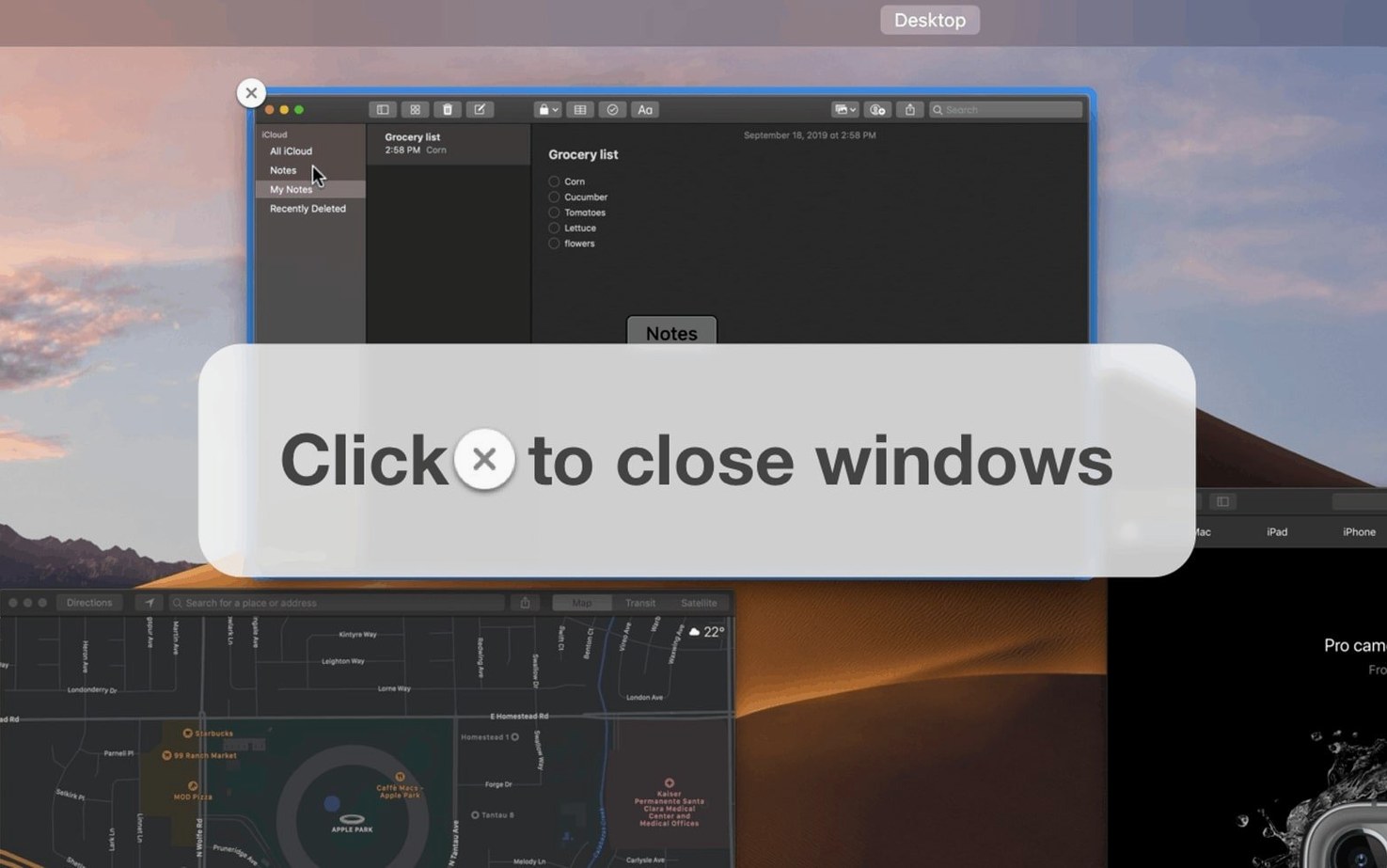
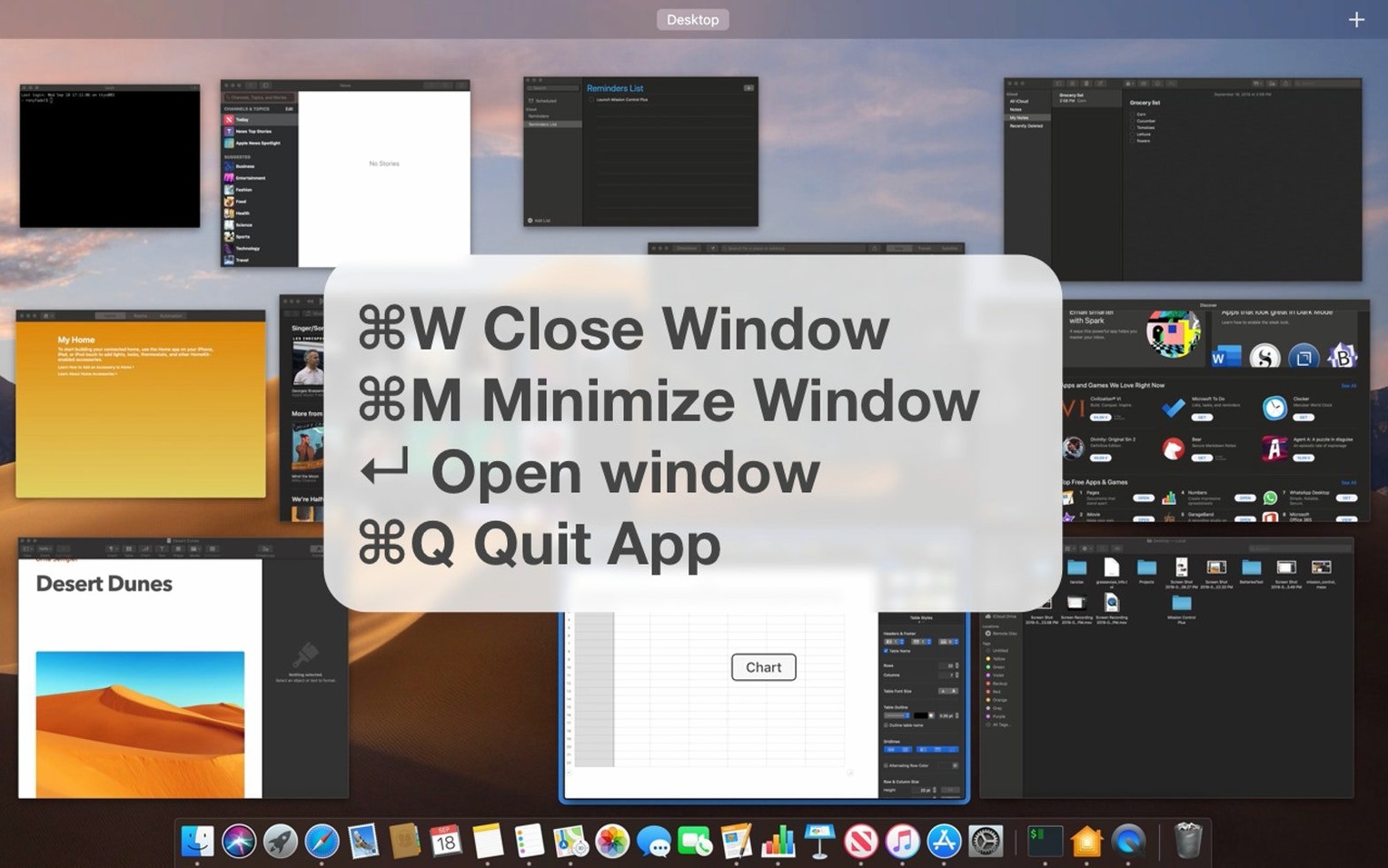
You know how Mission Control lets you see all your open windows at once, but then you still have to reach for the mouse to close or minimize something. That's the gap Mission Control Plus fills.
What is Mission Control Plus?
It's a small utility that adds keyboard controls to the Mission Control view, so you can manage windows without lifting your hands from the keys.
Close or minimize any app right from the overview grid
Close an application, quit a frozen process, or minimize a window straight from the bird's-eye view with a shortcut. It's also a handy alternative to cycling through every app with Cmd-Tab when your workspace gets crowded.
Keyboard-driven window wranglers with crowded desktops
Mac users who prefer the keyboard over the trackpad, or anyone who keeps a lot of windows open and wants a faster way to tidy up.
Where it fits among BetterTouchTool and other window managers
There are other tools that tweak Mission Control, but they take different approaches. Here’s how Mission Control Plus sits alongside them.
BetterTouchTool can do a lot more than Mission Control stuff — it remaps trackpad gestures, snaps windows, and runs automation. But its window-management shortcuts work from the normal desktop, not from inside Mission Control itself. You don’t get the visual overview with close buttons hovering over each window. Mission Control Plus stays focused on that one view and makes it more useful.
Witch is a keyboard-driven window switcher that lists every open window, including minimized ones. It replaces Cmd-Tab more than it extends Mission Control. If your goal is picking a specific window by name without ever seeing thumbnails, Witch does that well. Mission Control Plus is for people who like the bird’s-eye layout and want to act on what they see without switching tools.
AltTab brings a Windows-style Alt-Tab overlay to macOS, with previews and keyboard navigation. It’s polished, but again it’s a switcher, not a Mission Control companion. Mission Control Plus gives you the spatial map of your windows and lets you close several of them before you return to work — something a list-based switcher can’t offer.
If you search for mission control plus macos because the built-in view feels half-finished, these three apps show the range. Mission Control Plus is the one that stays inside that view and adds controls right where you need them.
A real-world scenario: photographer after a shoot
Picture a wedding photographer back at her desk. She’s got Lightroom open with the latest import, Finder showing three SD-card folders, two Preview windows for contracts, Mail with client messages, and Safari with a dozen tabs for the venue’s upload portal. The screen real estate is gone, and Cmd-Tabbing through everything feels like rummaging through a drawer.
She triggers Mission Control, and now every window tile has a small close button in the corner. She spots the Finder windows she no longer needs and closes them with a quick click. One Preview window is the signed contract — she leaves it. The other is last month’s quote sheet, so she dismisses it. She can also grab a shortcut like “quit active application” to close Safari entirely once the upload finishes, without hunting for the Dock icon.
What she gets is a cleanup pass that takes ten seconds instead of two minutes of clicking and dragging. The spatial layout helps her brain register what’s still open, and the extra controls let her act on that recognition immediately. For anyone who returns to a chaotic desktop after intense creative work, that quick tidy-up feels like resetting the room before the next task.
Morning admin run: swipe up, spot the clutter, and tidy fast
Let’s walk through a session that feels familiar to me — morning admin before the real work starts.
1. Trigger Mission Control. I use a four-finger swipe up on the trackpad. The screen fills with thumbnails of every open window across all my spaces. There’s Slack on the left, Notes next to it, two Finder windows, a spreadsheet, and Preview holding a packing-slip PDF.
2. Scan the grid. I can see at a glance that one Finder window is the Downloads folder I opened yesterday — it’s showing the same old .zip files. The spreadsheet is last month’s expenses, already submitted. Both need to go.
3. Close the clutter. With Mission Control Plus running, each thumbnail has a small close button. I click the Downloads window, then the expense sheet. Both disappear without me leaving the overview. If I preferred the keyboard, I could hover over a window with the arrow keys and tap the assigned shortcut to close it.
4. Handle a frozen app. Preview is stuck on the PDF — it’s been spinning for a minute. From the Mission Control view I press the keyboard shortcut to quit the active process. Preview vanishes and I know it’ll relaunch fresh when I need it later.
5. Minimize what I need later. The packing-slip PDF I’ll need again this afternoon. Instead of closing Preview entirely, I use another shortcut to minimize just that window. It slides out of the grid and into the Dock, waiting for me.
6. Drop back to work. I tap the space that holds Notes and start typing. The whole cleanup took under thirty seconds, and I didn’t touch the Dock, Cmd-Tab, or a single app’s File menu. The grid gave me the overview, and Mission Control Plus gave me the tools to act on it right there.
- macOS 10.13 or later
- Apple Silicon and Intel Macs
Questions from the stall
Does Mission Control Plus replace the built-in Mission Control?
No, it extends the feature—the standard Mission Control still works as before, but you get extra keyboard controls layered on top.
Notes from other shops 0
Sign in or open a shop account to leave a note.
No notes yet. If you've used this on a shop Mac, tell me how it went.