
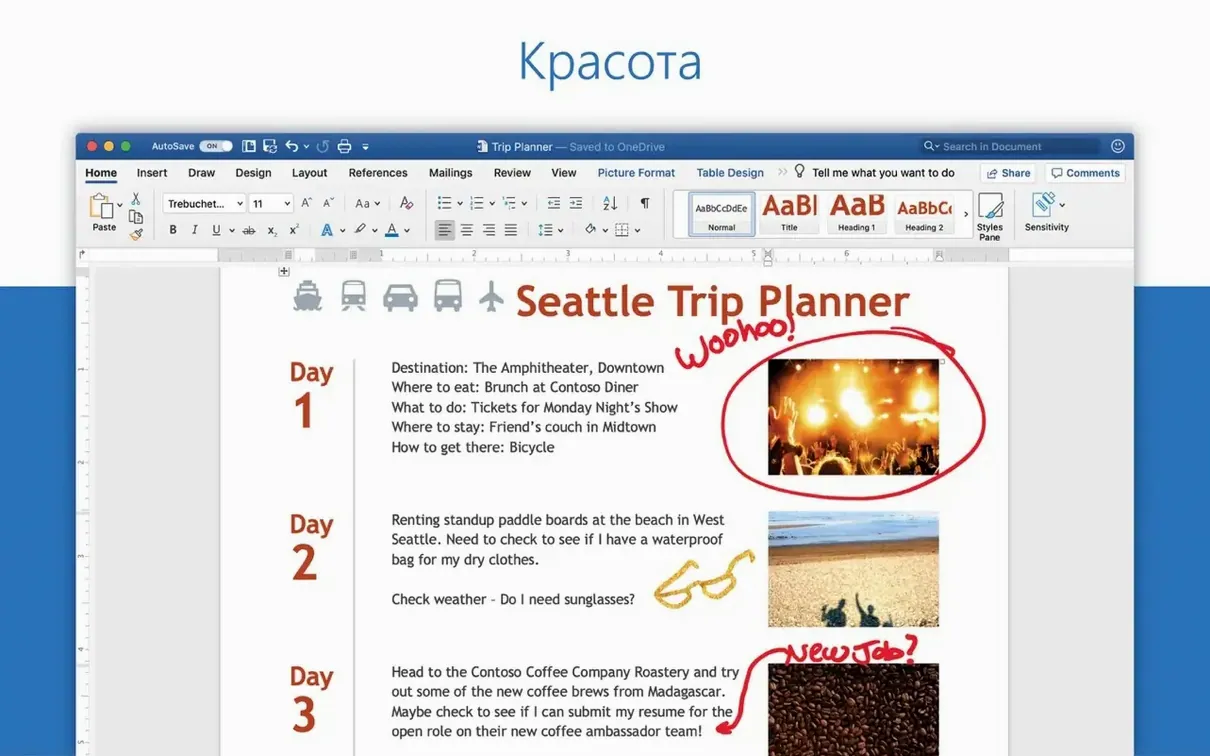
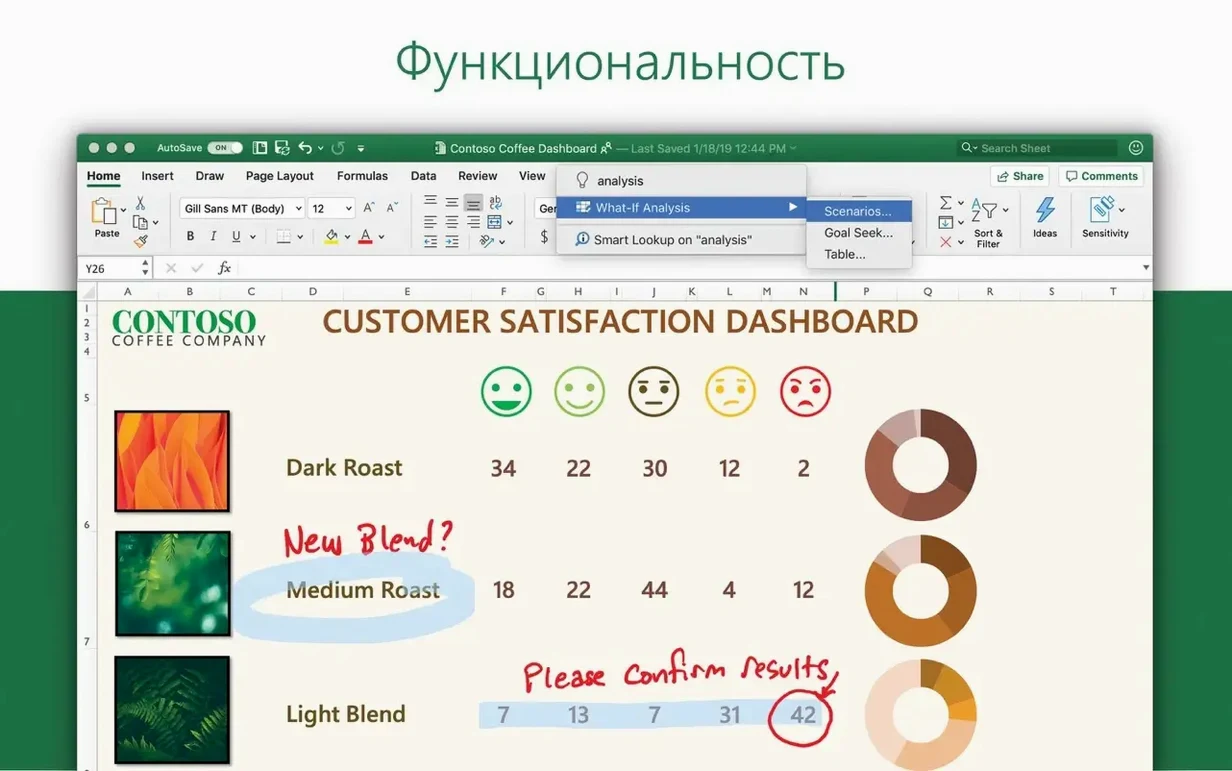
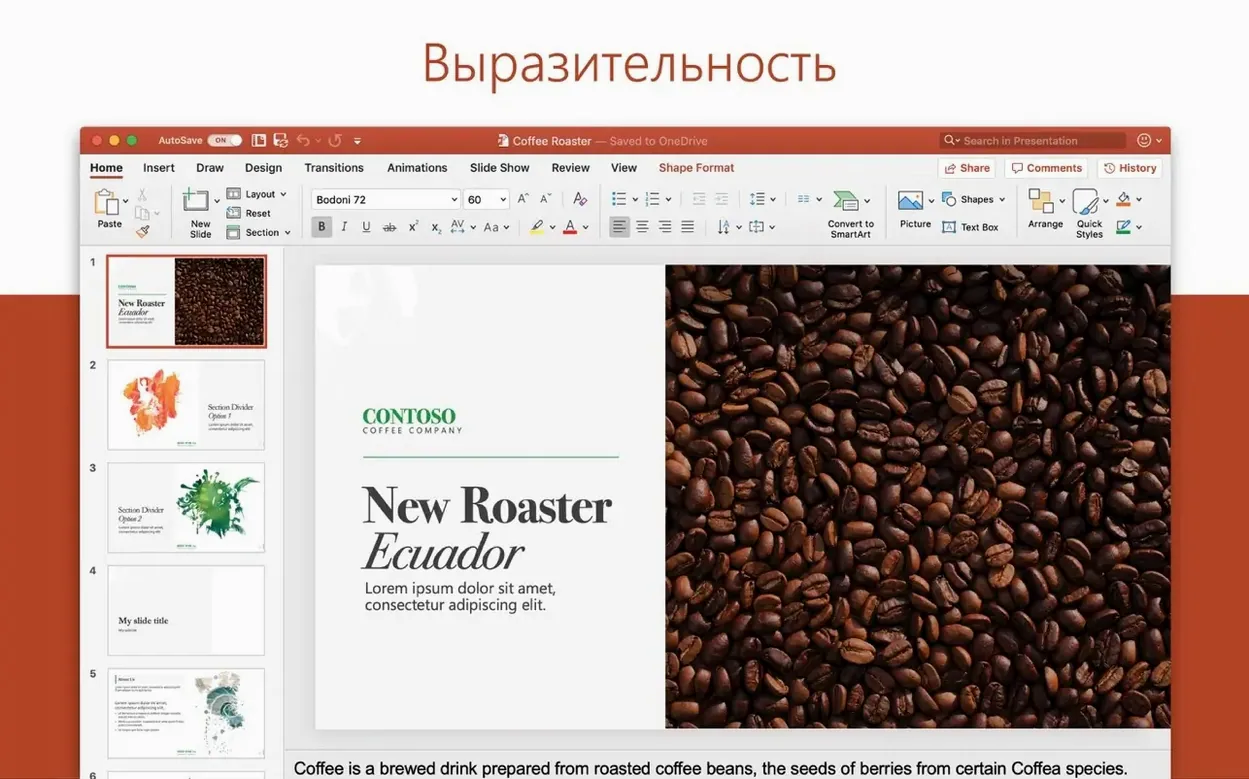
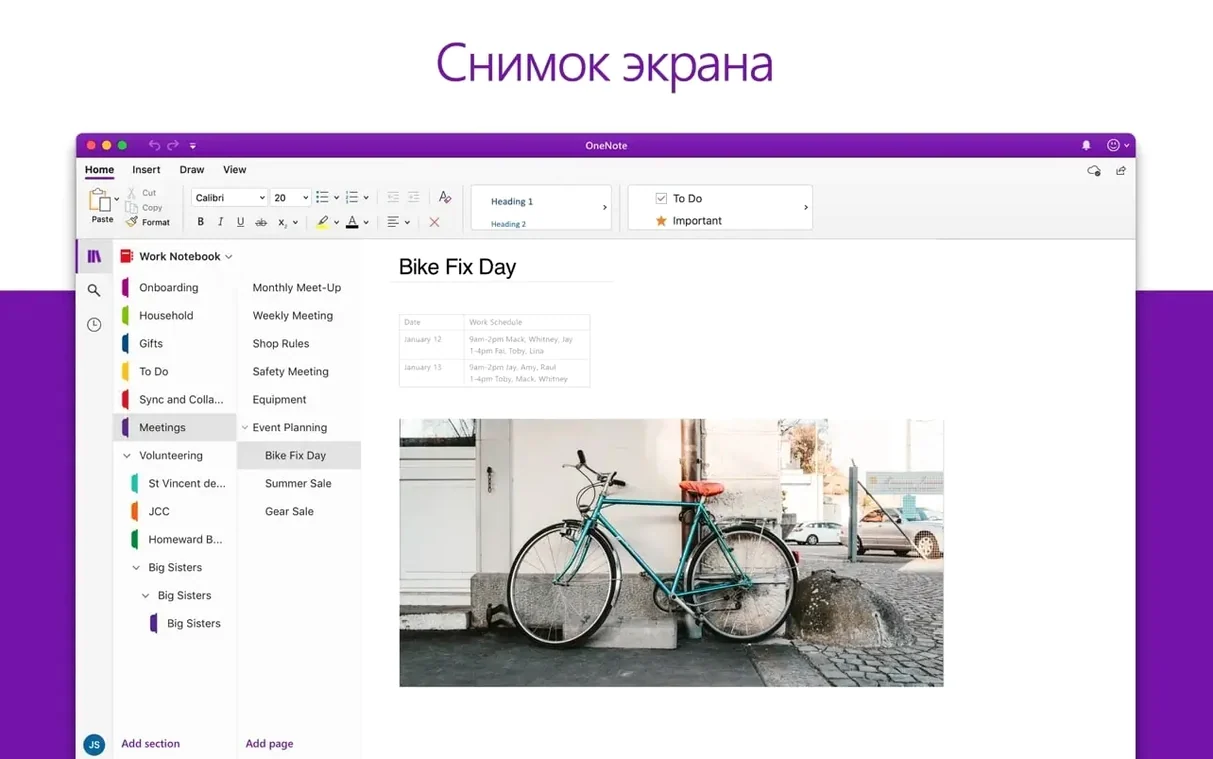
Version 16.93 landed with a quiet but practical fix for equation editing, which is exactly the kind of thing you notice when a report hangs on a broken formula. It's a good reminder that the tool is built for getting real work out the door. Here’s one straightforward path I’d follow to take a draft from rough notes to a shared document.
- Open a blank document and paste in the raw text from an email or a plain text scratch file. Don’t format anything yet.
- Apply a matching style set from the Design tab to give headings and body text a consistent, readable structure in a couple of clicks.
- Place images or charts inline with text wrapping set to ‘Top and Bottom’ so they stay anchored to the right paragraph when you revise the copy above them.
- Turn on Track Changes and share the file as an email attachment directly from the File menu. The collaborator’s edits will come back marked clearly for review.
A simple routine like this works for anything from a community newsletter to a short contract. The Mac version handles the basics without getting in the way, especially when you stick to built-in styles and straightforward sharing.
Shift-Return for a soft line break without starting a new paragraph
Most people learn the obvious keyboard shortcuts early on — cut, paste, undo. But Word packs a handful of lesser-known ones that quietly remove friction once they become habit. A few I keep using without thinking twice:
- Shift-Return inserts a soft line break instead of starting a new paragraph. Useful inside a bullet point when you want a second line without extra spacing kicking in.
- Option-drag a selection to copy it instantly. Works vertically too, which surprises people — try it with a small column of text and watch the duplicate land exactly where you drop it.
- F4 repeats your last action. Applied bold to a heading and want the same on three more? Click the next one, press F4, move on. It covers formatting, alignment changes, even deleting a row in a table.
- Command-Shift-T strips character formatting from selected text while keeping paragraph styles intact. A lifeline when a pasted snippet brings along weird fonts and colors.
- Option-Command-M inserts a comment instantly. Beats reaching for the mouse when you’re reviewing and want to leave a quick note without breaking flow.
Tip: If you ever need a full list of keyboard shortcuts, Word’s Help menu includes a searchable reference. It’s dry reading, but spotting even one new shortcut per week adds up.
Turn off automatic lists so your typing doesn’t start numbering itself
The out-of-the-box setup is reasonable, but a few adjustments make the workspace feel more like your own and reduce small annoyances later. I’d recommend checking these within the first ten minutes of installation:
- Turn off automatic bulleted and numbered lists under AutoCorrect preferences. The feature guesses when you start a line with a number or asterisk and takes over — handy in theory, maddening when you’re typing a price or a footnote reference and Word reformats the whole paragraph without asking.
- Set a default paste behavior. In the Edit preferences, change the default paste option to “Keep Text Only” if you regularly pull content from emails or web pages. It saves the extra click and the cleanup afterward.
- Adjust the spelling and grammar proofing. Under Spelling & Grammar, uncheck “Check grammar with spelling” if you write in a conversational voice and find the green underlines more distracting than helpful. You can always turn it back on for a final pass.
- Choose a default font and size for new blank documents. The factory default is 11-point Calibri. If your brand or personal style leans toward something else, set it once in the Font panel and click “Default.” Every new document will start with your preference.
- Add a custom dictionary path if you work with specialized vocabulary — product names, client acronyms, technical terms. A quick import of a word list stops the red squiggles from peppering every paragraph.
Yes, Word on the Mac works fully offline
A few concerns come up regularly when someone considers moving their writing work to the Mac version. Here’s the practical reality on each.
Does it work offline, or is a connection required? Word on the Mac works fully offline. You can create, edit, and save documents without any internet connection. The only time connectivity matters is for real-time co-authoring or fetching cloud-stored files — and even then, local copies keep you working.
Will documents look the same when I open them on a Windows machine? Mostly yes, especially if you stick to fonts available on both platforms. The same version of Word across Mac and Windows shares the same layout engine. Small differences can appear with very complex formatting, but for business letters, reports, and manuscripts, cross-platform fidelity is reliable.
Can I keep using older .doc files from Word 2011 or even earlier? Yes. Compatibility mode handles legacy formats without fuss. If you have a folder of old files — maybe from a word 2011 torrent era archive or inherited from a previous machine — they open directly. You get a “[Compatibility Mode]” label in the title bar, and all the usual editing tools remain available.
What about collaborating with people on different versions? The track changes and commenting tools communicate cleanly between recent releases. Someone on Word 2021 or using word 2019 download mac sources will see your tracked edits and comments exactly as you left them, and vice versa. Real-time co-authoring requires everyone to be on a reasonably current build, but asynchronous review works across years of version differences.
Is it the full desktop app, or a stripped-down version? The Mac app is the complete desktop version — the same one bundled with the Office 2024 suite. It includes the full ribbon interface, advanced find and replace, mail merge, and macro support. You aren’t getting a simplified web wrapper.
A real workflow: writing and formatting a short proposal
Let’s walk through a concrete task — say you’re putting together a three-page proposal for a client. The goal is clean, professional output without spending more time on formatting than on the words themselves.
Start with a blank document and write the title, section headings, and body text in one go. Don’t touch the formatting toolbar yet. Type ## in front of each heading as a temporary marker — it makes the next step faster.
Once the text is down, open the Find and Replace panel (Command-F, then the replace tab). Search for ## and replace with nothing, but click into each heading manually and apply the Heading 1 style from the Styles pane. It takes two minutes and gives the document a real skeleton. Switch to Outline view briefly to confirm the heading hierarchy flows logically — dragging a heading there reorders its whole section at once.
Next, insert any supporting images. Drag them from Finder into the document, then set each one’s text wrapping to “Top and Bottom” via the Format Picture pane. Add a one-line caption using the Insert Caption command (right-click the image). Captions automatically number themselves, which saves a headache when the client asks to reorder the figures later.
For the proposal’s pricing table, use a real table rather than tabs and spaces. Insert a table with enough rows, type the figures, then select the entire table and apply one of the built-in table styles from the Table Design tab. A light grid with a shaded header row reads clearly and takes seconds.
Before the final save, run a spell check with the language set correctly — Word sometimes defaults to U.S. English even when your system language is different, so check the status bar. Then export a PDF via File > Save As, choosing “Best for printing” if the client will read it on screen and possibly print it. Attach the PDF to an email, but keep the .docx on hand for revisions.
Total time from blank page to finished PDF: about 40 minutes once the routine is familiar, with most of that spent writing rather than wrestling with the interface.
Use paragraph spacing instead of stacking empty lines
Some habits show up predictably among new users. None are fatal, but they make documents harder to revise later.
Using blank lines to create space between paragraphs. It looks fine on screen, but the moment someone opens the file on a different machine or adjusts the margins, those extra paragraph marks throw spacing off. Instead, set the “After” spacing in the Paragraph settings once and let it apply consistently. Same visual result, zero maintenance.
Manually bolding and enlarging text instead of using heading styles. The document looks right today, but building a table of contents later becomes a manual chore, and screen readers miss the structure entirely. Applying Heading 1, 2, and 3 styles takes the same number of clicks and pays off in navigation and accessibility.
Copying formatting by reapplying it each time. Format Painter exists for a reason — double-click the paintbrush icon on the Home tab and you can apply the same formatting to multiple selections without returning to the source each time. Press Escape when you’re done.
Ignoring the non-printing characters toggle. The ¶ button on the Home tab reveals spaces, tabs, paragraph marks, and section breaks. Beginners often avoid it because the document looks cluttered, but it’s the fastest way to diagnose mysterious spacing problems or find an accidental page break. Toggle it on, fix the issue, toggle it off.
Saving only locally and skipping backups. Hard drive failures don’t warn you. Saving a copy to a cloud folder or an external drive after a long session is a simple habit that costs seconds. Word’s AutoRecover feature helps, but it’s not a backup strategy.
What's new in version 16.93:
- Quality and performance improvements.
- Fixed an issue where editing equations may not work as expected.
- macOS 13 or later
- Runs on both Intel and Apple Silicon Macs
Notes from other shops 0
Sign in or open a shop account to leave a note.
No notes yet. If you've used this on a shop Mac, tell me how it went.