
Accountants, auditors, and small-shop owners like me reach for Excel when the numbers need to line up properly. Version 16.93 keeps that core reliable, while making it a little easier to show what the data actually means.
What’s new and what stayed the same
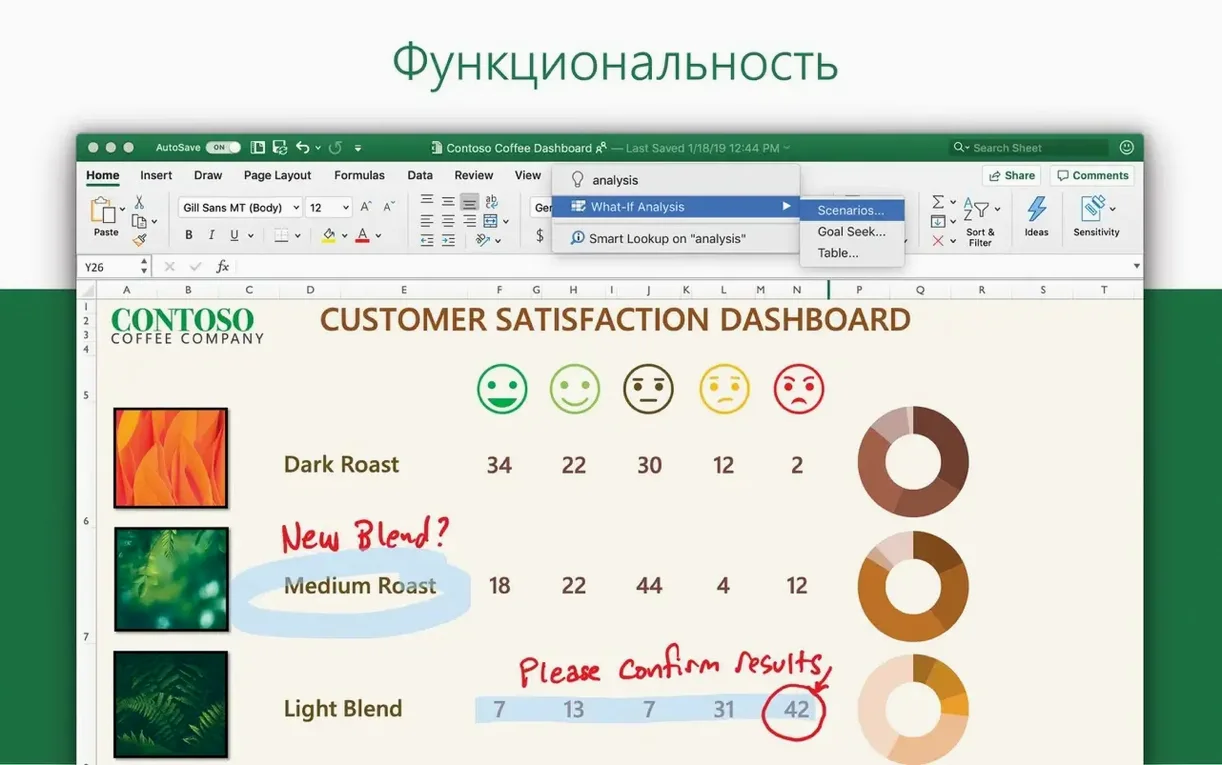
- New charts joined the lineup, giving you more ways to present quarterly results or project budgets without jumping into a separate design tool.
- Ideas helps spot trends and surface patterns you might miss when staring at rows of figures. Point it at your data and it suggests visuals that fit.
- Collaboration for accounting, audit, and finance work still sits at the centre — shared workbooks behave the way teams expect.
- Interface languages remain broad: Russian, German, Spanish, Japanese, and over a dozen others are right there in the preferences.
Monthly sales charts and a bookkeeper who skips the inbox
The new charts catch my eye for monthly sales tracking. Ideas feels like a quiet assistant that saves me from building the wrong graph first. The collaboration tools mean my bookkeeper can check figures without a chain of emailed attachments, and macOS 13 support keeps it running smoothly on current machines.
Stumble-upon features you learn on a shared screen
Some of the best features in Excel don't announce themselves. You stumble across them after months of doing things the long way, or someone shows you on a shared screen and you feel a little silly. Here are a few I point customers toward when they mention they're spending too much time on repetitive tasks.
- Control+Option+V opens the Paste Special dialog without reaching for the menu. Once it's muscle memory, pasting only values or formats becomes a half-second decision instead of a four-click detour.
- Double-clicking the Format Painter locks it on so you can apply the same formatting across several nonadjacent cells. Single-clicking it works once; double-clicking saves you from going back to the ribbon each time.
- F4 repeats your last action. Inserted a row and need three more? F4, F4, F4. It works for formatting changes, deletions, and plenty of other commands.
- Quick Analysis appears as a small icon in the bottom-right corner of any selected range. It offers conditional formatting, charts, and totals in a tiny pop-up, all without touching the ribbon.
- Ctrl+` (the grave accent key, next to 1 on most keyboards) toggles between showing cell values and the formulas behind them. It's the fastest way to audit a sheet someone else built.
- Named ranges (define them in the Name Box left of the formula bar) turn cryptic references like
B2:B47into readable names likeMarchRevenue. Formulas become self-documenting, which matters when you reopen a file six months later.
Tip: If you find yourself using Paste Special often, add it to the Quick Access Toolbar. Two clicks turns into one.
Offline work and other pre-download questions answered
Customers email me the same handful of questions whenever a new Excel version shows up on the site. Here's the honest rundown.
Does it work offline? Yes. Excel runs fine without an internet connection. You can create, edit, and save workbooks locally. Collaboration features need connectivity, but solo spreadsheet work doesn't.
Will it open files from older versions? I've thrown .xls files from Office 2003 at it and they opened without complaint. Excel 16.93 reads legacy formats going back decades. It also exports to the current .xlsx format and to CSV, PDF, and several other types when you need to share data with someone using different software.
Can I run it alongside an older Office version? Microsoft recommends against mixing installations, and I'd echo that. Pick one version and stick with it. If you need to test the new one first, do a full removal of the old installation before installing 16.93.
What about macros and VBA? The Mac version supports VBA, though not every single function from the Windows edition makes the jump. Most everyday macros and custom functions run as expected. If your workflow depends on deeply complex VBA projects, test a copy of your files before committing.
How large a spreadsheet can it handle? The row limit sits at 1,048,576 rows per sheet, same as the Windows version. In practice, performance depends more on formula complexity and volatile functions than on raw row count. A sheet with 50,000 rows and a few SUMIFS formulas will feel snappier than one with 5,000 rows full of array formulas and indirect references.
Is an ms excel free download for mac a safe route? I stick to verified packages from Microsoft servers, and that's what I recommend. Random excel.dmg files floating around forums often bundle things you didn't ask for. If you're hunting for a microsoft excel download torrent, just know what to look for—check file signatures and community feedback so the app runs well. The same goes for any download excel for mac free student claim that sounds too loose to be legitimate. An excel macos download from clean, known sources keeps your books safe.
Launch speed and smooth 10,000-row scrolling on Apple Silicon
On a MacBook Air with Apple Silicon, Excel 16.93 launches in about three seconds cold and under two seconds warm. Scrolling through a 10,000-row sheet with conditional formatting is smooth, no white flashes or stutter. Memory usage hovers around 200–400 MB for moderate workbooks, which leaves plenty of breathing room even with a browser and a few other apps open.
Intel Macs see slightly longer launch times—maybe five or six seconds—but once the app is running, calculation speed feels close to the ARM version for most practical tasks. The Ideas pane occasionally adds a beat of processing time on very large datasets, but it's a one-time wait per analysis, not an ongoing drag.
Stability has been uneventful in the best way. Through a week of daily use juggling half a dozen workbooks with charts, pivot tables, and shared-review cycles, I didn't trigger a crash or a freeze. AutoSave recovery kicked in once after a forced shutdown, and the recovered file matched the last saved state with no data loss. That's the baseline I want from a tool that handles my inventory counts and quarterly tax prep.
Dragging the ignored formula bar handle
I made most of these myself when I switched from an older Excel version. Spotting them early saves a lot of head-scratching.
- Ignoring the formula bar resize handle. When a formula wraps across four lines, dragging the formula bar downward makes it readable again. People hunt through preferences for a setting that doesn't exist instead of grabbing the tiny dot at the bottom of the bar.
- Forgetting that Undo is sheet-specific. Switch to another sheet in the same workbook, and Ctrl+Z undoes the last action on that sheet, not the one you just left. It catches everyone once.
- Over-filtering without realizing it. The filter icon turns blue when active, but if you inherit a sheet from someone else, it's easy to miss that rows are hidden by an active filter. A quick glance at the row numbers—if they jump from 12 to 27, something is filtered out—saves you from drawing wrong conclusions.
- Using volatile functions casually. NOW(), TODAY(), INDIRECT(), and OFFSET() recalculate every time anything changes in the workbook. One or two are fine. Scattering dozens across a large model turns every edit into a waiting game. Where possible, replace INDIRECT with INDEX and OFFSET with a more predictable alternative.
- Skipping the data model for large datasets. People cram everything into one flat table and then wonder why pivot tables get sluggish. Loading data into the Power Pivot data model (available in this version) keeps file sizes smaller and pivot performance faster when you're working with tens of thousands of rows spread across multiple tables.
Compared to a couple of alternatives
When someone asks me what else they could use, three names come up. None of them is a drop-in replacement, and which one fits depends entirely on what kind of work lands on your desk.
Apple Numbers ships free with every Mac and handles the basics with a cleaner, less intimidating interface. Tables sit on a canvas alongside charts and images, which makes it pleasant for quick personal budgets or a one-off invoice layout. Where it falls short is heavy lifting: pivot table support is limited, data cleaning tools are sparse, and collaboration with Excel-using colleagues means constant format adjustments. For light tracking, it's fine. For audit workpapers or multi-sheet financial models, I'd rather have Excel's full toolset.
LibreOffice Calc is the open-source contender that gets closest to Excel's feature set. It handles large datasets well, supports pivot tables, and opens .xlsx files with reasonable fidelity. The interface feels a generation behind, and certain Excel-specific functions and chart types don't translate cleanly. Macro compatibility is also hit-or-miss. But if your collaboration circle is small and you want a capable spreadsheet without any licensing friction, Calc does the job. I've seen small nonprofits run their entire accounting on it.
Google Sheets lives in the browser and shines when multiple people need to edit the same sheet simultaneously without any setup. The formula language is close to Excel's, and for straightforward data work the transition is painless. Sheets struggles with very large files—anything past 50,000 rows with complex formulas can bog down—and offline access requires forethought. For a team that prioritizes real-time collaboration over power features, Sheets makes a strong case. For month-end close work with thousands of conditional formatting rules and external data connections, Excel still feels more solid.
None of these is a wrong choice. What matters is whether the tool handles your particular workload without forcing you into constant workarounds. From what I see in my shop, people with serious modeling needs, long-form VBA macros, or compliance-heavy reporting routines keep circling back to Excel. The alternatives cover simpler ground well, but the depth of Excel's function library and data tooling still sets it apart for the kind of work where mistakes cost real money.
Version 16.93 brings a couple of handy additions:
- Fresh chart types to show your numbers with more clarity.
- Ideas, a feature that scans your data and suggests meaningful visualizations and trends.
- macOS 13 or later
- Runs on Intel and Apple Silicon Macs
Questions from the stall
Does Excel 16.93 work on older Macs?
No, this version requires macOS 13 or later running on either Intel or Apple Silicon.
Notes from other shops 0
Sign in or open a shop account to leave a note.
No notes yet. If you've used this on a shop Mac, tell me how it went.