
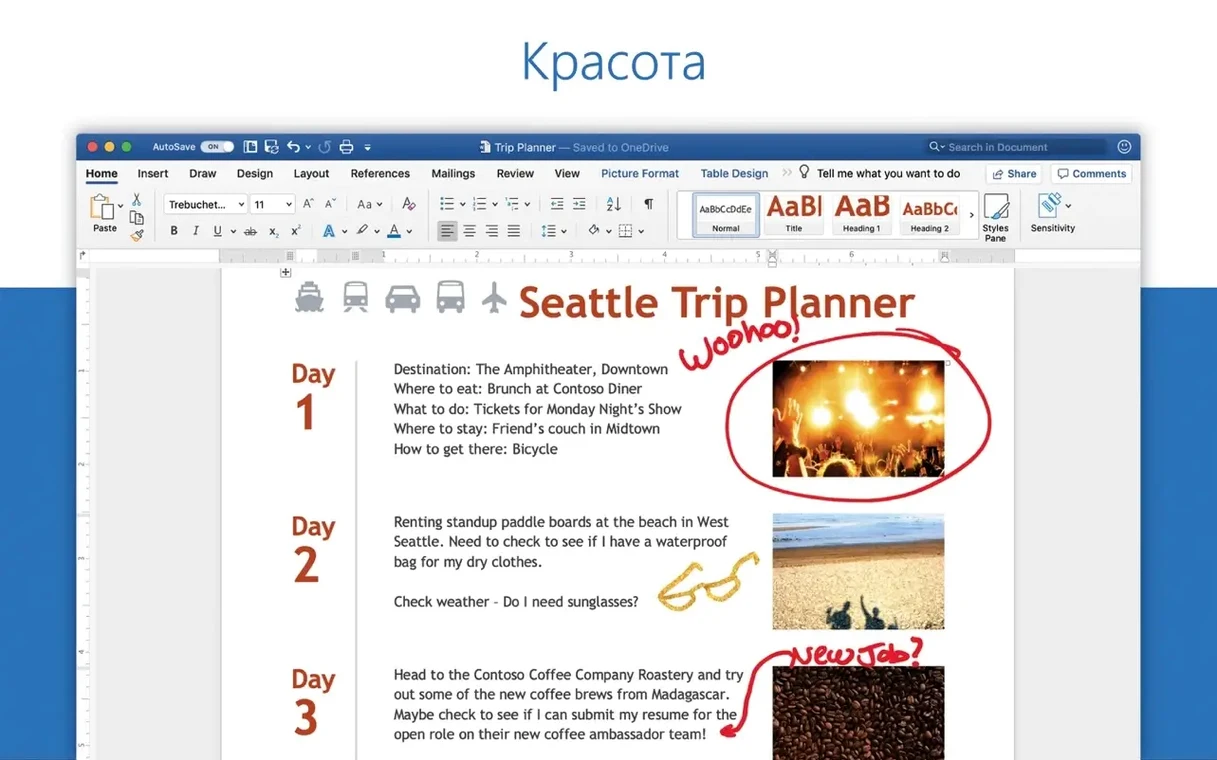
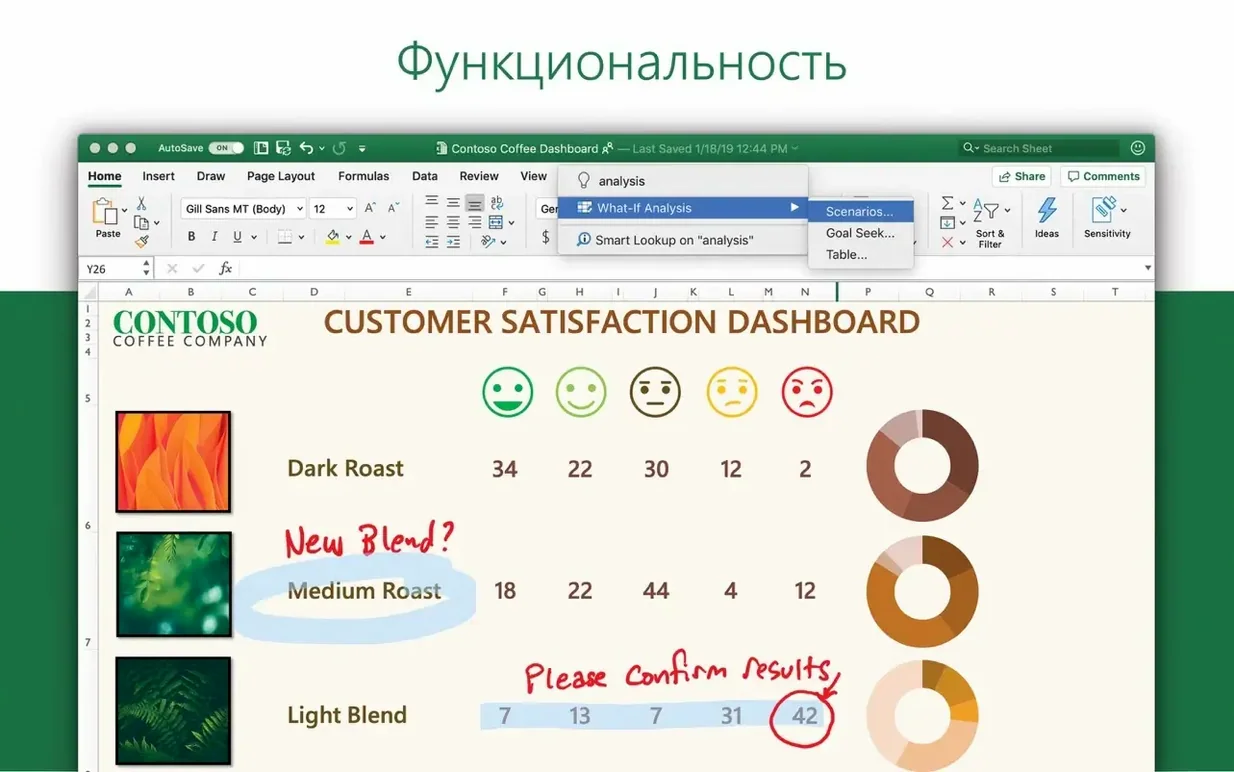
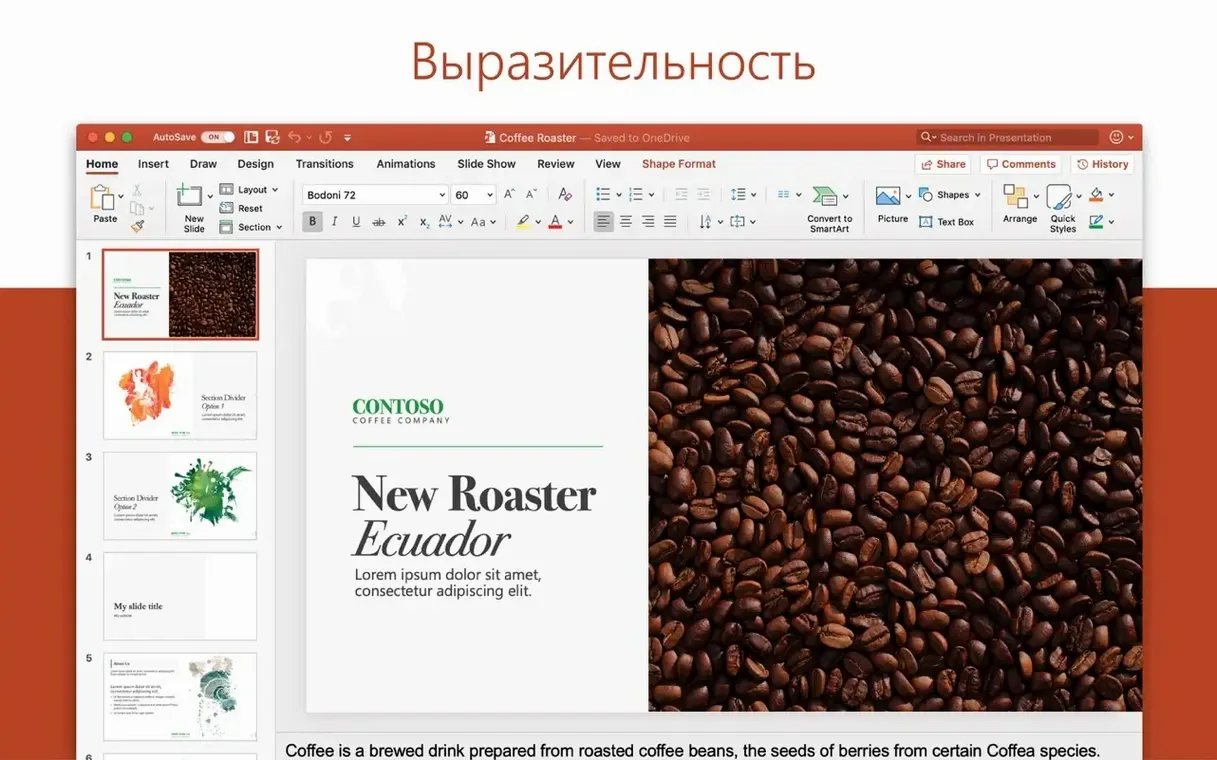
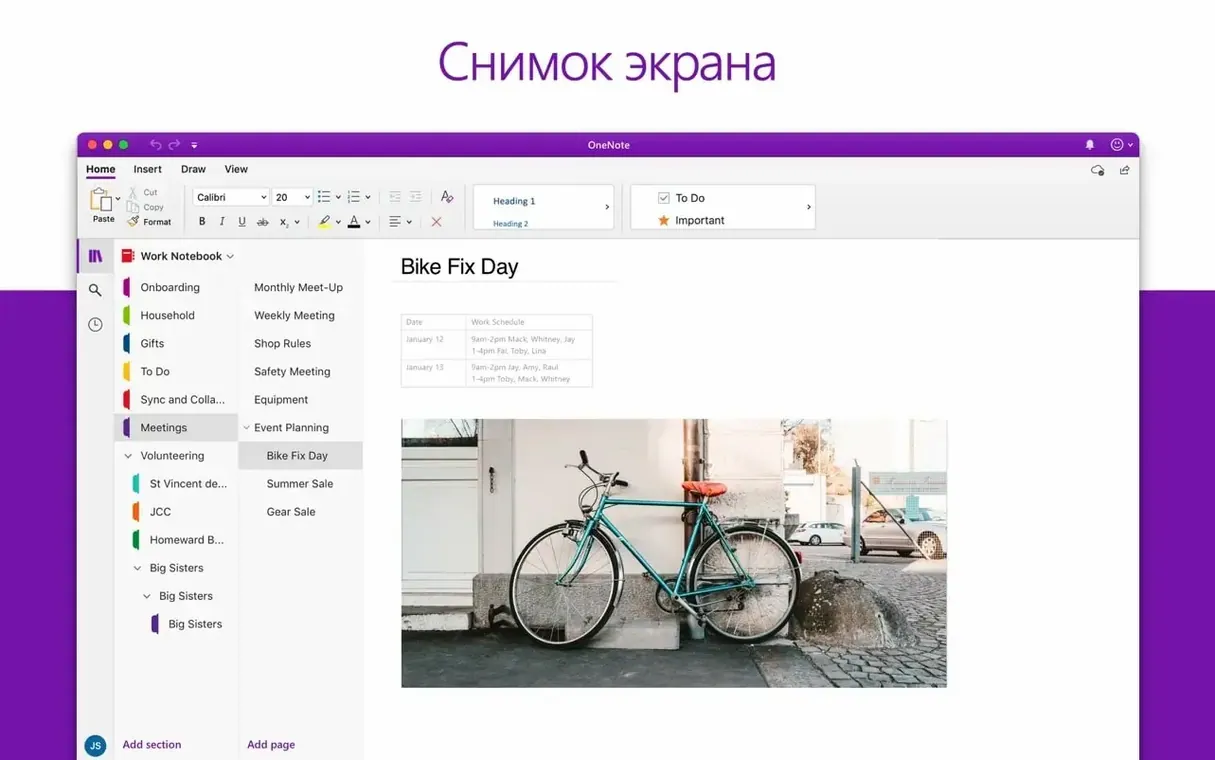
If you've relied on the free Apple Mail for years, moving to Outlook for Mac feels like adding a proper command center. Before you download outlook for mac dmg, let’s make sure your setup is ready. Microsoft built this version natively for macOS and tuned it for Apple Silicon, so it runs smoothly on newer Macs. Here’s what to check and what you’ll get with version 16.93.
- You need macOS 13 or later. Outlook won’t launch on older systems, so check your Mac’s version first.
- It’s a native Apple Silicon app. The software is optimized for M1, M2, and M3 chips without needing Rosetta.
- It handles more than Exchange. You can add Gmail, Yahoo!, POP, and IMAP accounts alongside your work or school email.
- Email and calendar in one window. Managing messages and planning schedules doesn’t require switching between separate applications.
- It speaks 20 languages. The interface supports everything from Russian and Korean to Portuguese and Swedish.
Once you know it fits, getting started means running the standard Office installer or grabbing the individual package from Microsoft’s servers. Outlook also works with the other Office apps — Microsoft recently fixed a hiccup where sharing documents to Outlook wasn’t working properly. If you’re already in the Microsoft ecosystem, it ties things together nicely.
Tweak the default pane layout and calendar week view
Outlook for Mac ships with defaults that work for most people, but a few quick preference tweaks make a real difference in daily use. I handle my own shop inbox and a shared store calendar, so I want things to feel immediate, not buried.
- Turn off Focused Inbox. It splits your mail into "Focused" and "Other," which sounds helpful until an order confirmation lands in the wrong tab. I switch to a single inbox view under the View menu and sort chronologically.
- Set reading pane to the right. The bottom reading pane wastes horizontal space on wide screens. Moving it to the right gives you message list and preview side by side — much easier when you're scanning a dozen supplier emails.
- Change the default calendar work week. Outlook assumes Monday–Friday, 8 to 5. If your shop runs Tuesday–Saturday, adjust the work week and hours in Calendar preferences so scheduling views match reality.
- Enable "Show as conversations" carefully. Grouping threads by conversation is useful for project discussions but chaotic for order notifications. I turn it on only for specific folders, not globally.
- Adjust notifications to your rhythm. The default badge and banner combo is noisy. I keep the badge on for unread counts and switch banners to only appear for messages from known contacts.
Collecting three supplier quotes without leaving the inbox
Here's how I move through a real task — gathering three supplier quotes for a seasonal product line — without leaving Outlook.
Step 1: Gather the thread. I search for the supplier names in the top search bar, selecting "From" as the filter. Outlook pulls up their recent messages across all accounts, including my Gmail and the shop's Microsoft 365 address. I flag the three most recent quote emails with a red category label so they stay visible.
Step 2: Quick responses with templates. I keep a plain-text template in the "My Templates" pane (found under the Message menu) that says: "Hi, thanks for the quote. Could you confirm availability for a mid-March delivery in quantities of 200?" I open each flagged email, insert the template, and add one or two product-specific lines before sending.
Step 3: Schedule follow-ups. As replies come in, I drag two of the supplier emails to the calendar icon in the sidebar. This creates a meeting placeholder for the following week, where I'll review pricing. I set the meeting to show as "free" so it doesn't block my public calendar.
Step 4: Attach the comparison. I compile prices and lead times in an Excel sheet, save it to the desktop, and attach it to a new email to my business partner. Outlook suggests the attachment from recently saved files, so it's a single click. The whole task takes under 15 minutes.
A classic ribbon toggle and fewer search hiccups
Version 16.93 arrived as part of the Office LTSC Standard for Mac 2024 release, and Microsoft followed up with minor updates on January 21 and January 28, 2025. Here's what that means for daily use, based on what changed.
- Document sharing between Office apps is reliable again. Earlier builds had a bug where sharing a document from Word or Excel into an Outlook email didn't attach correctly. The fix in 16.93 means your attachment workflow works smoothly, which matters if you're forwarding invoices or mockups to clients.
- macOS Profiles support is now built in. If you split your Mac between shop tasks and personal use through system profiles, Outlook respects those boundaries. Each profile can have its own account configuration without overlap.
- Apple Silicon performance stays consistent. The 16.93 release didn't introduce new CPU spikes or memory issues. On my M2 Mac, the app launches in under three seconds and sits quietly in the background, unlike older Office versions that would occasionally hog resources after waking from sleep.
- No interface surprises. This update cycle was about stability, not redesign. If you used Outlook for Mac in late 2024, the menus, ribbon, and sidebar behave identically — no relearning curves.
Yes, it handles Gmail, Yahoo, and POP accounts
Before someone downloads an outlook for mac dmg, a few concerns tend to come up. Here are the ones I hear most often, answered plainly.
Does it work with non-Microsoft email accounts? Yes. Outlook for Mac supports Gmail, Yahoo!, POP, and IMAP accounts alongside Outlook.com and Microsoft 365. I have three accounts from different providers syncing in one window. You can add them during setup or later through the Accounts preference pane.
Will it slow down an older Mac? It needs macOS 13 or later, which rules out really old hardware. On Intel Macs from 2018 or 2019, the 64-bit build runs well. On Apple Silicon models, the native ARM version is lean. If your machine meets the system requirement, performance won't be the bottleneck.
Can I import my existing mail and calendar? When you add your accounts, Outlook pulls in folder structures and calendar data from the server side automatically. For locally stored Mail.app archives, you can export them as .mbox files and import them through Outlook's File menu. It's not instant for large archives, but it preserves folder hierarchy.
What happens if I already use Apple Mail? Both apps coexist without conflict. You can run them side by side while you transition, or keep Apple Mail for personal use and Outlook for business. Just be aware that having the same account in two apps means double notifications unless you mute one.
Is this the same Outlook from an Office subscription? Functionally, yes — version 16.93 is the same application core whether it comes through an Office LTSC package or another licensing path. The features, interface, and account support are identical. Microsoft AutoUpdate handles patches regardless of how you installed it.
A few small updates hit Outlook in early 2025 alongside the rest of Office:
- January 28 — version 16.93.2 shipped with the suite release.
- January 21 — version 16.93.1 arrived a week earlier.
- macOS 13 or later
- Supports Intel and Apple Silicon Macs
Questions from the stall
Can Outlook for Mac connect to my Gmail account?
Yes, Microsoft lists Gmail, Yahoo!, POP, and IMAP as supported account types in addition to work and school accounts.
Notes from other shops 0
Sign in or open a shop account to leave a note.
No notes yet. If you've used this on a shop Mac, tell me how it went.