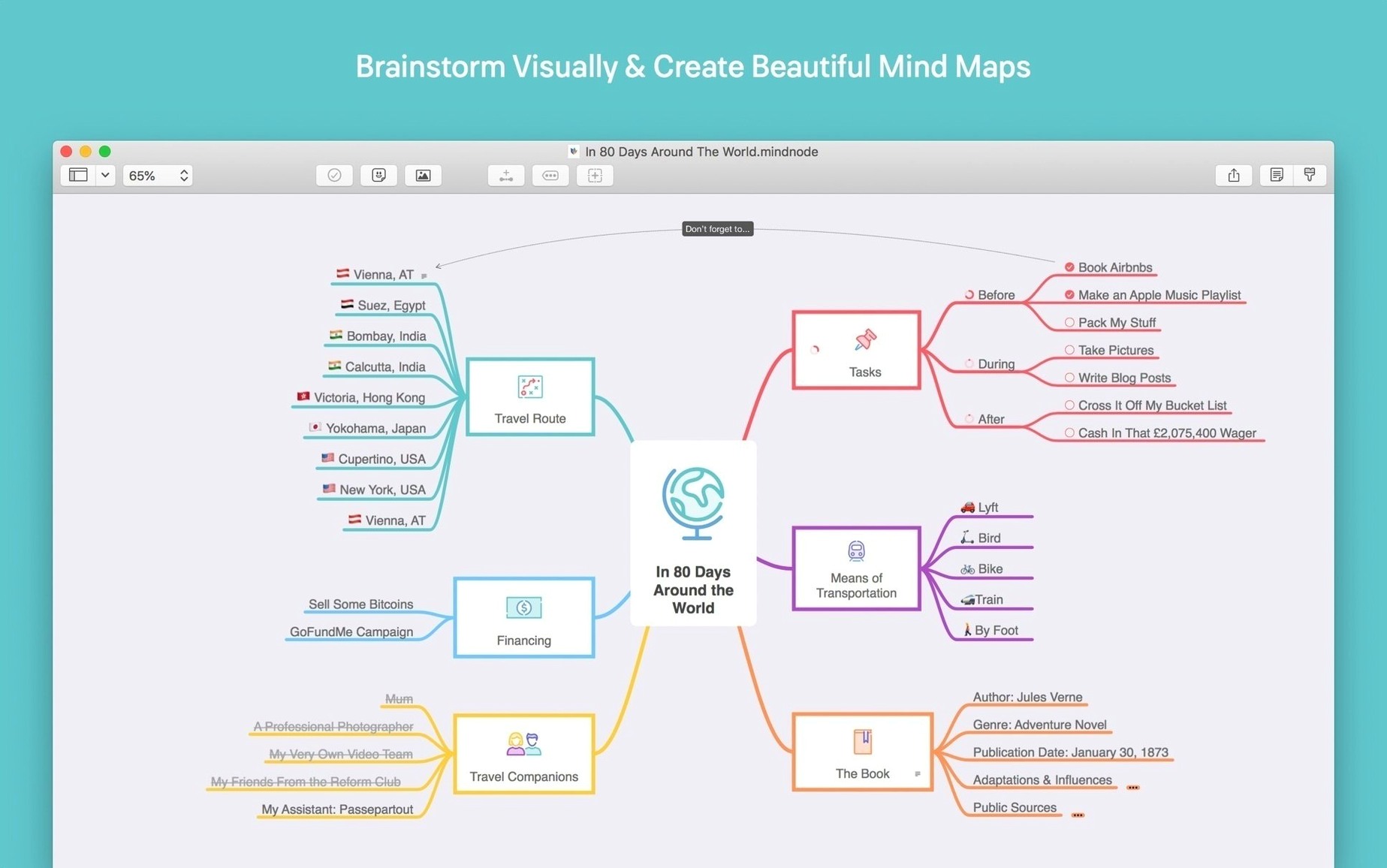
The connection to OmniFocus isn't just a checkbox feature—it shapes how you break down a complex map. I'll tag a child node as a project and send the actionable siblings off as individual tasks. The integration respects the hierarchy you've already built, so you aren't rebuilding your logic in a second app.
Custom themes go deeper than picking a nice background. You can lock down specific fonts and connector styles for your default map, then build a stark, high-contrast variant for presenting on an external display. Swapping between them is instant, and the full-screen focus mode strips away the chrome so a client only sees the thinking, not the tool.
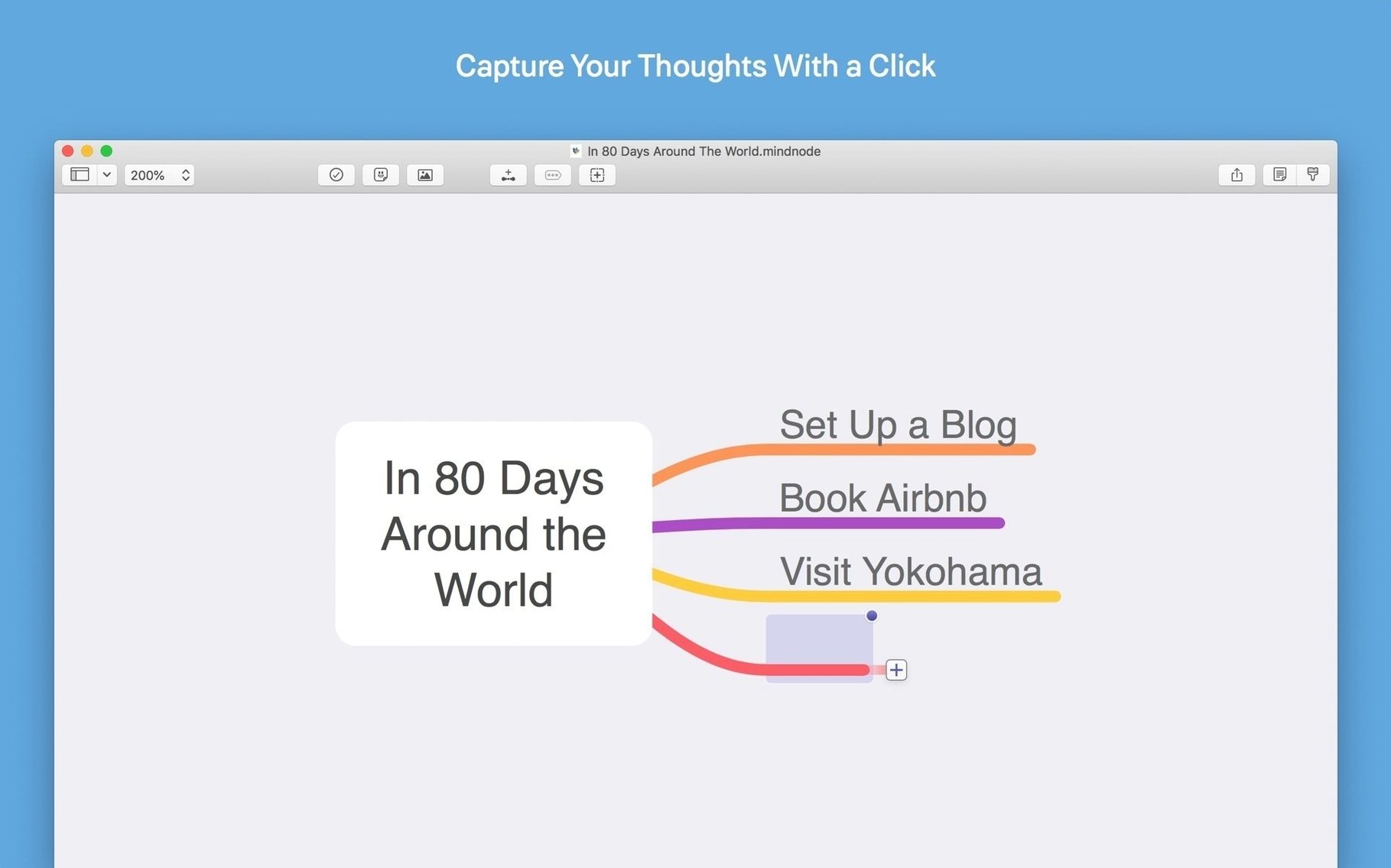
Quick Entry is the piece that keeps the map from getting stale. A keyboard shortcut tosses a raw thought into an inbox node without pulling you out of your current task. Later, you can drag those orphaned ideas into the right spot or break them apart with the disconnect tool when a concept turns out to be two separate threads.
How MindNode fits with other apps and macOS features
MindNode doesn't try to be an island. The export formats tell the story: Markdown lands cleanly in a writing app like Ulysses, OPML slides into Outliner software without friction, and a DOCX export drops into Pages or Word when a mind map needs to become a formal document. I keep a project map that starts visually, then export the outline to TaskPaper when I need a plain-text task list I can version-control.
On the macOS side, drag-and-drop works as you would expect. Grab an image from Finder and drop it onto a node—it becomes a visual attachment. Select text in Safari and drag it in; MindNode creates a node with the link attached. The share extension also shows up in the system share menu, so highlighting a paragraph in any app and sending it to MindNode creates a new node with the text already filled in. For a shop owner juggling receipts and supplier notes, this sidesteps a lot of copying and pasting.
Dark mode respects your system setting automatically, but you can override it per theme—useful when you are working on a light-background map for printing while the rest of your Mac stays dark. External display support is not just mirroring; the focus mode on a second screen lets you present the map full-screen while keeping the editor and outline visible on your main display. I have used this when sketching out a product line refresh with a collaborator in the room, and the split setup kept the editing tools private while the map stayed readable across the table.
Clipped text on export? flip the layout first
One thing that trips people up: exported images sometimes come out with clipped text. The fix is usually the layout orientation. Swapping between vertical and horizontal layout before export lets you size the map to fit the image dimensions naturally. If a map sprawls wide, horizontal layout often fits more nodes before the text wraps awkwardly.
Another frequent hiccup is the Outline view resizing crash that the 2026.5.1 update addresses. Before that fix, dragging the outline pane boundary too quickly could freeze the app. If you are on an earlier build and hit this, the workaround is to resize in small increments or toggle the outline off with the keyboard shortcut before adjusting the window.
Keyboard shortcuts for Quick Entry sometimes collide with other apps. MindNode uses a global hotkey by default, and if it stops working, check whether a screenshot tool or launcher is grabbing the same combination. Reassigning it in the app preferences clears the conflict immediately.
When connecting nodes to Things or OmniFocus, a missing task sometimes means the node contains only an image or a note without task text. Both integrations look for the node title to create the task name—add even a short text label and the send works again.
Lighter than a multi-format heavyweight like XMind
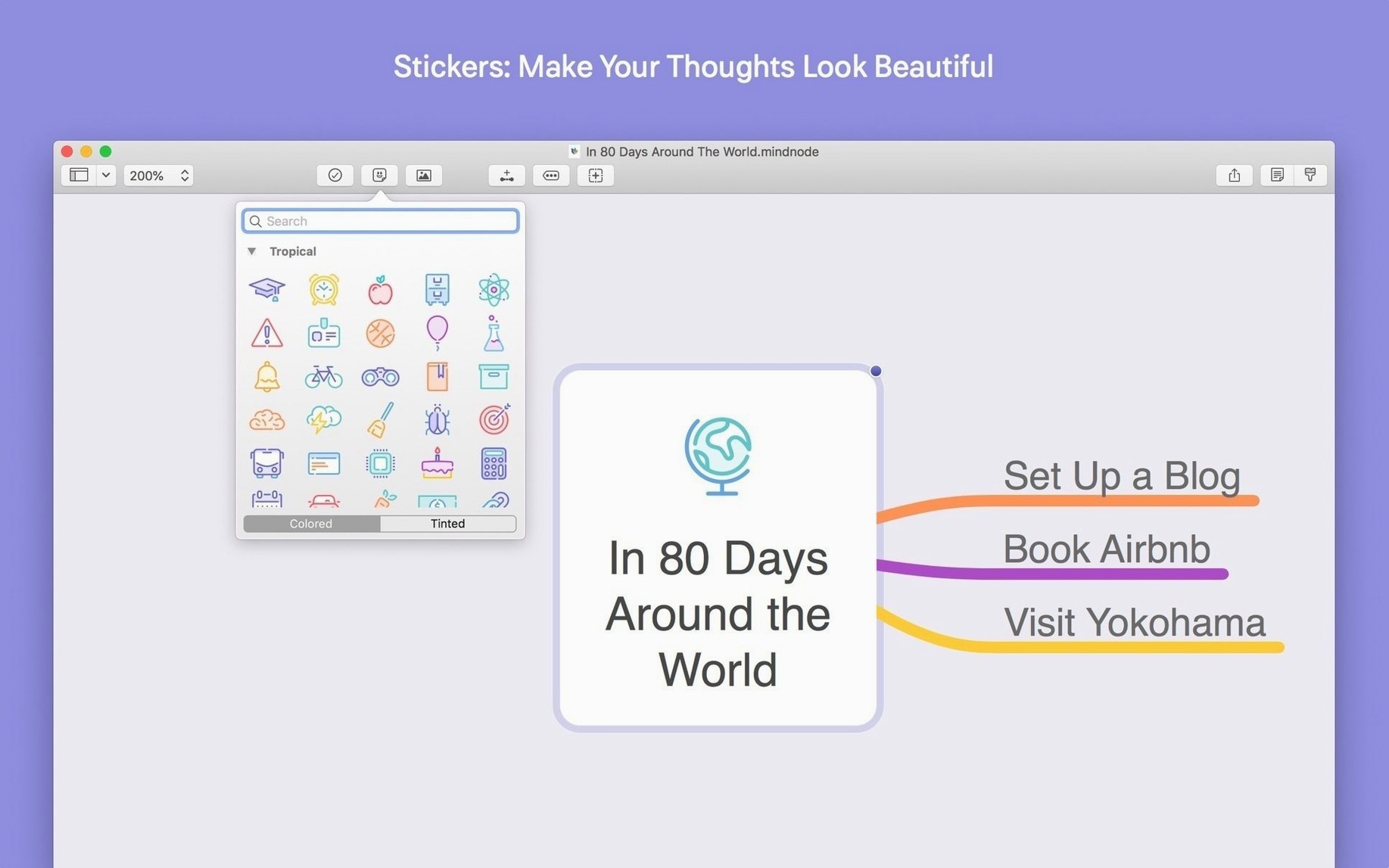
Next to XMind, MindNode feels lighter. XMind packs in Gantt charts, fishbone diagrams, and slide-based presentations, which is great if you need those formats, but the interface carries more weight. MindNode stays closer to a single-purpose tool: get ideas out, arrange them, act on them. The sticker set and focus mode give it a more tactile, less corporate feel, which suits a solo creator's workflow better than XMind's business-template approach.
Compared with iThoughts, the gap is in import and export breadth. iThoughts handles a longer list of file formats and gives you more control over what gets exported. But MindNode's custom themes and visual polish make the maps themselves more pleasant to stare at during long planning sessions. If you regularly need to exchange files with Windows-using colleagues, iThoughts wins on compatibility. If your maps mostly stay inside your own Apple ecosystem, MindNode is quicker to make look good.
Put against FreeMind or its Java-based relatives, the difference is night and day. Those tools are powerful and cross-platform, but the interface shows their age. MindNode takes full advantage of macOS conventions—native tabs, system share sheet, trackpad gestures, quick look—so the app behaves like a first-class Mac citizen rather than a port. For someone who taught themselves design software by feel, that consistency across apps cuts the learning time to nearly zero.
- macOS 15 or later
- Apple Silicon or Intel 64-bit Mac
Notes from other shops 0
Sign in or open a shop account to leave a note.
No notes yet. If you've used this on a shop Mac, tell me how it went.