If you've ever used BetterTouchTool or a similar tweaker, you know the joy of reshaping macOS's little annoyances. MediaMate does that for the overlays you see every day but rarely think about until they get in the way.
Choose a HUD that stays out of your way
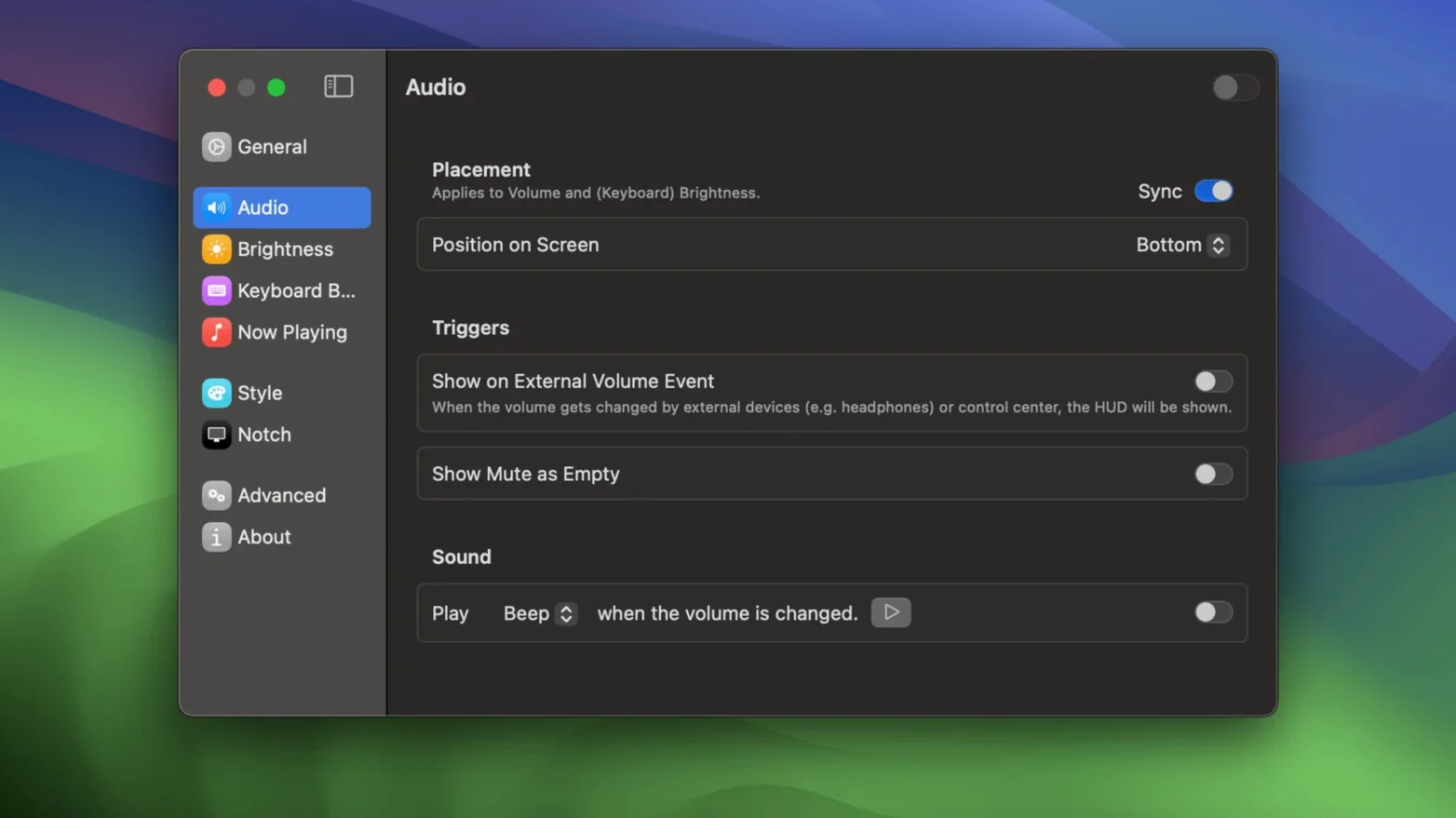
- Pick a volume HUD style. Open the app and choose between the compact bar, a minimal number display, or the notch-style strip. Each one replaces Apple's big central overlay so you can stay focused on your work.
- Adjust the keyboard backlight. If your Mac has backlit keys, MediaMate adds a dedicated HUD for it. The visual feedback is immediate and matches the style you picked for volume.
- Set the now-playing position. Under the Now Playing tab, pin song info to the menu bar or a small floating panel. It's a quiet way to track what's playing without opening Music.
HUDs now politely dodge the notch
Version 3.8 brought a handful of refinements that quietly made the app feel more at home on newer Macs. The notch-aware positioning got smarter — if you're on a MacBook Pro with a camera cutout, the HUDs now nudge themselves into the available screen space without you needing to fiddle with offsets manually. It's the kind of fix you don't notice until you remember how annoying the old positioning was.
A few under-the-hood changes made the keyboard backlight HUD more responsive on Apple Silicon machines. Previously, waking from sleep could cause a brief lag before the backlight overlay appeared; the current build sidesteps that almost entirely. The now-playing module also gained better handling of streaming services — if you switch between Music, Spotify, and a browser tab playing audio, the track info updates without the flicker that crept in on earlier releases.
One small but welcome addition: the compact bar style for volume now respects the system reduce-transparency setting automatically. If you run macOS with reduced transparency for accessibility or personal taste, the HUD background solidifies rather than leaving you with a hard-to-read ghost outline.
A real day with it
Imagine a photographer who edits in Lightroom while streaming a playlist from Spotify. The standard volume HUD pops up dead center every time she adjusts her speakers, covering the image she's retouching. With MediaMate, the volume indicator slides in as a slim bar at the screen edge. She can tweak levels with muscle memory and never lose sight of the skin tone or shadow detail she's working on.
When a song ends and she glances up, the now-playing panel in the menu bar tells her what's on without pulling her out of full-screen editing. Later, working late with the office lights dimmed, she taps the keyboard brightness key — the matching backlight HUD confirms the change instantly, and the keys settle at a comfortable glow. Nothing interrupts the flow.
Volume keys bring two overlays at first
The most common mix-up is expecting the app to work exactly like a system preference pane. MediaMate doesn't modify the macOS HUDs in place — it overlays its own. That means the first time you press a volume key after installation, you might still see Apple's original pop-up flicker for a split second before MediaMate's replacement appears. It's normal, not broken.
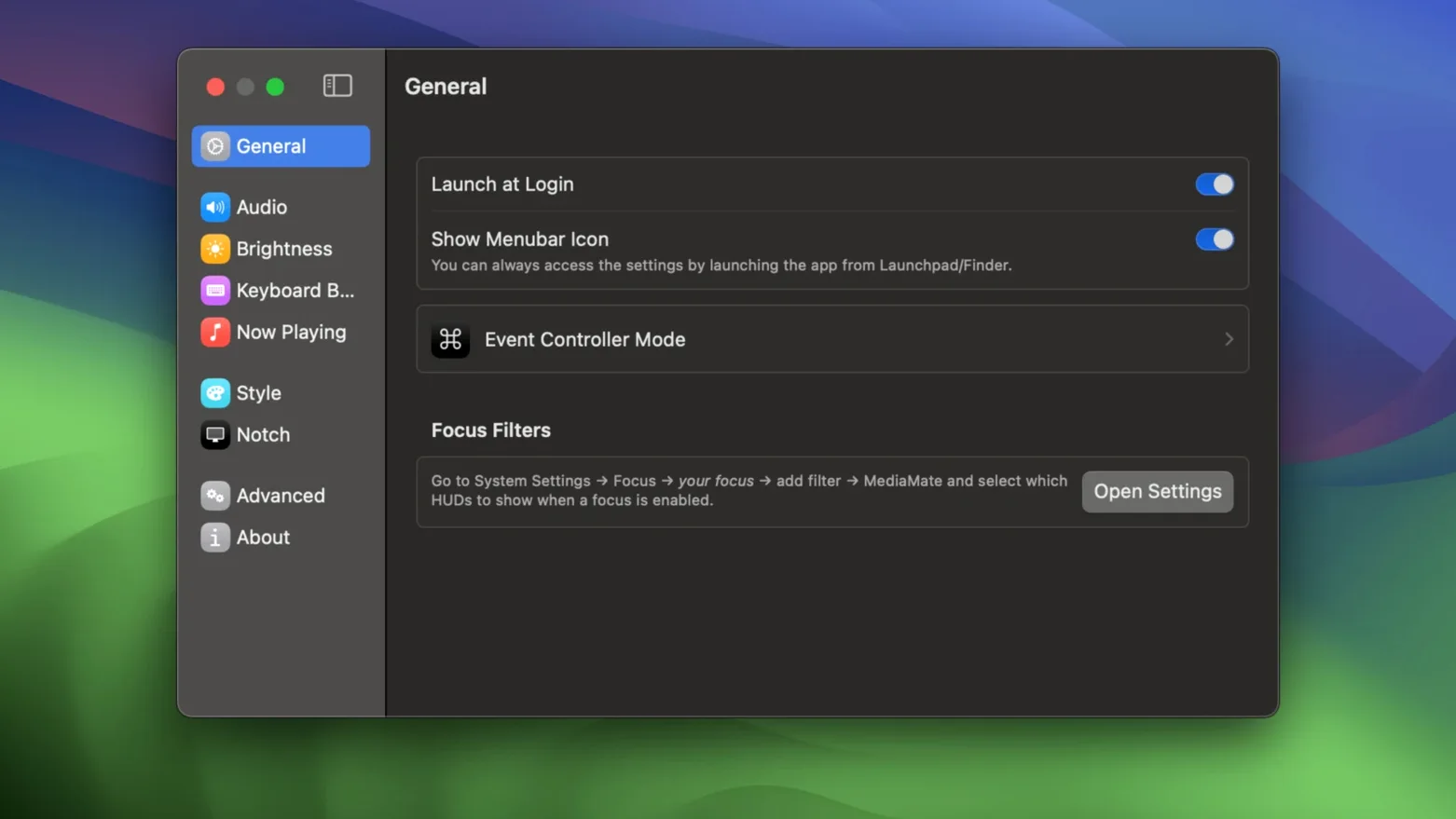
Another mistake: skipping the Touch Bar mode toggle on older MacBook Pros. Without it checked, the HUDs can appear on the Touch Bar itself rather than on the main screen — confusing if you're not looking at the keyboard. New users also tend to leave both the menu bar and floating panel active for now-playing, then wonder why they see duplicate track info. Pick one, stick with it, and the interface stays clean.
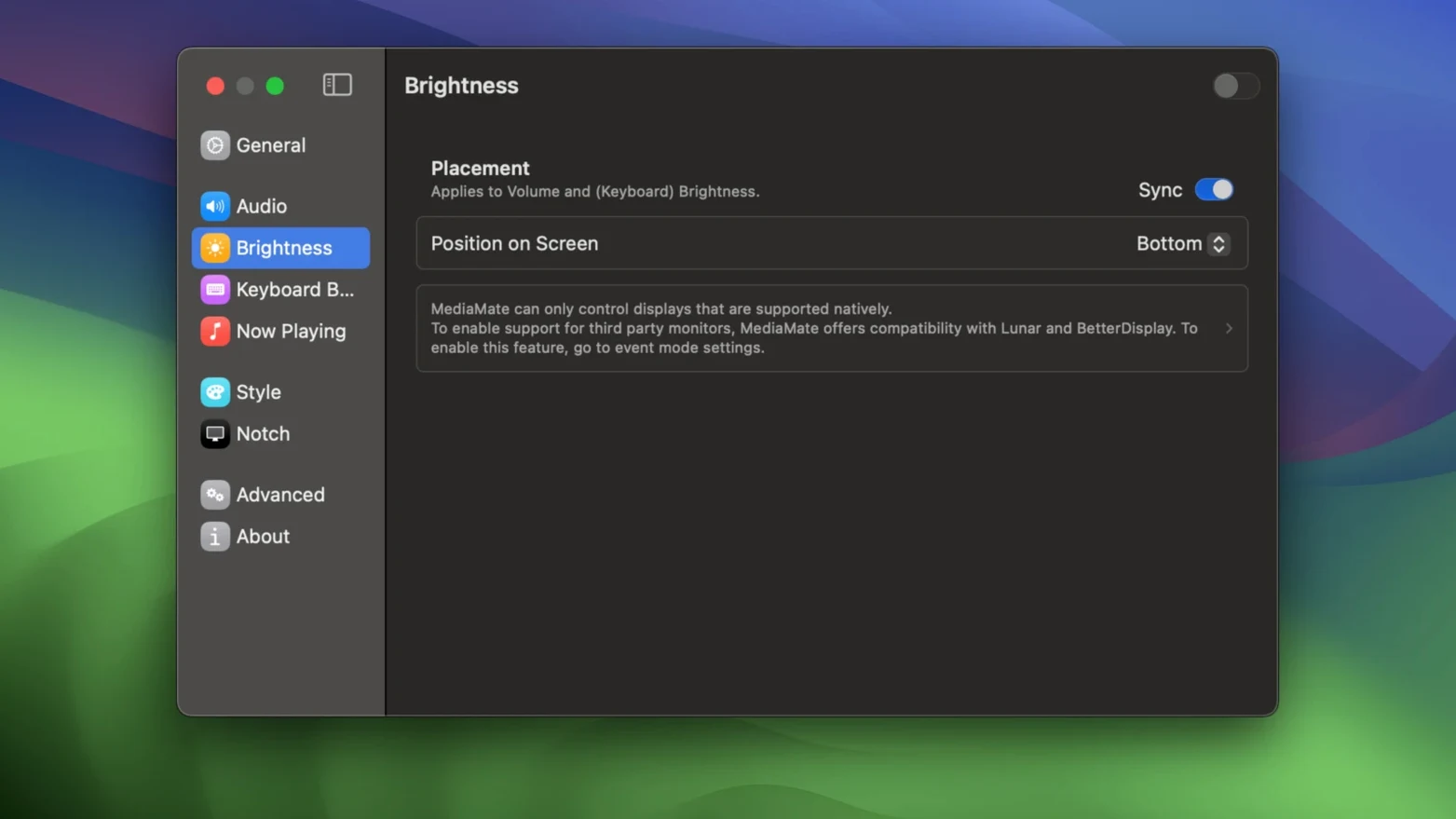
People sometimes hunt for a brightness HUD setting for external monitors. MediaMate handles the built-in display and keyboard backlight; it doesn't replace the overlay for external screens controlled through monitor hardware buttons. That's a hardware limitation, not a missing feature.
Near-zero idle draw on Apple Silicon
On an M-series Mac, the app sits at near-zero CPU when idle. The HUDs render as simple overlay windows, not full-blown animated scenes, so they pop in without dropping frames — even during screen recording or GPU-heavy tasks. On Intel machines from 2018 onward, the response feels equally snappy, though waking from deep sleep occasionally adds a half-second delay before the first HUD appears.
Memory use hovers around 40-60 MB in normal operation, which is reasonable for a utility that's always listening for key presses and media changes. The app hasn't caused a single crash in the current build on Ventura or Sonoma, and it coexists peacefully with other system tweakers like Bartender and BetterTouchTool. If you run multiple HUD replacements simultaneously, expect visual conflicts — but MediaMate plays nice with anything that doesn't also try to redraw the same overlays.
Tip: If you're testing mediamate mac app behavior after an update, toggle the HUD style once in preferences. That forces a full refresh of the overlay rendering and clears any cached glitches from the previous version.
Touch Bar users should enable the separate compatibility mode in preferences. That one toggle keeps everything behaving on those machines.
- macOS 13 Ventura or later
- Apple Silicon or Intel Mac
Notes from other shops 0
Sign in or open a shop account to leave a note.
No notes yet. If you've used this on a shop Mac, tell me how it went.