Magnet is for people who arrange windows by reflex—coders, writers, designers—and want to push past the default shortcuts they learned on day one.
Controls to dig into
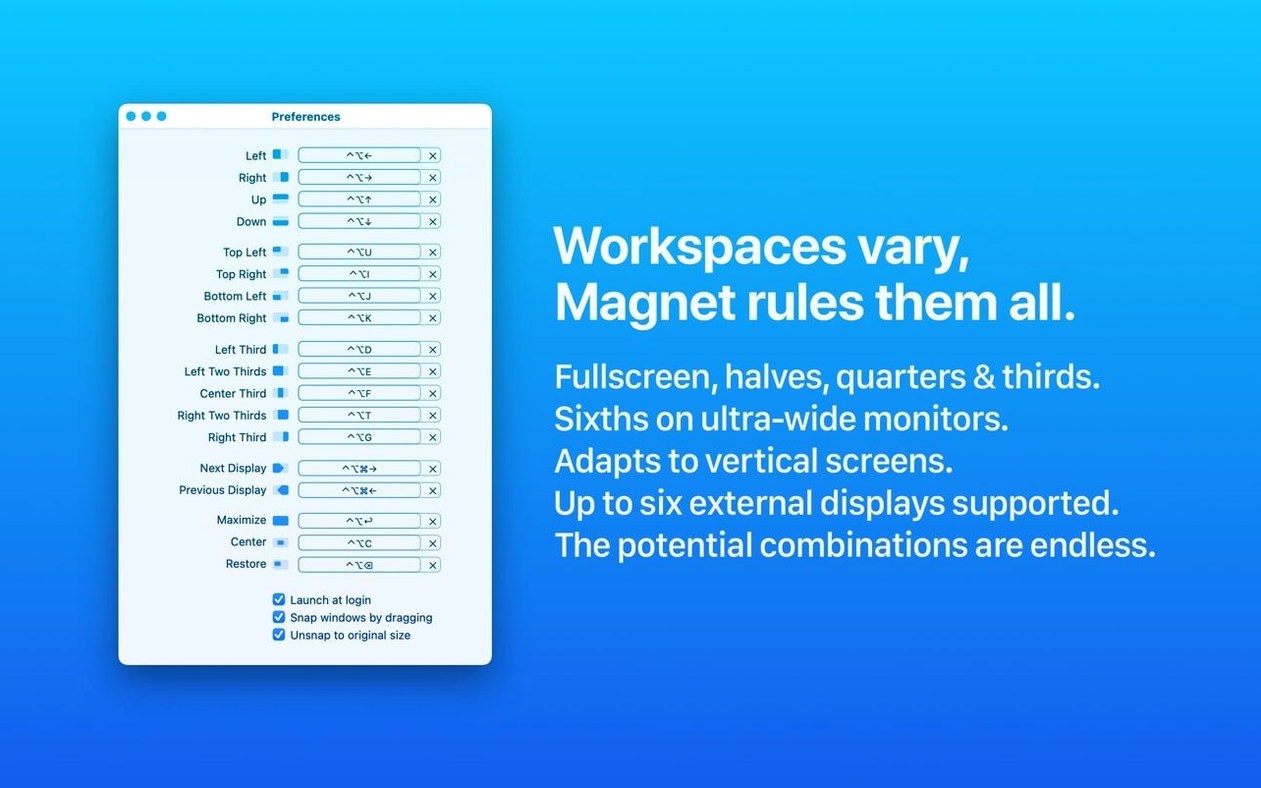
Custom hotkeys — Set any key combo from the menu bar to override a default or trigger a layout you actually use. No limit on remapping.
Six-display support — Magnet keeps window positions sensible across a multi-monitor rig, mixing Retina and non-Retina screens without scaling surprises.
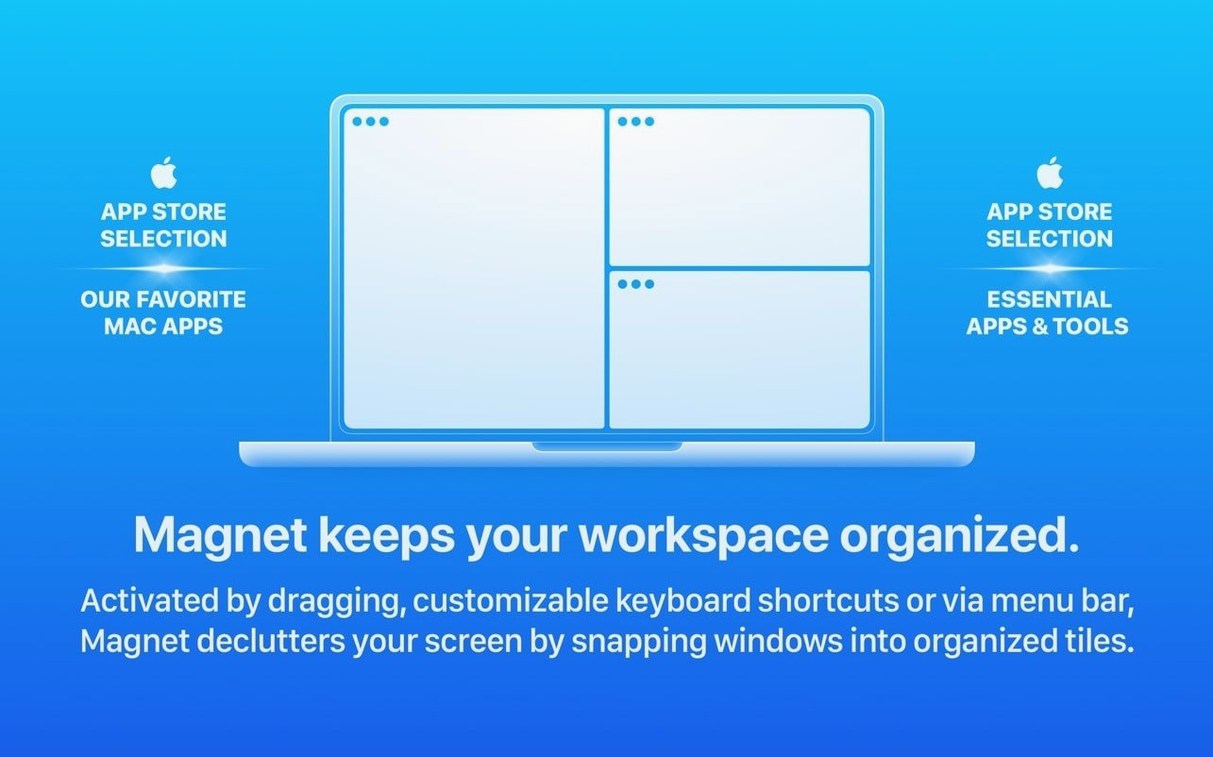
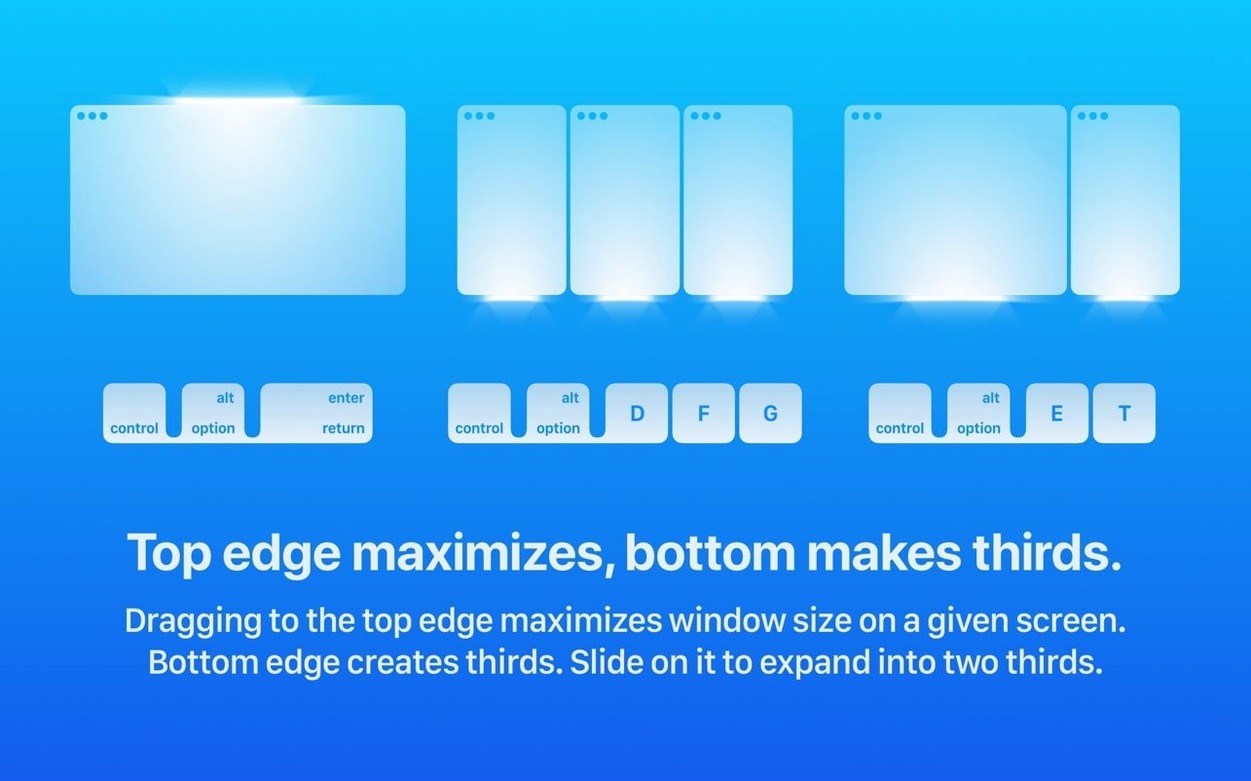
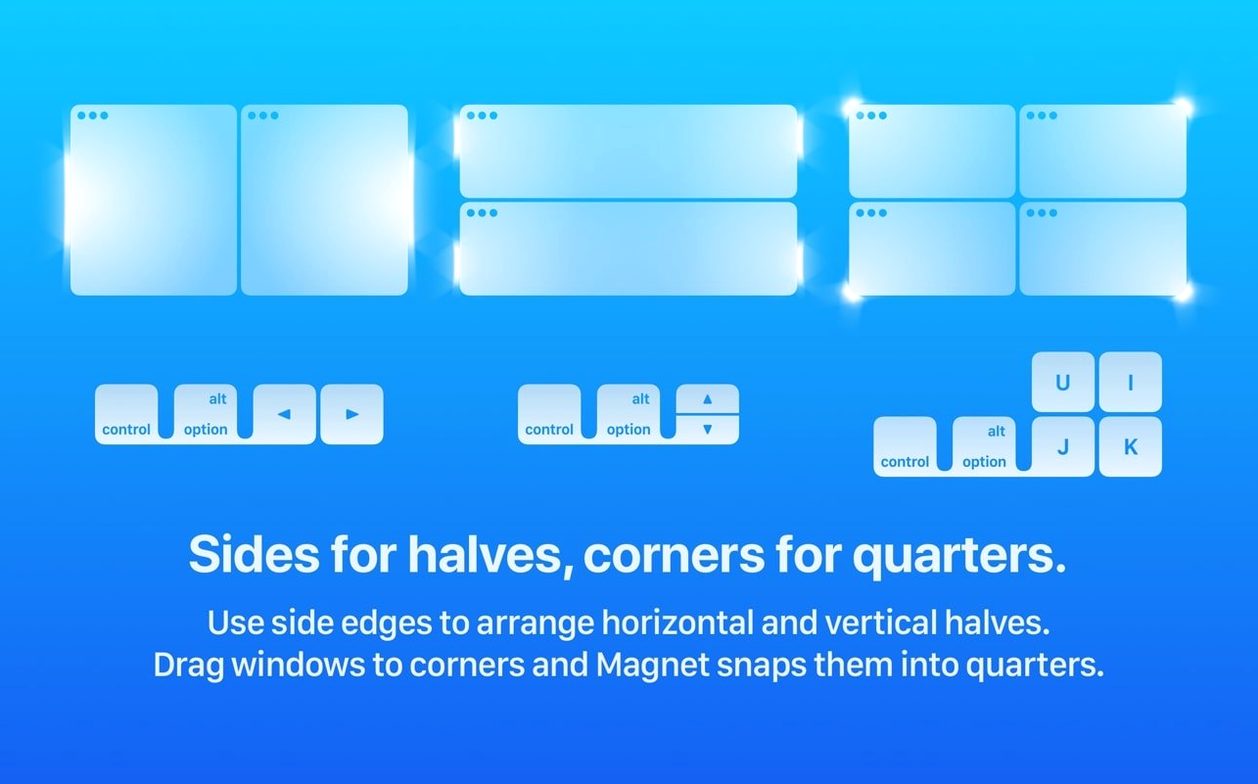
Drag zones — Snap windows to halves, thirds, or quarters by pulling them to a screen edge or corner. Keyboard optional, but quicker with it.
Global menu bar access — Change a shortcut or switch layouts fast without opening a full preferences window.
Three apps open and zero dragging to arrange them
This morning I sat down with three things open: a messy browser full of supplier tabs, Numbers with last month's shop ledger, and Preview showing a new product photo. Magnet lives in the menu bar, so I barely think about it until I need it. Here’s how that hour went.
First, I dragged the browser to the left edge of the screen. It snapped to fill exactly half of the display—no wobble, no manual resizing. I pulled Preview to the right half and dropped it. Side by side, I scrolled through inventory notes on the left while marking up the photo on the right, comparing measurements without switching windows.
Then I needed quarter-screen space. I hit ⌃⌥← to send Numbers to the bottom-left corner, ⌃⌥↑ to tuck the browser into the top-left, and kept Preview on the right half. Three windows, all visible, zero overlap. I was copying figures from the ledger into a supplier form and checking the photo for an SKU code. Magnet made it feel like one fluid task instead of three juggled ones.
Later, I plugged in an external monitor to review a larger batch of product shots. Magnet treats each display independently, so I could have a full-screen Lightroom window on the main screen while the shop's tracking spreadsheet and a calculator sat in tidy quarters on the laptop. Dragging a window across the seam between displays didn’t confuse it—the snapping zone activated cleanly on whichever screen I aimed for.
By the end of the hour, I’d remapped one hotkey. The default shortcut for top-right quarter overlapped with a localisation tool I use for product labels, so I opened the Magnet menu, clicked the pencil icon next to that action, and tapped a new three-key combo. Took ten seconds. The menu bar icon shows a tiny grid; a click gives me the full list of positions if I ever blank on a shortcut.
Where Magnet fits among the window managers I’ve actually used
I’ve tried a handful of window managers over the years. Here’s where Magnet sits among them, measured by what a small shop owner actually notices day to day.
Magnet vs. Rectangle
Rectangle is open-source and free, and it covers the same snapping basics: halves, thirds, quarters. The core difference is that Rectangle leans heavily on keyboard shortcuts and a menu, while Magnet adds drag-to-snap as a first-class feature. I use both, but with Magnet I grab the mouse less often yet still can grab it when a quick fling to the left edge feels faster than reaching for keys. Rectangle’s customisation is deeper in some corners—it lets you ignore certain apps or set per-app defaults—but Magnet’s drag zones keep me from opening a preferences window at all. For someone who wants to arrange windows and move on, Magnet’s drag-and-drop polish puts it ahead. The magnet for mac free download crowd often starts with Rectangle because of the price tag; people who stay with Magnet tend to value that polished drag behavior and the menu bar quick-access panel.
Magnet vs. BetterSnapTool
BetterSnapTool has been around forever and shares the drag-to-snap DNA. You can set custom snap areas, resize windows with modifier keys, and tweak the animation speed. The overlap is large. Where Magnet pulls ahead is its approach to hotkeys: every layout gets a definable shortcut, and the menu bar interface makes remapping feel like editing a list rather than navigating a preference pane. BetterSnapTool also shows a pop-up preview when you resize, which some people love but I find distracting. Magnet gives me the result without the animation. On a multi-display desk, both handle mixed Retina and non-Retina setups well, but Magnet’s six-display support is explicit and tested—I’ve run it across three without a single misplaced window.
Magnet vs. native macOS window tiling
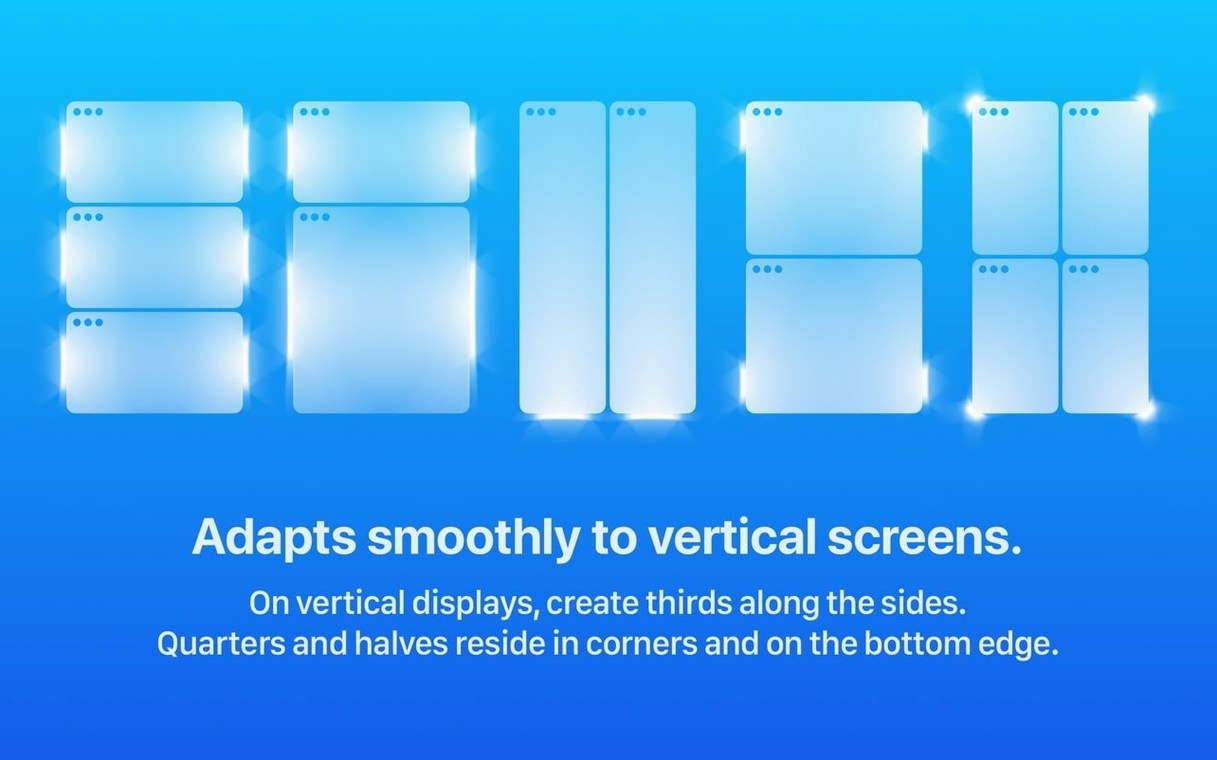
macOS Sequoia added its own tiling suggestions when you drag a window or hover over the green traffic-light button. It’s a welcome step, but it lacks the speed and granularity Magnet offers. Native tiling gives you halves and quarters with a pause; Magnet snaps to thirds, vertical thirds, and custom zones instantly on edge contact. And native tiling can’t touch Magnet’s hotkey grid—moving a window to the bottom-right sixth of a screen with two keys is something you only appreciate after a week of using it for bookkeeping across three apps. If your work stops at two windows side by side, the built-in tools suffice. If you regularly juggle four or more, Magnet earns its spot.
My four-window reconciliation layout rebuilt in seconds
Once a week I reconcile supply orders against packing slips and bank statements. It’s a four-window job that used to mean constant clicking. With Magnet, I have a fixed layout I rebuild in under five seconds.
I open the bank portal in the top-left quarter (⌃⌥U), the packing-slip PDF in the top-right quarter (⌃⌥I), the supplier’s order confirmation email in the bottom-left quarter (⌃⌥J), and Numbers with the shop’s expense tracker in the bottom-right quarter (⌃⌥K). Every window is legible, no scrolling sideways to read a transaction amount that’s half hidden behind another window.
I work left to right, top to bottom: verify a charge in the bank portal, match it to the packing slip’s line items, cross-check quantities against the supplier email, and type the total into the expense sheet. When something doesn’t match, I drag the email to the left half temporarily to read a long thread, then snap it back. The whole reconciliation that used to take twenty minutes now runs closer to twelve, simply because I’m not rearranging windows between every third data point.
Tip: If you repeat the same layout every week, write the four shortcuts on a sticky note for the first month. Muscle memory kicks in faster than you expect, and after that you won’t need the note.
Sits at 30–40 MB of memory and stays out of the way
Magnet is one of those utilities you install and forget is running. In Activity Monitor it sits at around 30–40 MB of memory on my machine, with near-zero CPU time unless I’m actively snapping windows. It doesn’t spawn helper processes or background updaters that pop up at inconvenient moments. I’ve had it running across weeks of uptime between reboots with no leaks or gradual slowdowns.
Window snapping itself feels immediate. The animation is a brief, linear slide—no spring-loading effects that tax the GPU or make you wait a beat before typing in the newly placed window. On an older Intel MacBook Air that still handles the shop’s bookkeeping, the snap completes in what feels like a single frame. On Apple Silicon, it’s imperceptibly fast.
Stability has been unremarkable in the best way. I haven’t encountered a crash in the current version across a mix of creative and office apps—Affinity Designer, Numbers, Mail, Safari with far too many tabs, and occasional Xcode sessions. Magnet doesn’t conflict with Stage Manager either; windows snap as expected whether Stage Manager is on or off, and the snapped positions hold when you switch between sets of windows.
One thing I tested intentionally: yanking a window rapidly between three or four hotkey positions in a row. No visual glitches, no momentary window disappearance, no wrong monitor placement. For anyone hunting a magnet download mac solution that’s light on system resources, this one runs like a native piece of the OS rather than a bolted
Tip: If a hotkey clashes with an IDE or design tool, set a second shortcut in Magnet and leave the app's native key alone.
- macOS 13 or newer
- Works on both Apple Silicon and Intel Macs
Notes from other shops 0
Sign in or open a shop account to leave a note.
No notes yet. If you've used this on a shop Mac, tell me how it went.