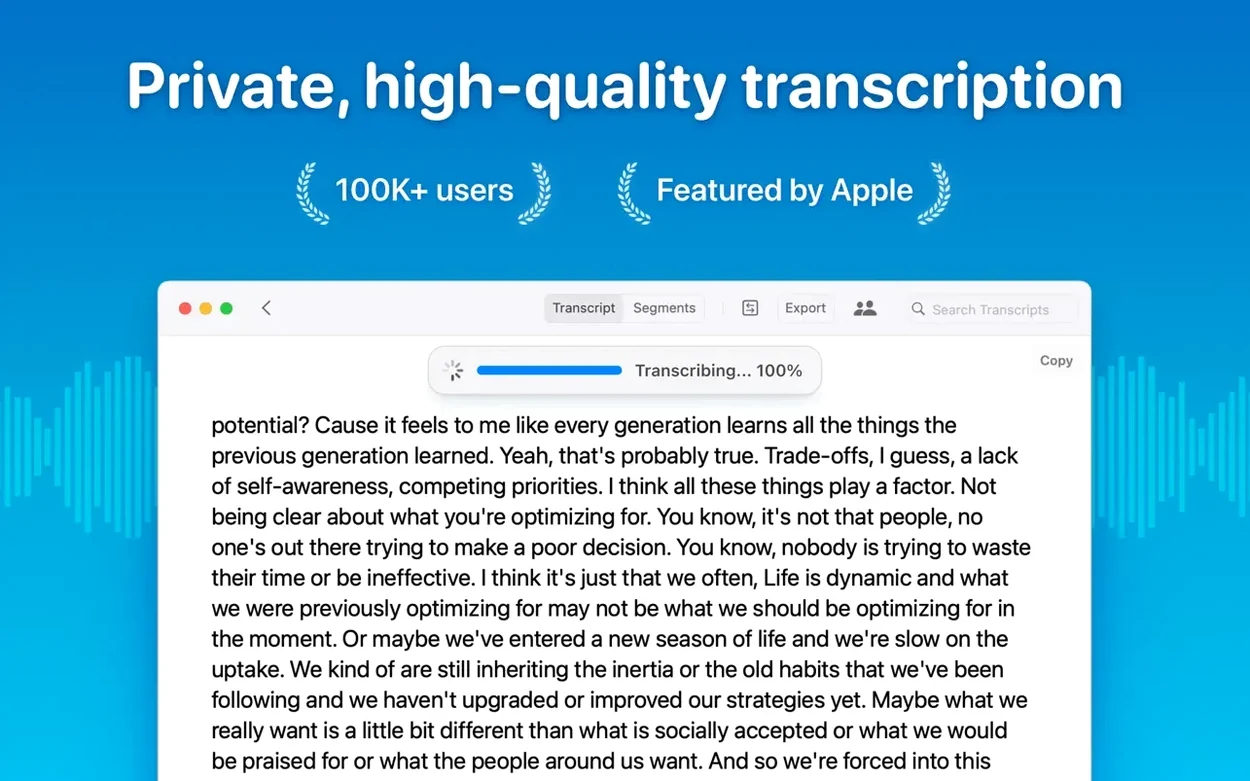
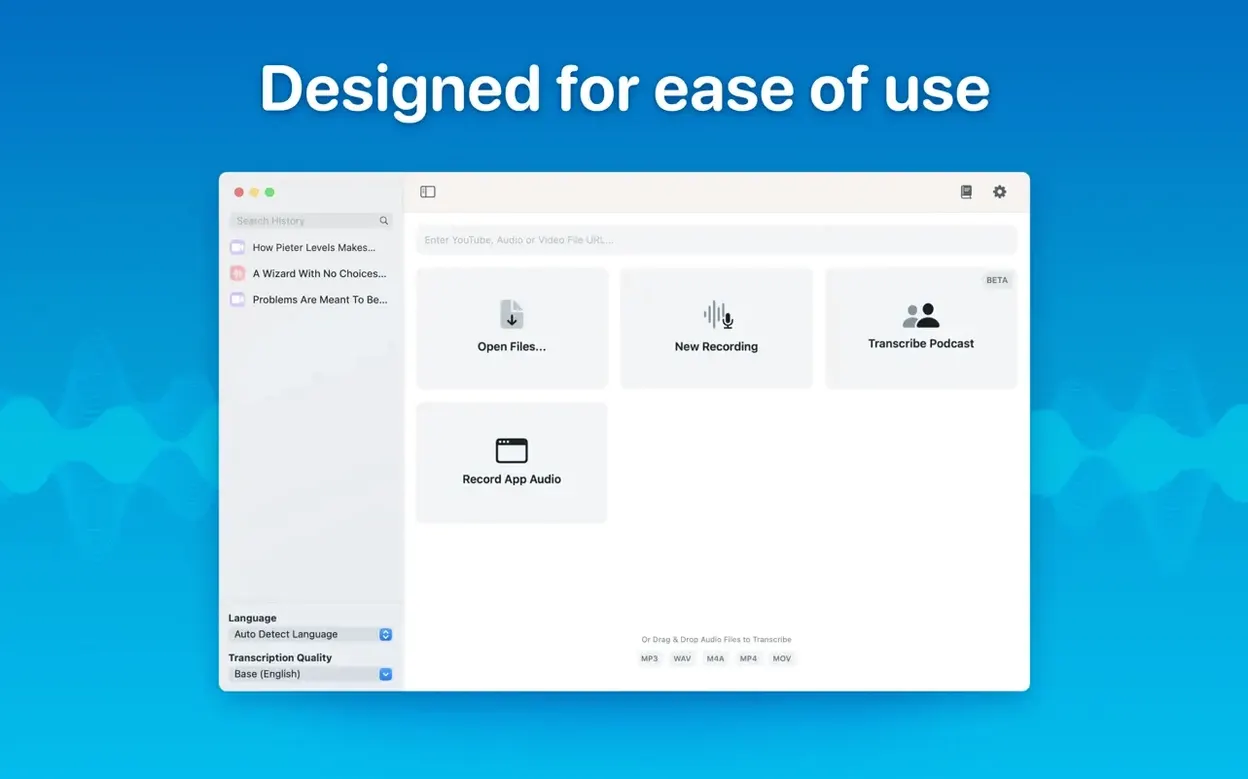
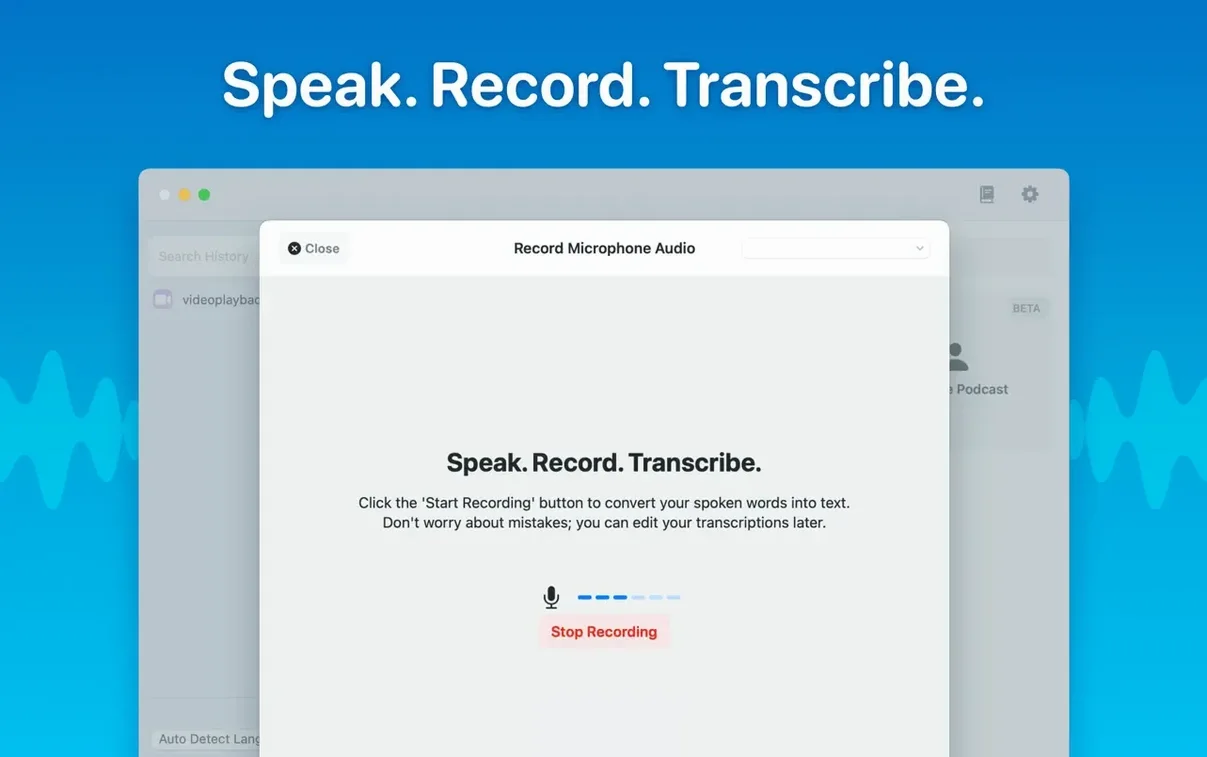
You have an hour-long interview sitting in a voice memo and the thought of transcribing it by hand makes you wince. You could upload it to a web service, but then you lose control of where that audio goes. MacWhisper keeps the whole process on your Mac — feed it an audio file, a podcast clip, or a live meeting, and it turns speech into text right on your own hardware.
Features that earn their keep
- On-device transcription. Audio never leaves your Mac. Pick a Whisper model from Tiny to Large-V3 and let your own processor do the work.
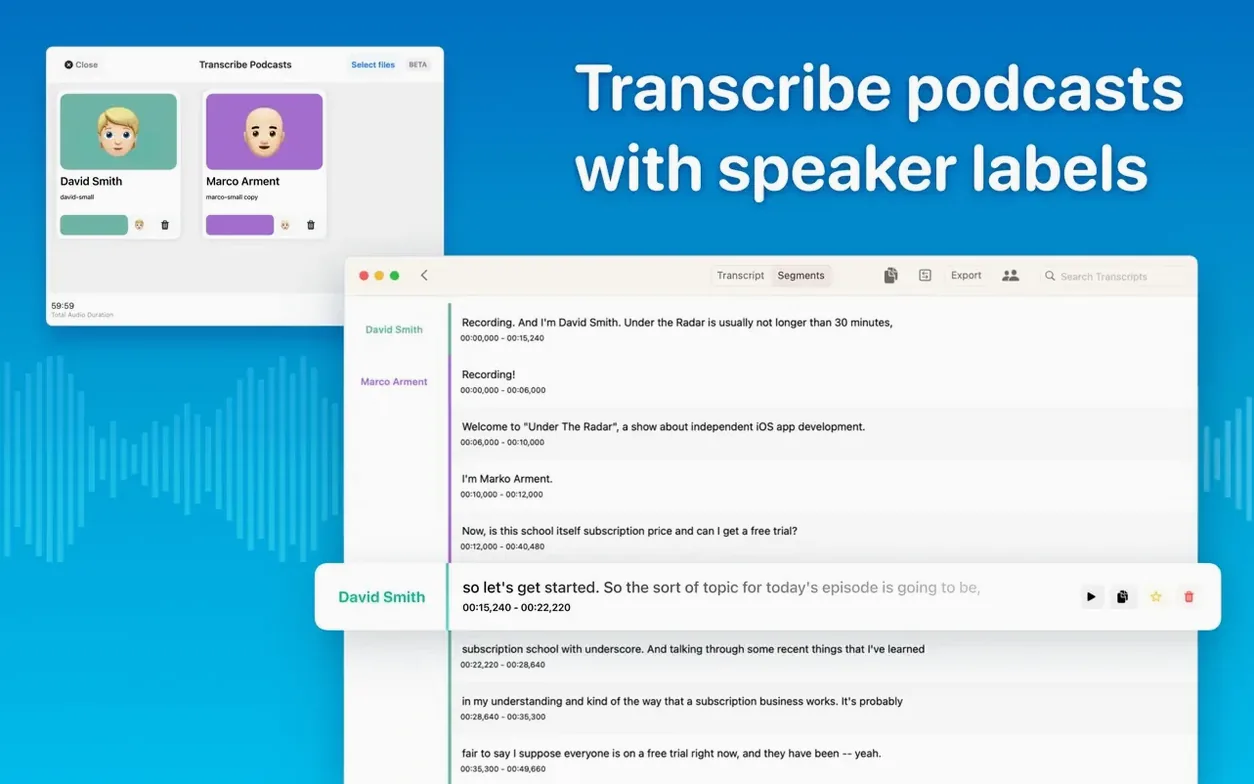
- Speaker separation. Podcast episodes and multi-person interviews come out with labels attached, so you know who said what without playing detective.
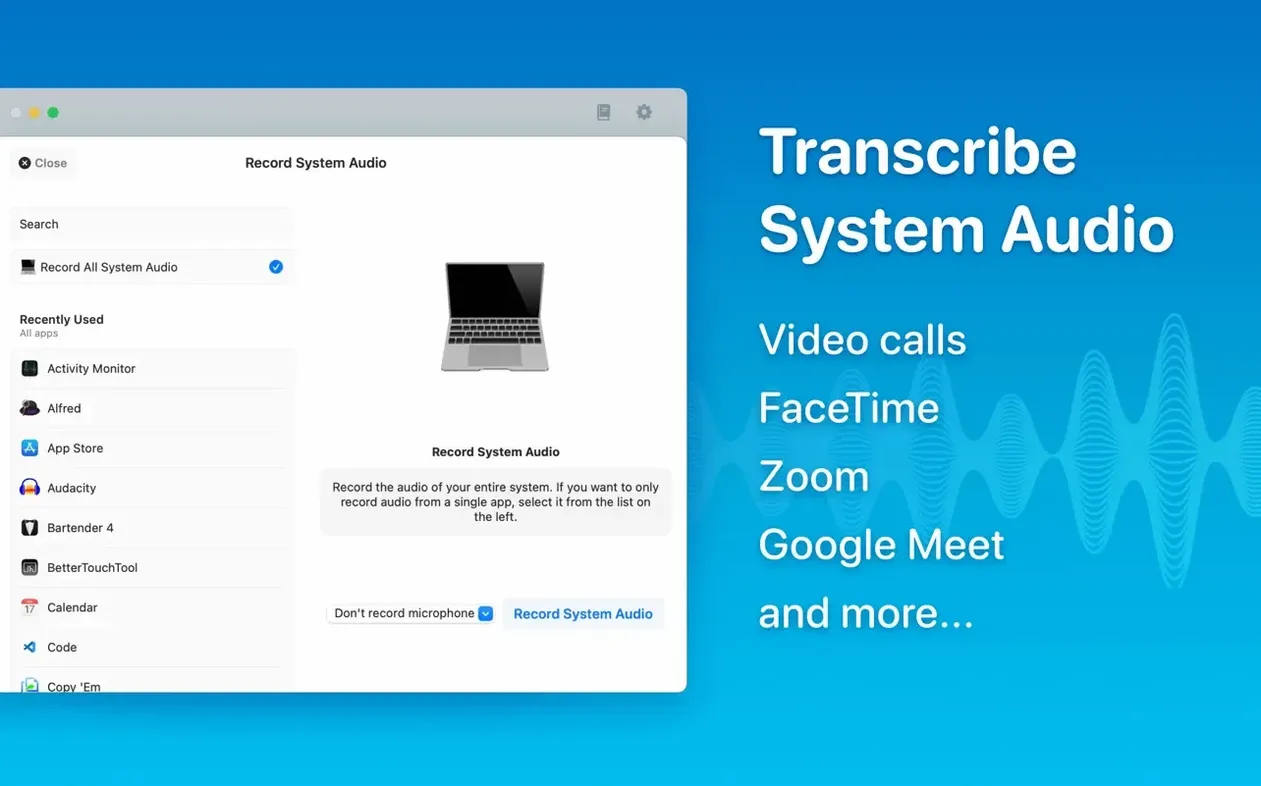
- Real-time meeting transcripts. Leave it running during a call and it captures what everyone says as it happens — handy for team syncs you actually need notes from.
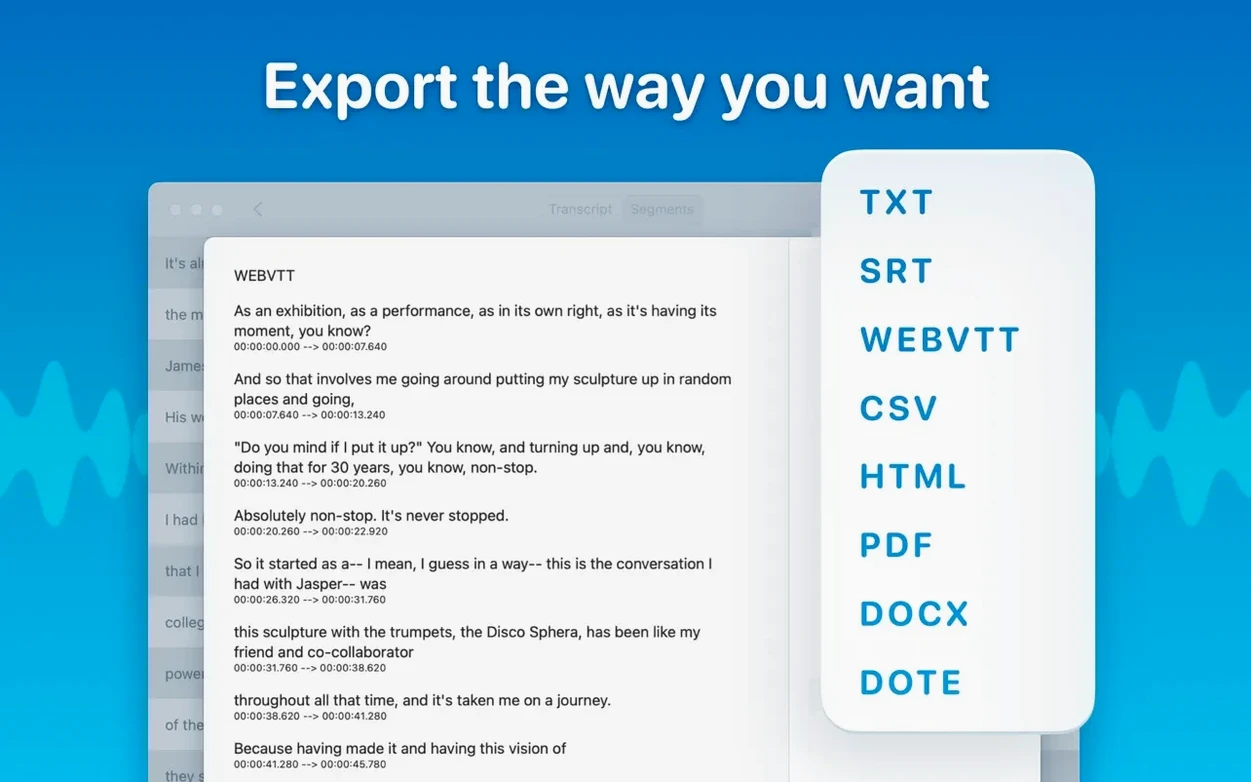
- Batch processing with multi-format export. Queue up several files and export them all at once to Word, PDF, or HTML. Pick one format or all three; the app sorts it out.
- Folders for organization. Keep client projects, podcast drafts, and meeting notes in separate folders so the sidebar doesn't become a junk drawer.
A quiet but useful update
Version 15.2 tidied up the model management. The Local Models list now hides categories your Mac can't run, checks hardware requirements before you download, and includes a new Qwen provider icon. It's a small change that saves you from downloading a model only to find it won't work — the kind of polish a tool earns after a few years of real-world use.
Model download stalls and the version 15.2 hardware check
MacWhisper is straightforward, but a few things catch people off guard. Here's what I've seen crop up and how to get past them.
- The model won't download. Version 15.2 added a hardware check before the download starts, which means you'll sometimes see a model greyed out with no explanation. That's usually your Mac saying "I can't run this one." Stick with a smaller model — Base or Small still does solid work on an Intel Mac — and save the Large models for Apple Silicon machines with decent RAM.
- Speaker separation doesn't label anyone. If you're getting one big block of text with no speaker tags, check that the audio is mostly just people talking. Background music, overlapping chatter, or a recording made from a laptop mic across a conference table can confuse the diarization model. Try a closer mic placement next time, or split the file into shorter segments and run them separately.
- Transcription takes forever. Large-V3 on an hour-long file will chew through time and battery. Drop to Medium for quick turnaround — you can always re-transcribe a keeper clip later with a heavier model.
- The app crashes when picking a Live Captions language on macOS 15. Already fixed in 15.2.1. If you're still seeing it, grab the latest build.
- System audio transcription produces gibberish. This usually means the source app is outputting compressed or processed audio. Try routing cleaner audio — a direct mic feed or a lossless recording — and you'll see the difference immediately.
Set your default model to Medium for daily use
Out of the box, MacWhisper works without much fiddling, but a few tweaks make it feel more like your own tool.
- Choose your default model. The app picks one for you, but I'd set it to Medium for everyday use and bump up to Large-V3 only when a transcript really matters. You'll save time and keep the fans quiet.
- Turn on automatic language detection. Unless you're always working in one language, let the app figure it out. It handles 100 languages and gets it right often enough to skip the menu dive.
- Set your preferred export format. If you always send transcripts to Word, make that the default. The batch export panel remembers your last choice, so set it once and forget it.
- Create a folder structure early. Before the sidebar fills up with "Untitled 12," make folders for clients, personal projects, and meeting notes. Dragging transcripts into them later is fine, but a little structure upfront keeps things findable.
Transcription runs on your device, no internet needed
People searching for macwhisper often want to know the same few things. Here's the straight version.
Does it need an internet connection? No, and that's the point. Transcription runs on your device. The only time it reaches out is if you choose to download a new model — after that, you can work offline. If you've looked at a macwhisper torrent or a macwhisper pro torrent because you're curious about the local-only design, that's exactly what you get here.
Will it run on an Intel Mac? Yes. It supports both Apple Silicon and Intel 64-bit machines running macOS 14 or later. Larger models will be slower on Intel, but Small and Base are perfectly usable. Some macwhisper pro crack downloads floating around work just fine on both architectures, so you can set it up on whatever Mac you have.
What file types can I throw at it? mp3, wav, m4a, mp4, mov, ogg, and opus all work. Drag and drop, pick a model, and wait. Batch processing means you can queue a whole folder of voice memos and come back to finished transcripts.
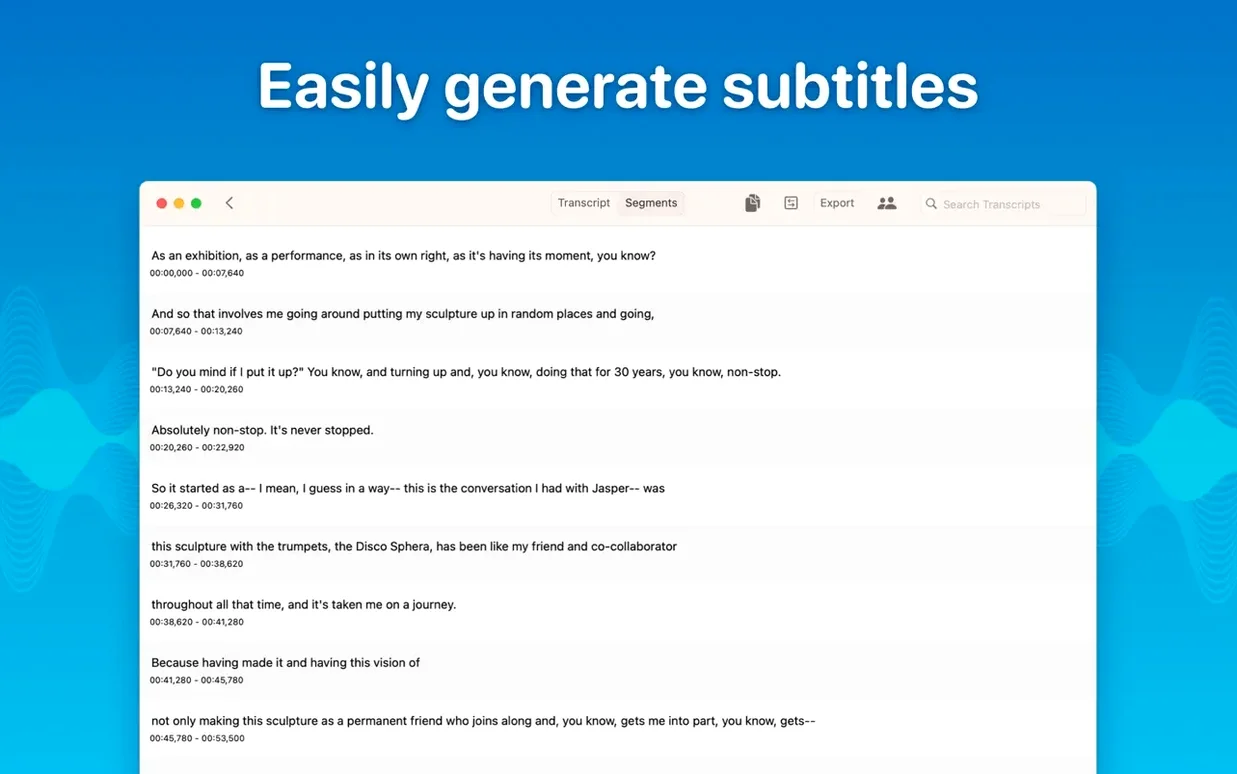
Is the transcript editable? Yes, and it's one of the quieter strengths. Click any segment, fix a misheard word, delete a false start. The reading mode even strips out the editing chrome so you can just read the text like a document. Combined with SRT and VTT export, it's a tidy little podcast captioning pipeline.
If you've been eyeing a macwhisper cracked version just to test the water, you'll find the app doesn't require activation — what you get is what it does, no hoops.
- macOS 14 or later
- Apple Silicon or Intel 64-bit Mac
Notes from other shops 0
Sign in or open a shop account to leave a note.
No notes yet. If you've used this on a shop Mac, tell me how it went.