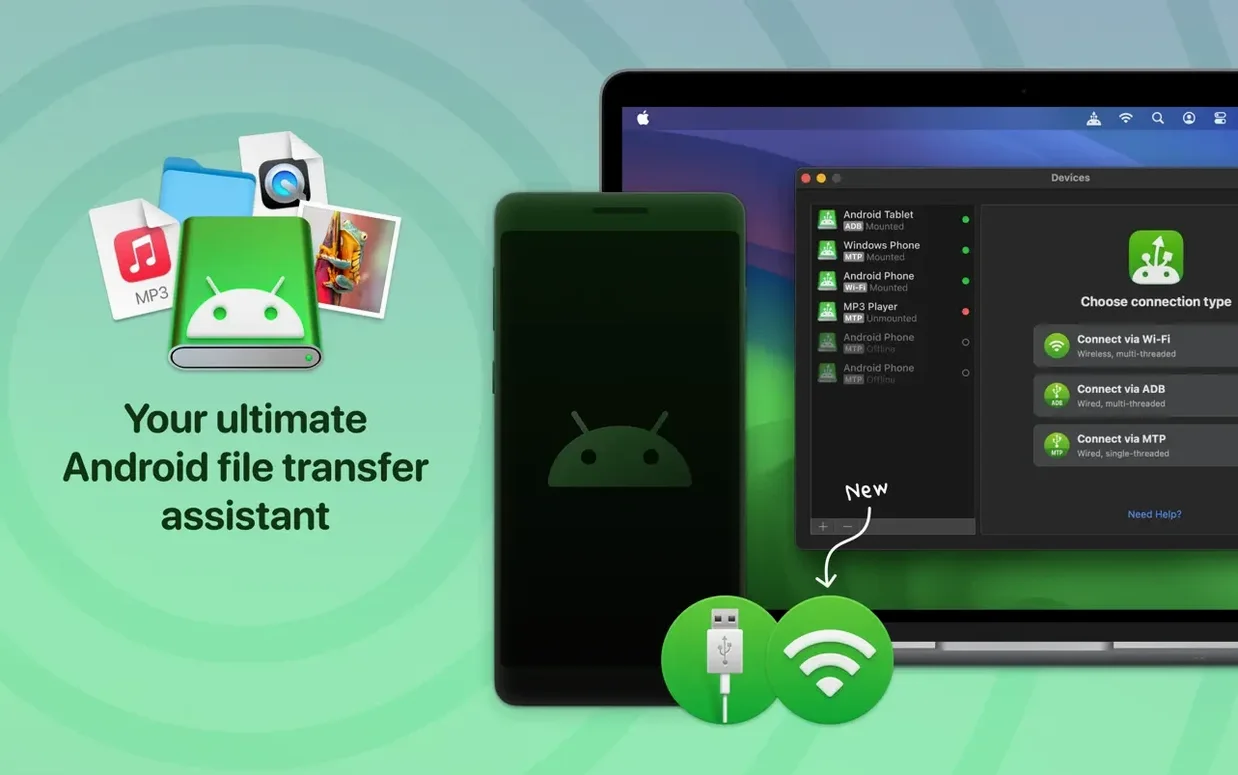
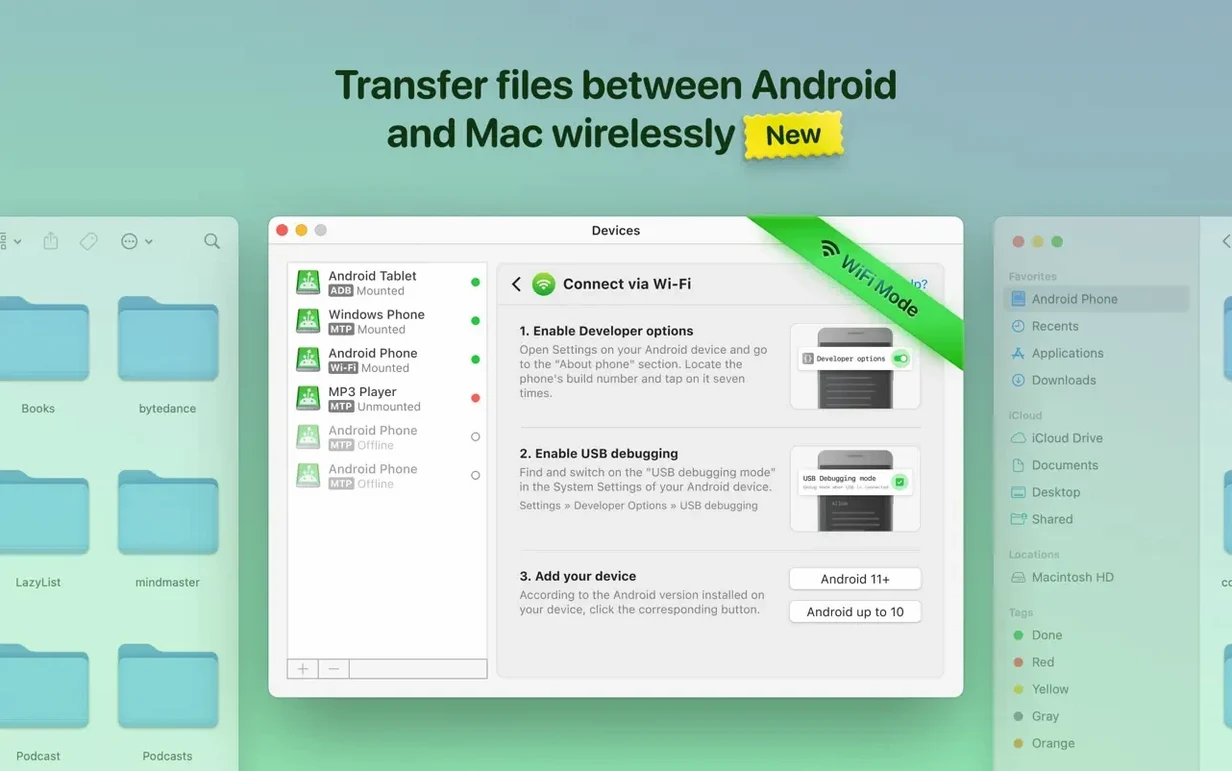
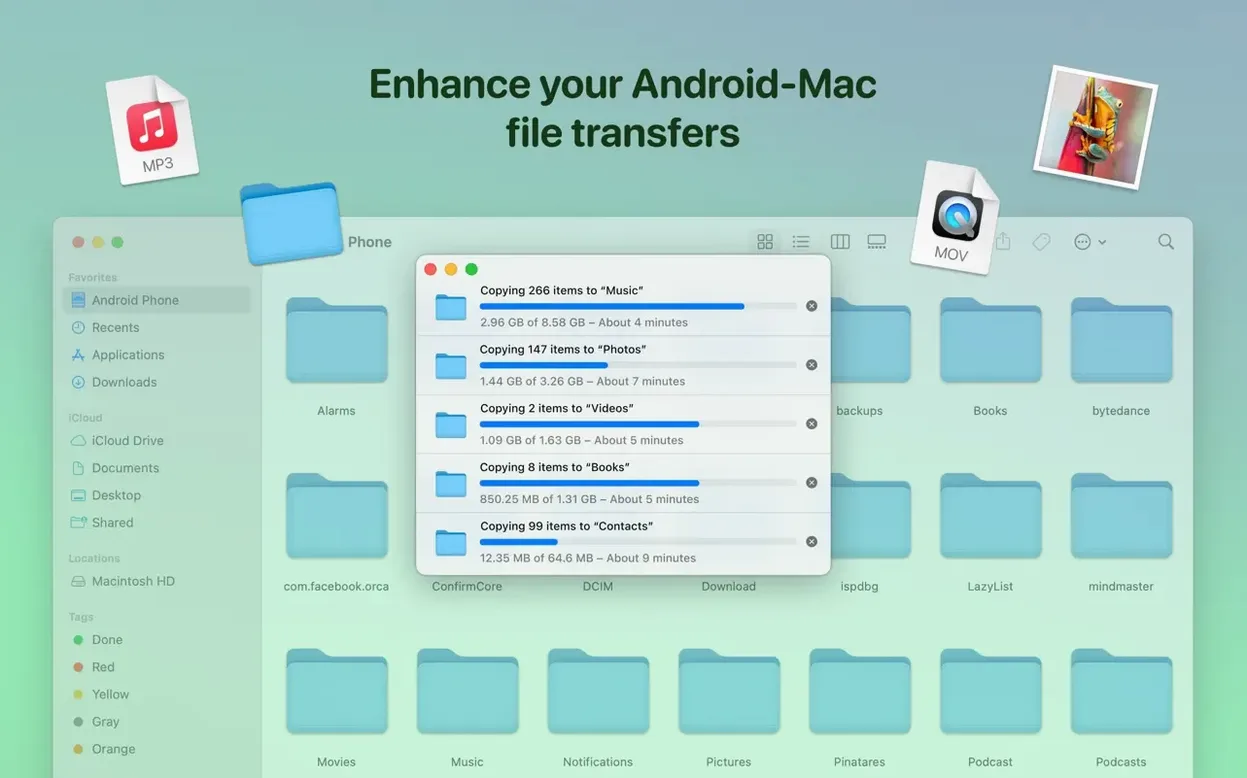
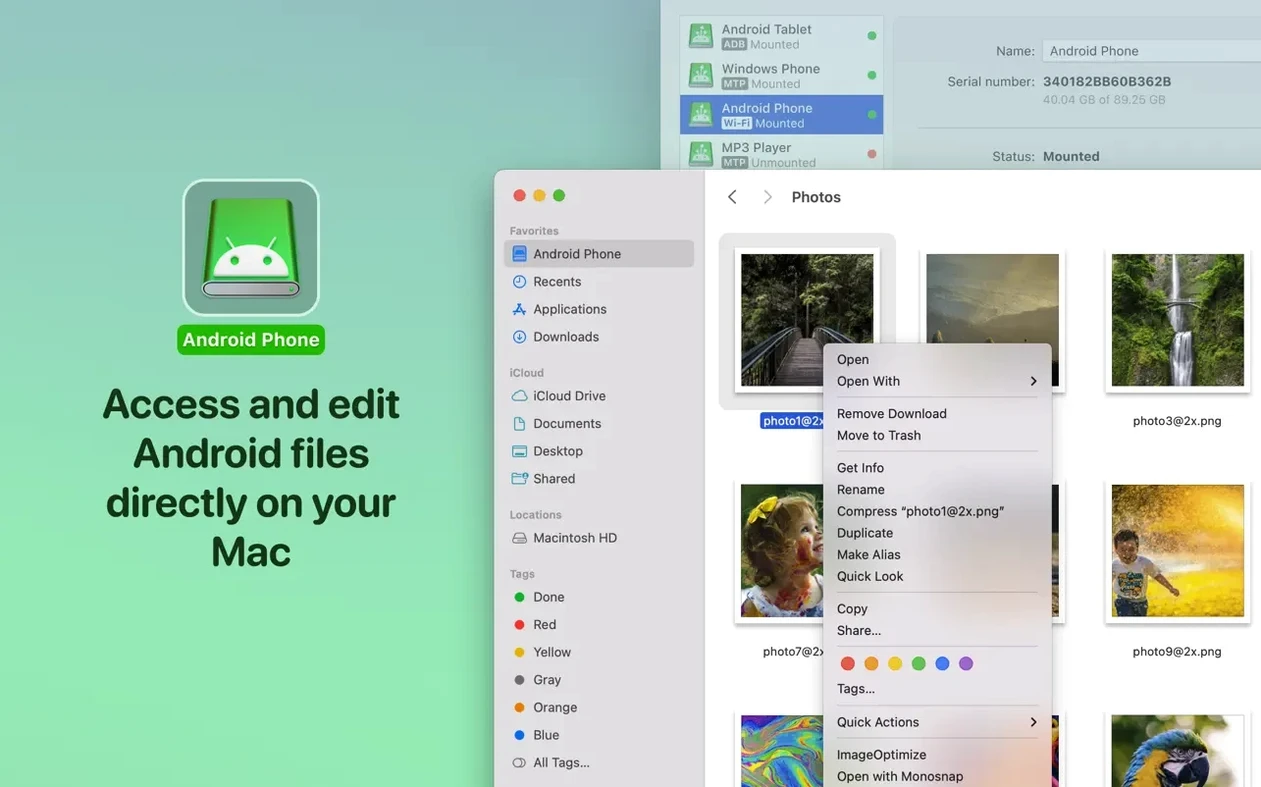
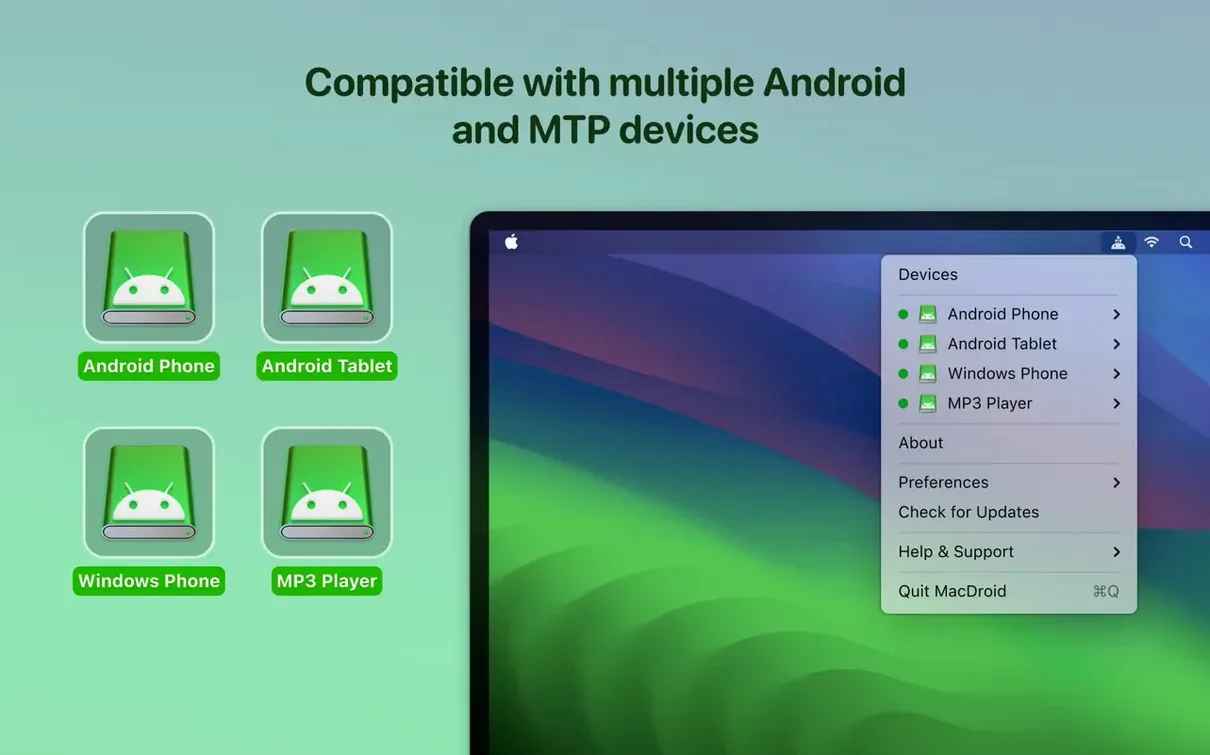
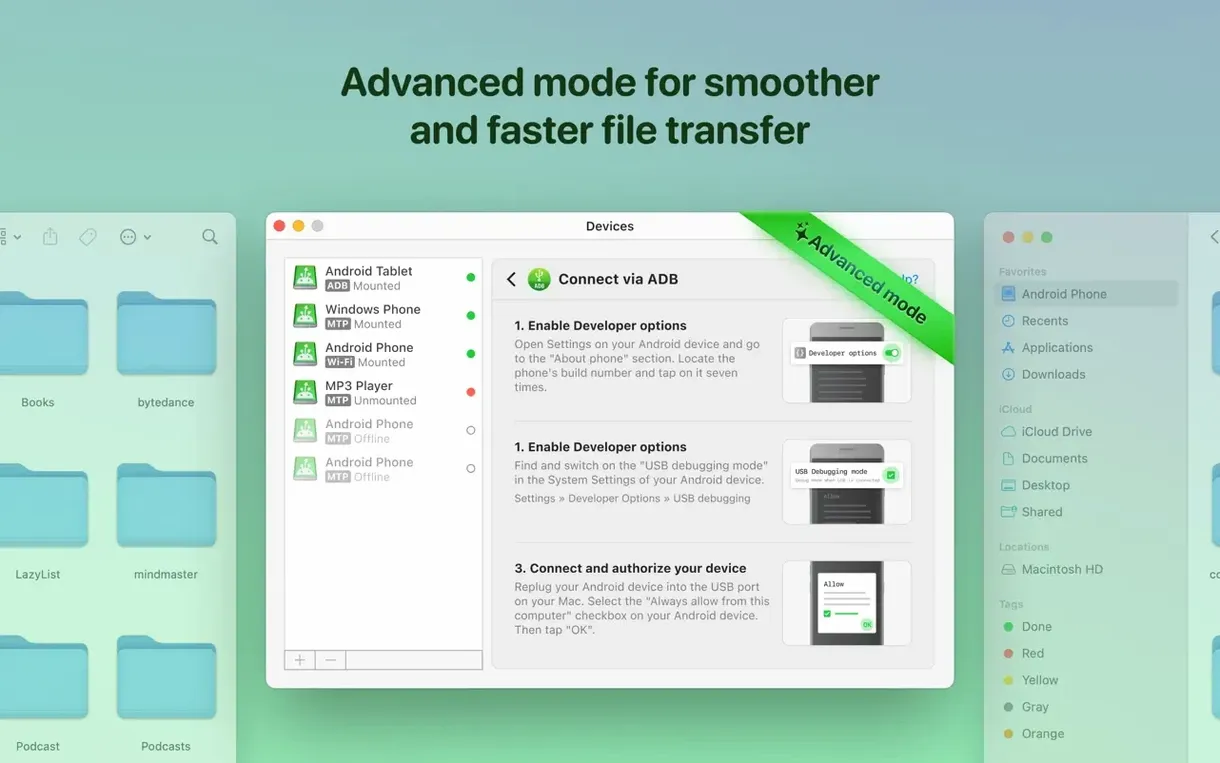
The MTP handling improvements are what I noticed first. MacDroid Pro takes the standard Media Transfer Protocol most Android phones lean on and makes it feel less like a negotiation and more like a straightforward connection. If you have ever stared at a frozen file list in a transfer window, the faster folder loading in the current version is a welcome change — it gets out of the way so you can grab photos or add music between your Mac and Android device without the little pauses that add up.
Mount your Android as a desktop drive
- Mounting an Android phone or tablet as a plain disk drive on your Mac desktop
- Pulling photos from Android to Mac — great when you're sorting shots into a folder structure you already use
- Reaching both internal storage and an inserted SD card without juggling card readers
- Adding music to an Android device directly from your Mac's file system
- Choosing between a USB cable for speed or wireless connection when the cable is across the room
Plays nice with Finder and fixes file listings
- It works alongside Finder and any other file tools you use — the Android device just appears as another volume
- Recent fixes addressed incorrect file listings, so what you see should match what is actually on the device
- A quiet but useful fix: downloading files no longer trips over itself when the cache volume has been changed
What all those version improvements mean day to day
The jump from earlier builds to 2.10.0 isn't flashy on the surface, but it changes how much patience you need. The MTP improvements mean connecting a Samsung or Xiaomi device over USB doesn't involve that awkward thirty-second wait where you're not sure if it will actually mount. It just appears. The ADB connection tweaks help with devices that previously needed a second attempt — some Pixel and OnePlus phones fell into that camp. Faster loading of file and folder listings is the kind of fix you don't celebrate until you realize you've stopped drumming your fingers while a folder with two hundred RAW photos populates. The Traditional Chinese localization quietly opened the door for a whole set of users who were working around the interface before.
Unlock the phone and set USB to file transfer first
The most frequent one is forgetting to unlock the Android device and set the USB mode correctly. MacDroid needs the phone awake and the connection set to File Transfer / MTP — not just charging. If nothing mounts, that's usually the culprit, not the app.
Another is assuming Wi‑Fi mode works like AirDrop. It doesn't. You connect wirelessly through the app's own pairing, and it expects both devices on the same network. People sometimes fire it up on a guest network and wonder why the handshake fails.
A subtler mistake: editing an Android file directly on the mounted volume and closing it without realizing the save didn't flush back to the device. The feature that lets you edit Android files on Mac without copying them locally is clever, but if the connection drops mid‑edit, your changes can vanish. Saving a backup copy to the desktop first, then replacing the original afterward, is safer for anything you can't afford to lose. Also, some people try to mount the same device in two modes simultaneously — ADB for one task, MTP for another — and get confused when it fights itself. Pick one mode and stick with it for the session.
A less obvious one: not checking whether MacDroid sees the external SD card as a separate volume. It usually does, but the listing appears as a second entry in Finder. Beginners sometimes load files onto internal storage thinking they are going to the card, then run out of space on the phone.
Workflow: moving a week's worth of product photos from Android to Mac and into a shop folder
Say I've shot a batch of thirty product photos on a Pixel phone — new candle holders for the shop site. They're sitting in the DCIM/Camera folder on the phone's internal storage, mixed in with screenshots and random shots from the week. Here's how I handle it with MacDroid Pro, start to finish.
1. Connect and mount. USB cable into the Mac, phone unlocked, USB mode set to File Transfer. MacDroid is already running. Within a few seconds the Pixel shows up as a volume in Finder — internal storage on top, SD card below if there is one. I open the internal storage volume.
2. Navigate and preview. I go straight to DCIM/Camera. With the faster folder loading in 2.10.0, the thumbnails populate without that staggered fill-in that older versions had. I switch Finder to gallery view so I can see which shots are the candle holders and which are the accidental pocket photos.
3. Selective drag across. I select the thirty relevant images — Command‑click to pick them out — and drag them to a folder on my Mac desktop called this-week-shop. No import dialog, no intermediate app. They copy over as plain files. The whole batch takes under a minute over USB.
4. Quick rename on the Mac side. Now the files are local. I use a Finder rename batch to prepend "candle-oak-" to the file names so they make sense in my shop image library. Because I dragged the originals, not duplicates made by some sync tool, there's no cleanup step afterward.
5. Edit directly if needed. One shot needs a quick crop. I open it from the Mac folder, edit in Preview, save. No copies piling up. If I wanted to leave the images on the Android device and edit them from the mounted volume without copying first, I could — but for a batch this size, dragging them over once is faster and avoids the save-flush risk I mentioned earlier.
6. Music for the road. While the phone is still connected, I grab a folder of new tracks from my Mac's music directory and drop it onto the Android Music folder. MacDroid moves the whole folder structure intact. I disconnect, and the tracks are there in my phone's music player — no extra sync step.
The whole thing, from plugging in to unplugging, takes about four minutes. The tool stays out of the spotlight and lets Finder do the heavy lifting, which is exactly what I want from a utility like this.
A few practical fixes and one welcome addition for traditional Chinese users:
- Traditional Chinese localization added
- MTP connection and device operation improvements
- Faster loading of file and folder listings
- macOS 11.5 or newer
- Works on both Intel and Apple Silicon Macs
Questions from the stall
Can I transfer files wirelessly with MacDroid Pro?
Yes. You can connect your Android device to your Mac through a wireless connection or a USB cable, whichever suits your setup at the moment.
Does MacDroid Pro work with external storage on my Android device?
It does. MacDroid Pro can access both the internal storage and any external storage, like an SD card, that is connected to your Android device.
Notes from other shops 0
Sign in or open a shop account to leave a note.
No notes yet. If you've used this on a shop Mac, tell me how it went.