
Little Snitch is a Mac firewall that alerts you whenever an app tries to connect to the internet and lets you allow or deny the connection, once or forever.
macOS 14 or newer, Intel or Apple Silicon
Little Snitch 6.5 needs macOS 14 or newer and runs on both Intel and Apple Silicon Macs. The interface comes in English and German.
Decide what gets through
Every connection attempt pops up a clear alert where you approve or block it. The app remembers your choice and applies the same rule automatically the next time.
See where your data goes
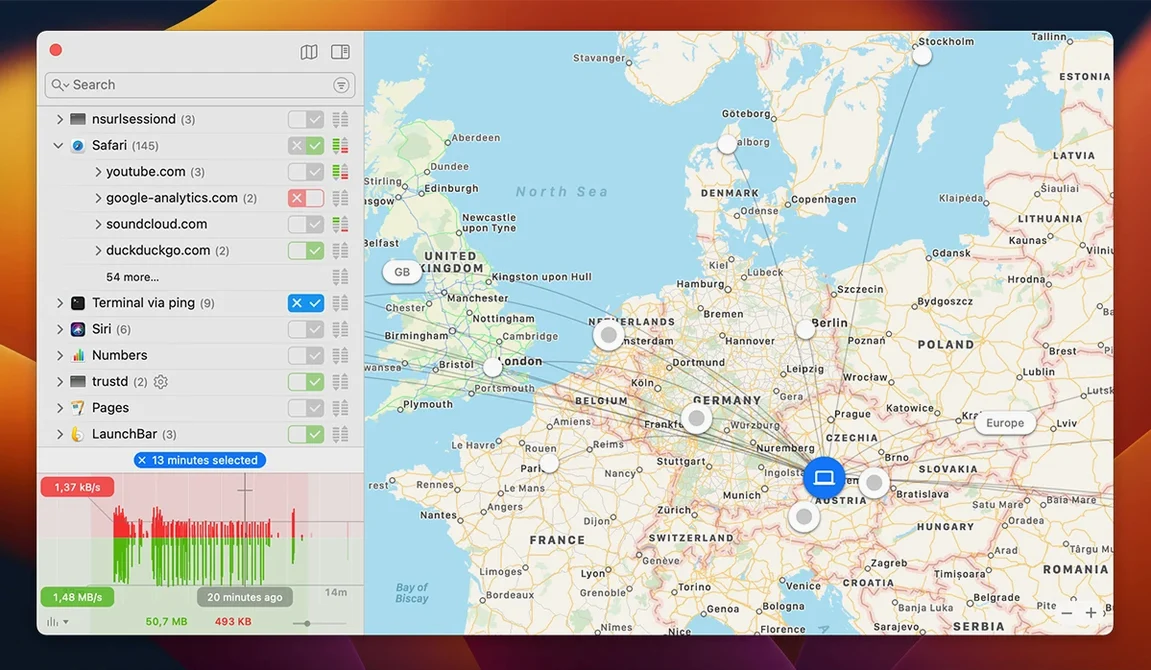
Live network activity shows up as a list sorted by app and server, an interactive world map of server locations, and an hourly traffic volume chart.
Alert fatigue eases after early approvals
People worry about alert fatigue, and I understand why. Little Snitch shows a dialog for every new connection, and the first few days can feel chatty. But it's not going to stay that way. Once you've approved the apps you trust and blocked the ones you don't, the questions taper off fast. Most of my rules were set within a week, and now I see maybe two or three prompts a month — usually when something updates and its code signature changes.
Another common concern is whether it'll slow the Mac down. The filtering engine in version 6.5 replaced the old kernel extension approach, and on my machines I haven't noticed any lag in browsing or file transfers. The network monitor draws a little power when it's open, but it's negligible unless you leave the map view running all day.
Some folks wonder if they need to understand networking to use it. You don't. The alert shows the app name, the server it's trying to reach, and the port — you don't have to parse IP addresses unless you want to. Denying Adobe a connection to some telemetry endpoint is just a click, and the rule sticks.
And yes, it works alongside the macOS built-in firewall. They do different things: Apple's blocks incoming connections; Little Snitch manages outbound ones. They coexist without drama.
Creative apps phone home constantly
If you run creative software — Adobe apps, rendering tools, plug-in managers — Little Snitch is practically made for you. Those apps tend to phone home constantly, and blocking those calls without hunting through preference files saves real time. Designers and video editors often discover background uploads they never agreed to.
System administrators and developers will lean on the command-line interface for scripting rules across machines, but that's a power move, not a requirement. The GUI handles everything a single user needs.
People who use a lot of small indie apps get surprising value too. A tiny menu bar utility that checks for updates every hour? You'll see it. A note app that inexplicably connects to a marketing analytics service? You'll catch it. The transparency alone is worth the install.
If you work with sensitive client files — lawyers, accountants, journalists — knowing nothing leaks out without your say-so is a quiet kind of confidence. The bundle integrity monitoring added in 6.5 adds another layer: if an app's code changes while it's running, you'll know about it.
A workflow: locking down a new app
Let's say you download a screen recording utility you haven't used before. Here's how I'd handle it from first launch to a settled rule set.
Open the app. Within seconds, Little Snitch throws an alert: the recorder wants to reach a licensing server. I allow it once, because I need to activate the software. A second alert pops up — it's trying to reach an analytics endpoint with a cryptic subdomain. I deny it permanently. That one's done.
I record a short test clip. When I hit export, the app asks to connect to a cloud storage API. I allow it for this session only, because I'm not sure I'll use that feature again. If I end up liking the cloud save flow, I'll make the rule permanent later from the rules list. If not, the temporary rule expires and the connection is blocked next time.
After a day of use, I open the Network Monitor and filter by that app's name. I scan the servers it contacted, the traffic volume, and whether anything unexpected snuck through. Satisfied, I right-click any leftover temporary rules and convert the ones I want to keep into permanent ones. Ten minutes of attention, and that app is fully dialed in.
Quiet Mode postpones alerts for batch review
Quiet Mode is the first thing I switch on during focused work. It postpones all connection alerts instead of interrupting you, and you review them later in a batch. Find it under the Little Snitch menu bar icon — hold Option and click to toggle it quickly.
Next, head into preferences and enable Automatic Profile Switching if you move between networks. Your rules at a coffee shop Wi-Fi can be stricter than at home, and switching profiles by hand gets old.
I also recommend shortening the temporary rule lifespan. The default is until the app quits, but I set mine to 15 minutes for most profiles. If something genuinely needs ongoing access, I'll make a permanent rule. Short-lived temporaries keep the rules list from filling up with decisions you forgot about.
Alert styling is a small thing worth tweaking. The default alert window is compact; you can expand it to show the full connection details — process path, port, protocol — with a click on the arrow. I set mine to always show details, because seeing the full path once has saved me from allowing a background helper I didn't recognize.
Map lines highlight traffic direction on hover
The Network Monitor's world map is more than eye candy. Hover over a connection line and it highlights the traffic direction. Double-click a server dot and the monitor filters to show only that destination. It's a fast way to audit what's talking to a specific country or data center.
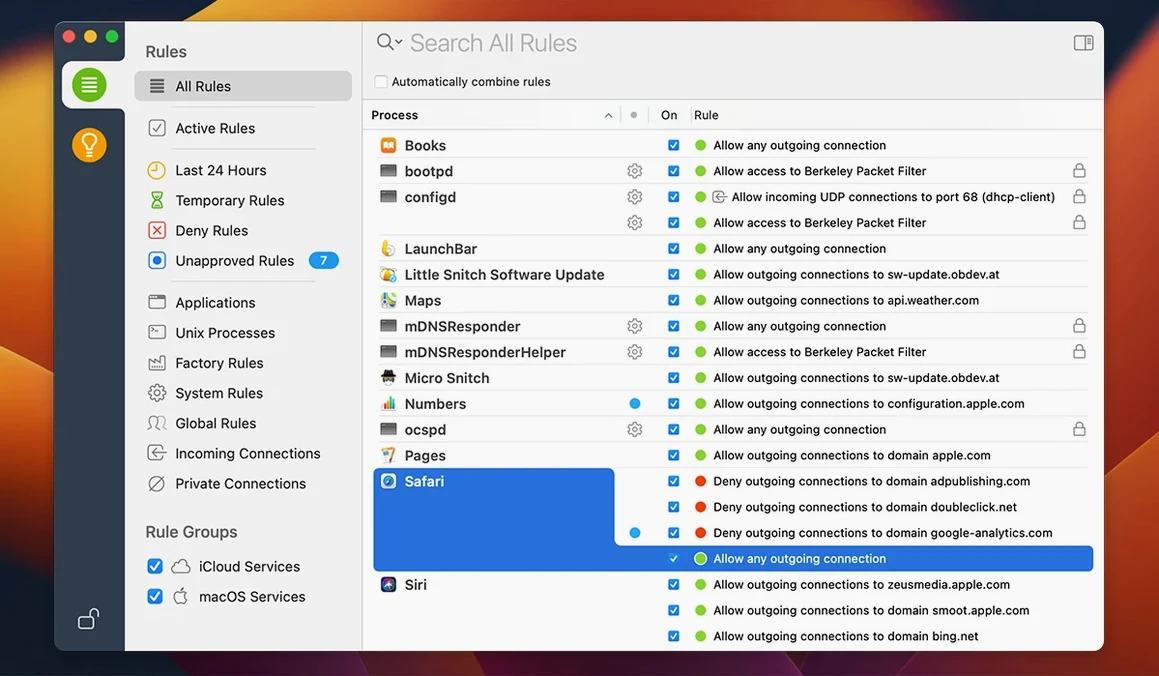
In the rules list, you can search by exact process match — something the 6.5 update fixed a rare crash around. Typing the full binary name with quotes narrows results to that single executable, which is useful for apps that spawn multiple helpers.
Option-clicking any rule's action column cycles through allow, deny, and ask without opening the editor. It's the quickest way to flip a rule when you're testing a configuration.
The menu bar icon shows a small animated indicator during network activity. If you see it blinking when nothing should be running, that's your cue to open the monitor and investigate. It's a gentle early-warning system that costs zero screen space.
Finally, the command-line tool /usr/local/bin/littlesnitch lets you dump your entire rule set, toggle the firewall state, and query connection history in scripts. Even if you don't write scripts today, knowing the option exists means you can automate rule audits later without clicking through the interface.
Version 6.5 brings compatibility with macOS 27 Golden Gate, a few quiet reliability fixes, and tighter network handling:
- Added full support for macOS 27 Golden Gate
- Monitors app bundle integrity while the app is running
- Added an experimental NAT64 implementation for networks that use it
- Improved encrypted DNS handling so rules apply more predictably
- macOS 14 or newer
- Runs on Intel and Apple Silicon Macs
- Interface languages: English, German
Notes from other shops 0
Sign in or open a shop account to leave a note.
No notes yet. If you've used this on a shop Mac, tell me how it went.