
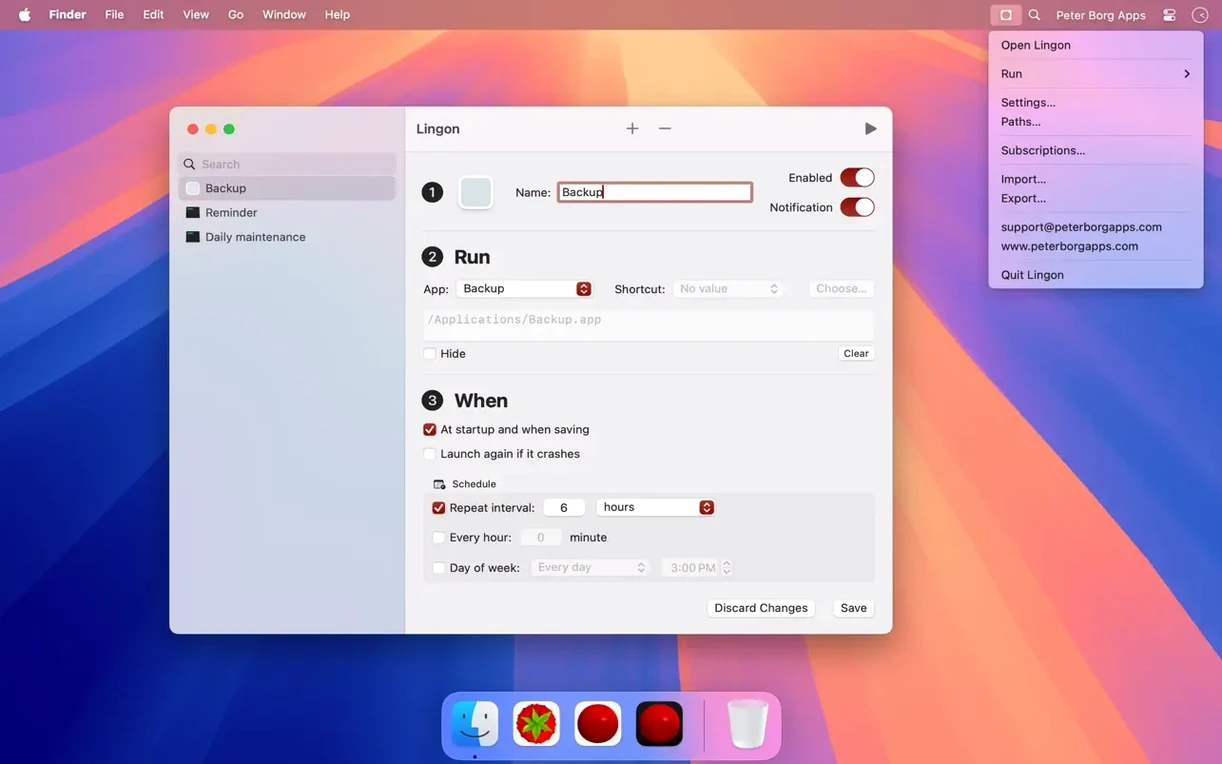
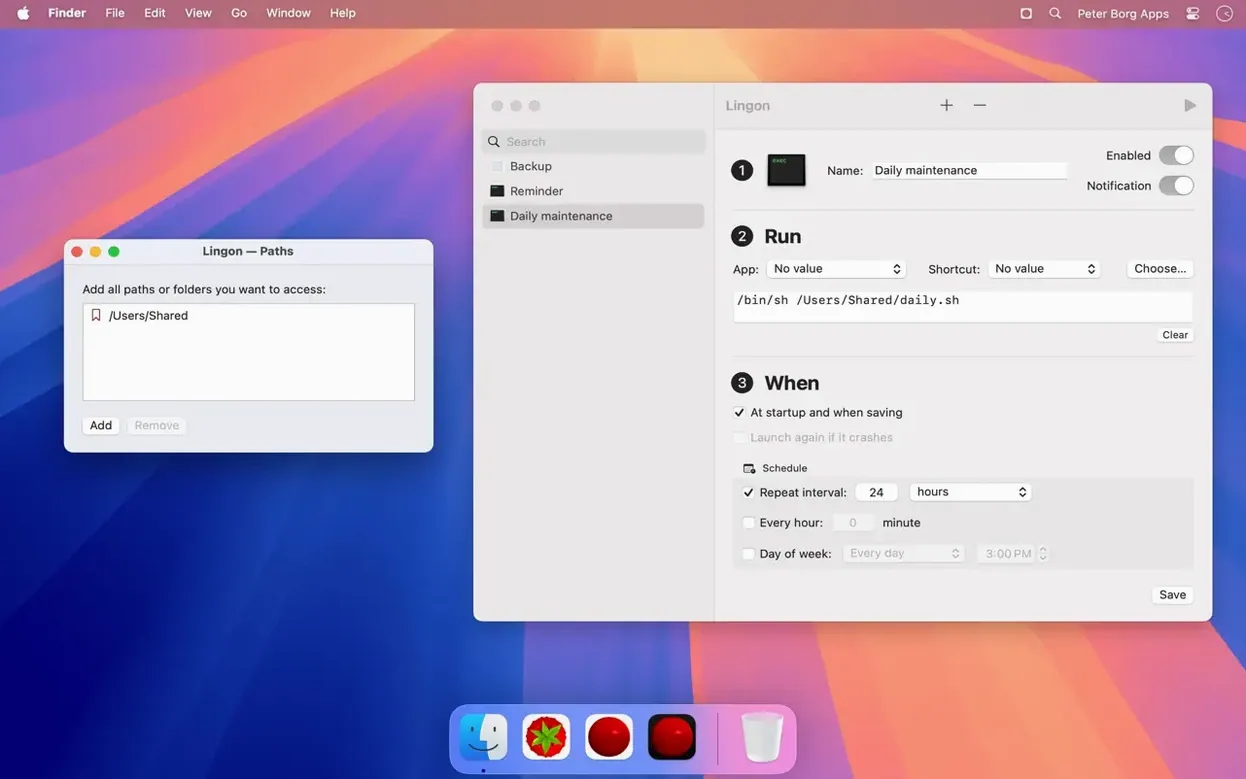
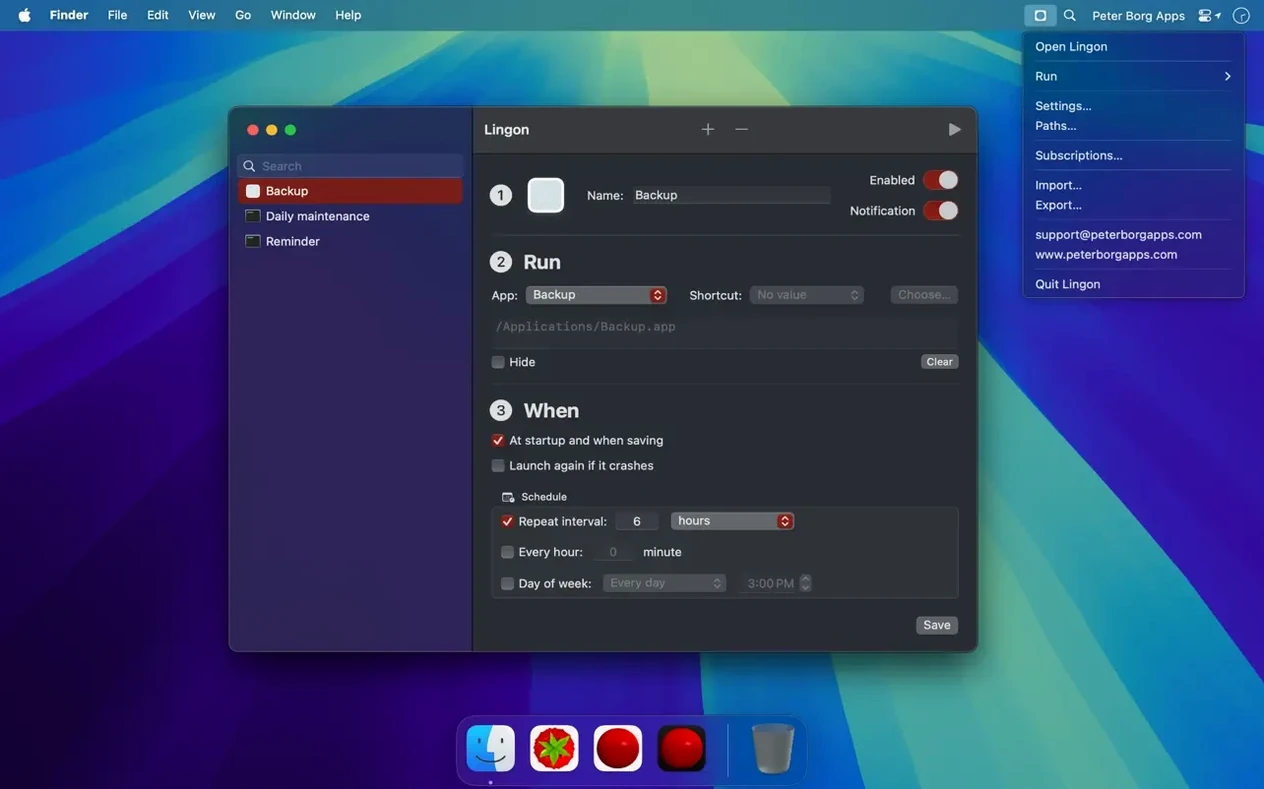
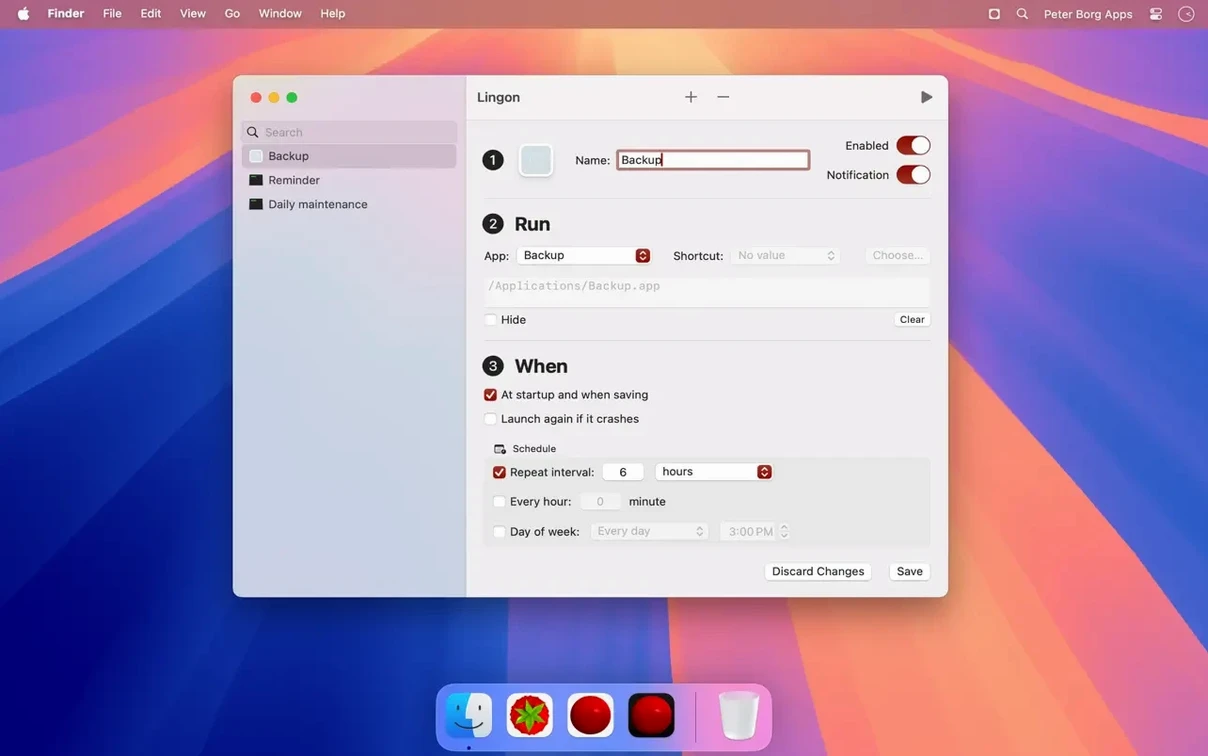
Getting your Mac to run a backup script, relaunch a finicky menu bar app, or tidy up files at 3 AM shouldn't mean learning arcane Unix syntax. Lingon 10 handles the heavy lifting by writing the proper launchd configuration files for you, while giving you a straightforward window to set the when and what.
How I'd set a task to run
- Pick your trigger. Choose a time, a repeating interval, or a watch on a file path.
- Choose what to launch. Point it to an app, shell script, Shortcut, or a raw command.
- Decide the scope. Run it just for my user account, or as the root user for system-level jobs.
- Set safety nets. Tell it to restart that script automatically if it ever crashes or exits with a failure code.
- Save and ignore it. Lingon writes the plist file and the job runs on schedule. I can also trigger it manually from the menu bar or a hot key whenever I want.
The core approach hasn't changed, which is honestly reassuring. You still get clear control over launch agents and daemons without touching a text editor. While older versions stick around for folks on much earlier systems, this one keeps the same practical toolset feeling at home on modern macOS.
When a job never fires
A job that never fires usually comes down to one of two things: the file path changed, or the permissions aren't right. If you moved a script or renamed an app, Lingon won't guess — you'll need to point it to the new location. Open the job, check the command path, and save again. For permissions, jobs that need to touch files in protected folders often sit silently doing nothing until you grant them disk access in System Settings → Privacy & Security → Full Disk Access.
Another head-scratcher: a job set to run at login that seems to ignore its timing. On modern macOS, login items are managed more aggressively, and launchd agents sometimes wait for the user session to fully settle. Adding a StartInterval delay of 30 seconds or so inside the job often fixes that. And if you've set a hot key trigger and it's dead silent, check that another app hasn't grabbed the same shortcut — macOS doesn't warn you about conflicts.
Tip: When a job misbehaves, the quickest diagnostic is to look at the last run time and any exit code Lingon shows in the job list. A non-zero exit code means the script itself failed, not the scheduler.
Sits quietly under 30 MB
Lingon 10 itself is light. The app sits quietly in the background unless you open its window, and the actual scheduling work is done by launchd, which is already running on your Mac. I've seen it use under 30 MB of RAM with a dozen active jobs defined, and the CPU impact is essentially zero between edits. Saving a new job writes the plist file in a fraction of a second — there's no lag, no spinning beach ball.
What I appreciate is that it rarely crashes. The interface feels plain but solid, and I've left it managing restart-on-failure rules for a temperamental backup daemon for weeks without intervention. The menu bar helper stays responsive, and hot key triggers fire reliably. For anyone wondering about it on Apple Silicon, it's a universal binary, so it runs natively without Rosetta overhead.
Raw launchd keys or guided setup
LaunchControl gives you a deeper, more technical view of launchd — it shows you every system job, color-codes errors, and lets you tweak plist keys directly. If you're comfortable reading raw launchd documentation, it's powerful. Lingon 10 trades that raw access for clarity, and for everyday scheduling it's faster to work with.
Keyboard Maestro overlaps on timed and hot key triggers but is really a macro engine at heart. It can run scripts on a schedule, but it's not built around launchd the way Lingon is, and it won't handle system daemons or root-level jobs with the same ease.
Then there's the built-in option — writing plist files by hand. Free, yes, but one misplaced XML tag and your job silently vanishes into the launchd void. Lingon 10 earns its place by making that layer invisible, while still giving you the reliability of native macOS scheduling underneath.
- macOS 14 or later
- Works on both Apple Silicon and Intel Macs
Notes from other shops 0
Sign in or open a shop account to leave a note.
No notes yet. If you've used this on a shop Mac, tell me how it went.