
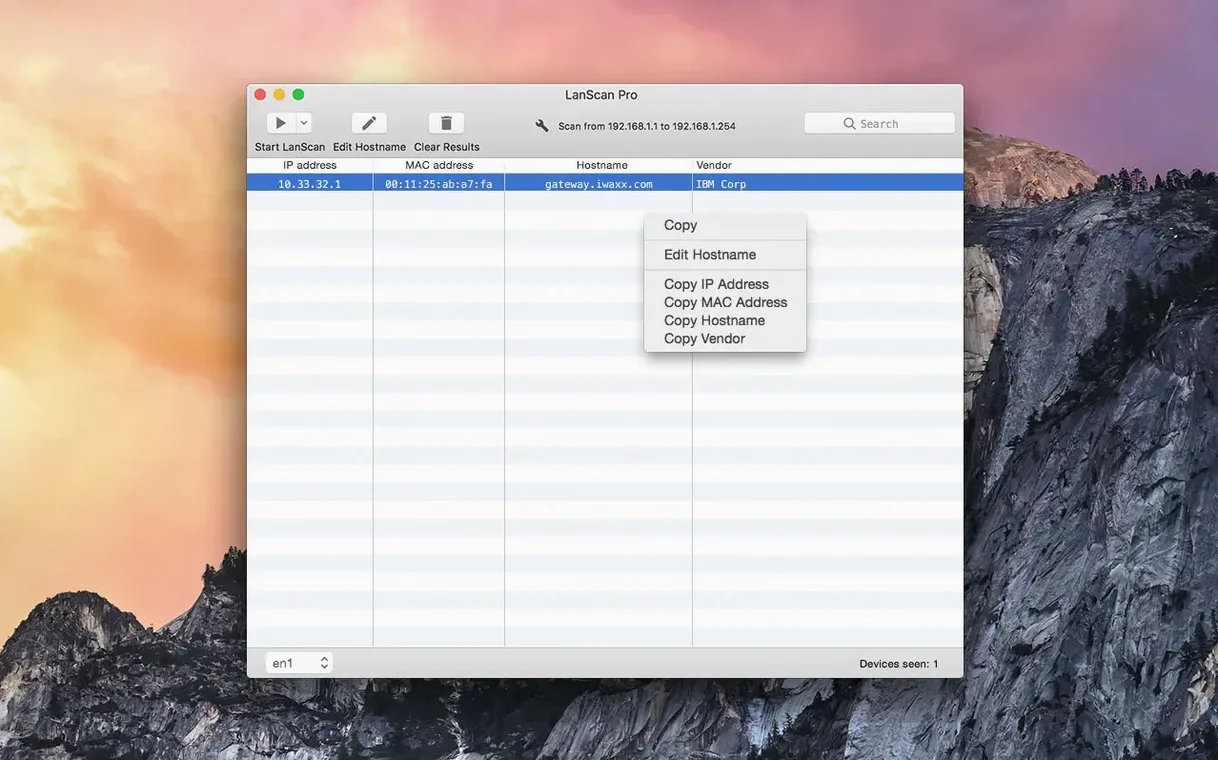
The current version, 8.2.17, is a maintenance release that keeps LanScan steady on the latest macOS builds. No flashy new features this time—just a quiet update so the scanner stays reliable on Apple Silicon and Intel Macs running macOS 11 or later. For a small-shop owner, that kind of stability matters more than a feature list that changes shape every month.
| What | Detail |
|---|---|
| Requires | macOS 11 or later |
| Architecture | Apple Silicon, Intel |
| Export | CSV files |
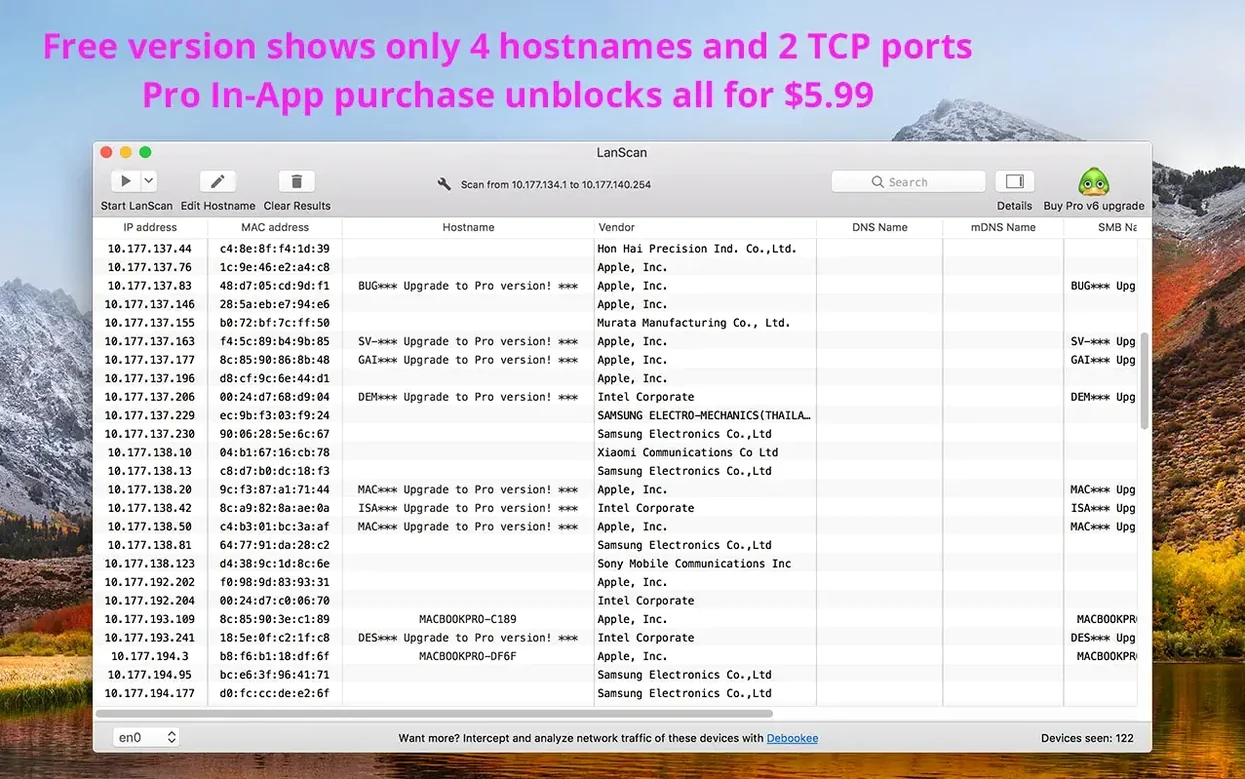
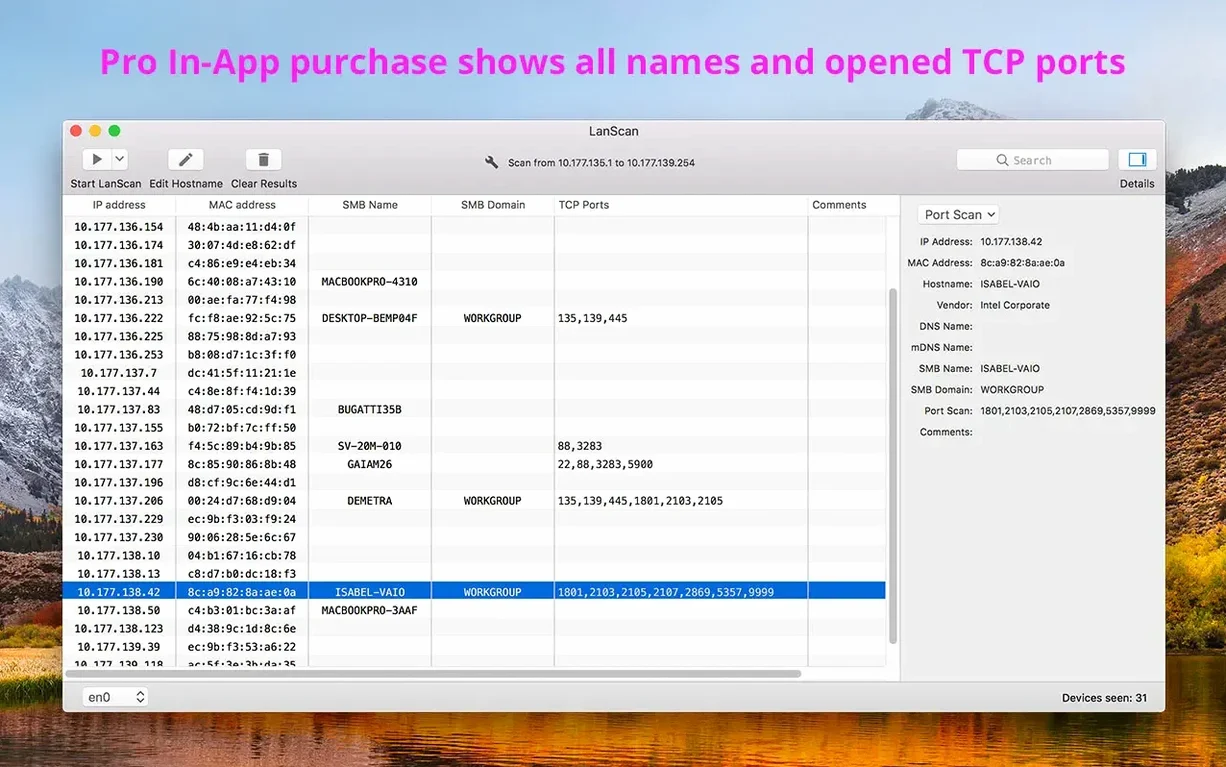
The core of LanScan hasn't shifted. It still auto-detects AirPort, Ethernet, and virtual interfaces, then goes to work with ARP packets on the local network and a mix of Ping, SMB, and mDNS for public ranges. You can hide or show columns however you need, and there's no cap on the number of devices it finds—a relief when you're dealing with a busy office or a workshop full of connected tools. Each device can show up to four host names, resolved through DNS, mDNS, and SMB, which helps when you're trying to figure out which IP belongs to the label printer and which one is the spare router. The CSV export and custom URL opener are still there too, making it easy to pull scan data into a spreadsheet or jump straight into a device's web interface.
Double-click a row to open its details instantly
LanScan keeps its interface clean, so a few handy moves hide just beneath the surface. They're not labeled with big buttons, but once you know them they save a lot of clicking around.
- Double-click a row to open the custom URL. If you've set a device's web interface URL in the comment field, a quick double-tap on that row launches it in your browser. Great for hopping straight into a printer's status page or a NAS dashboard.
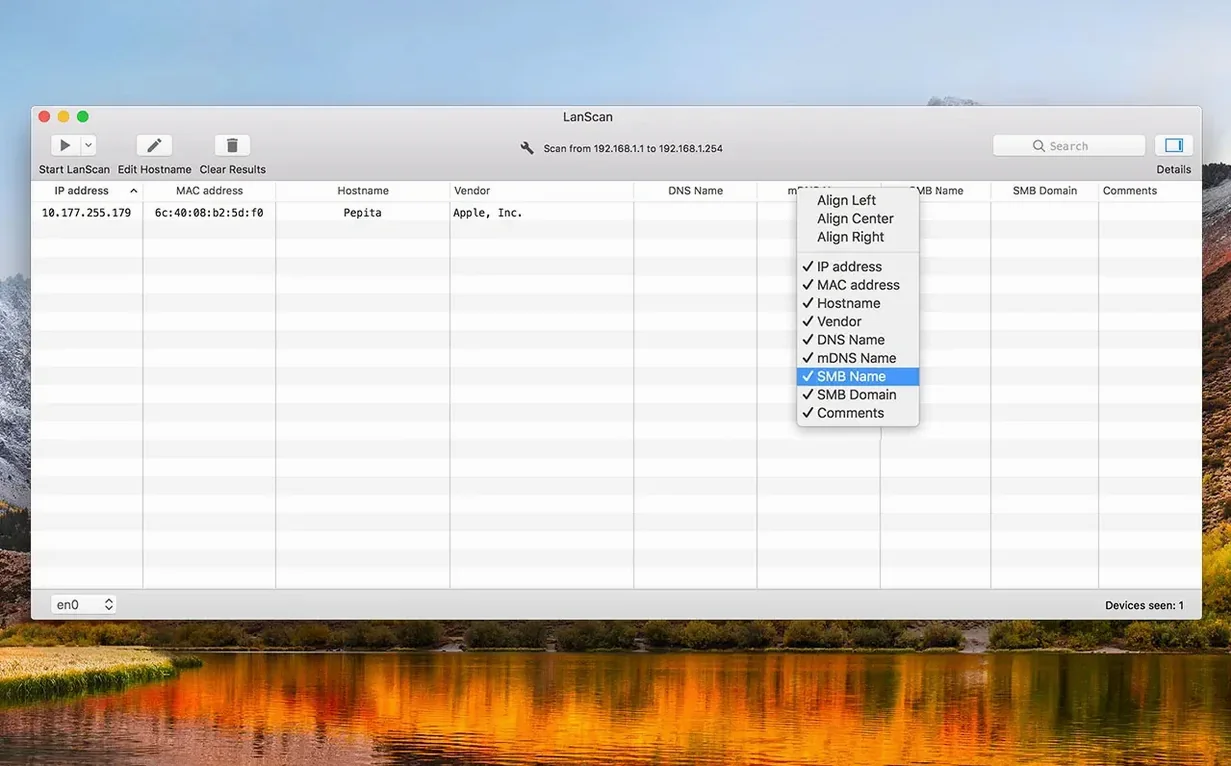
- Right-click any column header to show or hide columns. The View menu does the same job, but the right-click method is faster when your hand is already on the mouse and you want to declutter the table before printing a screen grab.
- Command-R restarts the last scan. No need to click the Play button again. Useful when you've just plugged in a new switch and want to see what appears without reconfiguring the scan range.
- Hold Option while exporting CSV to include hidden columns. Normally hidden columns stay out of the export, but sometimes you want the full picture in your spreadsheet. Option flips that behavior for a one-off dump.
- Drag-and-drop host name editing. You can edit a host name directly in the table, but dragging a CSV row onto the app window pre-fills the comment field for that device. Handy when you're building an inventory from an old scan file.
None of these are advertised loudly. I stumbled onto a couple by accident and the rest came from poking around the menu bar. For a shop owner who scans the same network every week, they turn a routine check into something that takes half the time.
How LanScan sits alongside similar tools
There are a few other Mac network scanners worth knowing about, and each one pulls in a slightly different direction. Here's how I see the differences from a practical, small-business angle.
LanScan vs. Angry IP Scanner. Angry IP Scanner is cross-platform and open source, which makes it a natural pick if you bounce between Mac, Windows, and Linux machines. It's fast and lightweight, but the Mac build relies on Java, so it feels a little less at home on macOS. LanScan wins on native fit—it uses ARP, SMB, and mDNS in a way that feels designed for Apple's networking stack, and the interface doesn't ask you to think about Java versions. Angry IP Scanner gives you more control over fetchers and threading, which power users appreciate. For everyday device discovery on a Mac, LanScan is simply less friction.
LanScan vs. NetSpot. NetSpot is really a Wi-Fi survey tool first and a device scanner second. It maps signal strength, channel overlap, and dead zones beautifully. If you're troubleshooting wireless coverage in a store or workshop, NetSpot is the one to reach for. LanScan doesn't do heatmaps or signal analysis at all. It sticks to what it does: finding every device on the wire or the air and telling you who they are. I'd call them complementary rather than competitors.
LanScan vs. Network Radar. Network Radar feels like LanScan's closest cousin. Both are Mac-native, both scan local and public ranges, both export to CSV, and both let you open a device's web interface. Network Radar adds a few monitoring features—it can alert you when a device goes offline or changes IP. LanScan counters with unlimited device capacity, up to four host names per entry, and a simpler, more focused layout. If you need ongoing monitoring with alerts, Network Radar pulls ahead. If you want a fast, thorough scan with no upper bounds and clean export, LanScan holds its own.
Devices missing their vendor name in results
Most scans run without trouble, but a few things can trip people up—especially if the network has a mix of old and new gear.
Some devices don't show a vendor name. LanScan identifies vendors from the MAC address OUI database. If a device uses a randomized MAC, which Apple gear does on some Wi-Fi networks, the lookup comes up blank because there's no registered prefix. Switching off Private Wi-Fi Address for your home or office network usually fixes that for your own Apple devices. For other people's gadgets, you'll just see an empty vendor column—nothing's broken, it's just privacy features doing their job.
Public range scans feel slow or stall. Local scans use ARP and finish in seconds. Public range scans rely on Ping, SMB, and mDNS, and those timeouts add up across a large address block. If a scan seems stuck, try narrowing the range to a smaller subnet—scanning a /24 instead of a /16 makes an enormous difference. Also check that no firewall is silently dropping ICMP packets on the interface you're using.
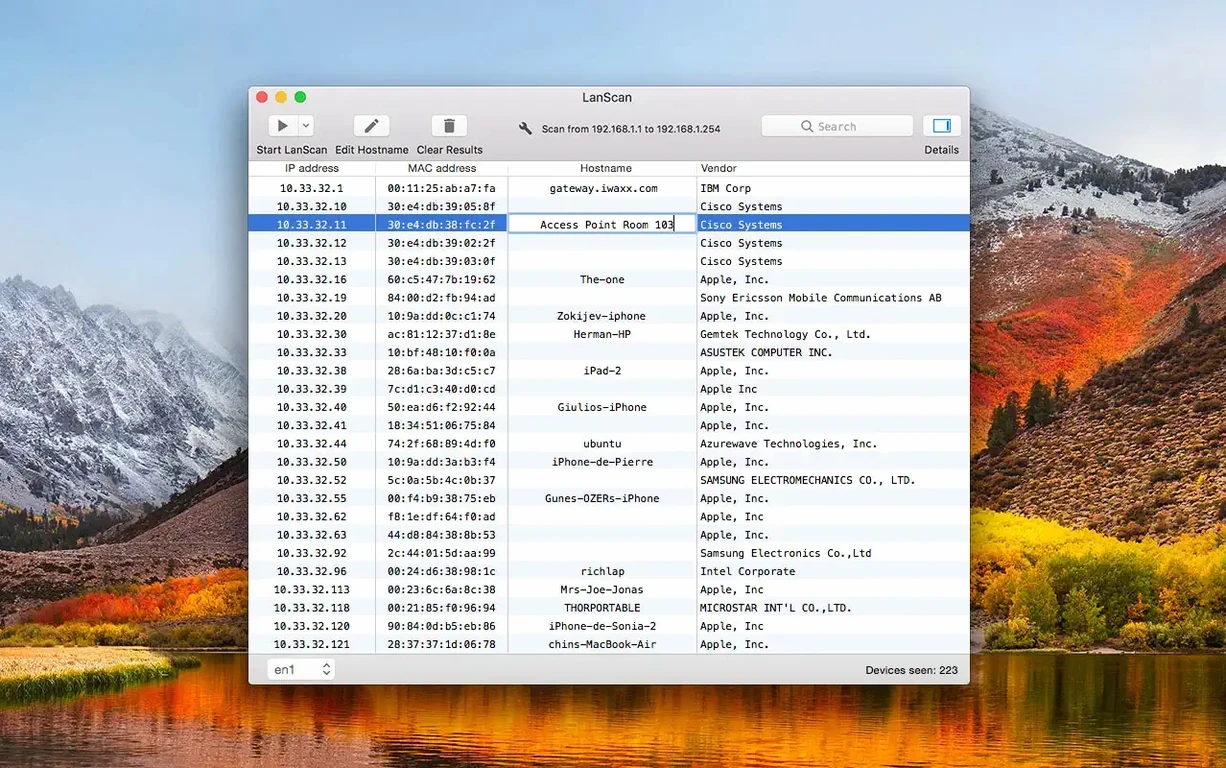
Host names don't resolve even though the device is reachable. LanScan pulls names from DNS, mDNS, and SMB in that order. If none of those services are running on the target device, you'll get an IP address with no name. Windows machines sometimes need SMB enabled, and Linux boxes might not advertise a name via mDNS unless Avahi is configured. For devices that stay nameless, the manual host name editor fills the gap nicely—I keep a sticky note with my shop printer's IP so I can label it once and never squint at the table again.
- macOS 11 or later
- Apple Silicon or Intel 64-bit Mac
Questions from the stall
Does LanScan scan both IPv4 and IPv6?
Yes, it scans IPv4 and IPv6 networks, automatically picking up configured interfaces like AirPort and Ethernet.
Can I export the scan results?
Results can be exported to CSV files, and you can hide or show columns to control exactly what gets saved.
How does LanScan find device names?
It resolves host names through DNS, mDNS, and SMB, and can show up to four host names for a single device.
Notes from other shops 0
Sign in or open a shop account to leave a note.
No notes yet. If you've used this on a shop Mac, tell me how it went.