
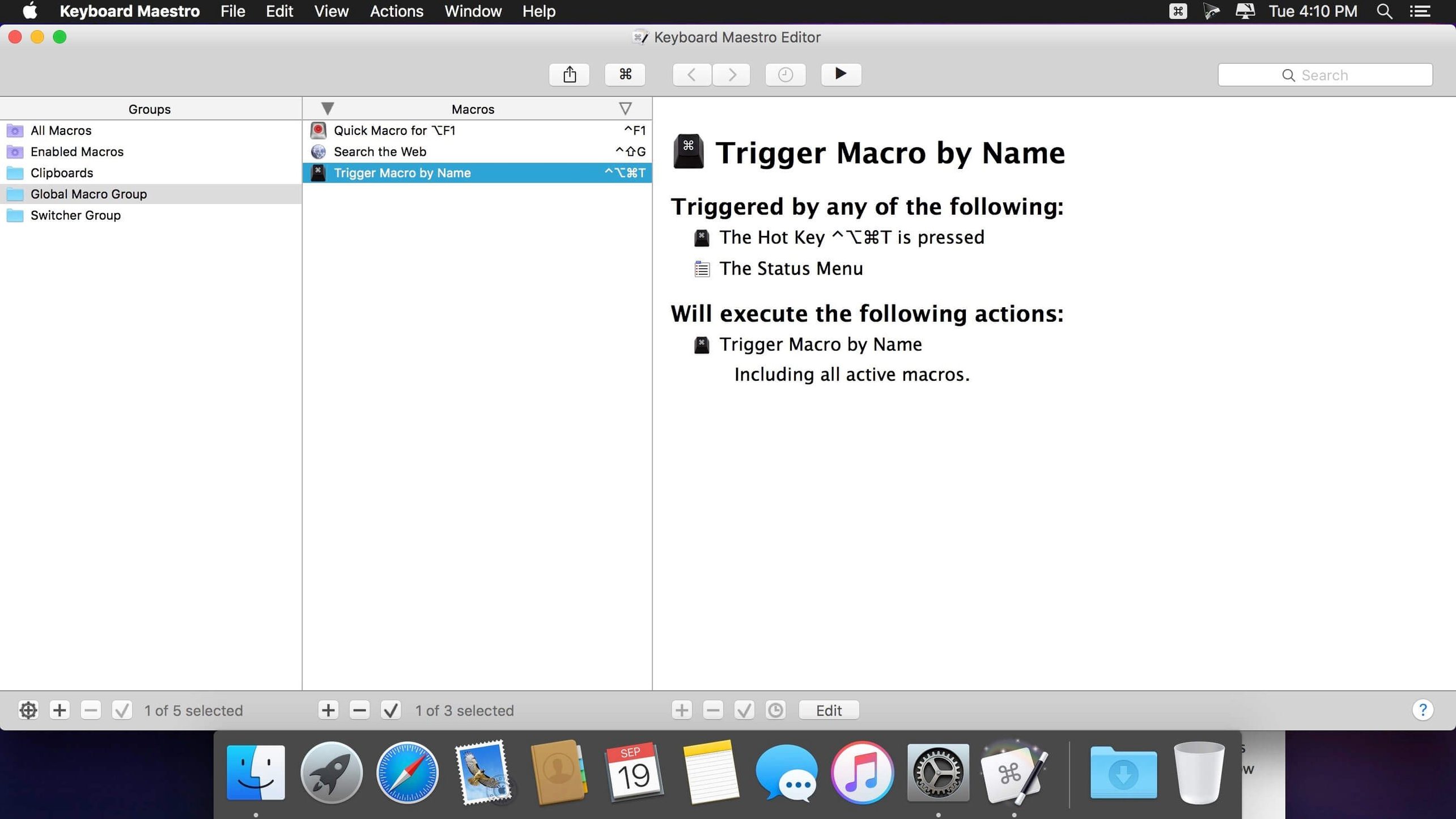
Some tasks come back every day — resizing a batch of screenshots, pasting a templated email reply, or opening the same three work folders. Keyboard Maestro is a macro automation utility that lets you record, build, or schedule actions so you can trigger them with a keystroke instead of clicking through the same steps again.
Clipboard filter for product photos
I'd use the clipboard filter action to take a retina screenshot, strip the @2x suffix, convert it to a web-ready JPEG, and drop it into a “listing-assets” folder — all from one shortcut.
End-of-day email routine
A scheduled macro could pull three unread messages from a shop inbox, paste them into a plain-text summary, and attach yesterday's sales spreadsheet before sending it off to a bookkeeper — no dragging or switching windows.
Text expansion for customer replies
Typing ";ship" could instantly expand into a full shipping-policy paragraph with the correct carrier link and estimated delivery window, keeping your replies consistent without retyping them every time.
When a macro does nothing, I check the trigger first
When a macro I've built does nothing, the first place I look is the trigger. Keyboard Maestro can listen for a hotkey, a typed string, a time of day, or a change in a folder — and if two macros share the same trigger (or the trigger conflicts with another app's shortcut), nothing fires. I pop open the editor, pick a different shortcut, and test it immediately with the "Try" button in the macro pane.
Another thing that trips people up: actions run in order, but some actions need the previous one to finish before they make sense. If I'm automating a web form, dropping a half-second Pause action between "Click at the name field" and "Insert text" gives the page time to catch up. Without it, keystrokes can land in the wrong field or vanish entirely.
Clipboard macros sometimes grab old data because Keyboard Maestro reads the system clipboard instantly. Adding a tiny delay — even 0.2 seconds — after a Copy action almost always fixes it. I'd also check that the macro isn't reading from a named clipboard when I meant to use the system clipboard, or vice versa.
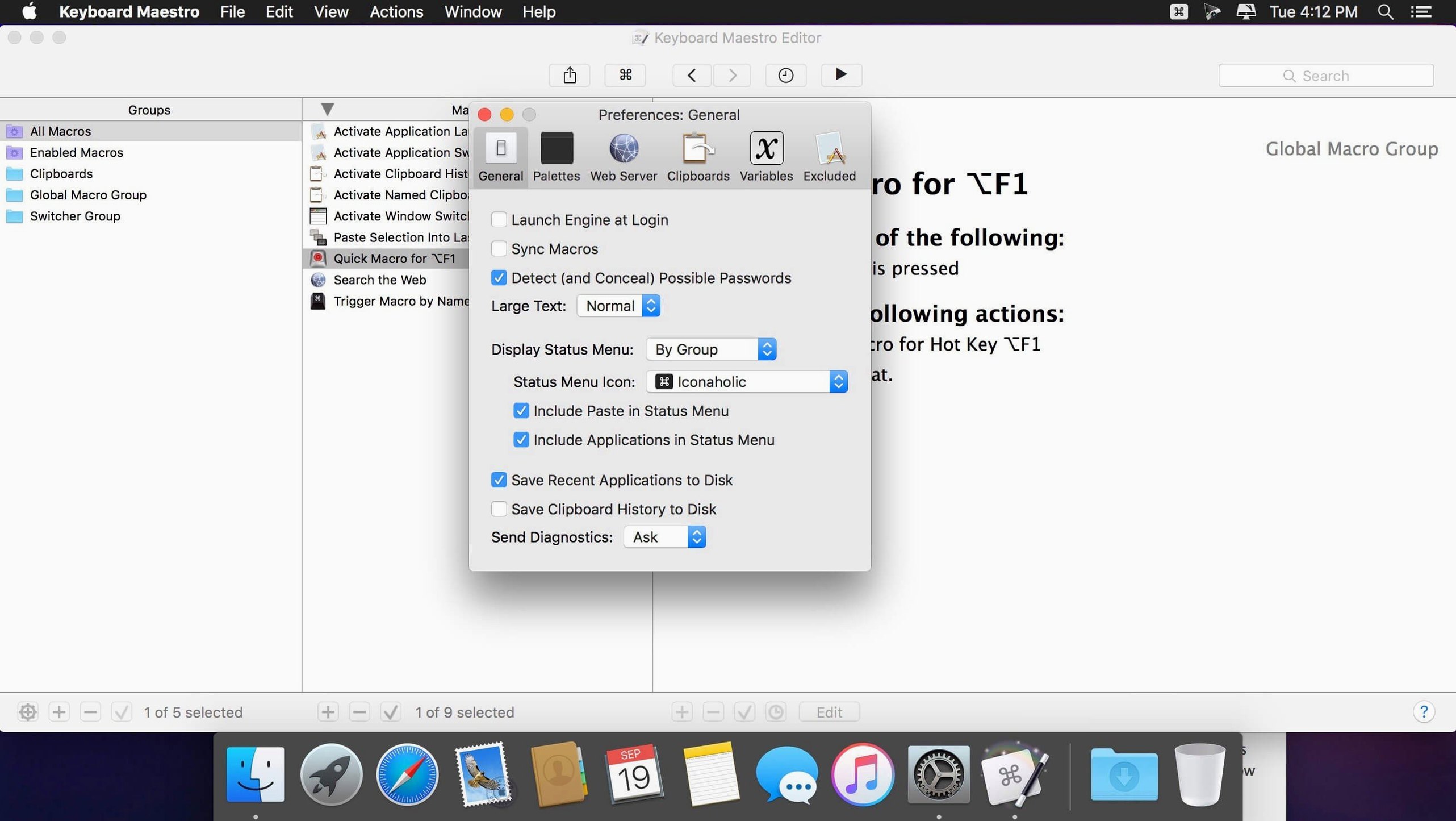
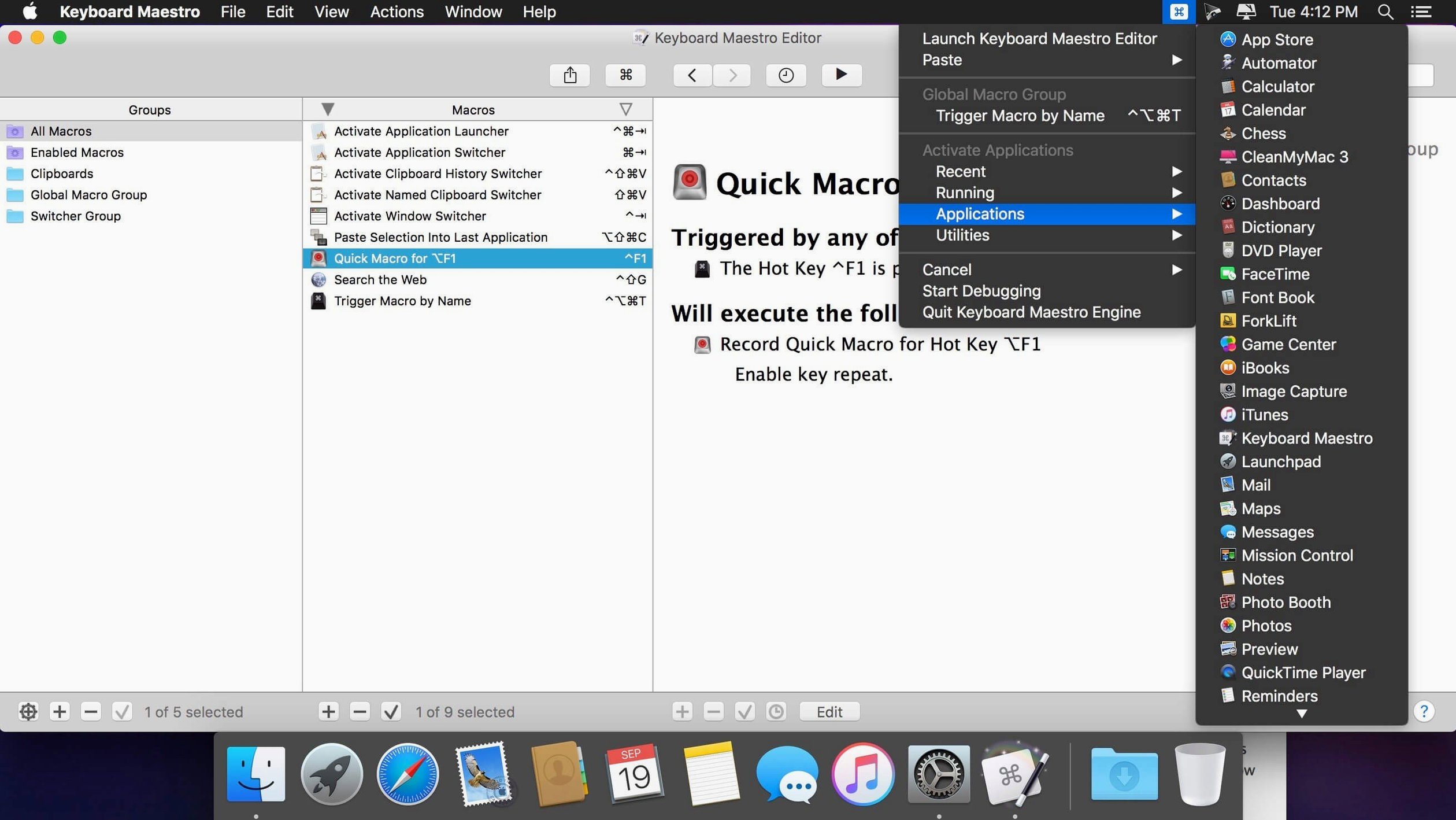
If a macro works manually but refuses to trigger on a schedule, I check the engine status in the menu bar. The Keyboard Maestro Engine runs macros in the background, and if it's paused or not running, nothing scheduled will fire. A quick toggle in the app's preferences gets things moving again.
For macros that involve typing, the Simulate keystrokes action has a few options that behave differently across apps. When text comes out garbled, switching from "Paste" to "Insert by Typing" — or the other way around — usually solves it.
Switch/Case actions now show which branch is live while you edit
Version 11.0.4 added a subtle but genuinely helpful visual cue to Switch/Case actions: each case now shows whether its condition is currently true or which branch would run at that moment. When I'm debugging a branching macro that sends different email templates based on the time of day, seeing the active branch highlighted saves me from dry-running the whole thing in my head.
The OCR Condition got support for Apple's Text Recognition, which means macros can now decide what to do based on text found in an image — no third-party OCR engine needed. I'd use this to watch a folder of supplier screenshots and flag any that contain the words "out of stock," moving them to a separate folder for follow-up.
Tool tips in the Macro Debugger window make the debugging pane a little less cryptic. Hovering over a value or an action step now gives you a plain-language hint about what's happening. It's a small touch, but when you're tracing through fifteen actions to find the one that's failing, those tool tips save clicks.
A fix for search highlighting triggers means macros that fire when you select text and hit a key should now behave more consistently — no more occasional misses where the highlight wasn't detected correctly.
Grab a screenshot, OCR low stock, and email the supplier each Monday
Here's a task I'd actually build: every Monday morning at 8:00, grab a screenshot of the shop's inventory dashboard, run it through OCR to pull out low-stock numbers, and email a summary to a supplier.
Step 1 — Set the trigger. I create a new macro and choose a time-of-day trigger. I set it for 8:00 AM, Monday only, so it doesn't run on weekends when stock isn't moving.
Step 2 — Open the dashboard. The first action is "Open URL" pointing to the inventory page. I add a two-second Pause to let the page load fully.
Step 3 — Capture the view. A "Screenshot" action grabs the browser window area where the low-stock table sits and saves it to a dated folder on the desktop.
Step 4 — OCR and filter. An "OCR with Apple Text Recognition" action extracts the text from the screenshot. I pipe that into a "Filter" action that picks out lines containing the phrase "below threshold" and copies them to a named clipboard.
Step 5 — Compose and send. A "New Mail Message" action fills in the supplier's address, writes a subject line with today's date, and pastes the filtered lines into the body. I set it to send automatically so I don't have to confirm.
Step 6 — Tidy up. A final "Move File" action archives the screenshot into a "Weekly reports" folder, and the macro ends. The whole thing runs while I'm making coffee.
Small conveniences I'd miss in a hurry
Named clipboards. The clipboard history holds multiple entries, but you can also assign names to specific clipboards and swap between them in macros. I keep one called "shop-address" that I paste into shipping labels without ever touching the system clipboard.
Conflict palette. If two macros share the same hotkey, Keyboard Maestro doesn't silently pick one — it shows a small palette letting you choose which macro runs. That's saved me more than once when I forgot I'd already used ⌃⌥⌘S for something else.
Macro groups that target specific apps. A group set to "Available in Safari only" keeps my web-related shortcuts from cluttering the global space. Swapping between Sketch and Finder, the available macros change automatically without me thinking about it.
The "abort macro" action. Dropping an "If condition fails, abort" near the top of a macro prevents it from running halfway through when a required window isn't open. Cleaner than letting it stumble and error out on its own.
Recording shortcuts. The "Record" button watches what you do and builds the sequence for you. It's not perfect for complex branching, but for straight-line tasks like resizing and exporting a batch of images, it gets you 90% there in seconds.
If you've ever wanted to use an ableton keyboard as midi trigger, Keyboard Maestro can translate those keystrokes into system actions — firing macros that control lighting cues, start screen recordings, or switch app layouts mid-set. The macro watches for a specific MIDI note arriving through a virtual port and runs the action immediately.
Version 11.0.4 brings a few welcome refinements:
- Switch/Case actions now show which entries are true or would execute at a glance.
- The OCR Condition supports Apple Text Recognition.
- Tool tips appear in the Macro Debugger window, making troubleshooting a little friendlier.
- Search highlighting triggers behave correctly again after a recent fix.
- macOS 10.13 or later
- Runs natively on both Intel and Apple Silicon Macs
Questions from the stall
Can Keyboard Maestro work with web-based tools?
Yes, it can automate workflows across websites by clicking interface elements, filling forms, and extracting text or images.
Does Keyboard Maestro keep a clipboard history?
It does. You can filter the clipboard and pull from a history of multiple clipboard entries inside your macros.
Notes from other shops 0
Sign in or open a shop account to leave a note.
No notes yet. If you've used this on a shop Mac, tell me how it went.