Hunting for keys while your thoughts drift away is the quickest way to lose a good sentence. KeyKey is a macOS typing tutor built to make touch typing feel natural, so your fingers find the right key while your eyes stay on the screen. The app watches how you type and adjusts the practice line to match your skill, but there are a few corners of it worth visiting right after you drag it into your Applications folder.
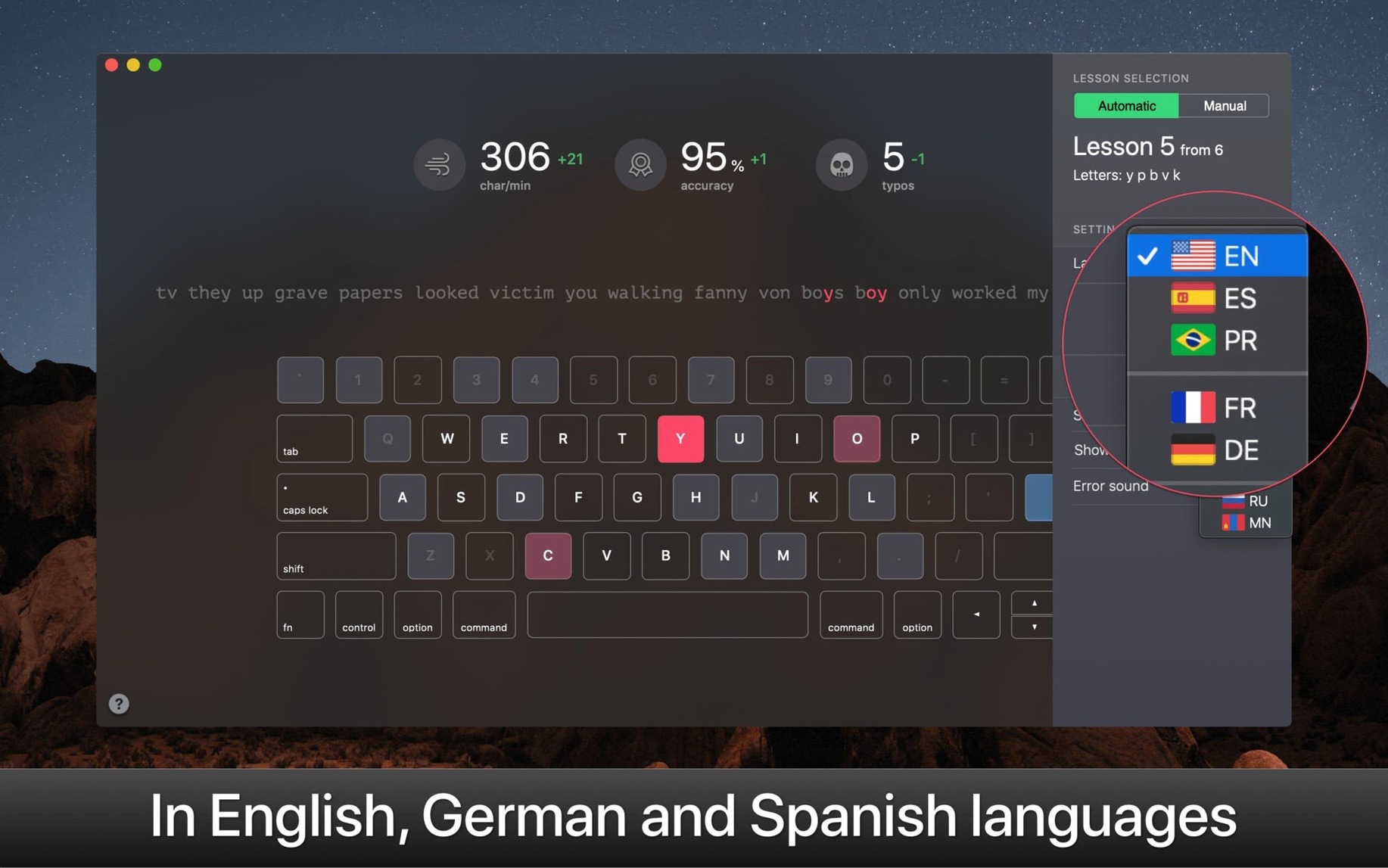
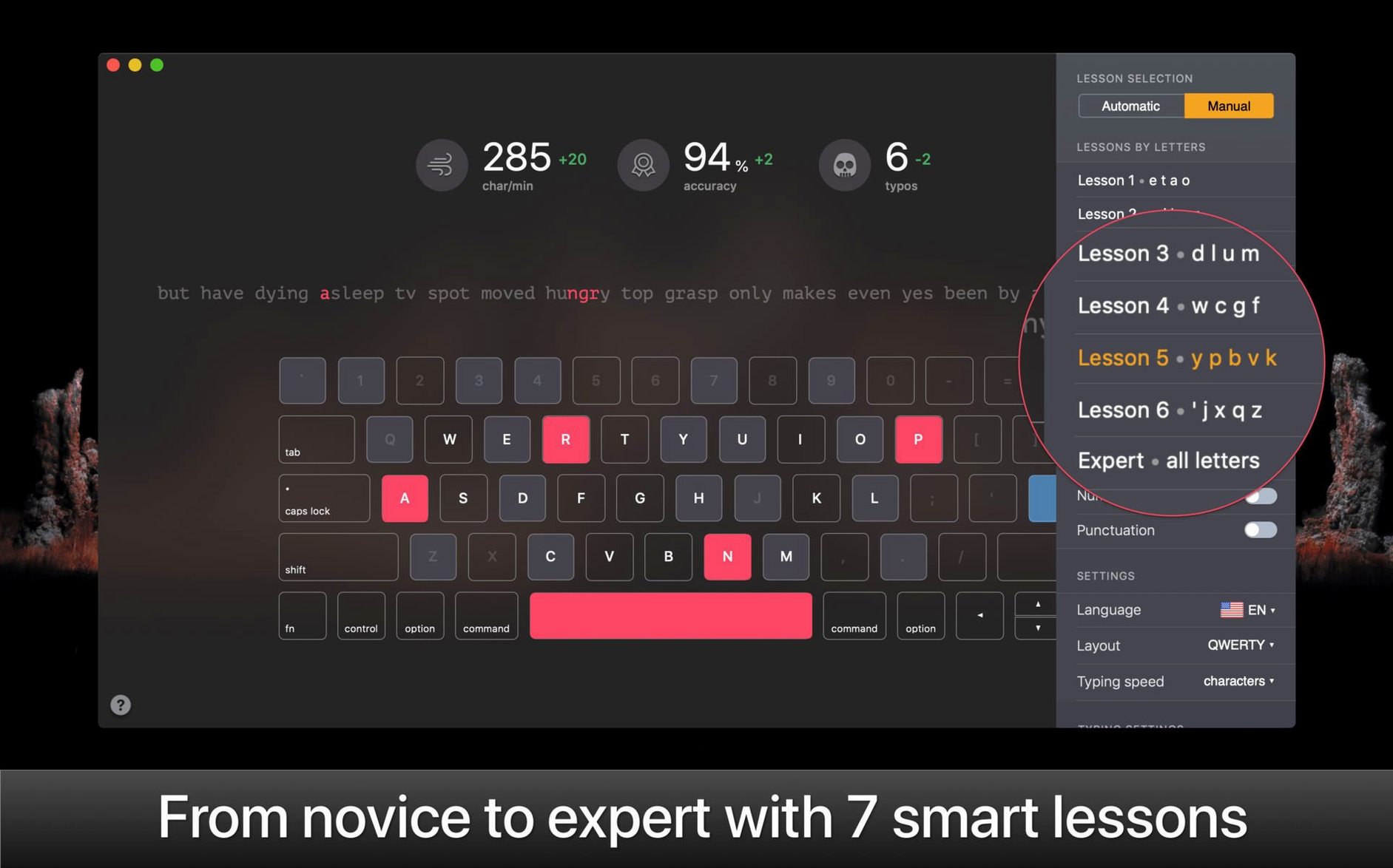
- Pick a layout that fits your day. Open the language menu and choose from English, Spanish, German, French, Italian, Portuguese, Turkish, Ukrainian, Russian, Greek, or Mongolian. Switching layouts early helps your muscle memory settle into the keyboard you actually use.
- Try the all-letters mode. Instead of working through a fixed sequence, you can isolate the exact letters, numbers, or symbols that give you trouble. Good for fixing a stubborn typo before it becomes a habit.
- Watch the on-screen keyboard. Key hints and finger hints now light up as you type, so you can glance up and confirm which finger should reach where — useful during the first few sessions.
- Practice numbers early. The app teaches numerals alongside letters. Short number drills once or twice a week make a real difference for anyone who handles invoices, spreadsheets, or measurements.
Give the adaptive lessons a few quiet minutes each day. The goal isn't speed right away — it's typing without looking down, and KeyKey is patient enough to get you there.
A quiet ten-minute session
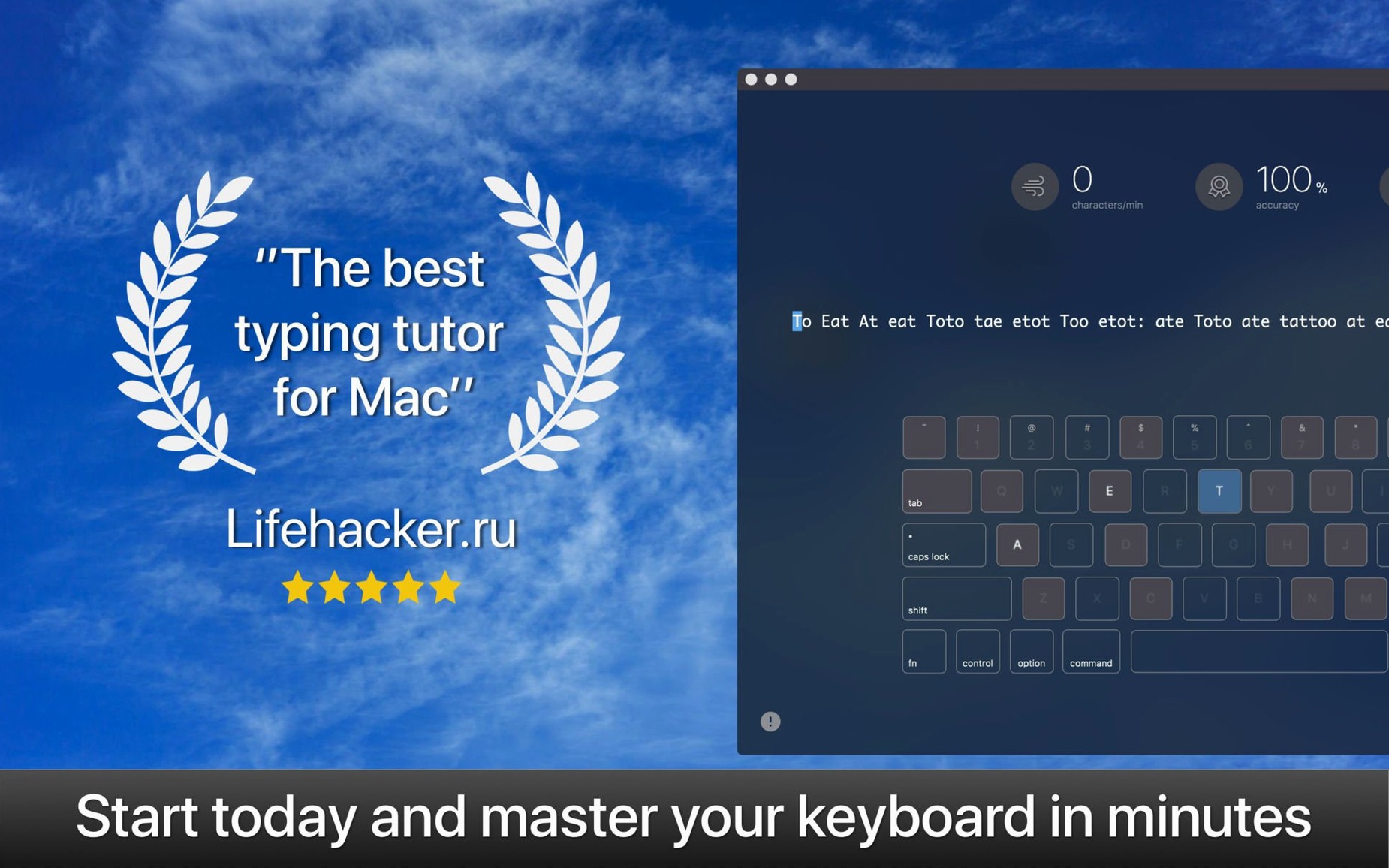
I sit down with a cup of tea and open KeyKey from the Applications folder. The window fills with a simple practice line — short words at first, like hat and lane — and the on-screen keyboard below glows faintly, ready to highlight the next key my right index finger should hit. I type the first word slowly, watching the letter turn green when I press the correct key. A soft mechanical click sound confirms each stroke, which I’ve grown to like more than I expected.
The session finds its rhythm. As the words grow longer, the app introduces a capital letter mid-line, and the shift-key hint lights up before I even think to press it. I catch myself glancing down less often. When I stumble on a punctuation mark, I pause and open the all-letters panel, pick the troublesome symbol, and run a quick two-minute drill right then. The whole thing feels less like a lesson and more like a warm-up — something I can do while the shop is still quiet before the first orders come in.
Small missteps worth catching early
One habit I see fellow learners fall into is chasing speed before accuracy. KeyKey doesn’t scold you for mistakes, which is kind, but it also won’t push you forward until your fingers settle into the right patterns. Rushing through a lesson with sloppy form just means you’ll repeat the same errors next time. Slow down, let the green highlights guide you, and trust that the difficulty will climb on its own.
Another slip is sticking to the same keyboard layout out of comfort. If you split your time between English and another language, switch the layout in KeyKey regularly. The muscle memory for ñ or ü needs its own practice time, and the app supports enough layouts to make that easy.
Tip: Don’t ignore the on-screen keyboard’s finger hints once you feel confident. Glancing up to check which finger handles a symbol like % or & is faster than unlearning a bad reach later. A quick keykey download gets you a typing tutor that rewards patience, so let it teach you properly from the start.
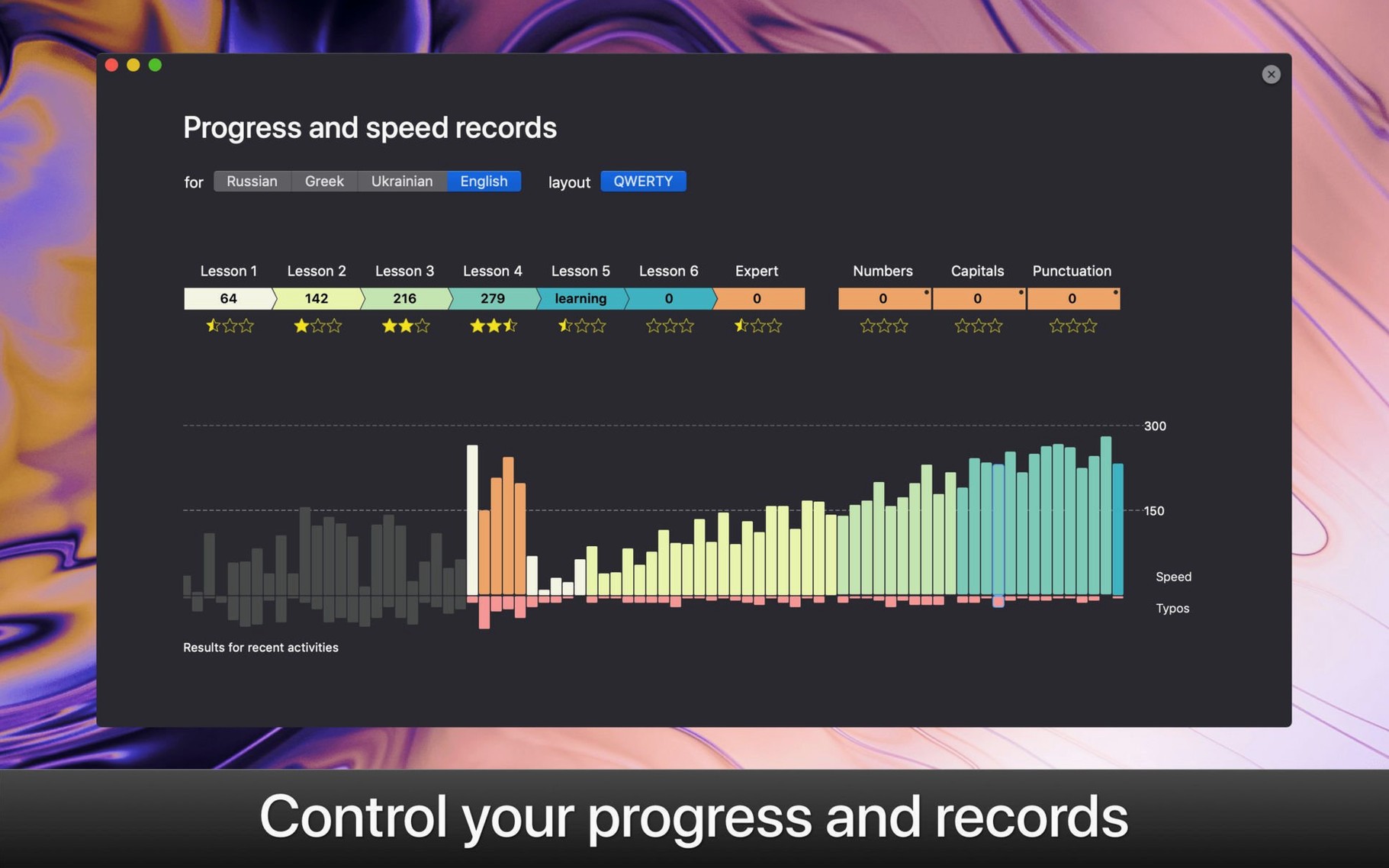
The latest KeyKey brings a couple of thoughtful tweaks that make practice feel a little smoother. When you're working through a manual lesson, it now keeps the focus squarely on the letters you're meant to be learning — no distractions. And the Statistics chart got a small but handy upgrade: you can scroll sideways to see your full lesson history, instead of just the most recent chunk.
- macOS 13 or later
- Apple Silicon or Intel 64-bit
Questions from the stall
Does KeyKey work with keyboard layouts other than English?
Yes. It includes Russian, Ukrainian, Spanish, Portuguese, French, Italian, German, Turkish, Greek, and Mongolian layouts in addition to English.
Can I practice only the keys I find difficult?
Absolutely. The all-letters mode lets you select specific letters, numbers, or symbols so you can focus on the ones that need extra work.
Notes from other shops 0
Sign in or open a shop account to leave a note.
No notes yet. If you've used this on a shop Mac, tell me how it went.