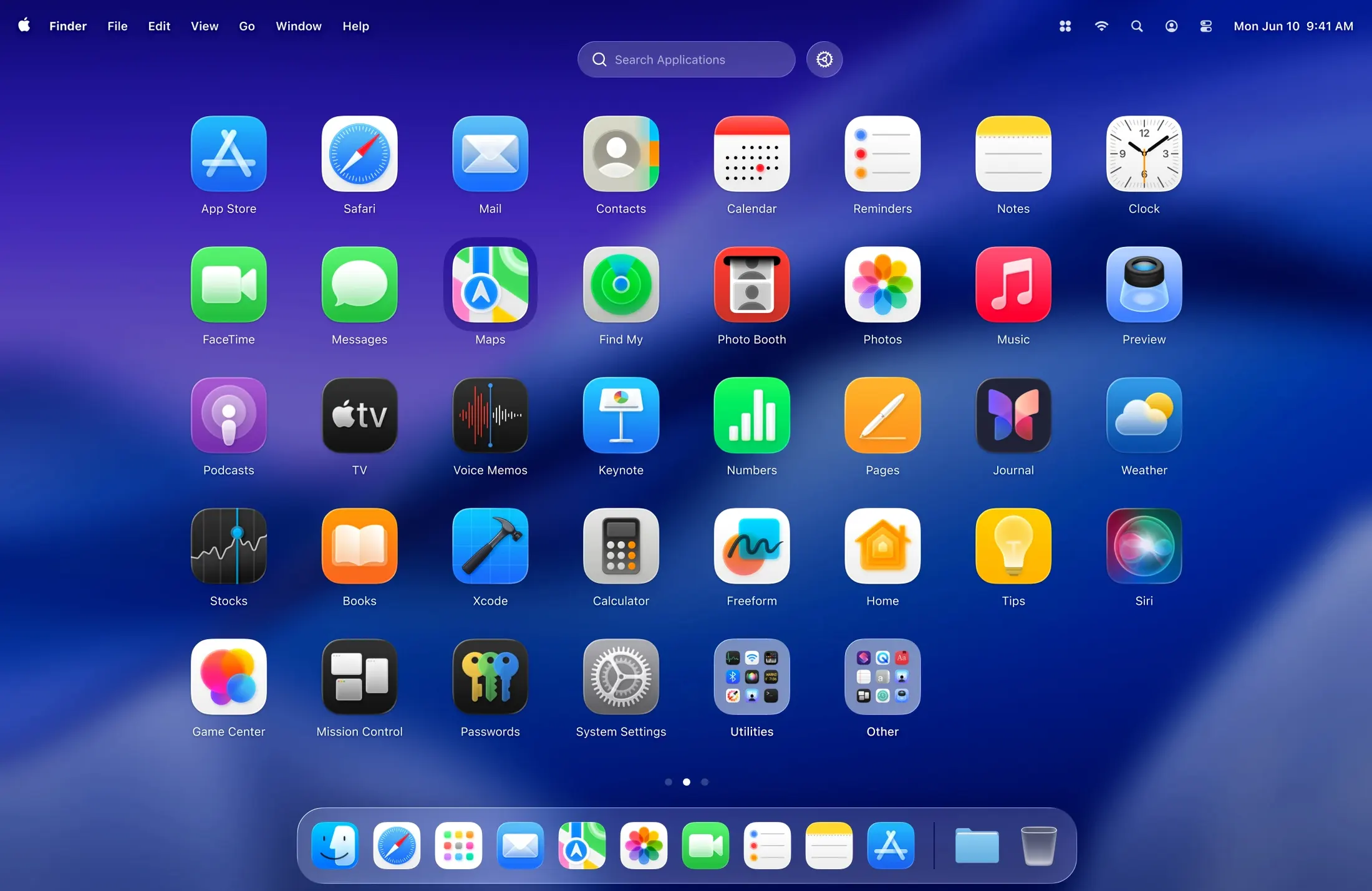
Version 2.1.0 brings app uninstallation right into the grid. Long-press any icon or right-click and you can remove an app without opening Finder or digging through the Applications folder. It also adds a Restart command to the status bar menu and the right-click menu, which makes restarting the launcher itself a one-click affair when you are tweaking your layout.
LaunchOS Pro slots in next to the tools you already use. It does not replace the Dock — it replaces Launchpad, the full-screen grid Apple ships but rarely updates. Where Spotlight is for typing a name, LaunchOS Pro is for visually browsing a sorted, decluttered set of apps. You can hide the ones you never launch from the grid: Xcode tools, server utilities, an old game you keep meaning to delete. They stay on disk but stop hogging screen real estate.
On macOS 26 it supports the Liquid Glass design language, so the frosted panels and depth effects match the rest of the system. It works on Apple Silicon and Intel Macs, and the gesture support means a trackpad swipe opens your app grid the way you expect. The interface speaks ten languages, which helps if you share a machine or run apps in different localizations.
If you organize your Mac around a clean Dock, a fast launcher like Alfred or Raycast for keyboard work, and a visual grid for everything else, LaunchOS Pro fills that third slot with more control than Apple gives you out of the box.
A real-world setup: the part-time designer with too many apps
Picture someone who splits time between illustration work, a small Etsy shop, and the usual life stuff — banking, notes, a couple of games. The Applications folder has passed 120 items. Launchpad, if they even open it, is a mess of folders named “Utilities” and “Other” that got created automatically and never sorted. They do not want to type every app name into a search bar. They want a visual grid that actually matches how they think about their tools.
That is the kind of user LaunchOS Pro clicks for. You open it, spend fifteen minutes hiding the things you never launch from a grid, and suddenly the remaining apps feel like a curated toolkit rather than a junk drawer. The grid size control lets you find a density that suits your screen — fewer icons on a 13-inch MacBook Air, more on a 27-inch studio display. Version 2.1.0 sweetens the deal with uninstallation: that old Intel-only utility you finally want gone? Long-press, confirm, done. No side trip to Finder.
Shrink the grid to see your apps clearly
Out of the box LaunchOS Pro behaves a lot like the Launchpad you remember, but a few tweaks make it feel like yours.
- Grid size. The default works, but dropping to a smaller grid — say 5 columns by 3 rows — turns the launcher into something you can scan in half a second. Larger grids suit people who want everything visible at once.
- Hidden apps. Go through every icon once. Right-click and hide the updaters, the uninstallers, the helper tools that came bundled with hardware you no longer own. The apps stay installed; they just stop taking up mental space in the launcher. You can unhide them later from the preferences.
- Gesture assignment. If you use a Magic Trackpad, set the launch gesture to something that does not collide with Mission Control or Notification Center. A four-finger pinch tends to work well and feels close to the old Launchpad muscle memory.
- Keyboard shortcut. In the preferences pane you can bind a hotkey — something like
Option-Space— so you can pop the grid open without lifting your hands from the keyboard. Fast when you are in the middle of a task and do not want to reach for the mouse.
Liquid Glass support is automatic on macOS 26, so there is nothing to toggle for the frosted look. But if you are running a dark menu bar and a light wallpaper, the translucency picks up both — worth trying a few wallpapers to see what feels right.
Your morning coffee-and-tasks flow with LaunchOS
You sit down with coffee and a list of things to do: prep product photos, update your shop inventory, answer a couple of customer emails. Here is how LaunchOS Pro fits into a morning like that.
- You wake the Mac. Instead of hunting through the Dock for Pixelmator Pro — it is not pinned there — you do a four-finger pinch on the trackpad. The grid slides in, Liquid Glass depth making the wallpaper recede behind a frosted panel.
- Pixelmator Pro sits top-left because you dragged it there last week. One tap and it opens. The grid dismisses itself.
- An hour later you need your bookkeeping app. You cannot remember its icon color, only that it is on the second page. A two-finger swipe moves you one screen over, and there it is. Tap, open.
- Mid-morning you notice a game you have not played since last year. Right-click, choose Uninstall — new in 2.1.0 — and confirm. The icon vanishes, the app is gone from the Applications folder, and you did not open Finder once.
- After lunch the Mac feels sluggish after a big export. You click the LaunchOS Pro icon in the status bar, pick Restart, and the launcher refreshes in a couple of seconds without you logging out or rebooting. Layout stays exactly as you left it.
That rhythm — open, use, tidy, restart when needed — becomes second nature in a few days. The launcher stops being a thing you think about and starts being the thing that gets out of your way.
Workflow: prepping a focused workspace for the week
Here is a Sunday-afternoon ritual that some users settle into with LaunchOS Pro. The goal is a launcher that shows only what the coming week demands — no distractions, no scrolling past icons that belong to another project.
- Audit what is visible. Open LaunchOS Pro and scan every icon across all pages. For each one, ask: will I realistically open this in the next seven days? If the answer is no, right-click and hide it. Be ruthless with one-off utilities and games.
- Group by task, not by publisher. Drag icons so the first page holds your daily drivers — browser, email, calendar, notes. The second page gets your creative tools. The third page gets reference apps: a dictionary, a color picker, a unit converter. No folders unless you genuinely prefer them; the flat grid is faster to scan.
- Uninstall the dead weight. Long-press any app you meant to remove months ago. With the 2.1.0 uninstall feature, you can clear out trial software and old utilities in under a minute while staying in the launcher. No context switch.
- Set the grid for focus. Reduce columns and rows until everything fits on one or two screens without feeling cramped. The fewer swipes, the less friction.
- Test the gesture and shortcut. Close the launcher, then open it with your chosen gesture or hotkey. Does it feel instant? If not, tweak the trigger. The Restart command is there if you need to flush any weirdness after rearranging a lot.
By Monday morning your app launcher feels like a clean desk. Everything you need is visible; everything you do not need is hidden. And if midweek you suddenly need a hidden app, a quick trip to the preferences panel brings it right back — no reinstalling, no hunting. Some people search for launchos tips on forums to find workflows like this, and a few even stumble across mentions of a launchos torrent that can be a quick way to grab the file, though the installer from the developer is a simple drag-and-drop disk image. Others look up launchos pro specifically to see if the pro-level grid customization is worth it — and for anyone managing more than four dozen apps, it usually is. The launchos crack chatter that sometimes appears in comment sections shows how curious people are about the pro features; the real value is in the steady updates, like 2.1.0 adding uninstallation and the restart menu item, which make the tool feel alive. A launchos cracked version floating around is one way some folks test the waters, and to keep things smooth, just make sure to pair it with a reliable source so you can enjoy the Liquid Glass refinements and stay running on the next macOS point release.
Version 2.1.0 makes housekeeping easier:
- App uninstallation with a long-press or right-click on any icon
- Restart command in the status bar menu and right-click context menu
- macOS 26 or later
- Apple Silicon or 64‑bit Intel Mac
Questions from the stall
Does LaunchOS Pro work on Intel Macs?
Yes, it supports both Apple Silicon and 64-bit Intel Macs running macOS 26 or later.
Can I remove apps from the grid without deleting them?
You can hide selected apps so they no longer appear in the grid, and version 2.1.0 also added full uninstallation from the right-click or long-press menu.
Notes from other shops 0
Sign in or open a shop account to leave a note.
No notes yet. If you've used this on a shop Mac, tell me how it went.