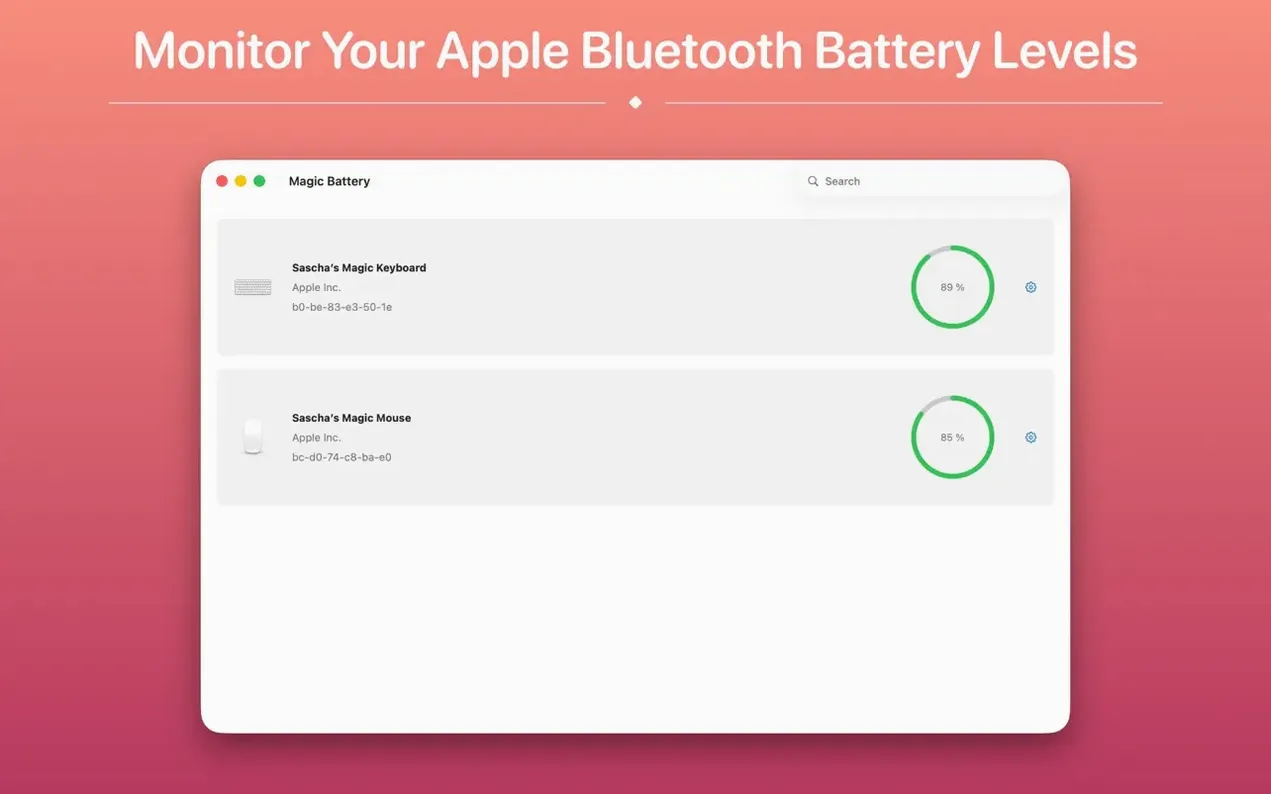
macOS shows the battery level of your MacBook, but finding the charge on a Magic Trackpad 2 or a Logitech K series keyboard usually means digging into Bluetooth settings. Magic Battery puts that information one click away in the menu bar.
Here's how it fits into a typical workday:
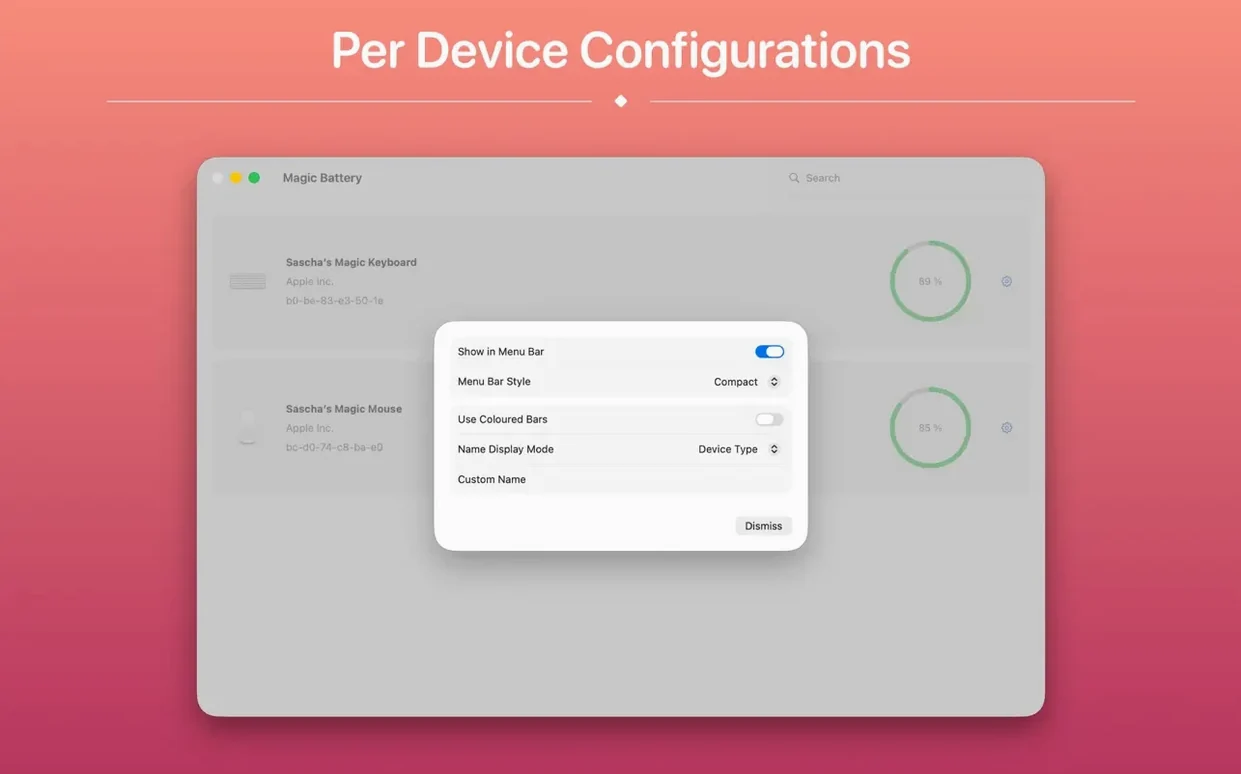
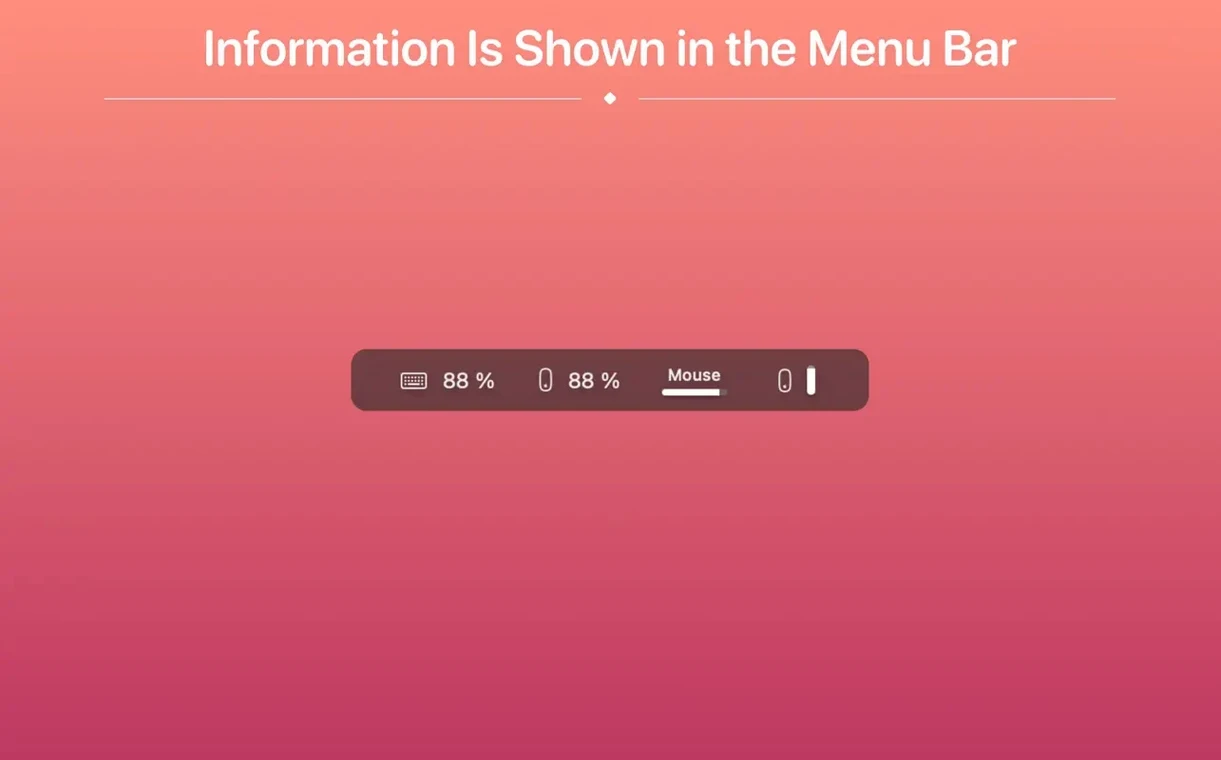
- Pick your view. Compact view tucks a tiny icon into the menu bar, while the detailed view shows the percentage right next to the device name. Click the menu bar item and a window drops down listing every connected device at a glance — no more opening System Settings just to check if a mouse needs charging.
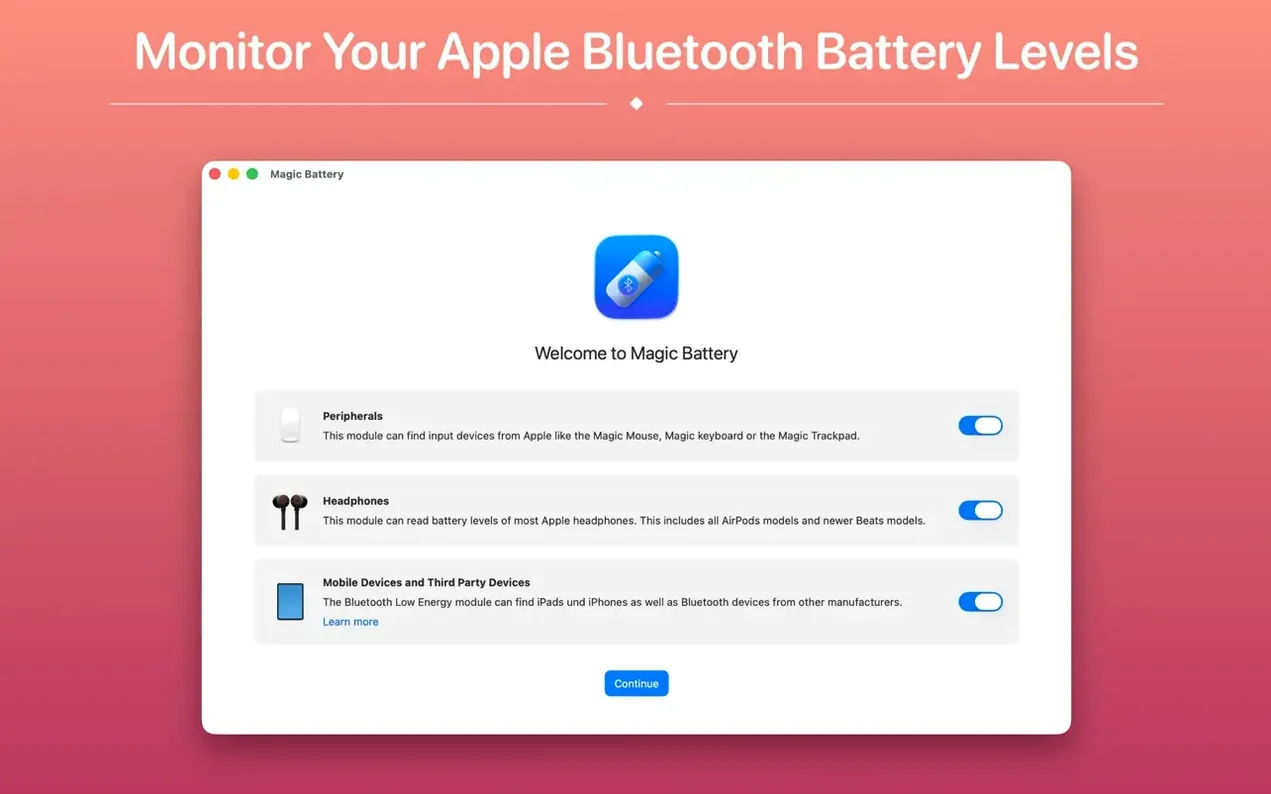
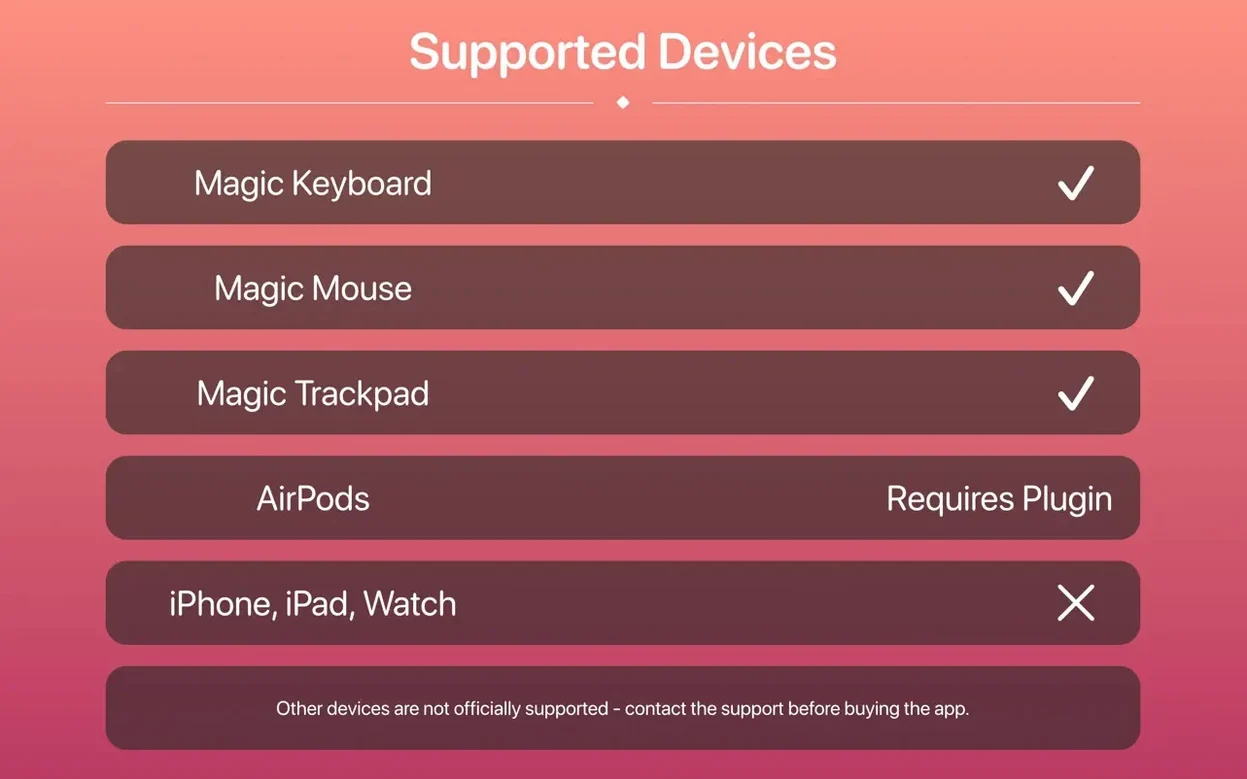
- Keep an eye on the gear you use most. The app reads levels from Apple input devices and a wide range of third-party Bluetooth hardware, including Logitech MX Anywhere 3, Logitech Pebble mice, and many Logitech K series keyboards. It also shows internal battery percentage and estimated runtime for your MacBook.
- Charge before it's urgent. Set a notification at 20% battery and you'll get a friendly nudge before a trackpad or keyboard goes dead mid-task. That's the kind of small automation that keeps a small shop running without constant battery babysitting.
Magic Battery doesn't replace your existing tools — it fills a gap Apple left open, sitting quietly alongside the clock and Wi‑Fi icon until you need it.
Glancing at one clean battery sliver on a Tuesday morning
It’s Tuesday morning. I sit down with coffee, wake the Mac, and glance at the menu bar. The compact icon shows a tiny battery outline — no percentage, just a clean sliver of white that tells me everything’s charged. I click it anyway, out of habit. The dropdown floats below the menu bar and lists my Magic Trackpad 2 at 87%, the MX Anywhere 3 at 72%, and the MacBook’s internal battery at 94% with about nine hours of runtime left. No digging. No Bluetooth pane. I close the window and start work.
Around lunch, I swap the Pebble mouse in for the MX. Magic Battery notices the change silently — the old device disappears from the list and the new one appears within a second or two, no manual refresh needed. By mid-afternoon the trackpad dips below the 20% threshold I set. A notification slides in from the right edge of the screen: “Magic Trackpad 2 — 19%.” I plug it into the USB‑C cable tucked behind my monitor and keep working. The percentage climbs slowly in the menu bar icon, and I don’t think about it again until the next morning.
It appears before I finish typing my password
After a few weeks of daily use, Magic Battery feels closer to a system utility than a third‑party add‑on. Launch time is near‑instant; it appears in the menu bar before I’ve finished typing my login password. Memory usage hovers around 30 to 40 MB in Activity Monitor, which is negligible on any Mac shipping with macOS 15.6 or later. CPU spikes are rare — typically a brief blip when the app polls a newly connected device, then flat silence.
I’ve not seen a single crash or hung process, even when switching between four Bluetooth peripherals in quick succession. The auto‑detection logic is steady: disconnect a keyboard and its entry vanishes; reconnect it and the percentage returns without a flicker. That matters when you’re working on a tight deadline and can’t afford a misbehaving menu bar extra. For a free utility that handles the kind of battery tracking Apple should have built in, the stability is genuinely impressive.
Left‑click opens the device list by default
- Click, don’t right‑click. A single left‑click on the menu bar icon opens the device list window right below it. There’s no need to Option‑click or dig through a context menu — it’s the default action, and it’s easy to miss if you’re used to other menu bar apps that bury their main view behind a secondary click.
- Compact view saves real estate. If your menu bar is already crowded with utilities, the icon‑only mode uses barely more space than the clock. Battery percentages only appear after you click to open the menu, so you trade constant visibility for a cleaner bar.
- Login launch, no setup required. The “start automatically after login” toggle is right in the app preferences. Tick it once and forget it — Magic Battery will be there every morning without any Launch Agent fiddling.
- Internal battery runtime estimate. Next to the MacBook’s percentage, the app shows an estimated time remaining. It’s the same data macOS calculates, but surfaced one click faster than the battery icon in Control Center.
Version 11 brought a handful of thoughtful tweaks — nothing flashy, just the kind of real-world fixes that make the app nicer to live with day to day.
- Fresh built-in help that covers the questions I actually hear from other shop owners, like why a device isn't showing up and what those menu bar options do.
- First-run setup now asks you straight away which menu bar style you prefer and whether to turn on low battery alerts. One less trip into preferences later.
- Missing device? Magic Battery now gives you a clear reason instead of leaving you guessing.
- The "full around" date is finally accurate while a device charges — no more seeing a date months past the real one.
- Updating the Batteries plugin can now stop the running version first, so the update actually completes without a hiccup.
- The main window keeps its composure now and won't shrink down to nothing.
- No more duplicate contact form entry in the Help menu.
- This version requires a Mac with Apple silicon. Intel Macs stay on the previous version, which works just fine.
- macOS 15.6 or later
- Apple Silicon or Intel 64-bit Mac (version 11 requires Apple silicon; Intel Macs can keep using the previous version)
Questions from the stall
Which Logitech devices does Magic Battery support?
It works with many Logitech K series keyboards and Bluetooth mice like the MX Anywhere 3 and Logitech Pebble.
Can Magic Battery show my MacBook's internal battery status?
Yes, alongside Bluetooth devices it displays your Mac's internal battery percentage and estimated runtime.
Notes from other shops 0
Sign in or open a shop account to leave a note.
No notes yet. If you've used this on a shop Mac, tell me how it went.