
Before you install: how it fits in
If you use QuickTime or Preview to trim and crop your media, you know they can't handle floating watermarks sitting in the middle of a frame. That is the gap this app fills. It targets the mark itself while patching the background behind it, which is a different skill from basic cropping.
How the removal works
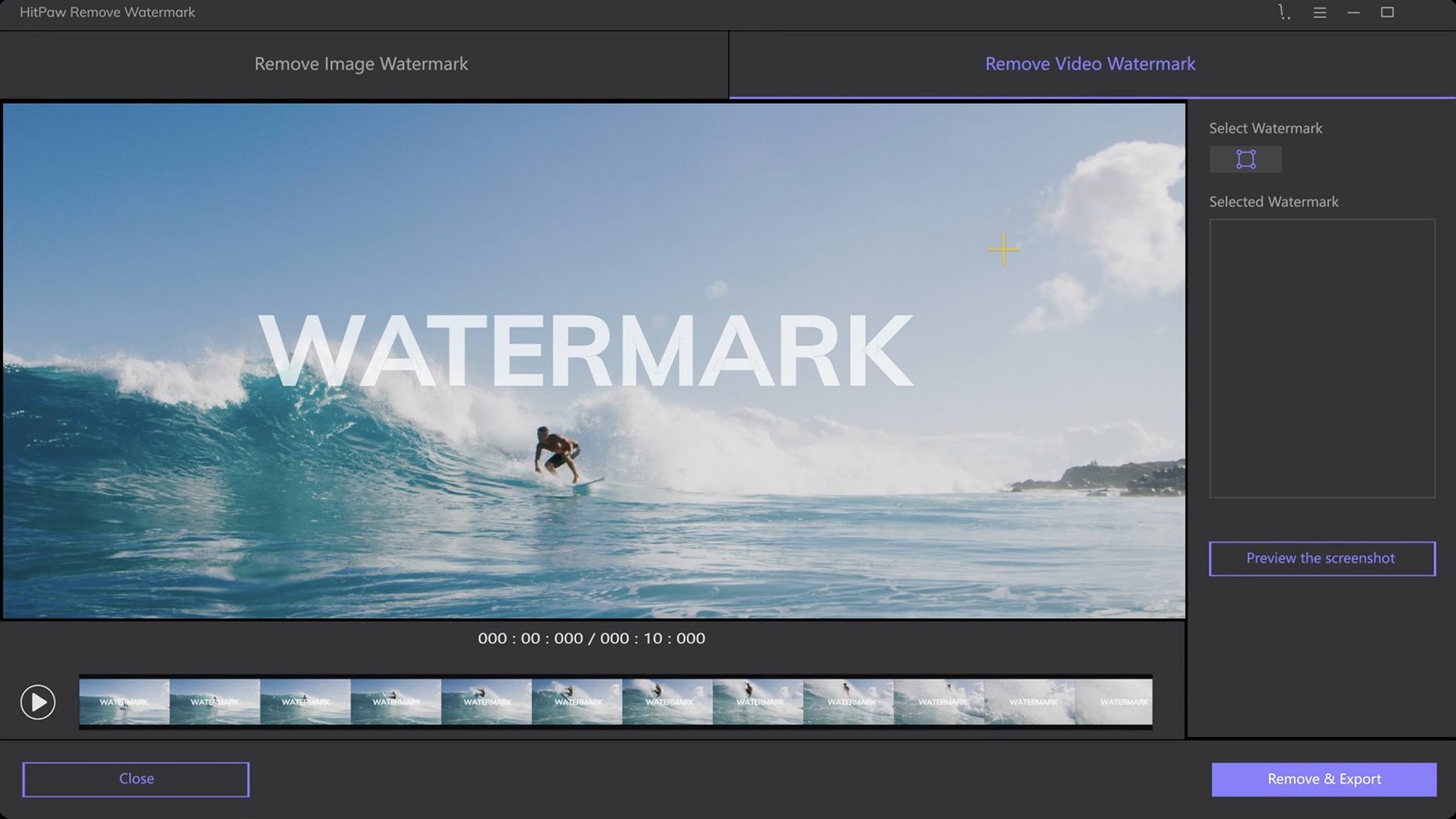
- Bring in your file. Drag a JPEG, PNG, WebP, or BMP image straight into the window—or load a video clip. The interface doesn't bury this behind menus.
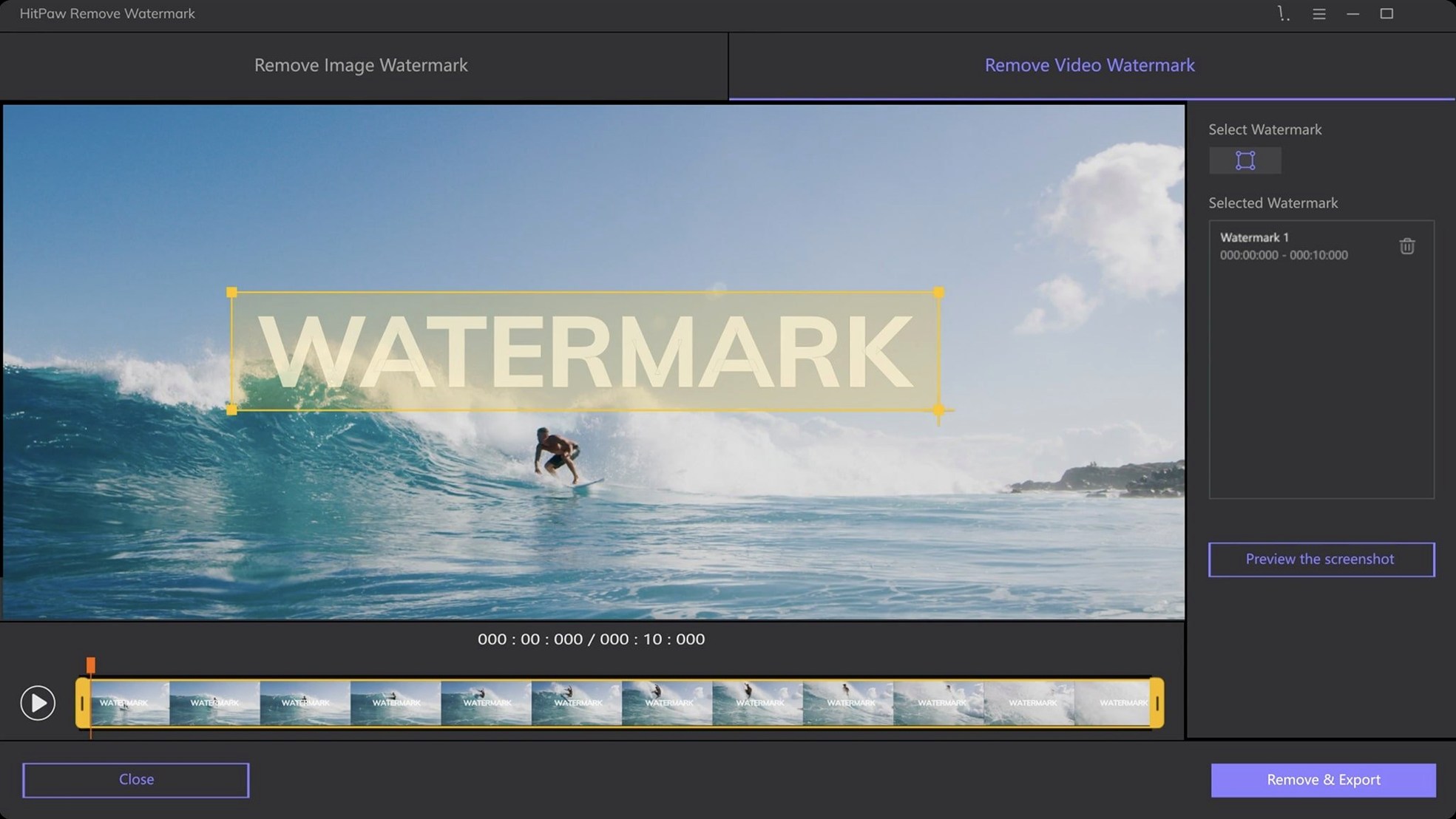
- Mark the offender. Use the selection tool to highlight the watermark, logo, or stray timestamp. You can adjust the boundary before you commit.
- Pick a fill mode. Choose between smooth filling, edge filling, or texture repair depending on what the background looks like. A plain sky handles differently than a brick wall.
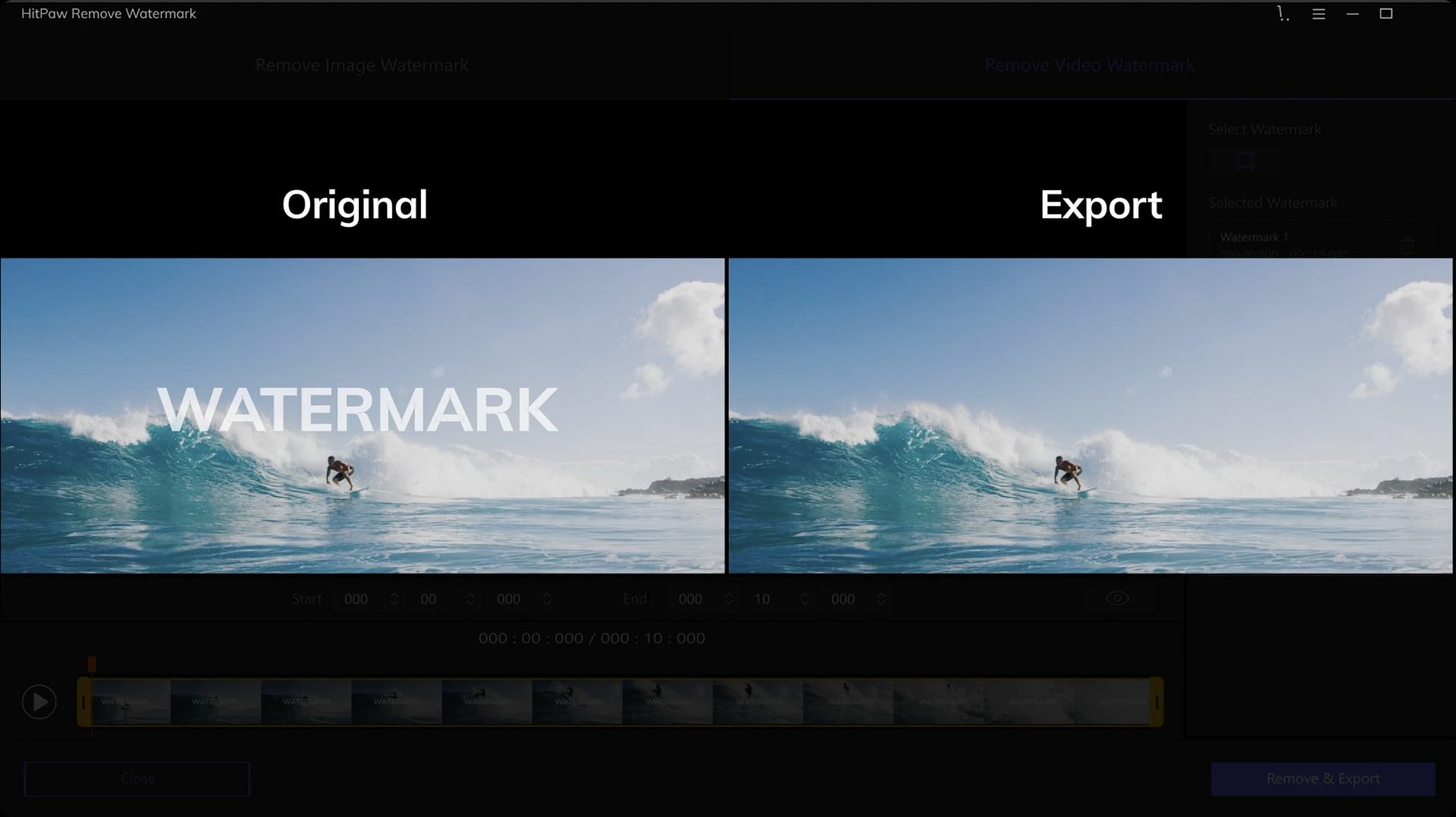
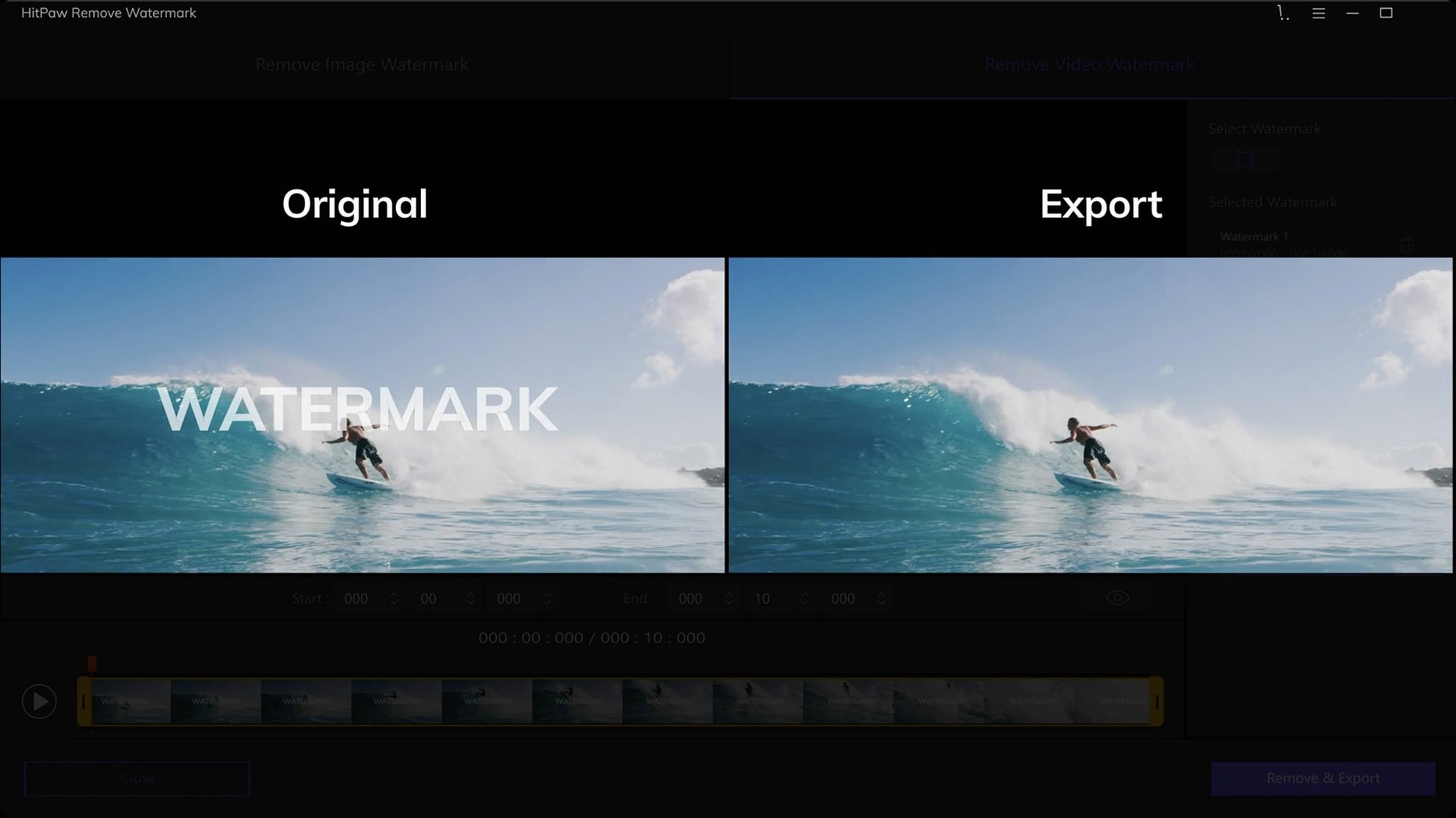
- Process and check. The app erases the marked area and blends the patch. On video, it tracks the watermark across frames so you don't have to mark every single one.
Getting comfortable in the first few days
After you drag the app into Applications and launch it the first time, spend ten minutes with a few throwaway files. Pick one image with a timestamp in the corner, one with a logo across a textured surface, and a short five-second video clip. The goal isn't to save anything useful yet—it's to learn which removal mode pairs with which kind of background without the pressure of a real project.
A habit that pays off early: zoom in before you draw your selection. The rectangle tool is quick, but on a busy photo a slightly loose box catches details you'd rather keep. I nudge the handles a few pixels inside the watermark edge so the patch blends from the surrounding area rather than eating into it.
For video, resist the urge to mark frame one and hit process immediately. Scrub through the clip first and check whether the watermark moves or changes size. If it stays put, a single selection usually holds. If it drifts—think of a bouncing channel bug—you will get better results by splitting the clip at the movement points and treating each segment as its own task. The app handles frame-by-frame tracking, but giving it a consistent target helps the algorithm do cleaner work.
Tip: Keep the original file untouched until you are happy with the output. The app saves a new copy, but having the unedited version means you can try a different fill mode without digging through backups.
Selection feels snappier on Intel Macs
Version 2.4.7 landed in September 2025 with a handful of refinements that affect everyday editing more than a feature list might suggest. The interface stayed familiar—no menu reshuffling to relearn—but the selection responsiveness on Intel Macs improved noticeably when working with large video files. Dragging a rectangle across a 4K frame used to lag a beat on older machines; now the marquee tracks the cursor without that small hesitation.
Behind the scenes, the texture repair mode got smarter about patterned backgrounds. Where earlier builds sometimes repeated a visible tile when filling a removed logo, 2.4.7 samples a wider area and varies the patch enough that the repetition isn't obvious unless you pixel-peep at 400%. For everyday use on social-media clips or product photos, the result passes a casual glance—which is what most small-shop work needs.
One quiet addition: the app now remembers your last-used fill mode between sessions. It's a small thing, but if you work through a batch of images with similar backgrounds, not having to re-select texture repair every time adds up. The language support also expanded, with the interface now available in Russian, Czech, and Japanese alongside the existing set, which helps if you share the machine with a multilingual team.
12-megapixel JPEGs repair in about five seconds
On an Intel Mac, hitpaw watermark remover runs as a 64-bit native app without Rosetta overhead. Processing a single 12-megapixel JPEG with texture repair takes about three to five seconds on a 2019 iMac—fast enough that you don't drift to another task while waiting. Video is heavier, naturally. A 30-second 1080p MP4 clip might take forty seconds to a minute depending on the selection size and frame count. The progress bar moves steadily, and you can cancel mid-process without leaving a half-written temp file behind.
Memory use sits around 200 to 350 MB during image work and climbs toward 600 MB when handling longer video files. It's not featherweight, but it releases most of that once the export finishes. I haven't seen it balloon over time during a long batch session the way some media tools do. CPU fans spin up during video processing—expected for software pushing every frame through a fill algorithm—and settle back down within seconds of completion.
Stability has been uneventful in the best sense. Across dozens of test runs with mixed file types, the app didn't crash once, even when I threw a 15-minute MOV file at it on a machine with only 8 GB of RAM. The one quirk worth knowing: if you load an unsupported image format by accident, the window simply shows nothing rather than popping an error dialog. Switching to a supported format like PNG or WebP brings the interface back. Not elegant, but not destructive either.
For anyone searching for hitpaw watermark remover mac specifically, the Intel-native build means you aren't running translated code, and that shows in how predictably the app behaves day to day. It doesn't fight the system for resources, and it doesn't leave background processes lingering after you quit.
Tip: For complex backgrounds, texture repair usually gives the least obvious result—start there if smooth filling leaves a blurry smudge.
- macOS 10.13 or later
- Intel-based Mac
Notes from other shops 0
Sign in or open a shop account to leave a note.
No notes yet. If you've used this on a shop Mac, tell me how it went.