
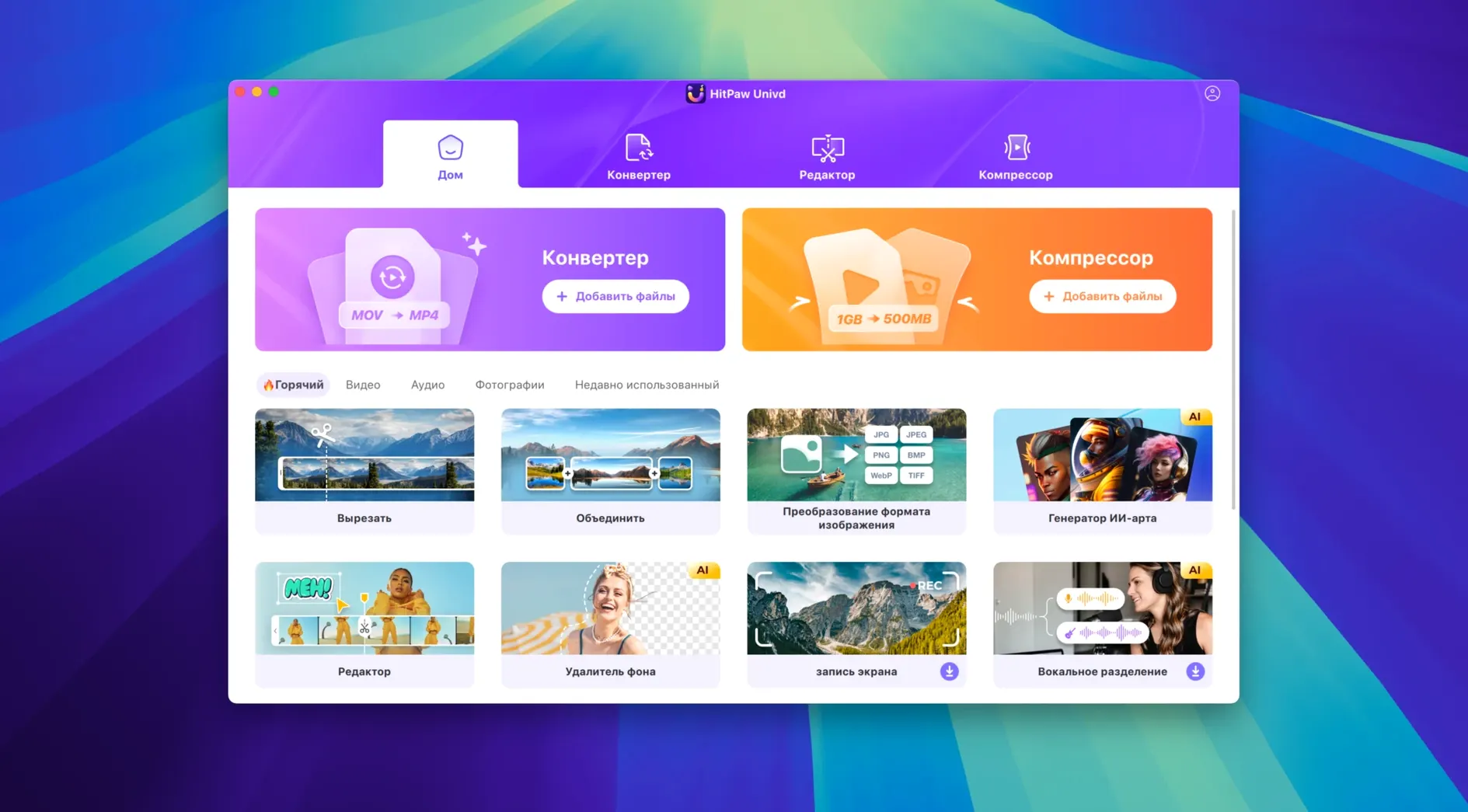
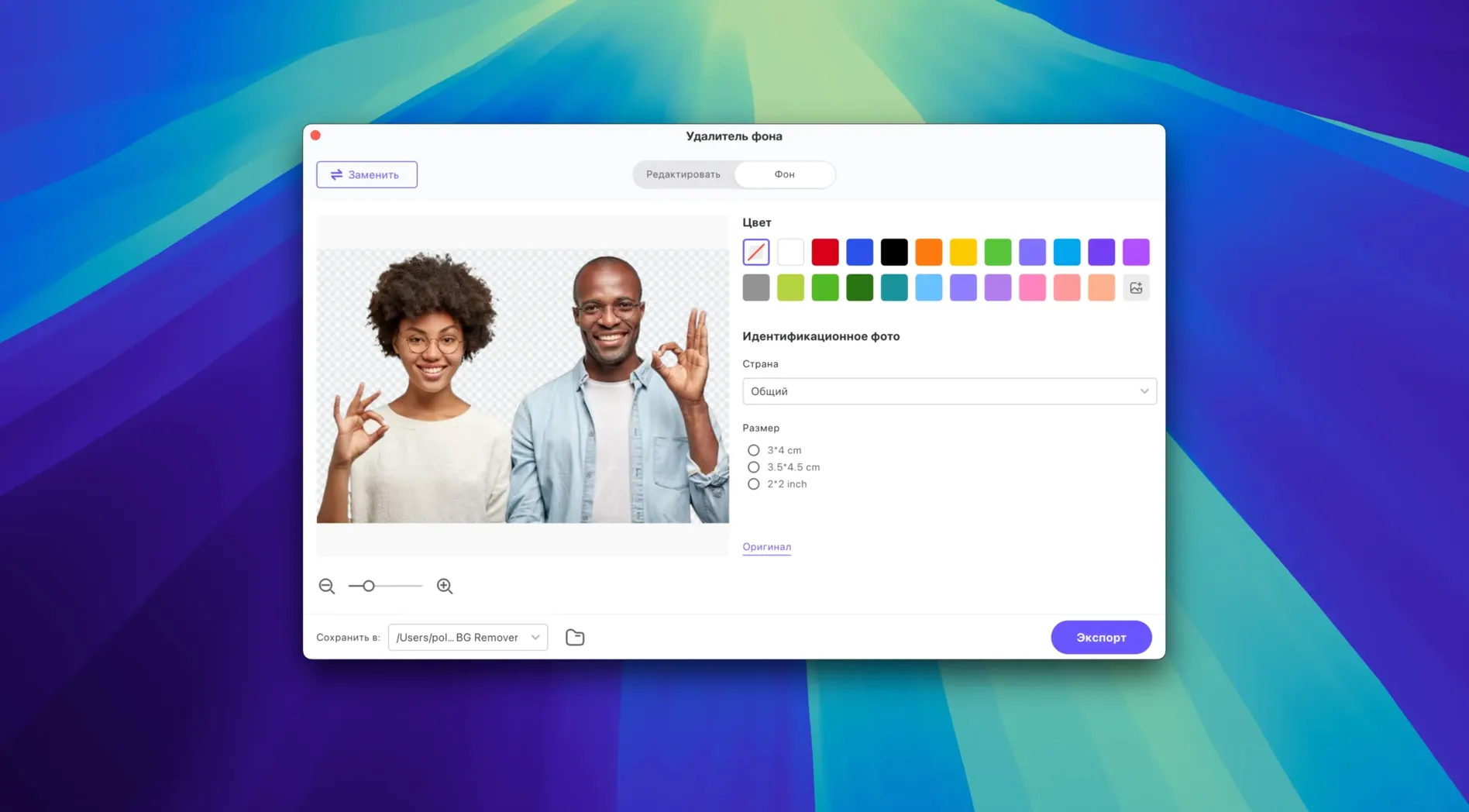
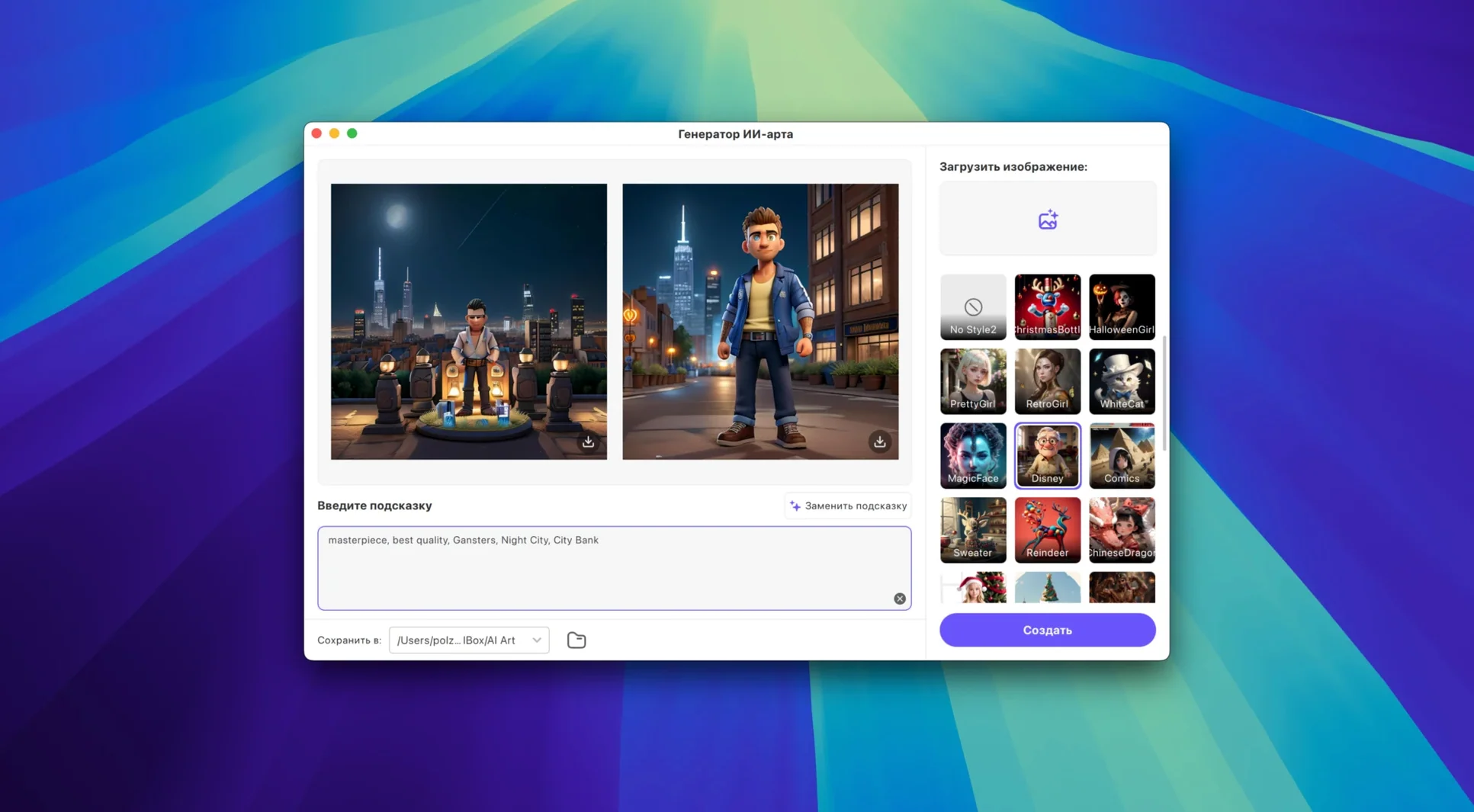
Grabbing a clip from one site, reworking the format for a client, and cleaning up the colour in the same window saves a lot of tab-hopping. HitPaw Univd bundles video conversion, downloading, and AI-powered enhancement into a single Mac app. Version 4.7.0 keeps that core workflow intact while giving the interface a quieter, more modern look.
Grabbing clips from 10,000+ sites and converting between major formats
- Pulling video, films, and music from over 10,000 sites, including YouTube, Bilibili, Facebook, and Instagram
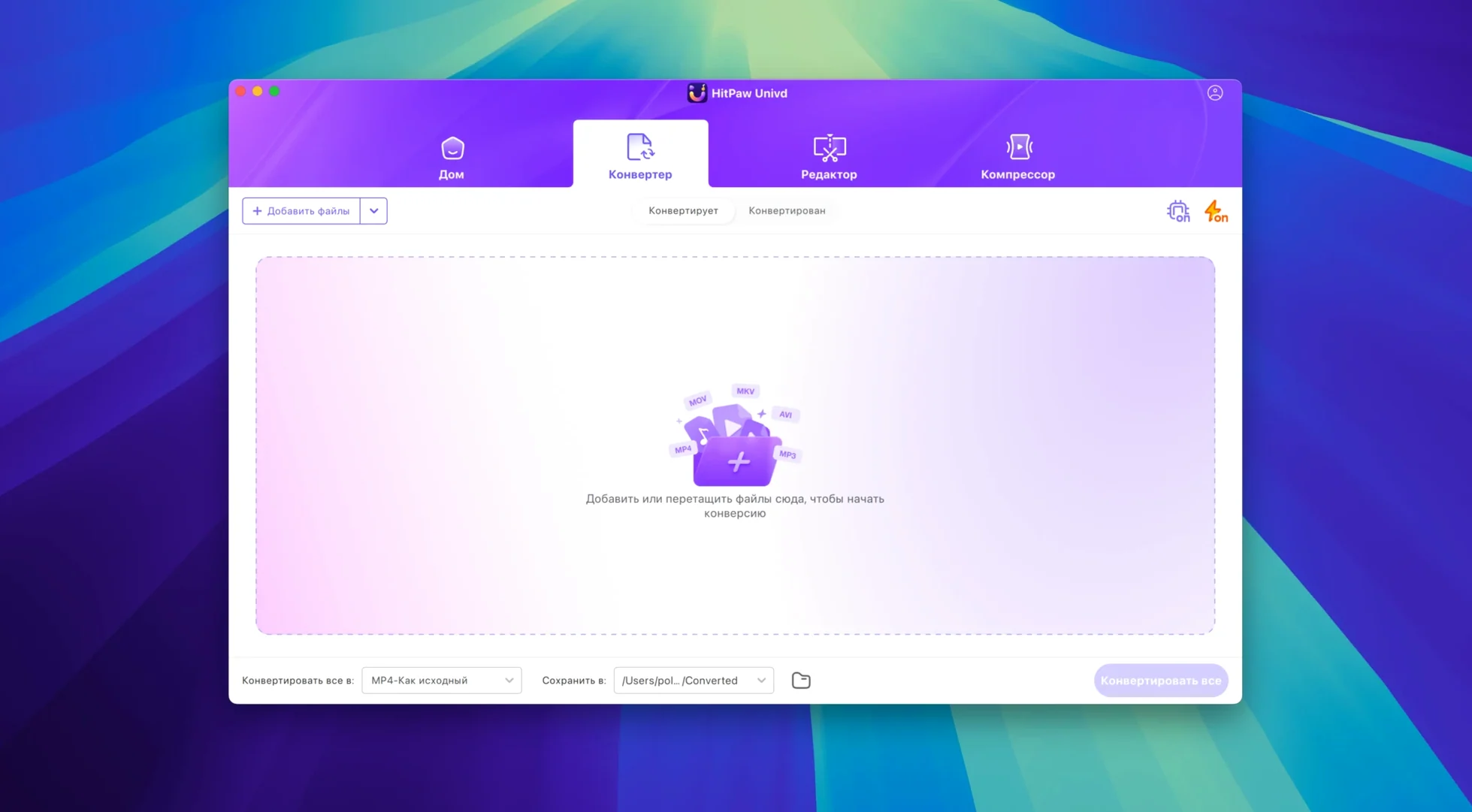
- Converting between MP4, MOV, AVI, VOB, and MKV without hunting for a separate encoder
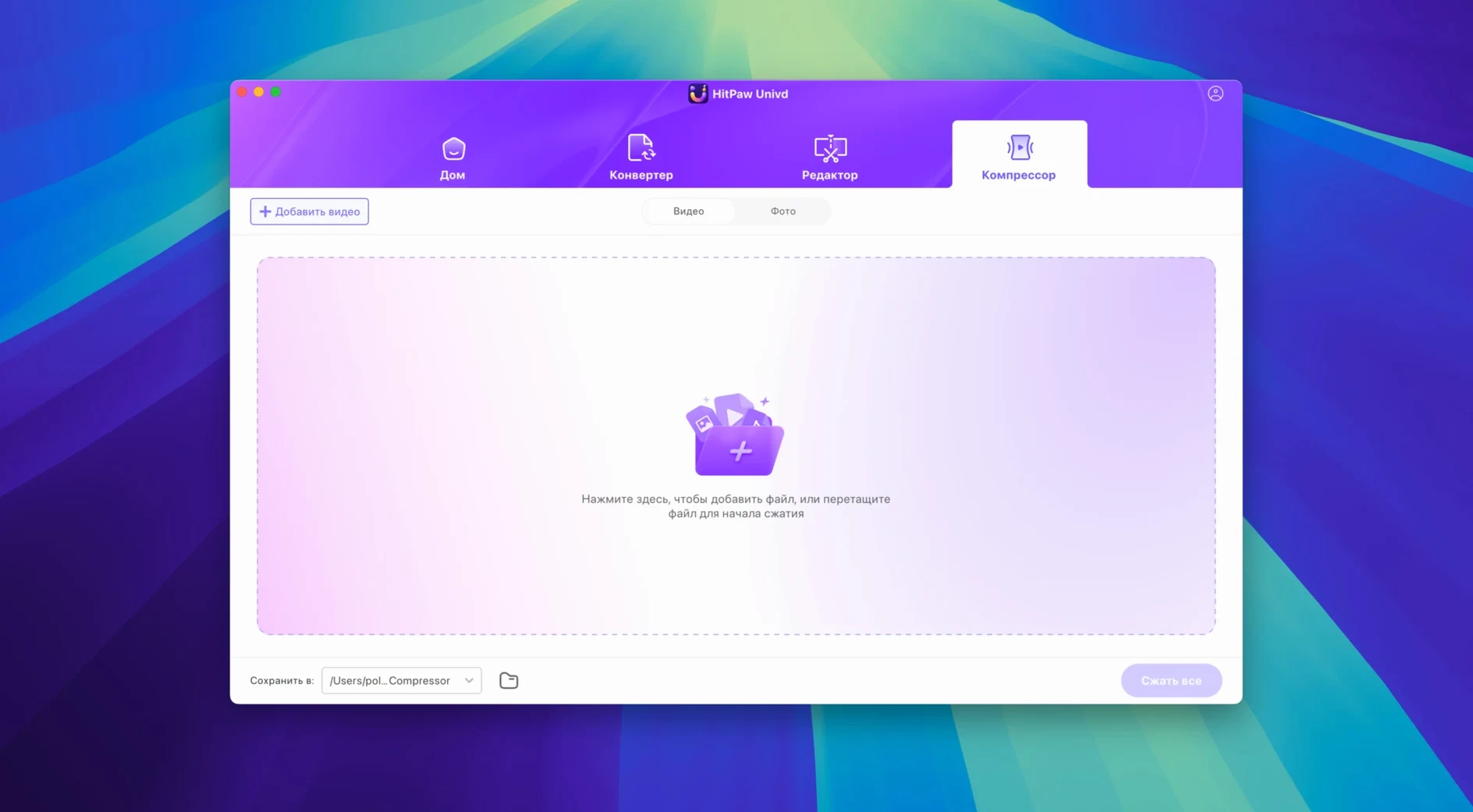
- Compressing footage that's too heavy to email or upload
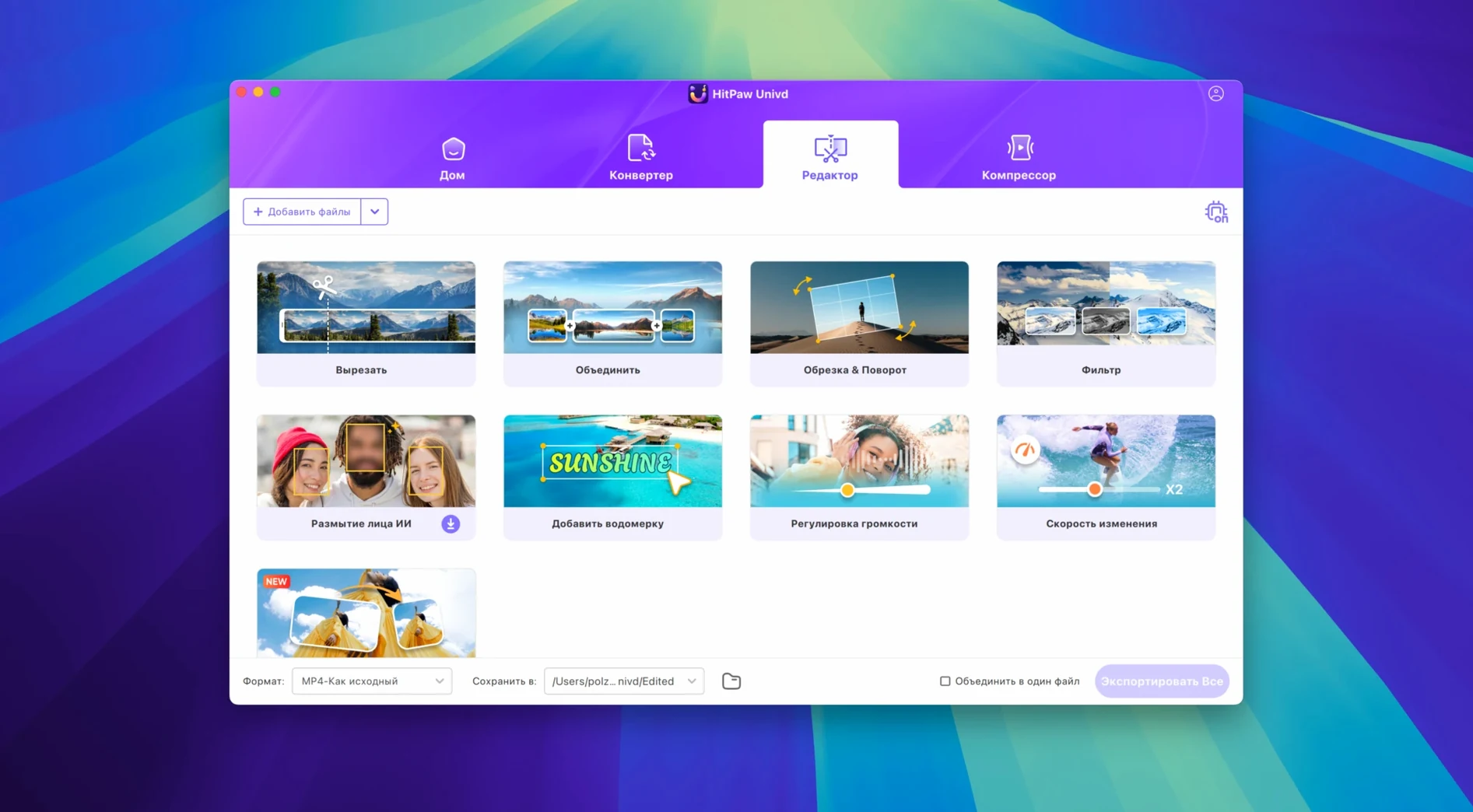
- Quick edits before or after conversion with the built-in editor
- Sharpening older clips with the AI enhancer
macOS 10.15 minimum and the 4.7.0 interface overhaul
- The Mac version runs on macOS 10.15 and above
- The 4.7.0 update changes the UI and product model — things look and feel different if you're upgrading from an earlier release
Change the default output folder before your first download
Out of the box, HitPaw Univd works fine, but a quick trip through the preferences saves time later. Open the app's settings right after you drop it into Applications — the default output folder usually points somewhere inside Documents, and I prefer sending finished files straight to a desktop folder named "Converted" so nothing gets buried.
A few other dials I'd turn on day one:
- Output format defaults. The app remembers your last choice, but setting a preferred container — H.264 in MP4 for most client work, or ProRes when I need an editing master — stops me from exporting in the wrong codec by accident. The preset picker is straightforward; pick one and it sticks.
- Hardware acceleration. On Intel Macs, the toggle for hardware-accelerated encoding lives in the preferences panel. Leaving it off means longer renders, so I flip it on unless a specific export glitches — which hasn't happened often.
- Download quality ceiling. The downloader tab lets you cap resolution. If I'm pulling reference clips or b-roll, I set a 1080p ceiling to keep file sizes manageable. When I actually need 4K, I lift the cap for that session.
- Audio bitrate for music conversion. The lossless music converter defaults to a sensible bitrate, but I bump it to match what the source offers — especially for Apple Music and TIDAL pulls where a lower default can leave some depth on the table.
None of these are buried behind advanced menus. HitPaw kept the preferences flat in the new UI, which means you can set them once and forget they exist.
Pulling a YouTube teaser, converting a DCP MOV, and prepping a trailer cut
Picture a freelance editor who cuts short-form trailers for a handful of independent film distributors. Their Tuesday starts with three tasks: pull a teaser from YouTube as reference, convert a DCP-derived MOV into something their NLE can chew on, and clean up a decade-old interview clip that looks muddy on a 4K timeline.
They open HitPaw Univd, paste the YouTube link into the downloader, and grab the 1080p stream. While that downloads, they drag the bulky MOV into the converter, pick ProRes 422 as the output, and let it chug through on the Intel machine. The AI enhancer sits in its own tab — they queue the interview clip, choose the face enhancement model (the app offers a few options depending on the footage), and let it sharpen the soft edges while they answer emails. Three jobs, one app, no hand-off between tools.
By lunch, the reference file sits on their desktop, the ProRes master is ready for the timeline, and the restored interview looks clean enough to intercut with modern footage. The editor didn't touch a command line or a separate compression utility. For someone whose day is measured in billable hours, not having to babysit multiple conversion queues is the real win.
The quieter 4.7.0 UI and how download, convert, and enhance now sit together
HitPaw's January 2025 release rewrapped the interface and rethought how the tools sit together. The new UI is quieter — fewer bright accent colours, more space around the controls — which makes scanning between download, convert, and enhance tabs feel less cluttered on a laptop screen. But beyond aesthetics, the "product model" shift matters for daily workflow.
Previously, some features lived behind separate modules or felt siloed. Version 4.7.0 pulls them closer together. The downloader and converter now share a more consistent queue system, so you can stack downloads and conversions in the same list and let them run sequentially. The editor feels better integrated too: trimming or cropping a video before conversion no longer feels like you've left the main workspace.
One practical change I noticed: the progress indicators are clearer. Instead of a vague spinning wheel, you get a percentage bar and an estimated time for each job in the queue. That's small on paper, but when you're lining up six exports before stepping away, knowing which one finishes first helps you plan the rest of the day.
The AI enhancer didn't get a model overhaul in this release — the notes focus on UI and experience — but its placement in the tab bar is more prominent, which suggests HitPaw sees it as a core feature, not an add-on. If you're upgrading from an older version, give yourself ten minutes to re-learn where things live. The bones are the same, but the layout moved the furniture around.
Test with a short clip before queueing a two-hour film
A few things make the first week smoother:
- Test the downloader with a short clip first. Paste a three-minute YouTube video before you queue up a two-hour film. Some sites throttle or change their embed structure, and a quick test confirms HitPaw's parser is current. The 4.7.0 UI makes the downloader's supported-site status visible, so you'll spot any hiccup fast.
- Create a one-click preset for your most-used format. The converter lets you save custom presets. If you regularly output H.265 MP4 at a specific bitrate for web uploads, build it once, name it something obvious like "Web 1080p," and stop re-entering numbers every time. It lives in the preset dropdown alongside the factory options.
- Use the built-in editor for trims only — at first. The editor handles cropping, rotation, and basic cuts without issue, but I treat it as a prep tool rather than a full NLE. Trim heads and tails, crop a watermark, then send the clean file wherever it needs to go. You'll develop a rhythm for what's faster inside HitPaw and what belongs in your main editing app.
- Keep the original file until you spot-check the output. This is less about HitPaw and more about conversion survival, but it bears repeating. Run a five-second playback check on any converted file before you delete the source. The app has been reliable for me, but a corrupt frame can happen with any encoder — catching it early saves a re-convert.
- Explore the AI enhancer on a variety of sources. Old SD footage, grainy phone clips, and slightly soft HD all respond differently. Run a few thirty-second samples through each enhancement model to build a mental map of what works. The face model handles talking-head interviews well; the general sharpening model suits landscape shots better. Knowing which to reach for cuts your rendering queue in half.
One last thing: if you grabbed the app through a hitpaw univd torrent or a related hitpaw torrent search, you'll still get the full 4.7.0 feature set — the TNT team's activation work applies cleanly, and the Intel build runs without phoning home. Just follow the Gatekeeper-friendly mount steps and you're set.
Version 4.7.0 brings a fresh look and a reworked product experience:
- New UI — cleaner layout that puts the main tools closer to hand
- Updated product model and user experience — the workflow feels less cluttered than before
- macOS 10.15 or newer
- Intel 64-bit processor
Notes from other shops 0
Sign in or open a shop account to leave a note.
No notes yet. If you've used this on a shop Mac, tell me how it went.