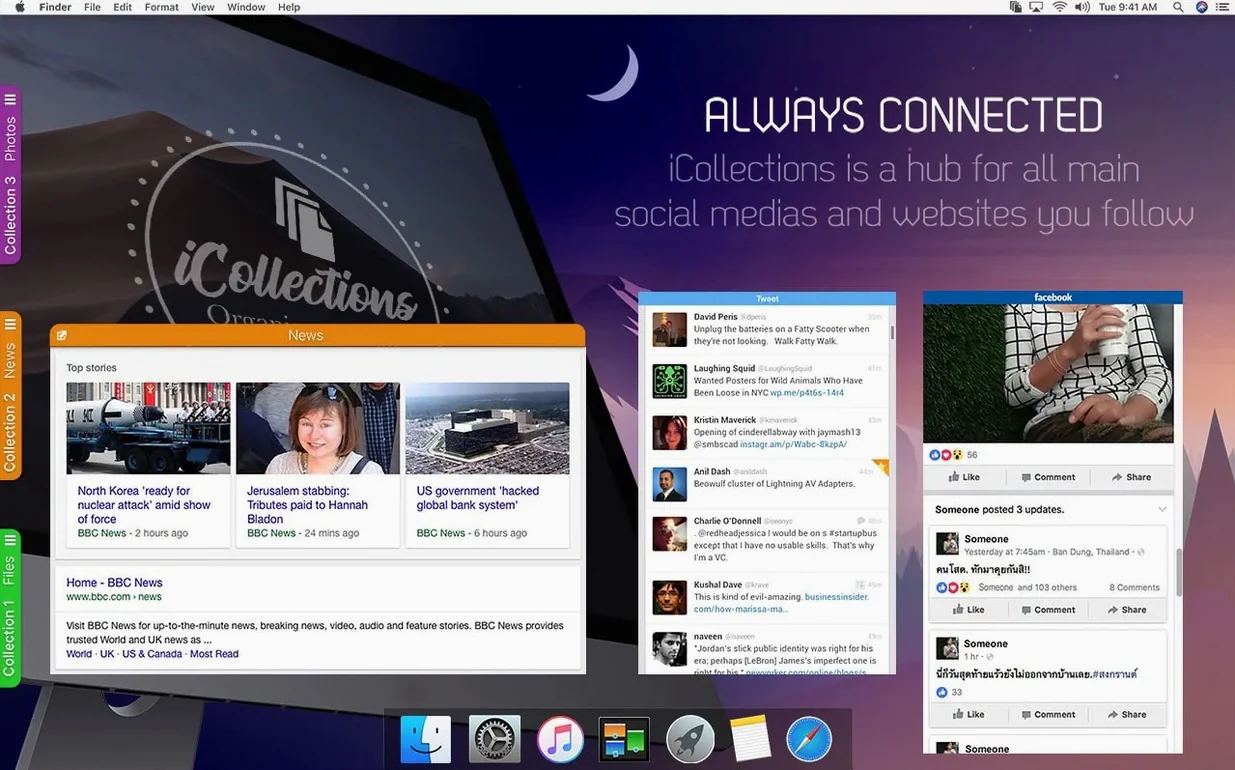
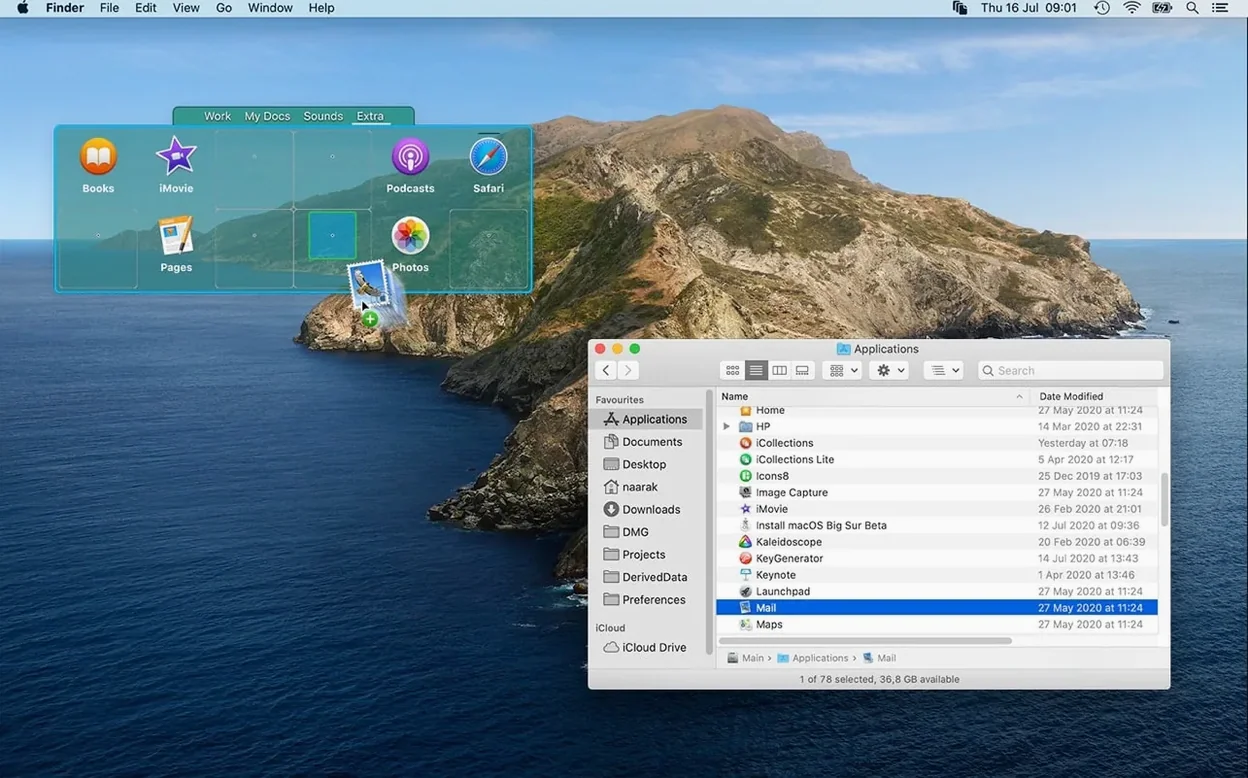
This update keeps iCollections running smoothly on the latest Macs. If you haven't looked in a while, the core idea is the same: give your desktop a few gentle superpowers.
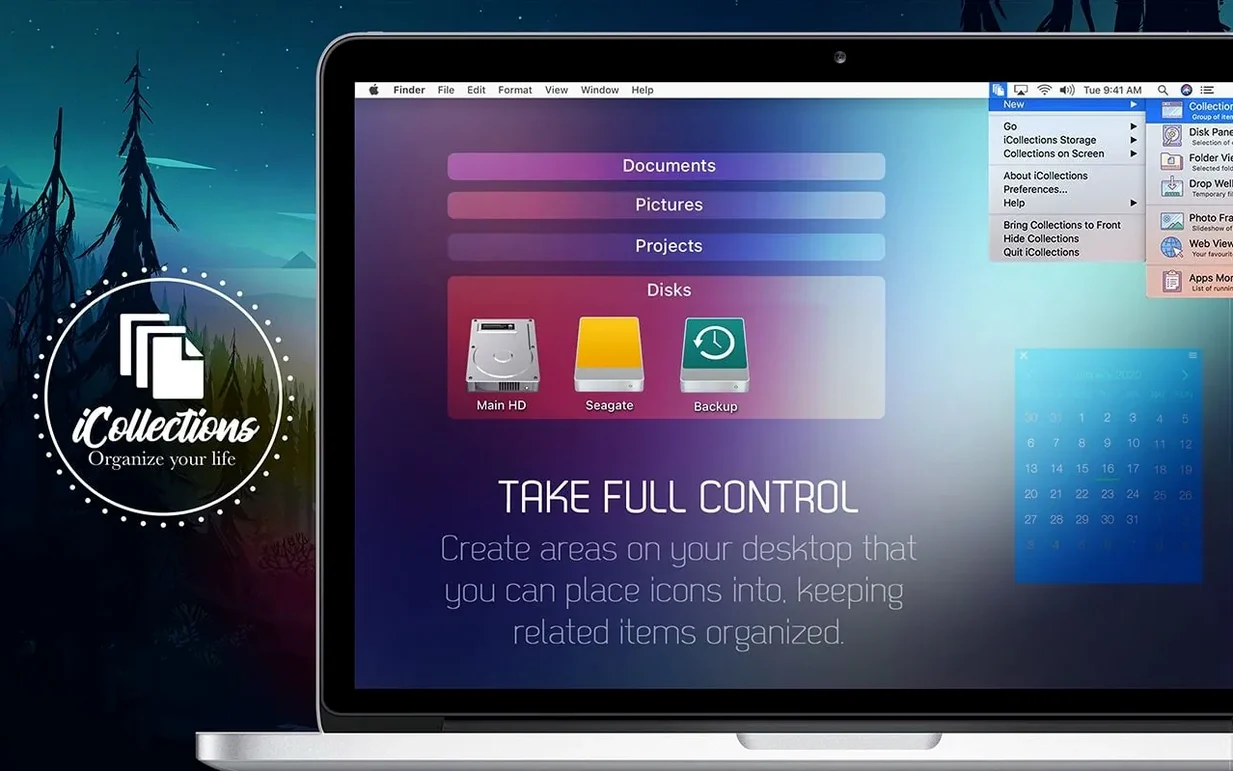
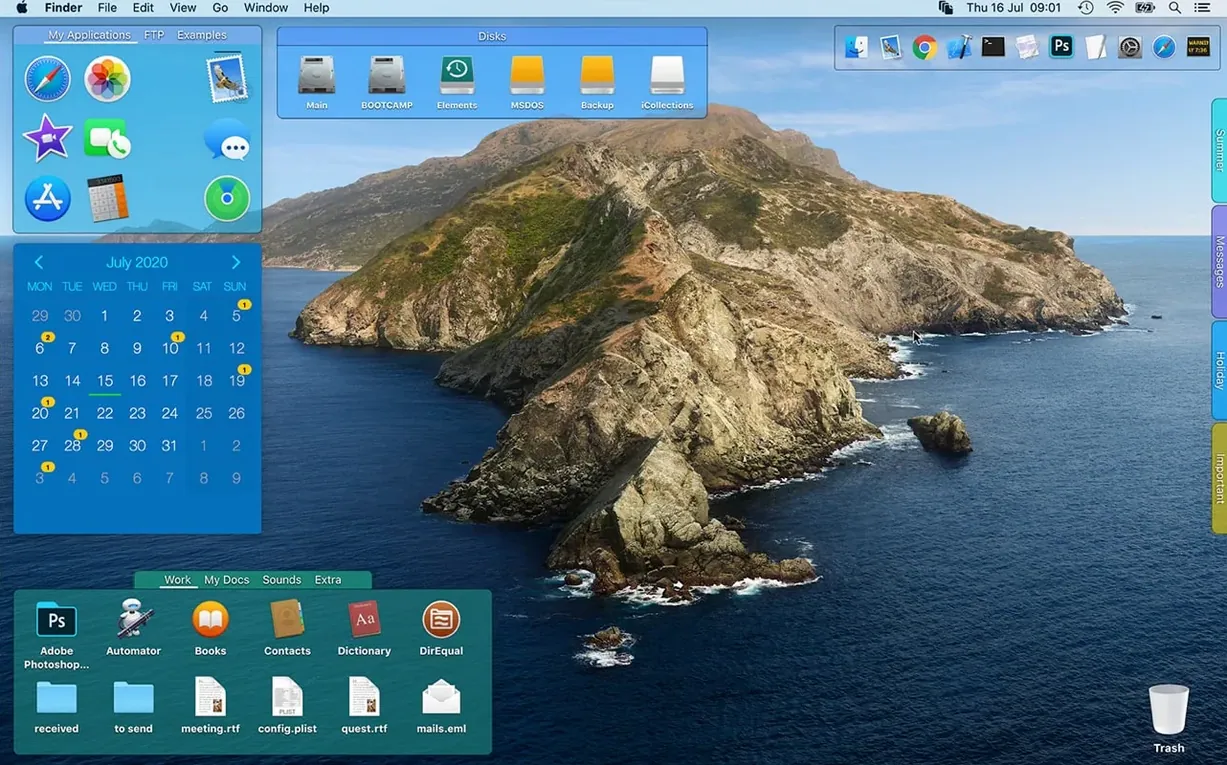
- Draw a collection box. Pick a spot on the desktop and drag out a frame. Anything you drop inside — documents, screenshots, applications — stays together. Move the box, and everything moves with it.
- Set up a photo frame. Choose a folder of images and iCollections displays them right on the desktop. A static frame shows one at a time; switch on the slideshow and it cycles through automatically. Nice for product shots, reference images, or just keeping a favorite album visible.
- Arrange by the job you're doing. Make a collection for an active project, another for tools you open daily, a third for files waiting on a client reply. The desktop becomes a set of labeled zones instead of a sprawl of icons.
It's a small shift that changes how you work: related things stay grouped, and the stuff you need to see stays visible. Works on Retina displays and handles high-resolution images without going fuzzy. The app stays quietly in the background — no dock clutter, no extra windows to manage.
How iCollections compares with similar Mac apps
If you've been browsing icollections macos free alternatives, you've probably run into a few names. Here's how they stack up against what iCollections actually does.
iCollections vs. Desktop Stacks (built into macOS). Stacks are the closest built-in option — they group files into neat piles on the desktop. But they're rigid: you click a stack, it fans out, you grab something, it collapses. iCollections gives you persistent, visible zones. A collection box shows everything at a glance, no clicking to peek inside. If you prefer seeing your files rather than hunting through stacks, iCollections wins on visibility.
iCollections vs. Yoink. Yoink acts as a temporary shelf — you drag files there, then drag them somewhere else. It's handy for moves between folders and apps, but it's not meant to keep things organized long-term. iCollections is the opposite: it's about leaving things where you can find them tomorrow. Photo frames and web views also go beyond what Yoink offers. Different tools, really. Some people run both.
iCollections vs. GeekTool. GeekTool lets you put scripts, logs, and system info on the desktop. Powerful, but you'll write shell commands to make it useful. iCollections skips the scripting — you drag out a frame and drop files in. No configuration files, no reading documentation. For visual organization and image display, iCollections is the friendlier choice.
Frame styles that fade into your wallpaper
A few tweaks make the app feel more like yours from the start:
- Default frame style. Open preferences and pick a border color and transparency that suits your wallpaper. A subtle gray outline disappears when you're focused; a brighter border helps collections stand out on busy desktops.
- Snap-to-grid behavior. By default, icons inside a collection align loosely. Tightening the grid keeps things tidy, especially if you're packing lots of files into one frame.
- Slideshow interval. Photo frames default to a relaxed pace. If you're using one for reference images, speed it up to 10 seconds or less so you cycle through faster.
- Startup behavior. iCollections can launch automatically when you log in. Worth enabling if you build a desktop layout you rely on daily — your frames appear exactly where you left them.
How much it actually slows things down
Does it slow down my Mac? Not in a way you'd notice. It uses minimal CPU when frames are static. Slideshows with large images or a live web frame will use a bit more, but on any Mac that runs macOS 10.15 or later, it's light enough to keep running all day.
What happens to my icons if I quit the app? Nothing bad. Collections and photo frames disappear when iCollections isn't running, but your files stay exactly where they are on the desktop. When you relaunch, everything reappears. You're never locking files inside the app.
Can I use it with multiple displays? Yes. You can place collections and frames on any connected monitor. Handy if you keep one display for creative tools and another for project files and reference images.
Is icollections mac difficult to uninstall? Not at all. Quit the app, drag it from Applications to the Trash, and any leftover preference files are tiny and harmless. Your desktop returns to its normal macOS state instantly.
- macOS 10.15 (Catalina) or any newer version
- Works natively on Apple Silicon and Intel 64-bit Macs
Questions from the stall
Does iCollections work on Apple Silicon Macs?
Yes, iCollections runs natively on both Apple Silicon (ARM) and 64-bit Intel Macs.
Can I display a rotating set of images on my desktop?
Absolutely. You can set up a photo frame that pulls from any folder and cycles through the images as a slideshow.
Notes from other shops 0
Sign in or open a shop account to leave a note.
No notes yet. If you've used this on a shop Mac, tell me how it went.