
Manually sorting a desktop full of screenshots, invoices, and stray PDFs eats into a morning fast. Hazel watches folders you choose and acts on files the moment they appear, based on rules you set. Before downloading, it pays to know exactly what your Mac needs to run it.
Sorting subfolders, backing up docs, and filing media
- Organizing files inside subfolders automatically
- Creating backups of documents with a note in the filename
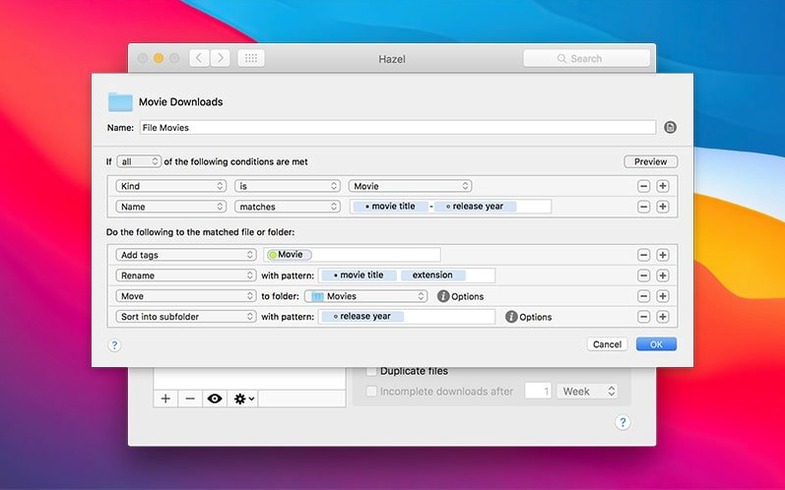
- Importing songs into Music and photos into Photos
- Adding comments and keywords to files as they arrive
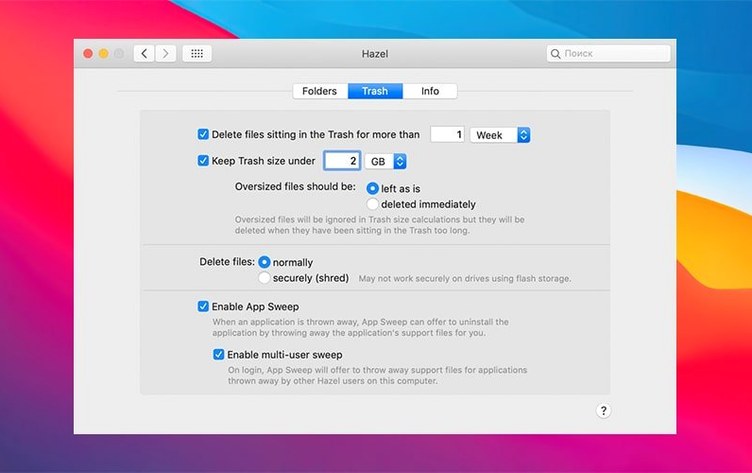
- Managing trash by clearing out old items on a schedule
- Spotting files that haven't been used in a long time
Location-based rules and the macOS 13 floor
- Rules are defined by location, not globally across the Mac
- Requires macOS 13 Ventura or later—older systems won't run this build
First days with Hazel
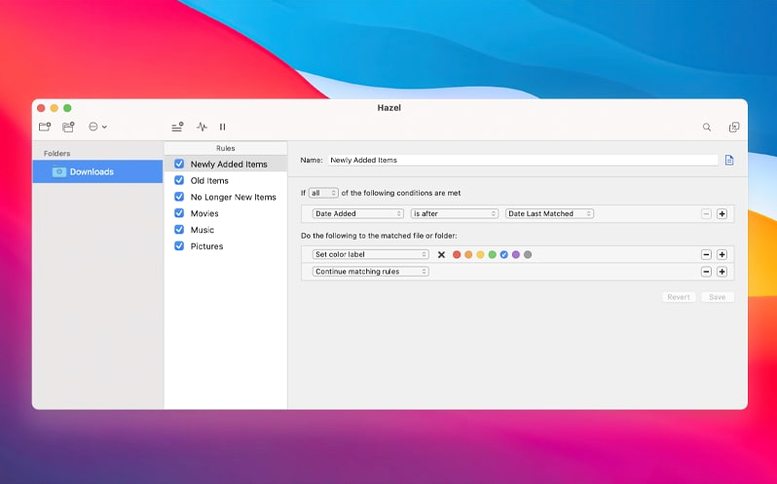
Install it, open System Settings (it lives as a preference pane), and give it access to the folders you want watched. Start small — pick one messy folder like Downloads or Desktop. Resist the urge to build ten rules right away. A single rule that catches the obvious clutter shows you how the logic works without overwhelming the preview pane.
A rule I'd set on day one: move all .dmg files older than two days to a folder called Installers. You'll see results in hours, not days. After that, tackle screenshots — match by name pattern (files starting with "Screenshot") and send them to a dedicated folder, maybe with a color tag applied on the way.
Tip: Use the rule status icon in the menubar to pause Hazel when you're doing a big manual cleanup. That keeps your rules from firing mid-sort and creating a mess you then have to untangle.
What 6.1.2 changes in daily use
If you tried Hazel on macOS Tahoe and noticed tag colors missing, this build fixes that — so your color-coded folders and files actually show the right tint again. The ssh port field in server connection settings is now usable at a normal size, which matters if you're pushing files to a remote server through a non-standard port. Small things, but they remove friction you used to work around.
The remote server file browser got a more practical upload view and behaves more like a regular Finder dialog now. For anyone who moves files to a NAS or a web server, that means less hunting for features you expect from a file picker. Popover styling and window animations on Tahoe feel more native since the update, so the preference pane doesn't look out of place next to the rest of your system settings.
When you download hazel for mac and run this version, you're getting the accumulated tweaks — not a flashy redesign, but the kind of quiet polish that makes the difference between an app you tolerate and one you forget is running.
Where Hazel fits alongside other tools
Hazel doesn't replace Finder tags, Spotlight, or Automator — it works between them. Tag a file manually in Finder, then let a Hazel rule move it to a project folder based on that tag. Spotlight finds the file instantly because Hazel already put it where it belongs. Automator can handle one-off batch jobs, but Hazel keeps running on a schedule without you opening anything.
For small-shop owners who use accounting software that reads from a watched folder, a rule can rename scanned receipts by date and vendor before the bookkeeping app ever sees them. Combine it with macOS Quick Actions: right-click a file, run a conversion, and Hazel takes the result and files it. The system-level "Open with" menu and folder actions play nicely too — Hazel rules don't block them, they just add a layer of automatic sorting underneath whatever manual workflow you already have.
If you're rebuilding your setup after a hazel 5 download or migrating from an older Mac, the folder-based rule structure means you can copy your rules across machines by moving the preference files. The app doesn't lock your organization into a proprietary database, so your system stays understandable to you and anything else that reads the filesystem.
Version 6.1.2 polishes a few rough edges. Here's what changed:
- Tag colors now show correctly on Tahoe
- Fixed a couple of annoyances when editing custom table attributes
- The ssh/scp port field in the server connection window is properly sized now
- The remote server file browser upload view got a refresh
- macOS 13 Ventura or later
- Works on both Intel and Apple Silicon Macs
- Interface: English
Notes from other shops 0
Sign in or open a shop account to leave a note.
No notes yet. If you've used this on a shop Mac, tell me how it went.