
Dialing in pro-level codecs
The auto reframe feature in version 4.5.0 is the kind of tool you appreciate when a 16:9 screen recording needs to fit a vertical reel without losing the focal point. It’s an editor’s shortcut that actually works. Beyond that, the encoder list goes deeper than the usual MP4 and MOV suspects — you get VP9 for web-optimized uploads, ProRes for editing-grade intermediates, and Opus for clean audio extraction. If your workflow involves prepping footage for different platforms, having those codecs in one converter cuts out the usual format shuffle.
Compressing without guessing
The optimized compression module is where the “AI-powered” label earns its keep. Rather than just sliding a bitrate bar and hoping for the best, the analysis looks at the actual content — talking-head footage gets treated differently than fast-moving gameplay. For anyone managing a library of tutorial recordings or client previews, that means smaller files that don’t look like they’ve been run through a potato masher.
Pulling video from anywhere
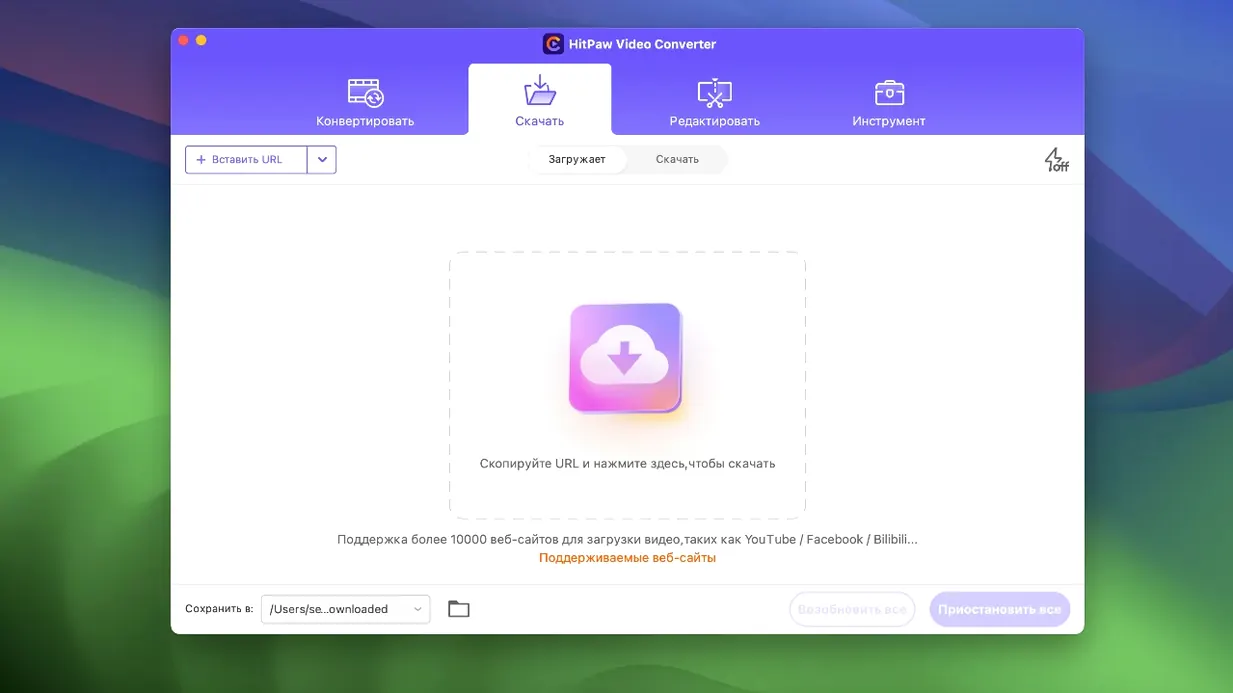
The 10,000-site downloader handles the usual streaming platforms, but it’s just as handy for grabbing reference clips from niche portfolio sites or pulling a clean audio track from a live performance video. You can save straight into the format you need, which removes the separate download-then-convert step that eats up an afternoon.
What I’d do in the first couple of days
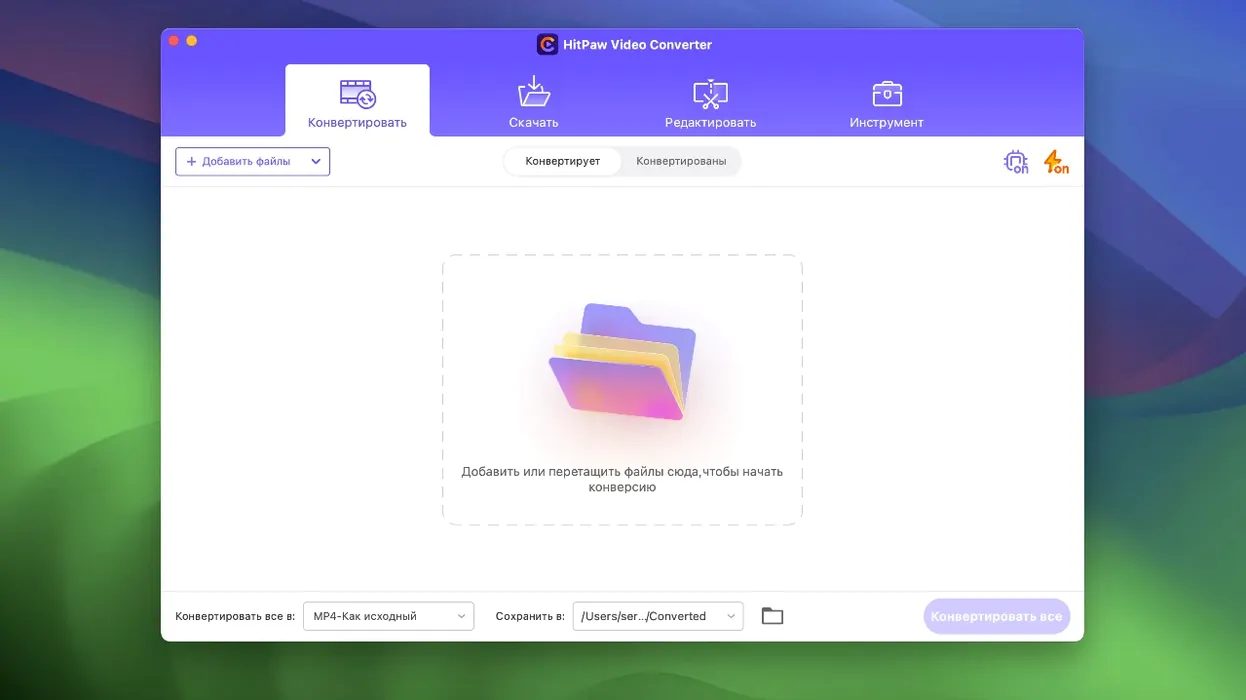
Right after installing, I’d queue up two or three short clips in different formats — say an old AVI from a point-and-shoot camera, an MKV from a screen recording, and a YouTube download — and run them through the same output preset just to see how the conversion speed feels on my machine. That gives me a baseline before I start batch-processing anything important.
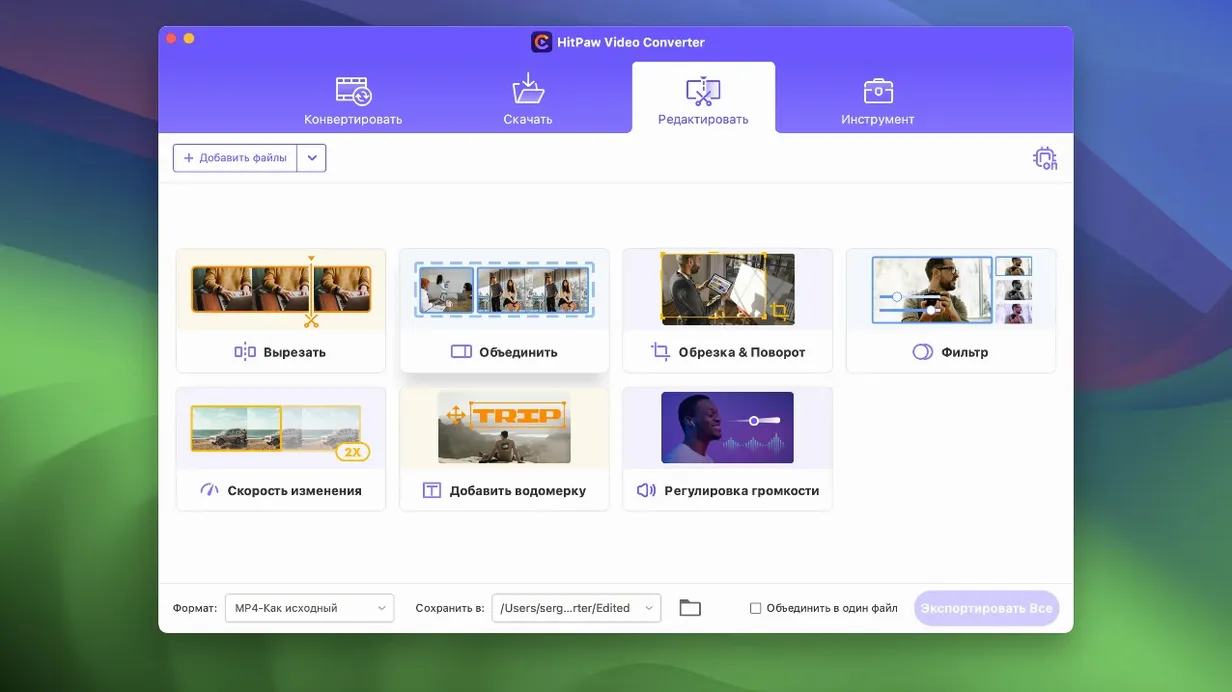
Next, I’d open the editor module on one clip and nudge the trim handles around. The 4.5.0 update refined how that panel renders, so short trims feel snappier and the preview doesn’t stutter while you drag. Getting comfortable with the trim-and-export rhythm early saves the frustration of discovering a UI quirk when a deadline’s breathing down your neck.
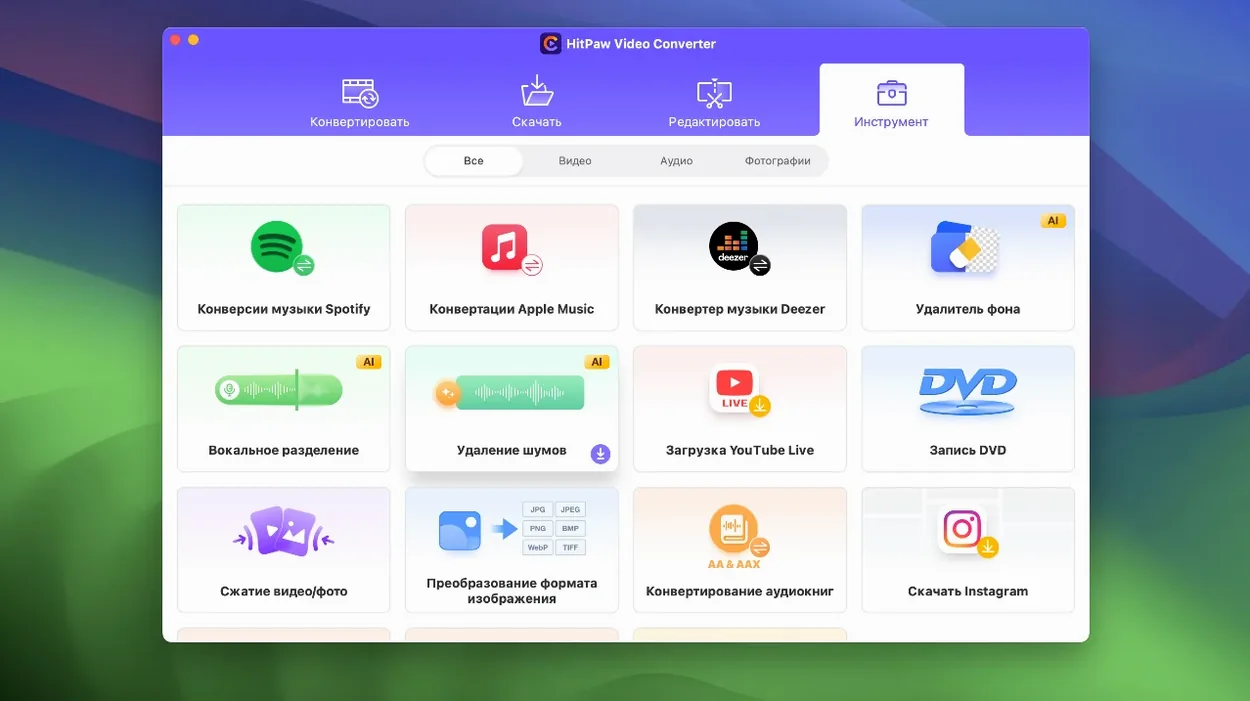
Tip: If you convert music from Spotify or Apple Music, run a single track first and check the output folder naming. It’s predictable once you see the pattern, but nobody wants thirty mislabeled MP3s.
Little things that are easy to miss
The downloader’s clipboard monitor sits quietly in the background and grabs video URLs as soon as you copy them. If you’re pulling clips from several sites in one session, leaving that on means you skip the paste-and-confirm dance every time.
A shortcut I wish I’d noticed earlier: you can drag a file straight onto the format selector instead of hunting through the “Add Files” button. On a busy desktop, that half-second adds up. Also, the compression module’s preview split-view — where you scrub between the original and compressed versions — is tucked behind a small compare icon that doesn’t scream for attention. Once you find it, you’ll use it constantly to verify that the “optimized” file actually holds up.
If you’re using HitPaw Video Converter for Mac with ProRes or VP9 output, the encoder settings remember your last-used configuration across sessions. That persistence is handy unless you forget you left it on a massive 4K preset and wonder why a simple audio conversion is taking longer than expected.
Prevent files from vanishing into the default output folder
- Trusting the default output folder blindly. HitPaw picks a location on first launch, and it’s not always where you’d naturally look. Change it to a folder you actually use before your first batch finishes.
- Confusing the compression tool with the converter. The compression module analyzes content and adjusts parameters automatically — if you feed it an already-compressed file expecting dramatic shrinkage, you’ll be disappointed. It works best on chunky source files, not something already squeezed to death.
- Ignoring the audio extraction path. When you pull audio from a video, the format dropdown defaults to a lossy option. If you need clean stems or archival copies, switch it to a lossless format before hitting start.
- Letting the auto reframe run on autopilot with fast motion. The feature tracks subjects well, but rapid pans or whip cuts can confuse it. Spot-check the first few seconds of output before queuing up twenty clips.
Another quiet gotcha: the downloader respects regional restrictions the same way a browser does. If a video plays fine on your Mac but the downloader can’t grab it, you’re probably looking at a geo-block rather than a bug. A quick VPN hop usually sorts it out.
The latest update sharpens a few key tools:
- Compression module — smarter analysis that preserves more detail at smaller file sizes.
- Editor module display — cleaner layout so trimming and cropping feel less cramped.
- Auto reframe — automatically keeps the action centered when changing aspect ratios.
- macOS 10.15 or later
- Intel processor (x86 64-bit)
Notes from other shops 0
Sign in or open a shop account to leave a note.
No notes yet. If you've used this on a shop Mac, tell me how it went.