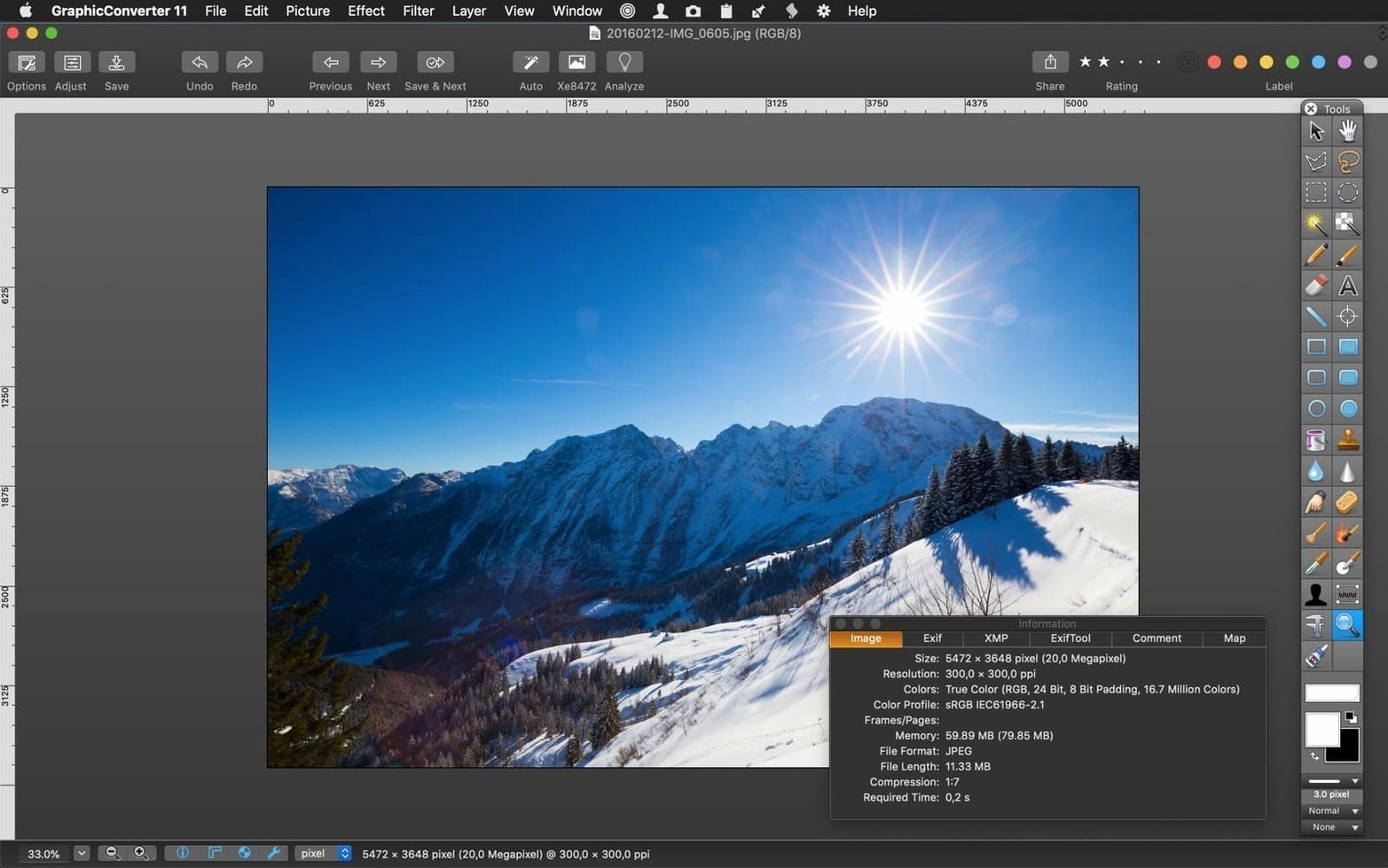
You've got a folder of layered TIFFs that need flat JPEGs in sRGB, and you're not about to open each one by hand. That's the kind of moment where GraphicConverter 12 shows what it can do beyond simple format swaps.
Color-consistent batch processing and AppleScript automation
- Color-critical batch work. The batch processor respects embedded ICC profiles and lets you convert to a target profile in the same pass. Good when you're prepping images for print or a web store where color consistency matters.
- AppleScript automation. If you maintain a product catalog, you can script repetitive conversions, resizes, and watermarking without touching the mouse.
- Camera RAW import. Direct import from cameras means you can browse, cull, and convert RAW files in one app instead of bouncing between a raw processor and an editor.
- Deep format support. Imports around 200 formats, exports around 80. Handy when a client sends something obscure from an old scanner or a Windows workflow.
- TWAIN scanner support. You can still pull images straight from a flatbed scanner, which some modern editors have quietly dropped.
Dense interface and basic cataloging tools
- The interface prioritizes function over polish. It's dense, and new users can feel lost until they learn where things live.
- Photo cataloging is basic — it's there, but it's not a Lightroom-style asset manager.
- Browsing speed depends on folder size and file types; very large RAW folders can feel sluggish on older Macs.
- AppleScript support is powerful but under-documented. You'll likely need to experiment or dig through old forum threads.
Overwriting originals and other early missteps
GraphicConverter 12 throws a lot of panels at you on day one, and it's easy to trip over a few things that aren't really the app's fault — just quirks of a tool built for depth.
- Leaving "Overwrite originals" checked during batch tests. The batch dialog defaults to overwriting in place. If you're experimenting with settings, work on copies or point the output to a temp folder until you're sure. I've heard the sigh of someone who flattened a whole shoot into tiny thumbnails by accident.
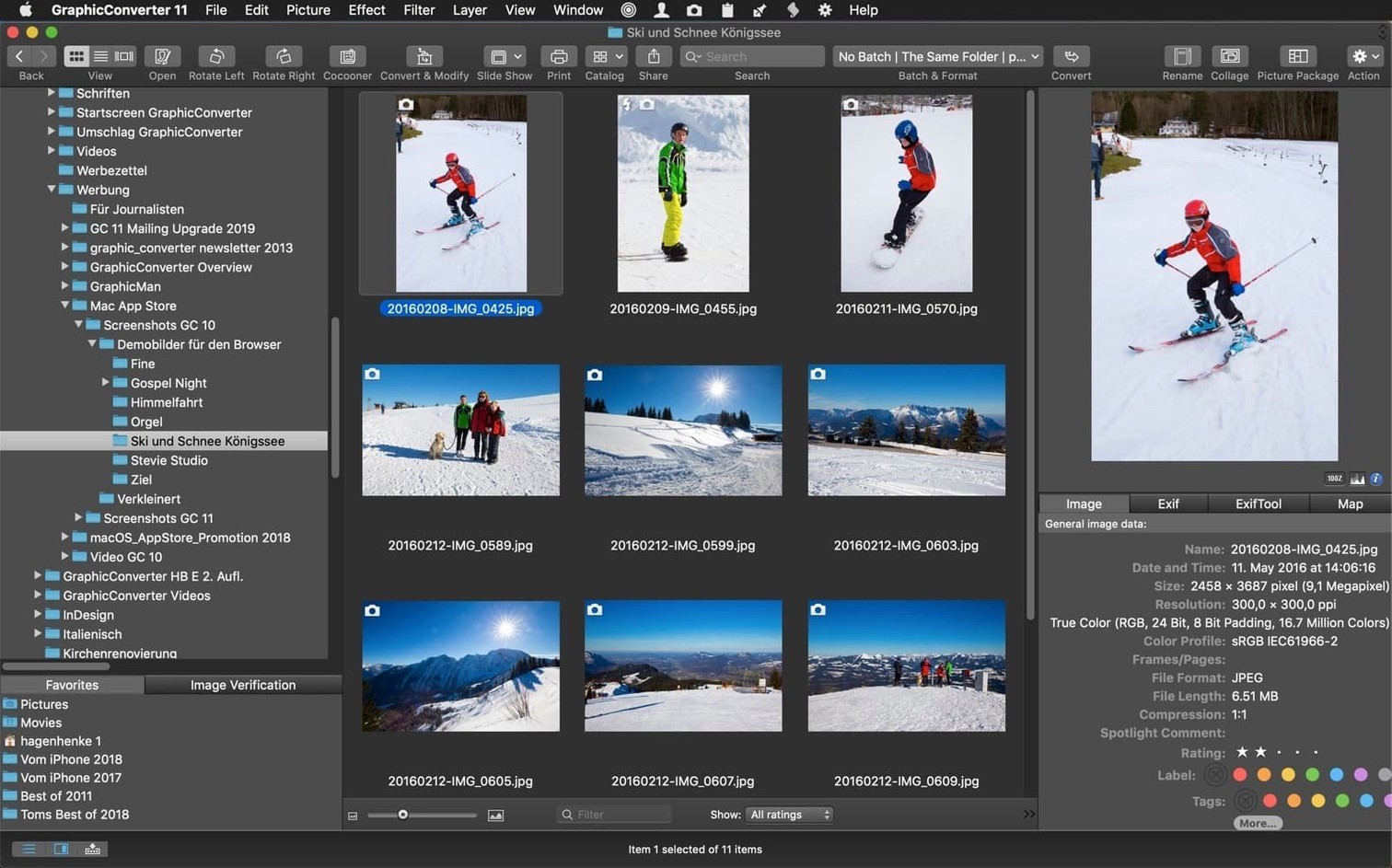
- Ignoring the color profile column in the browser. The browser can show embedded profiles, but it's off by default. Turn it on if you're mixing sRGB, Adobe RGB, and Display P3 files — it'll save you from exporting mismatched color.
- Using pixel editing for things the batch processor does faster. The simple pixel editor is fine for spot fixes, but beginners sometimes manually crop and resize twenty product photos one by one instead of stacking those actions in a batch. The batch preview alone is worth using before you commit.
- Assuming all 200 import formats behave the same. Some older formats come in flattened or with limited bit depth. A quick test conversion on one file before running a whole folder prevents surprises.
Set your default color profile first
A few tweaks make the workspace feel less like a cockpit and more like your cockpit.
- Set your default color profile in Preferences > Color Management. If your work always lands in sRGB or Adobe RGB, pre-setting it avoids extra clicks in every batch job.
- Customize the toolbar for browsing, not editing. The default toolbar mixes editing and browsing tools. If you mostly convert and catalog, strip it down to rating, rotation, and batch actions. You'll scan folders faster.
- Enable "Show metadata in browser" for GPS and camera info. GraphicConverter can map your photos using geographic metadata, but the map panel needs the column visible first. Toggle it in the browser view options.
- Adjust the zoom behavior in Preferences > General. Smooth zooming is on by default, but you can switch it to a stepped zoom if you prefer the feel of old-school Photoshop-style magnification.
A scenario from my world
A small handmade-goods seller photographs new inventory every week — natural light, a mix of RAW and phone JPEGs. The products go onto a Shopify store that expects square, 2048px sRGB images with a consistent neutral background. She uses GraphicConverter 12 three times a week for this:
- Import the RAW files from a card reader. Browse with the browser set to show the embedded JPEG previews, cull the blurry ones, and apply a star rating to picks.
- Run a batch on the keepers: crop to 1:1 ratio, resize to 2048px on the long edge, convert to sRGB, and apply a subtle sharpen. The batch saves flat JPEGs into a "web-ready" folder, leaving the RAWs untouched.
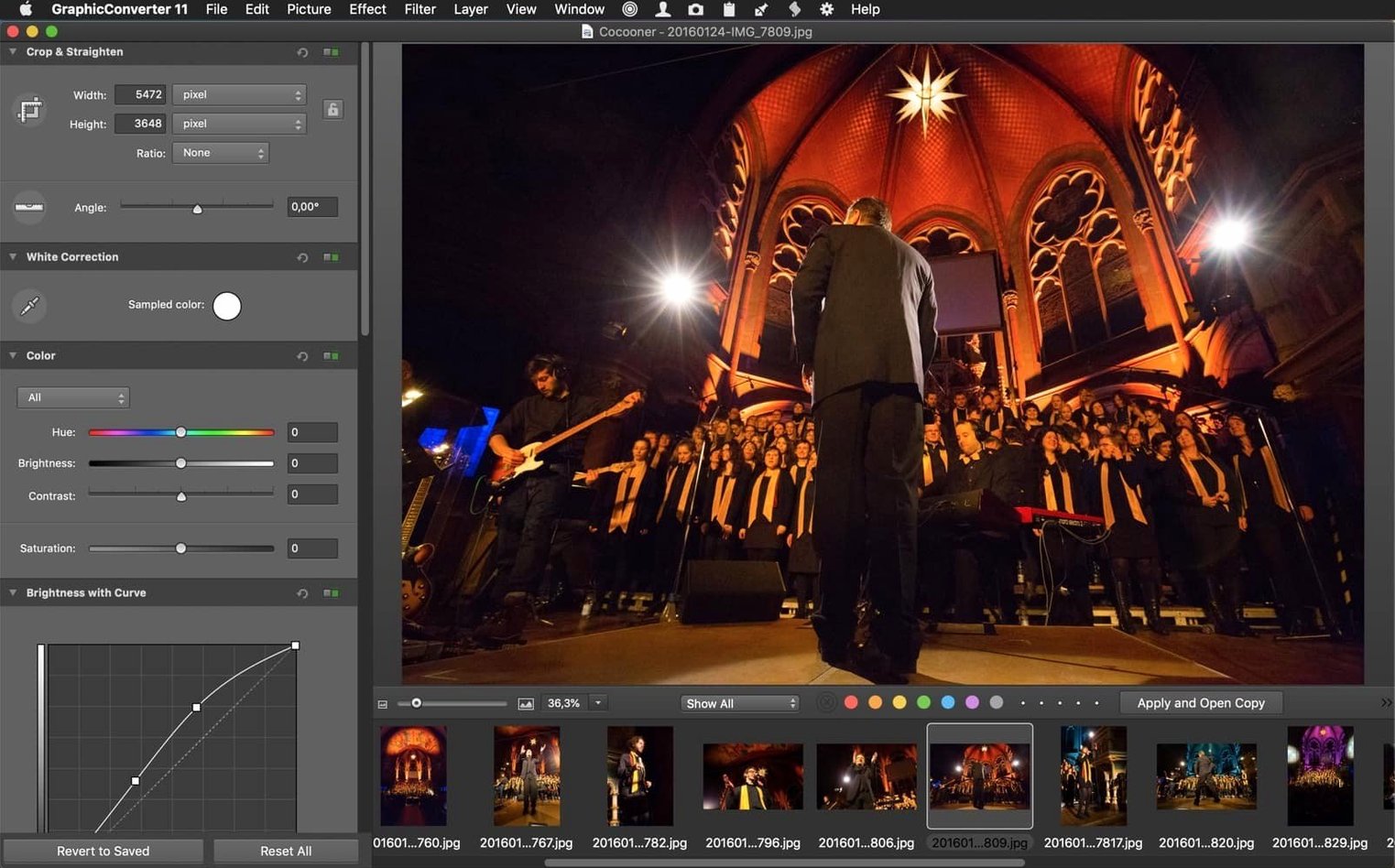
- For the phone shots that drift warm, she uses the color correction panel on a reference image, then copies those adjustments into the batch for consistency across the set.
It's not glamorous, but the whole process takes about twelve minutes for twenty product shots. No subscription, no cloud uploads, no exporting between four different apps.
Tip: If you hunt down a graphicconverter 12 torrent mac search result to try before committing, community-shared copies often skip the built-in help files and AppleScript examples. To get the full scripting support, check that the package includes reference scripts and a detailed manual so you can answer most "how do I automate X" questions without hunting through forums.
Version 12.5.4 came out with a short set of fixes on August 26, 2026. The release notes are brief, but the build runs natively on both Intel and Apple Silicon Macs, which has been the case for a while now.
- macOS 10.13 High Sierra or newer
- Intel or Apple Silicon Mac
- Roughly 260 MB of disk space
Notes from other shops 0
Sign in or open a shop account to leave a note.
No notes yet. If you've used this on a shop Mac, tell me how it went.