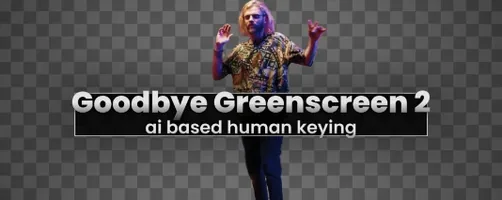
If you know the built-in Keylight effect in After Effects, Goodbye Greenscreen 2 is the AI-powered relative that handles the spill and fine edge details without the manual tweaking.
Host apps — Works inside Adobe After Effects 2023–2026 and Premiere Pro 2022–2024.
Processing — Runs 100% locally on your machine. No cloud uploads, no waiting on a server queue.
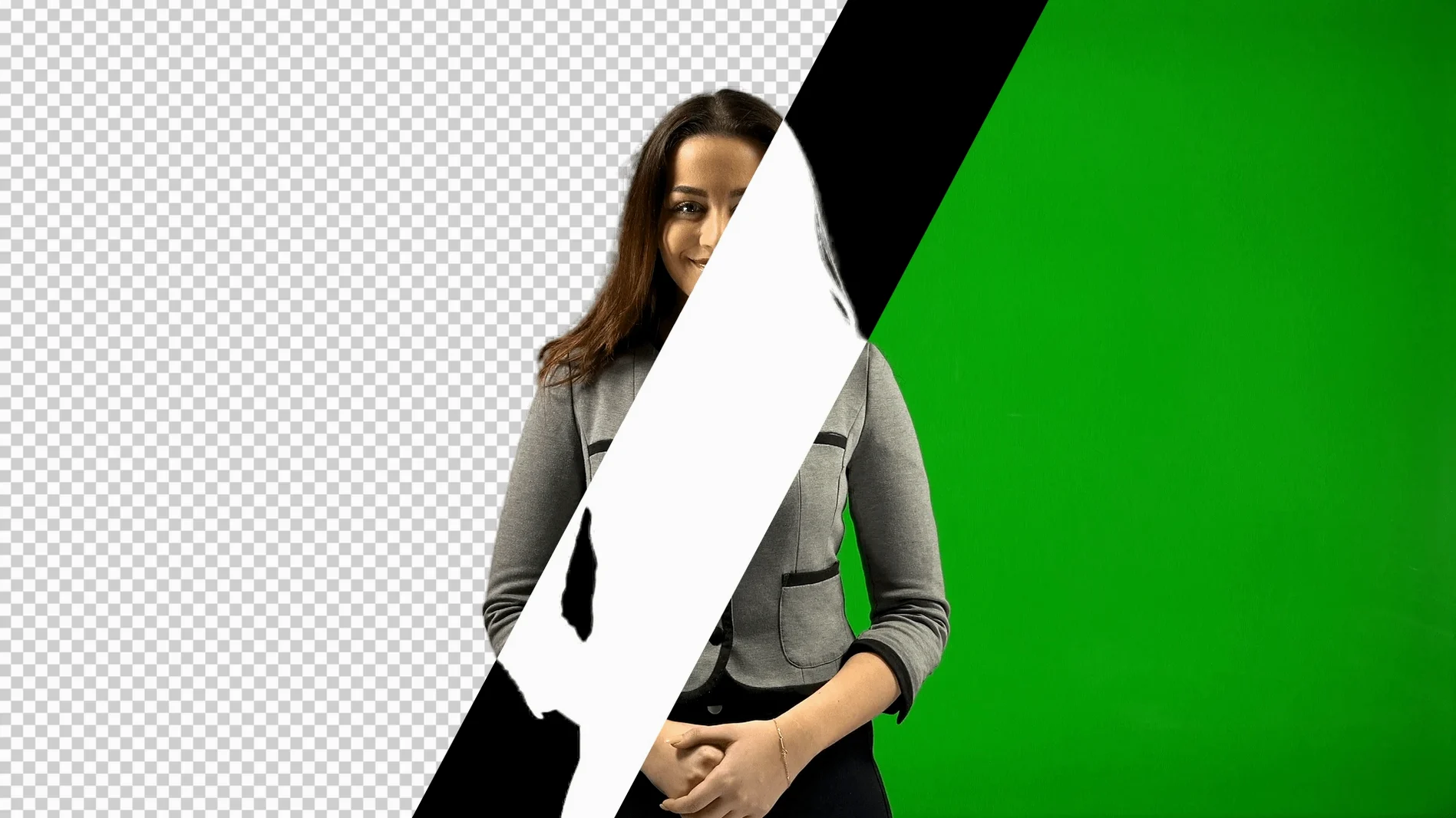
What it does — Combines the original video and the cut-out scene into a clean matte in one workflow, using an AI color key built for green-screen footage.
Developer — Part of the Blace Plugins line.
Tip: The local processing makes it practical for client work where footage stays on your own drives.
A portrait matting workflow, start to finish
Here’s how I’d approach a typical talking-head shot that needs a clean key for a lower-third or background swap.
- Drop the clip into a comp and apply Goodbye Greenscreen 2 from the effects panel. Let the AI model look at the frame first — it picks up the human subject on its own for portrait shots.
- Check the matte view before touching anything else. Toggle between the combined output and the matte itself so you can see where the edges are soft or where stray pixels remain.
- Run the automatic masking pass for the subject type — portrait or full-body. The plugin separates the person from the background and builds the cut-out layer for you.
- Place your new background underneath the matted result. Since the workflow combines video and cut-out scene into one matte, you usually don’t need to stack a dozen pre-comps.
- Scrub through the timeline at normal speed to catch any frames where motion blur or hair movement confuses the model. If a section drifts, re-run the matting on just that range.
For most well-lit green-screen footage, that’s the whole job. The time you save goes into color matching the subject to the new background, which is usually where the realism lives anyway.
A scenario I can see working well
Imagine a wedding videographer who shoots a lot of couple interviews against a portable green backdrop. The lighting isn’t always even — sometimes the backdrop has wrinkles, sometimes the subject stands too close to it. That’s exactly the kind of footage where hand-keying eats an afternoon.
With this plugin, they can batch through the interview clips in Premiere Pro, let the AI color key handle the uneven green, and spend the rest of the edit on pacing and music instead of mask cleanup. The fact that it runs locally means they can keep working on a laptop at a venue without worrying about upload speeds or file privacy.
What beginners tend to get wrong
- Applying it before checking the footage. If the green screen is badly lit or the subject is too far from the backdrop, no AI matting will save the shot. Clean up what you can first.
- Expecting one click to fix everything. The automatic masking is strong, but hair, translucent fabric and fast motion can still need a second pass or a manual touch-up on a few frames.
- Forgetting to check the full clip, not just one frame. A matte can look perfect on the first frame and fall apart twenty seconds later when the subject turns or moves closer to the edge of the frame.
- Overlooking the matte view. It’s easy to judge the result on the combined image alone, but the matte view shows you exactly where the AI left soft or noisy areas before you commit to the final render.
Version 2.3.45 brings a quieter but meaningful shift under the hood:
- Moved to a new AI backend, with BiRefNet integration mentioned in the release notes
- Large resolutions above 4K now render faster on CUDA thanks to CUDA Memory Sharing
- macOS (Apple Silicon and Intel)
- After Effects 2023, 2024, 2025, or 2026
- Premiere Pro 2022, 2023, or 2024
Notes from other shops 0
Sign in or open a shop account to leave a note.
No notes yet. If you've used this on a shop Mac, tell me how it went.