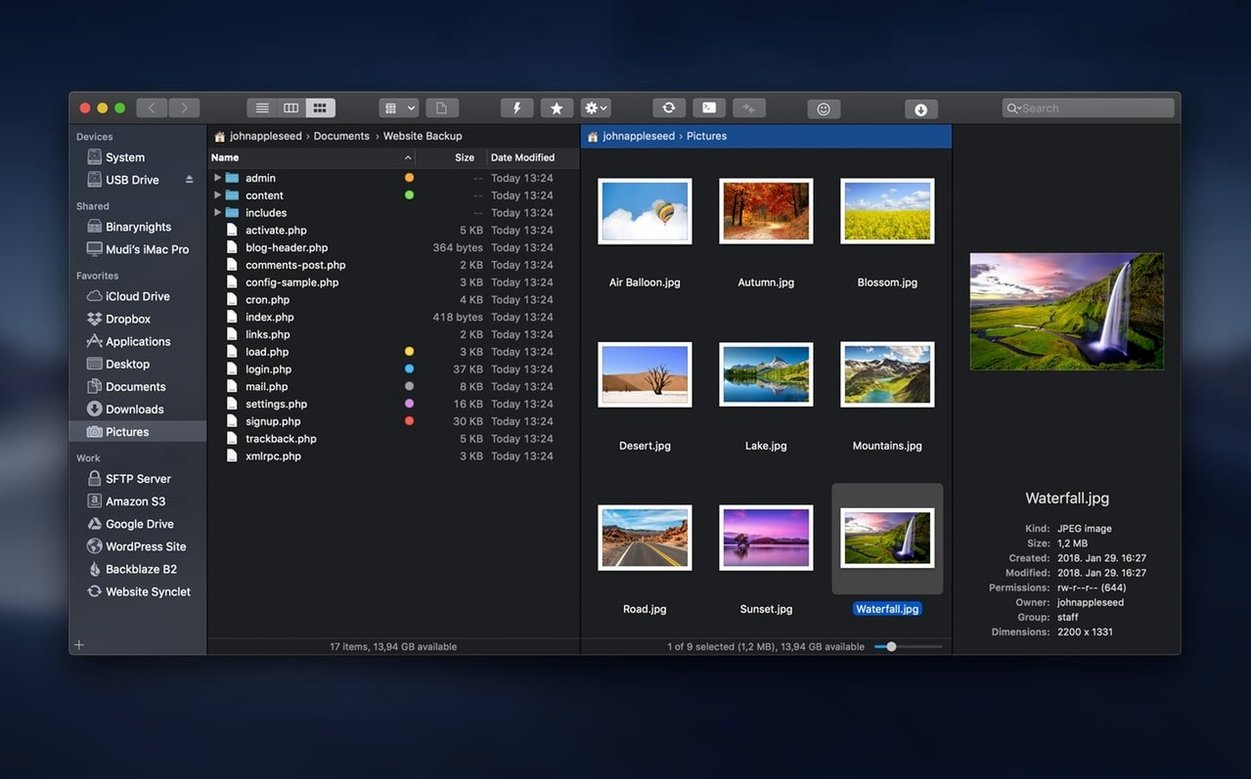
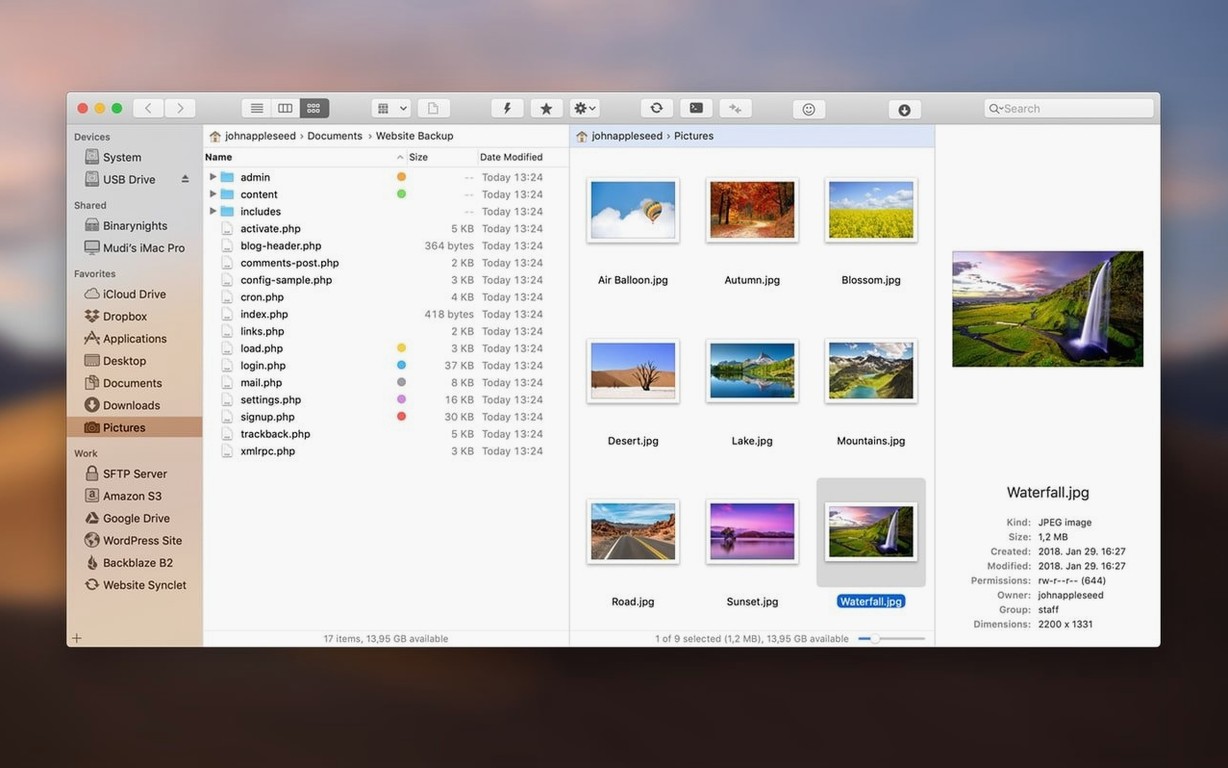
If you know Finder, you already understand the shape of ForkLift. It looks familiar because it is a file manager, but it opens up a second pane and hands you a set of tools Finder never shipped with. Here’s a short path to get comfortable.
- Decide on a pane layout. One pane feels safe. Two panes—side by side or stacked—let you drag files between folders or servers without opening extra windows. Switch anytime from the View menu.
- Press Space on any file. Photos, PDFs, audio files. The preview pops right up. Works on your Mac and on files sitting on a remote server.
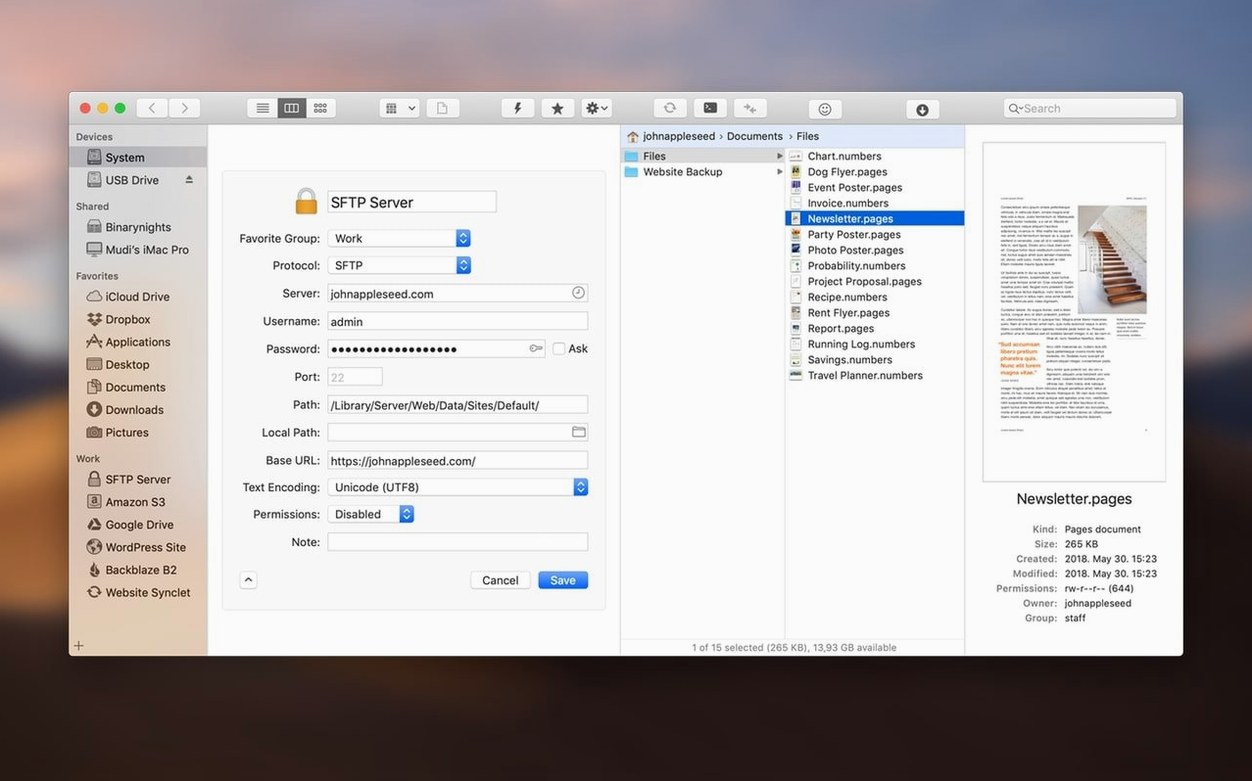
- Connect to something remote. Click the Connect button and pick a protocol. FTP, SFTP, SMB, Amazon S3, WebDAV—they’re all here. You can stay connected to several servers at once, each in its own tab.
- Edit a text file in place. Select a file on a remote server, open it, make a change, and save. ForkLift handles the upload quietly. No download-edit-reupload dance.
- Run a search across two worlds. Search one pane or both. Filter by name, text inside files, extension, or Finder tags. The results show local and remote matches together.
Once those five things feel natural, try comparing two folders with the Sync command or setting up a quick one-way sync to a backup drive. The tool grows with you.
Turning a client’s photo drop and CSV pull into a done deal
Monday morning, and a client has dropped a zip of updated product photos into a shared SMB folder. They also need the web shop’s inventory CSV pulled from the staging server for a quick review. Here's how ForkLift turns that into ten minutes of relaxed clicking.
I open ForkLift and the left pane already shows my local ~/Projects/ folder from last time. I click Connect, pick the SFTP bookmark for the staging server, and it appears in the right pane. Two worlds, one window. The zip file is sitting on the office NAS, so I add a new tab, connect via SMB, and drag the zip straight from the NAS tab into my local Incoming folder. Then I double-click the archive — ForkLift opens it like a regular folder. I peek at a few shots with Space, rename the ones that need it, and drag the whole set to the local project folder. No extracting, no Finder litter.
Still in the same window, I switch the right pane back to the SFTP tab, locate inventory_export.csv, and open it with the built-in editor. I spot a stray semicolon in row 204, fix it, save, and the file is updated on the server before I've finished my coffee. Before closing up, I select the local project folder and the remote /public_html/images/ folder, hit Commands > Sync, choose one-way sync (local to remote), and let ForkLift push only the new and changed files. Done. One app, no extra windows, no separate FTP client.
Fixing a 'can’t connect' error when the port doesn’t match
"I can't connect to my server." This is almost always a port or protocol mismatch. ForkLift defaults to the standard port for each protocol, but some hosting companies use non-standard SSH ports. In the connection dialog, add :2222 (or whatever your host specifies) to the server address. Also check that you've selected SFTP and not plain FTP — the icons look similar when you're in a hurry.
"The preview pane shows a blank screen for my file." ForkLift's preview relies on macOS Quick Look for many formats. If a particular file type won't preview, it may need a third-party Quick Look plugin installed on your Mac. The preview still works for common formats — photos, PDFs, text files, audio — right out of the box.
"Syncing is confusing — I'm not sure which side overwrites which." Before you run any sync, click the Analyze button first. It shows you exactly what will happen: which files are new, which are older, which exist only on one side. Reading that list takes thirty seconds and prevents the sinking feeling of watching the wrong folder get wiped. For extra safety, enable the option to move deleted files to a timestamped backup folder instead of truly deleting them.
"The app won't open after I downloaded it." On recent versions of macOS, Gatekeeper can block apps that don't come from the App Store. The install steps for this build include a Terminal command to bypass that block — run it, press Enter, and then drag the app to Applications. If it still refuses, temporarily disabling SIP may be necessary, though that's less common.
Choosing between Transmit, Commander One, and Finder add-ons
Plenty of people searching for forklift mac alternatives are also looking at Transmit, Commander One, and the built-in Finder with an FTP add-on. Each has its own shape, and the right fit depends on what you do all day. Here's how ForkLift sits alongside them.
ForkLift vs. Transmit. Transmit is a beloved FTP client with a clean interface and Panic's signature polish. It handles file transfers beautifully and supports a similar range of protocols. Where ForkLift pulls ahead is file management: Transmit shows remote servers, but it doesn't aim to replace Finder for local work. ForkLift gives you dual-pane local browsing, archive browsing, batch renaming, and the ability to treat a remote server and a local folder as two equal halves of one workflow. If you only need to move files to and from servers, Transmit is a joy. If you want one tool that replaces Finder for most daily tasks and connects to servers, ForkLift covers more ground.
ForkLift vs. Commander One. Commander One is a dual-pane file manager built with a classic orthodox-commander philosophy — lots of keyboard shortcuts, a built-in terminal emulator, and a familiar feel for anyone who grew up with Midnight Commander. It also supports FTP, SFTP, and cloud services through a paid add-on. ForkLift feels more at home on modern macOS. Its preview pane is smoother, its interface requires less configuration out of the box, and its sync and comparison tools are more visual. Commander One appeals to power users who want deep customization and don't mind tweaking settings. ForkLift appeals to people who want to install it and get things done without reading a manual.
ForkLift vs. Finder plus an FTP add-on. Some folks try to patch the gap with Finder and a standalone FTP app like Cyberduck. It works, but the seams show. You end up with two different mental models: Finder's way of sorting, selecting, and previewing, and the FTP app's separate interface for remote work. ForkLift unifies them. Searching across a local folder and an SFTP server in one operation, previewing remote images with Space, editing a remote config file in place — none of that is possible with Finder plus a separate FTP client. ForkLift replaces both, and that's the central reason people go looking for a forklift torrent or download in the first place: they want one window that handles everything.
ForkLift 4.7.7 has landed with a fresh round of tweaks and polish from the developer. You'll find the full list of changes over on their blog.
- macOS 12 or newer
- Intel 64-bit processor
Questions from the stall
Can ForkLift compare a local folder with a remote server?
Yes. You can compare local and remote sources directly, then run a one-way or two-way sync once you see the differences.
Which remote connection types does ForkLift support?
It supports FTP, SFTP, Amazon S3, AFP, WebDAV, SMB, and NFS remote volumes, and you can stay connected to multiple servers at the same time.
Notes from other shops 0
Sign in or open a shop account to leave a note.
No notes yet. If you've used this on a shop Mac, tell me how it went.
Also on the shop Mac
The tools other makers open most here.