
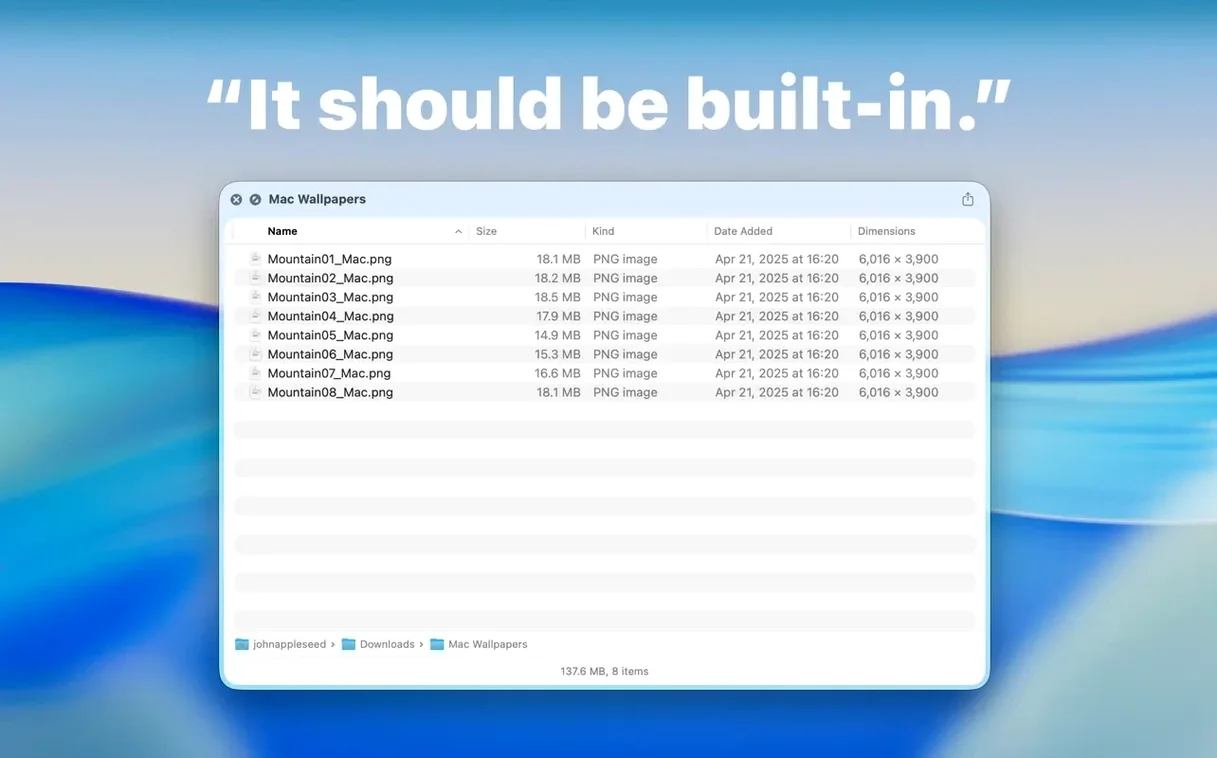
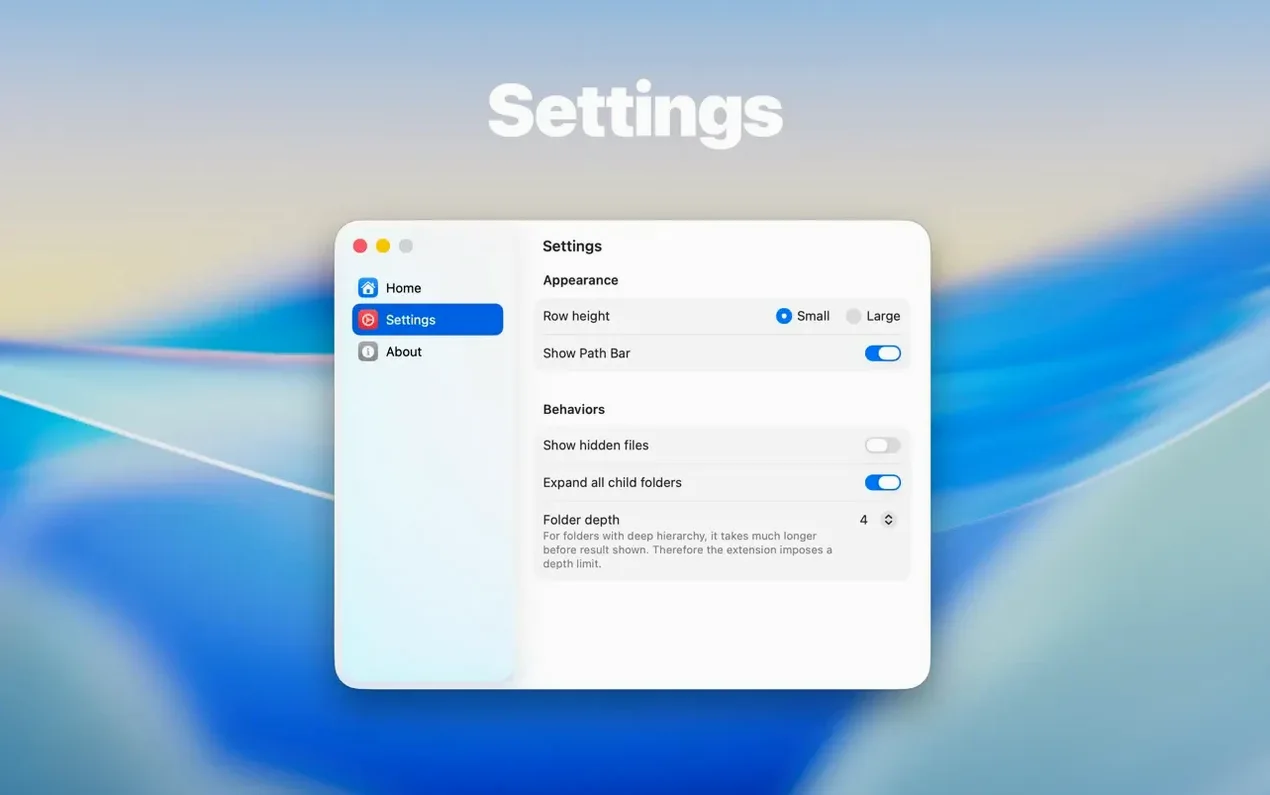
Version 3.1 brings a handful of changes that make browsing folders without opening them feel more natural. The new Dual Columns view gives you a side-by-side look at nested folders, a Contents item in the context menu lets you walk through a folder level by level, and you can now drag files straight out of the preview from list or icon views. The folder size has shifted from the status bar up to the toolbar, right under the folder name.
macOS 13 and Quick Look required
- macOS 13 or later
- Runs natively on both Apple Silicon and Intel Macs
- Quick Look must be turned on in System Settings before the extension shows up
Spacebar shows folder contents, including archives
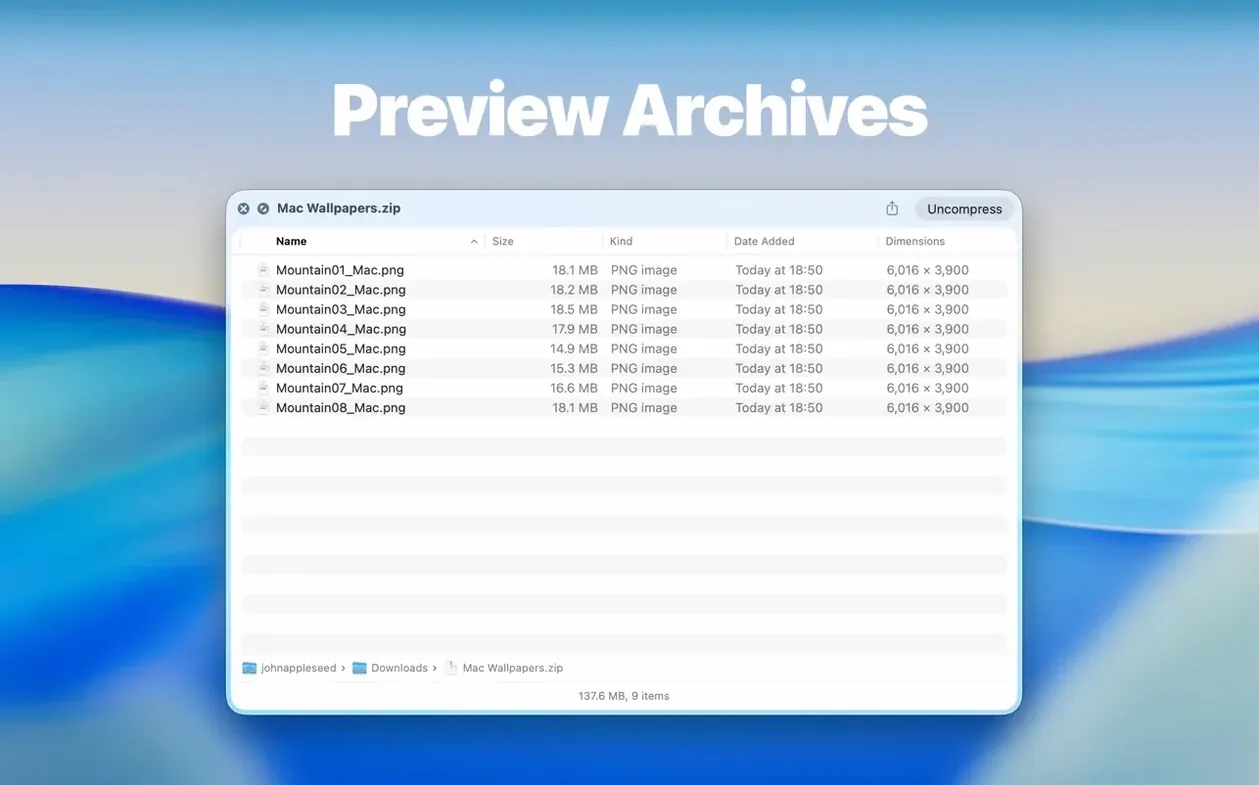
Once it's installed, pressing the spacebar on a folder in Finder opens a preview of what's inside instead of the generic folder icon. Archive preview is built in too — ZIP, TAR, GZ, 7Z, and RAR files all show their contents without extracting a thing. The interface switches between list, icon, and the new dual-column layout depending on how you like to scan. It's a small utility that quietly removes one of Finder's long-standing annoyances.
Mistakes I notice people making early on
Most of these aren't bugs — they're habits from years of not having the extension. The fix is usually quick.
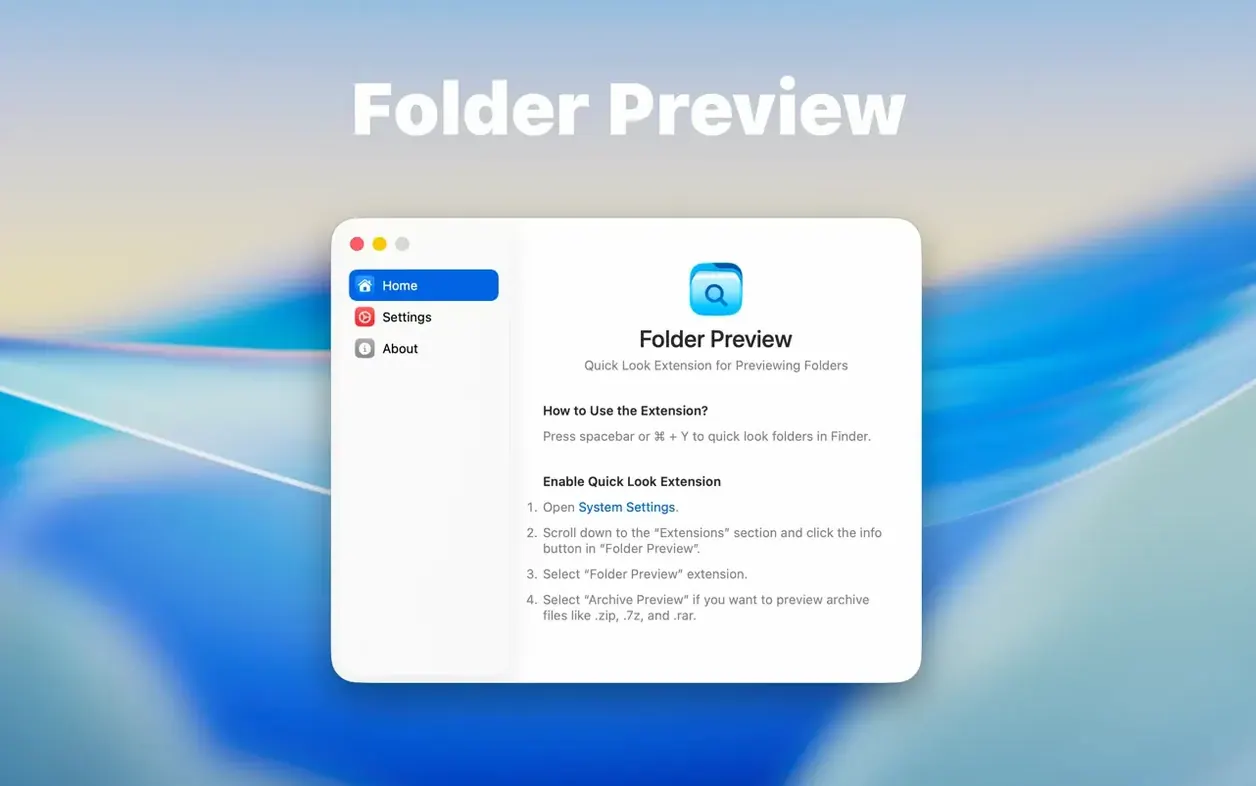
- Forgetting to enable Quick Look. The extension won't do anything until Quick Look itself is on. Head to System Settings > General > Finder > Quick Look and flick the switch. Miss this step and folders keep showing the blue icon with no preview at all.
- Trying to preview folders before the first launch. You need to run the app once from Launchpad after dragging it to Applications. That registers the extension with macOS. A lot of people copy it over and immediately start pressing the spacebar — nothing happens, and they assume it's broken.
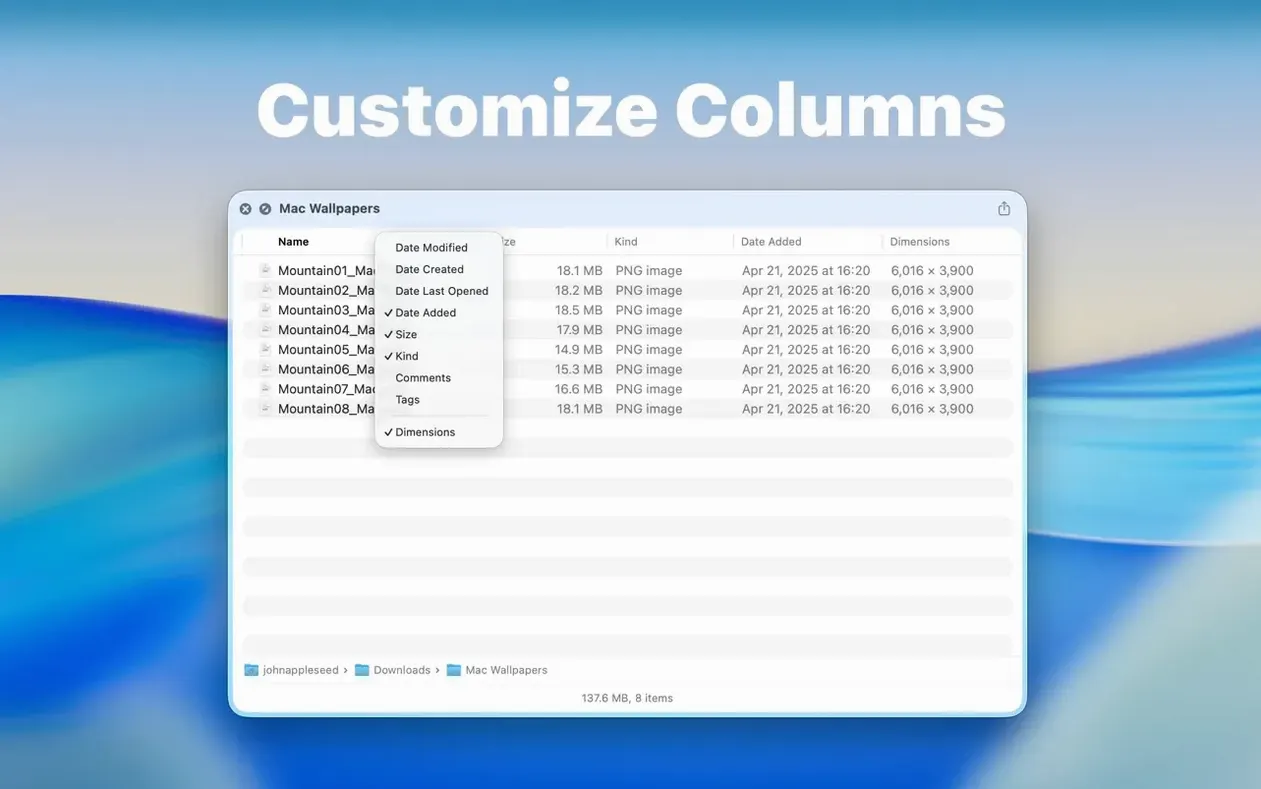
- Overlooking the right-click on column headers. The preview shows several columns by default. If you only want file name and size, right-click any column header and uncheck what you don't need. It's one of those features that stays hidden unless you stumble across it.
- Not adjusting the archive size limit. Version 3.1 lets you set limits of 5 GB or 10 GB. If you work with large compressed backups, raising that ceiling stops the preview from silently skipping big archives.
Dual Columns view for seeing two folder levels at once
The move to 3.1 wasn't a cosmetic refresh — it touched the way you interact with files during a preview.
The Dual Columns view means you can see two folder levels at once without opening a new window. When you're hunting for a file buried a few folders down, you navigate in the left column and peek at contents in the right. It cuts down on the back-and-forth that used to make Quick Look feel cramped.
Drag-and-drop out of the preview was one of those missing pieces that made people give up on folder preview mac free alternatives. With 3.1 you can grab a file from the list or icon view and drop it into an email, a chat window, or another Finder location. The preview stops being a read-only snapshot and starts acting like a lightweight workspace.
The Contents item in the context menu gives you a breadcrumb-style way to walk through a folder level by level. It's less visual than Dual Columns but faster when you know exactly which subfolder you're aiming for. Between that and the relocated folder size display — now in the toolbar, not the status bar — the whole layout feels less like an afterthought.
For people who resent opening unnecessary Finder windows
People who live in Finder and resent opening unnecessary windows. The extension replaces a handful of small workflows that add up over a day.
Photographers and designers with project folders. When every job sits in a folder named by client and date, pressing spacebar to scan thumbnails without launching a heavy app saves real time. The dual-column view helps when you're comparing rounds of edits across subfolders.
Anyone who handles archives regularly. Downloading a zipped asset bundle and extracting it just to see what's inside gets old fast. With built-in ZIP, TAR, GZ, 7Z, and RAR previews, you check the contents first and extract only what you need. Some users who look for a folder preview torrent or folder preview mac crack end up here because the archive support handles formats other free tools ignore.
Developers and people wrangling lots of nested directories. Walking through project trees with the Contents menu or dual-column layout beats opening six Finder windows. Dragging a config file out of a preview into a terminal or editor window feels like a small thing, but once you get used to it, you notice when it's missing.
Anyone who tried folder preview free utilities and ran into limits. The common free options often stop at basic folder listing or don't handle archives at all. Folder Preview Pro covers the formats people actually bump into and stays out of the way once it's set up. No preferences panel to manage, no dock icon to babysit.
Version 3.1 adds a few thoughtful touches for anyone who regularly glances inside folders:
- Dual Columns view for browsing side by side
- A Contents item in the context menu for stepping through folder levels
- Drag-and-drop of files out of the preview from both list and icon views
- macOS 13 or later
- Apple Silicon or Intel Mac
- Quick Look enabled in System Settings
Questions from the stall
Does Folder Preview Pro work with Apple Silicon Macs?
Yes, it runs natively on both Apple Silicon and Intel-based Macs.
Can I preview the contents of ZIP or RAR files?
Yes, archive preview is supported for ZIP, TAR, GZ, 7Z, and RAR files right inside the Quick Look window.
Notes from other shops 0
Sign in or open a shop account to leave a note.
No notes yet. If you've used this on a shop Mac, tell me how it went.