
You've just plugged in an old external drive from a client, and Spotlight comes up empty when you look for the project folders you know are on there. That's the moment you reach for Find Any File.
Find files on any connected disk
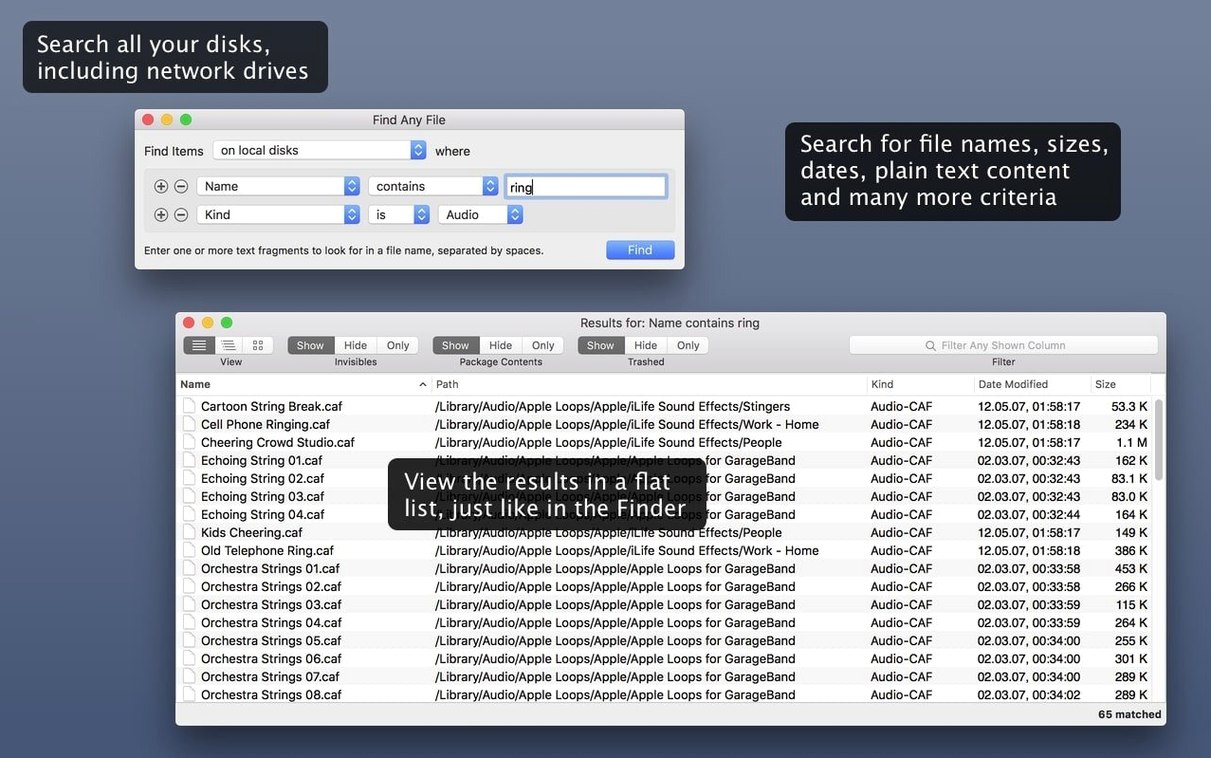
This is where the app really sets itself apart. It doesn't rely on a pre-built database like Spotlight does. Instead, it reads the disk's directory directly, letting you search volumes that Spotlight ignores—including network drives and server volumes.
Look inside bundles and packages
Need to grab a single image from an old iPhoto library or find a preference file tucked inside an app package? Find Any File can peer inside bundles and packages, showing you a hierarchical folder view of what's really there.
Pin down files by date and size
Combine a date range with a size filter to surface the large video files created last month, or narrow a text search to only the files modified this week. It's a practical, no-nonsense way to hunt down stray assets.
Hierarchical results you might skip past
Some of the best things in Find Any File are the ones you might not notice on your first few searches. They're not hidden—they're just easy to skip when you're in a hurry to find something.
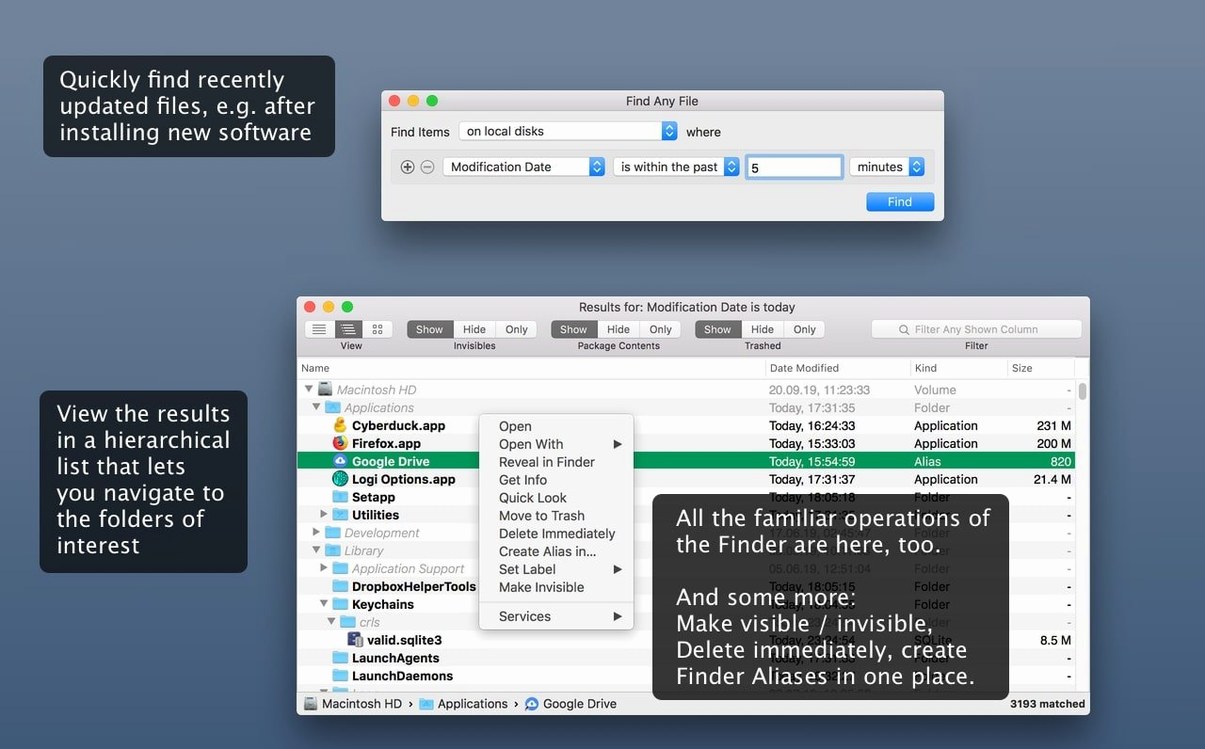
The hierarchical results view is one of them. When results come back, switch to the browser-style view and you'll see files nested inside their actual folders, exactly as they sit on the disk. That alone has saved me from opening half a dozen similarly named files from different backup folders. You can also drag any file straight from the results window to an email or a Finder folder without hunting it down first.
Hold Option while clicking the Find button and the search runs in a new window instead of replacing your current results. Useful when you're working through a list of client folders and don't want to lose your place. And if you regularly search the same set of folders with the same criteria, the app remembers your last search settings between launches—no need to rebuild your filters every morning.
The plain text search is deliberately simple. It won't parse rich documents, but it's fast and accurate for code files, logs, readme files, and exported CSV data. If you're poking through a folder of old .txt invoices looking for a specific client name, it does the job without fuss.
Freeform search without a database
On a Mac, you've got a few ways to search for files beyond Spotlight, and each one thinks about the problem a little differently.
Find Any File vs. EasyFind. EasyFind is a free alternative that also searches without a database, and it throws in Boolean operators and case-sensitive options. It's capable, but the interface feels older and results come back in a flat list. Find Any File gives you that hierarchical folder view and handles large server volumes more gracefully. For quick one-off searches on a local disk, EasyFind works fine; for untangling a messy external drive from three years ago, I'd reach for Find Any File.
Find Any File vs. HoudahSpot. HoudahSpot builds on top of Spotlight's index, so it searches faster for the things Spotlight already knows about—but it won't see files on unindexed volumes or inside system folders. It's a power tool for refining Spotlight queries with complex conditions. The two apps complement each other nicely: HoudahSpot for drilling into your main drive with detailed criteria, Find Any File for the places Spotlight doesn't look at all.
Where Tembo fits in. Tembo is another Spotlight front-end, grouping results by category with a friendlier face. It's pleasant for everyday browsing, but it shares the same limitation—if Spotlight hasn't indexed the volume, Tembo won't find anything on it. Think of it as a Spotlight companion, not a replacement for direct disk searching.
Learn the rhythm in a familiar folder
Start by searching a folder you know well. Pick your Documents folder and run a few name-based searches so you get a feel for how fast results appear and how the hierarchy view organizes them. It's a low-stakes way to build muscle memory before you point the app at a messy external drive.
On day two, try a search by size and date together. Look for files over 100 MB modified in the last month on your main drive. It's a quick way to find space-hungry downloads or video exports you forgot about, and it teaches you how the filters work together better than reading about them does.
If you work with network drives, mount them and run a search early in the week while you're not under deadline pressure. Network searches are slower than local ones—that's true of any direct-disk tool—but knowing roughly how long they take on your setup means you won't be surprised when a client is waiting. Small folders with specific names work best for network searches; save the broad sweeps for local disks.
One last thing: don't uninstall Spotlight or try to replace it entirely. Find Any File is the tool you pull out when Spotlight can't see what you need. Keep both in your toolkit and you'll spend less time wondering where your files went.
Version 2.6 brings a few handy additions for anyone who likes to automate their workflow. AppleScript support means you can now trigger searches from your own scripts. New columns for Comments, Trashed, and Hidden status give you a clearer view of what's on your disk at a glance.
- macOS 10.11 or newer
- Works natively on both Intel and Apple Silicon Macs
Notes from other shops 0
Sign in or open a shop account to leave a note.
No notes yet. If you've used this on a shop Mac, tell me how it went.