
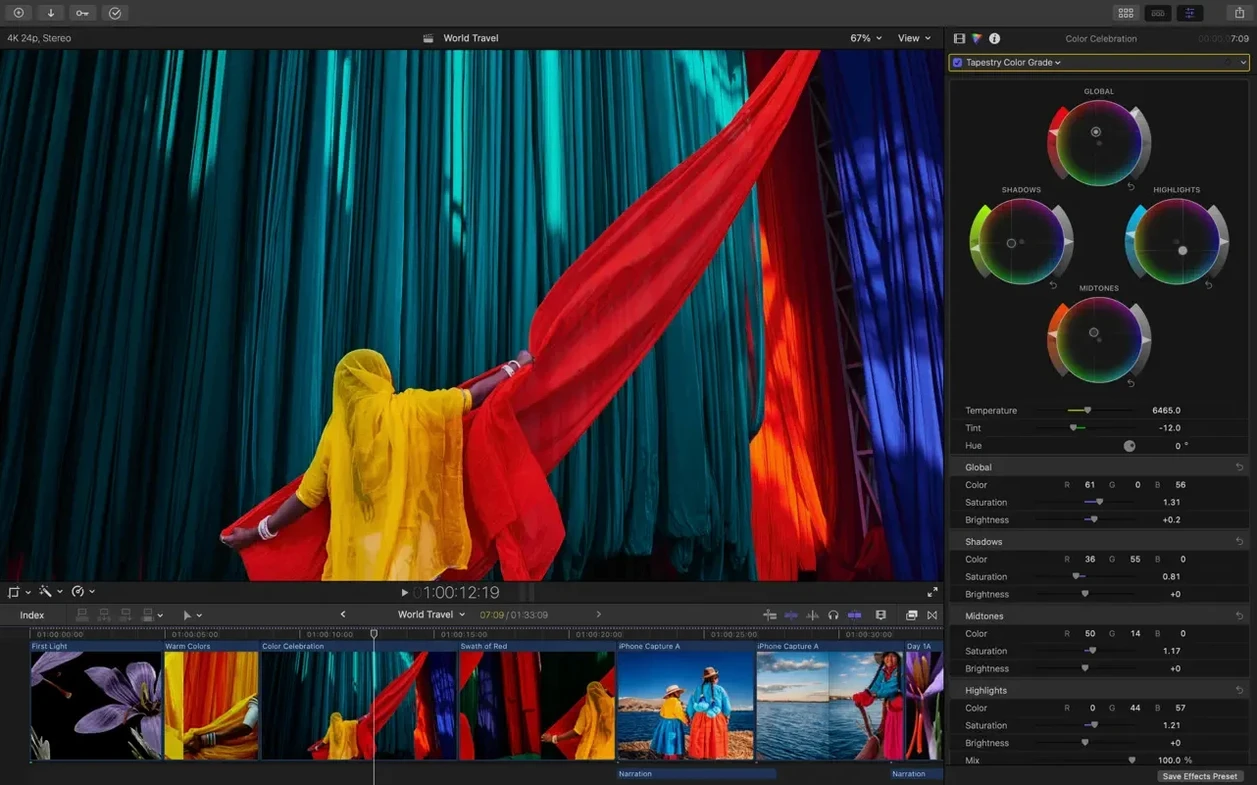
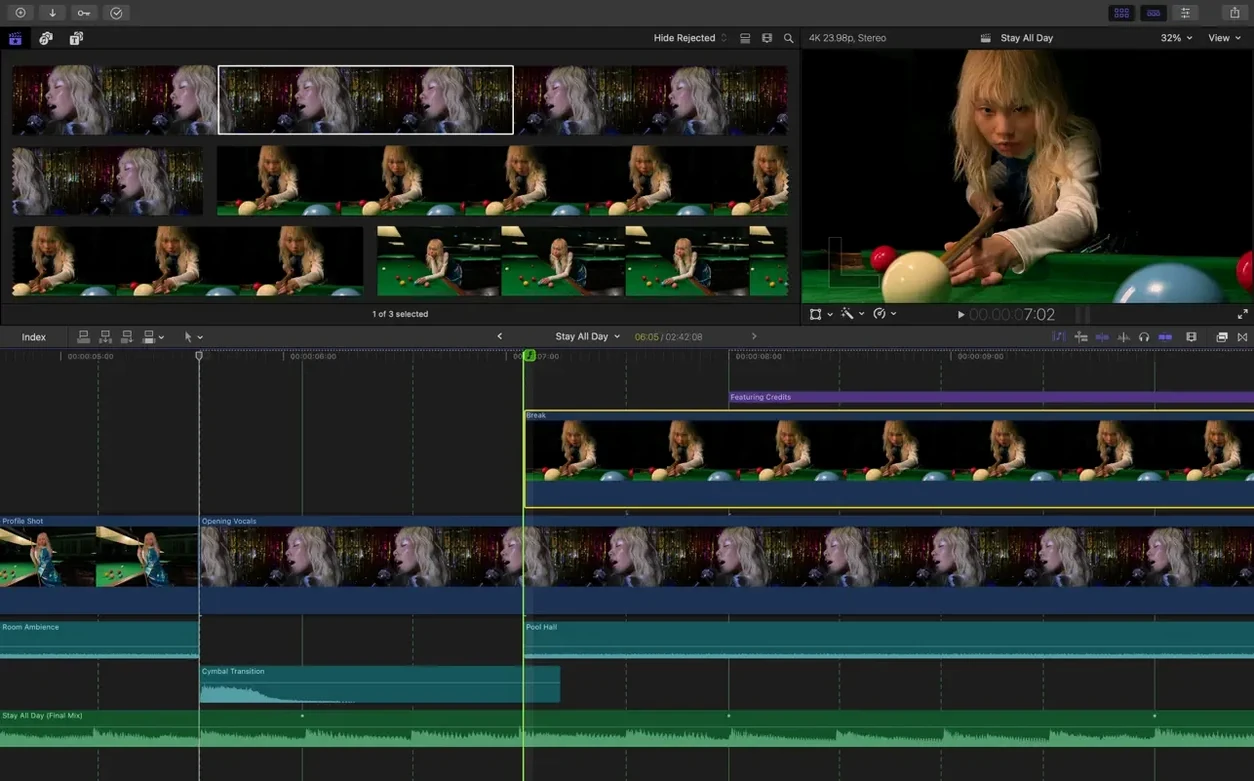
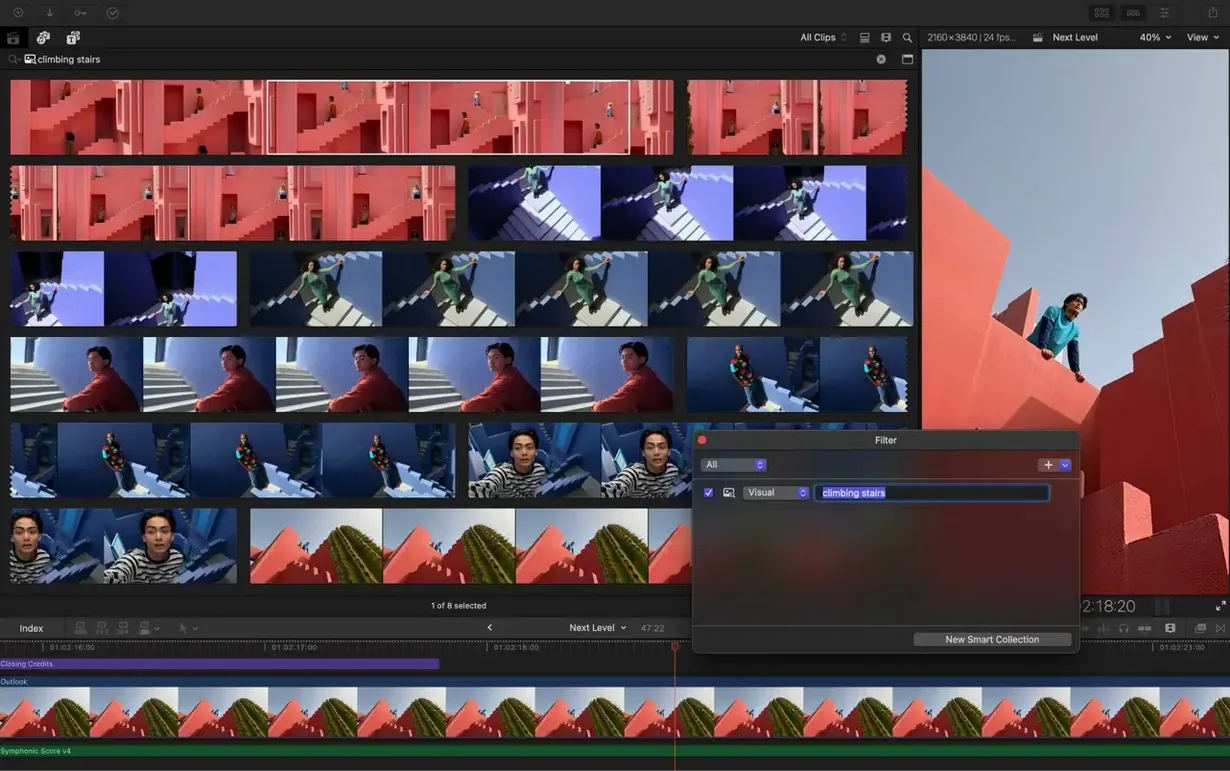
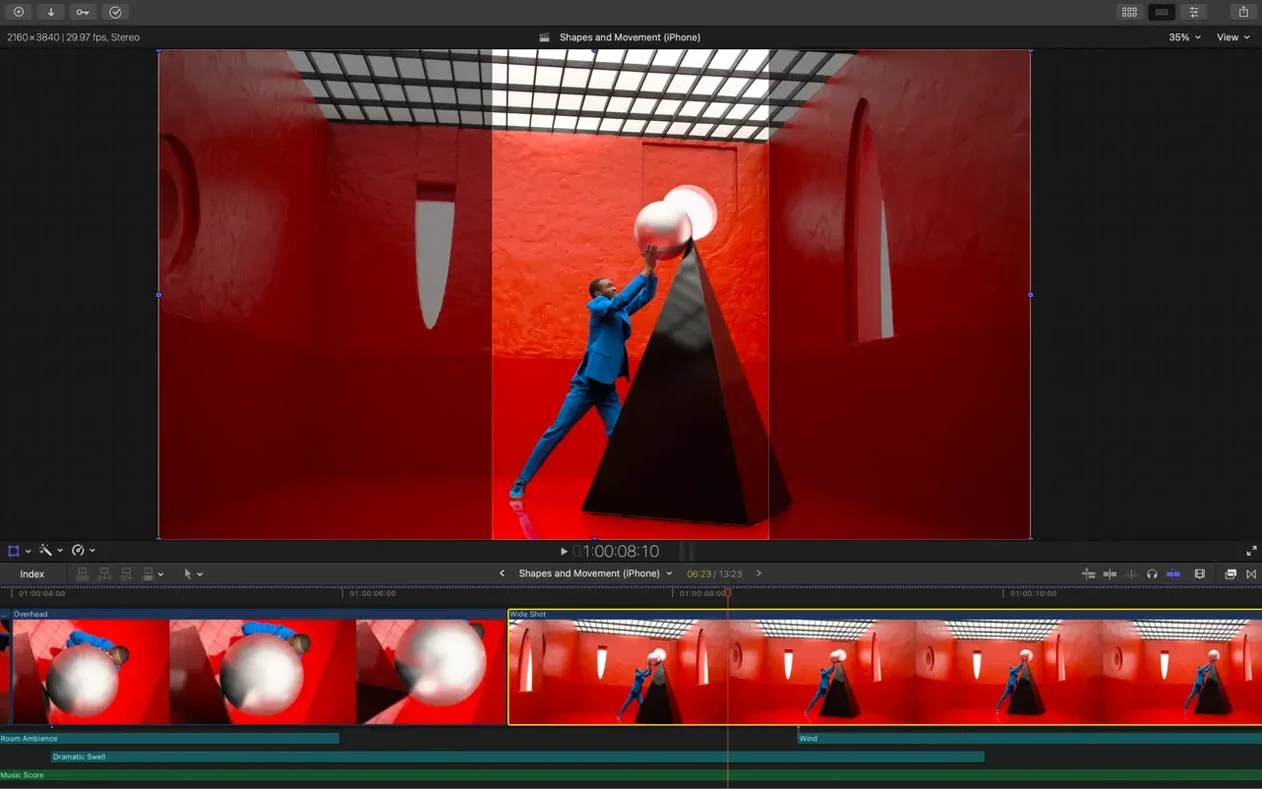
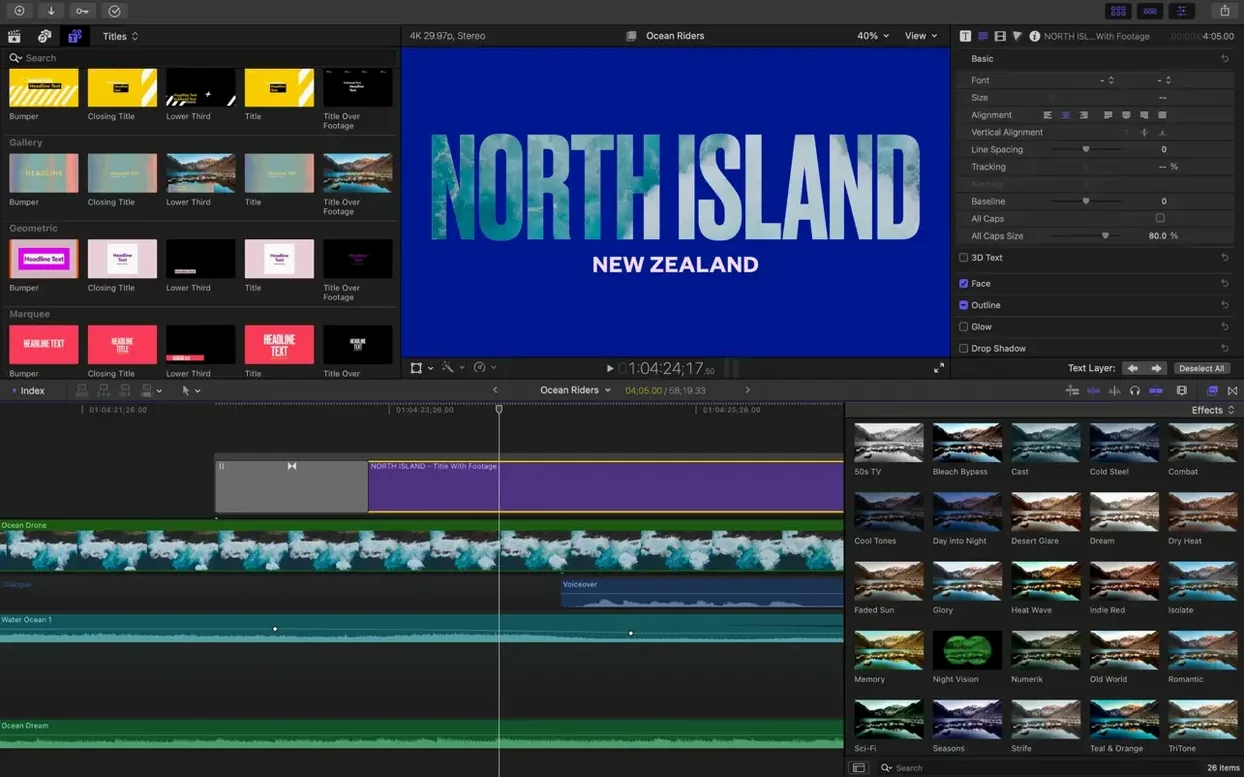
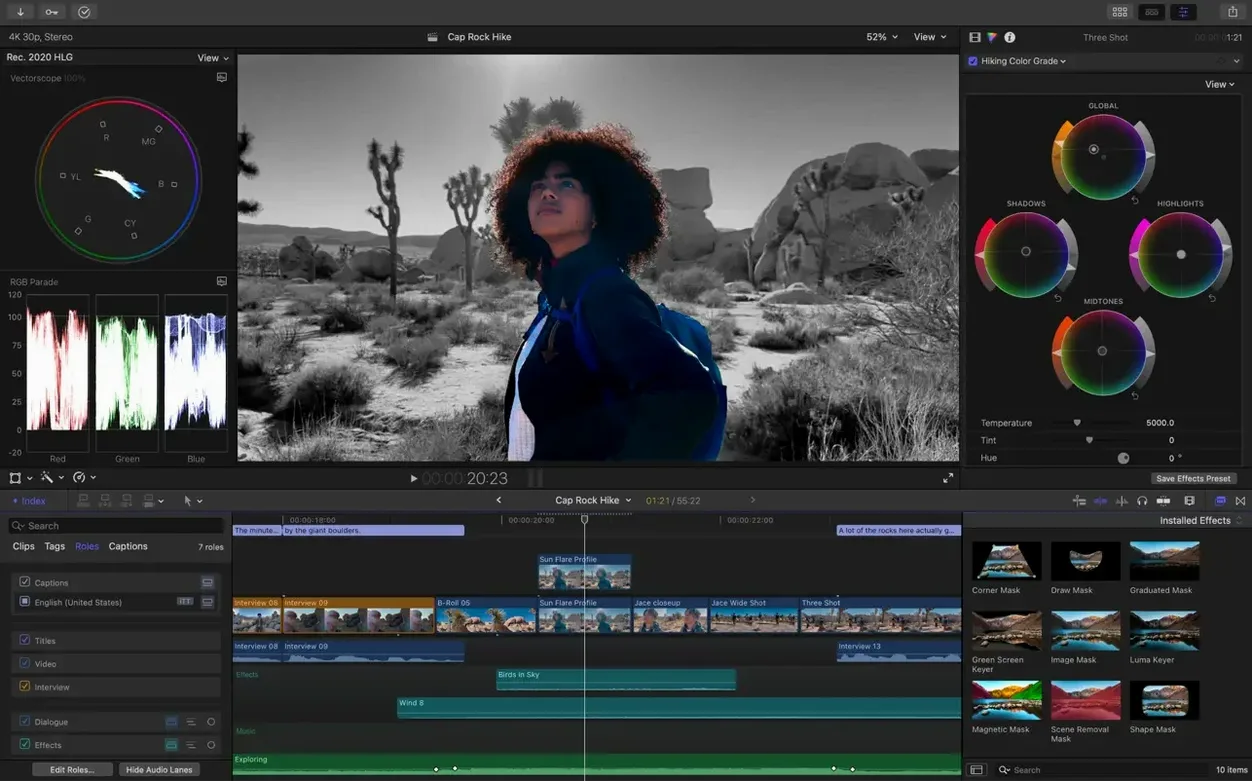
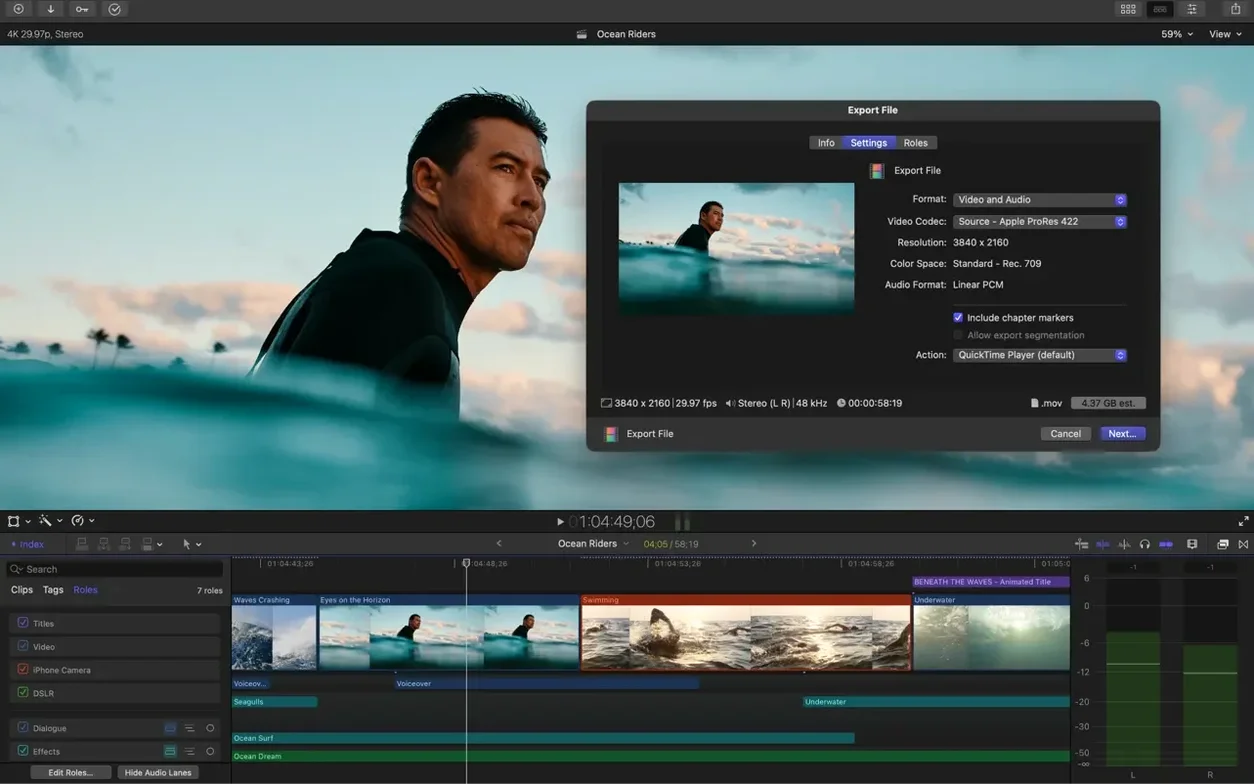
Object Tracker is where things get interesting. Rather than keyframing a blur or title by hand, you let the analysis run and then attach your effect. It follows the face, the car, the ball—whatever you’ve tagged—throughout the shot, and the corrections stay steady even when the lighting shifts. That’s the kind of tool you lean on when the edit stops being about cutting clips and starts being about finishing.
- Smart Conform turns a 16:9 timeline into a square or vertical cut without cropping out the speaker. It analyzes motion and keeps the action centred, which saves a full manual reframe pass on social deliverables.
- Edit Detection picks apart a flattened export and rebuilds it as separate clips. Useful when you inherit a rendered file and need to re-cut or grade the original pieces.
- XML round-tripping sends the timeline to Resolve for color or Pro Tools for audio mix, then brings everything back with the original clip relationships intact. The metadata and role assignments travel with the project.
- Custom keywords and smart collections let you tag clip ranges—not just whole files—then build bins that update as you mark selects. With hours of B-roll, this narrows a needle-in-a-haystack search to a few keystrokes.
- Audio roles plus multichannel editing treat dialogue, music, and effects as assignable lanes. Waveform sync aligns dual-system sound in seconds, and role-based export gives your mixer a clean AAF without extra cleanup.
An experienced editor gets the most from these features when the media pipeline fits. Native ProRes, RED RAW, and XAVC playback means fewer transcodes; the magnetic timeline holds clip connections and metadata together so you don't waste clicks repairing what a standard track-based layout would break. That's the real gain—not flash, just fewer interruptions between the idea and the render.
Captions that live inside your project, no separate track needed
Generate Captions landed in 12.3 and it's the kind of addition you don't realize you needed until you've burned an afternoon syncing subtitles in another app. The captions live inside the project—no separate track, no external file to lose—and you can style the typeface, size, and background to match whatever look you've built. For a shop owner cutting social teasers, that means one less round-trip to a captioning tool and one less thing to re-export when the client changes the font at the last minute.
Auto Mask takes a different swing at the same problem: isolating something in the frame without drawing a single bezier point. Point it at a face, a product on a table, a sign in the background, and it builds a tracked matte you can push through color correction or a vignette. The mask holds up reasonably well across cuts and motion, though you'll still want to check the edges on complex backgrounds. For quick product demos where you need to brighten just the item in someone's hands, it replaces ten minutes of roto with a click and a tweak.
Match Color grew up a bit too. It's always been useful for wedding videographers juggling three camera brands, but the 12.3 version handles mixed lighting more gracefully—daylight to tungsten, log to Rec. 709—without that overcooked look you'd get from an auto-balance button. Pick your reference shot, apply across the timeline, and the grade lands close enough that you're adjusting instead of starting from scratch.
Edit Detection solves a specific headache: someone hands you a single rendered file and says "can you just tweak the middle section?" Instead of slicing by eye and hoping you hit the cut points, the analysis rebuilds the edit decision list and splits the file into its original clips. It's not something you use every day, but when you need it, you really need it.
Motion and Compressor as quiet partners in the bundle
Motion and Compressor ship alongside Final Cut as the quiet partners in the Creator Studio bundle. Motion handles the heavy-lift motion graphics and custom generators—build a lower third template there, publish the parameters, and it shows up in Final Cut as a drop-in title with sliders you can adjust without leaving the timeline. Compressor takes over batch export chores, which matters when you're pushing a master file plus six social cuts and a proxy library to the client's frame.io inbox before lunch.
Outside Apple's yard, the XML workflow opens the door to a full post-production chain. Send your timeline to DaVinci Resolve for a serious grade; the role assignments, clip names, and retiming data travel with the file. The same XML can land in Pro Tools or Logic for a proper audio mix, then circle back with the stems aligned to picture. The key is keeping your media in place—relinked files make the round-trip painless; moved or renamed files turn it into a treasure hunt.
macOS integration shows up in smaller, everyday ways. Quick Look a clip in the Finder and you'll see the thumbnail without opening anything. Spotlight finds clips by keyword when you've tagged them inside a library. iCloud Desktop syncs your library files across machines, though you'll want fast local storage for the actual media—library bloat on a spinning disk is a real buzzkill. And because the app runs native on Apple silicon, the fans stay quiet even when you're scrubbing through 8K RED footage or rendering a multicam stream with a dozen angles.
Cutting restaurant promos with a mirrorless camera and an iPhone
Imagine a two-person creative agency in Portland. One partner handles client relationships; the other cuts video for restaurant promos, real estate walkthroughs, and the occasional crowdfunding pitch. She's shooting on a mix of her own mirrorless camera, the client's iPhone footage, and whatever drone files the photographer sent over. Deadlines run tight—a sizzle reel due Tuesday, social cuts for Instagram and TikTok by Thursday.
She dumps everything into a library, tags the selects with keywords like "kitchen hero shot," "interview good take," and "b-roll plating," then builds a magnetic timeline that pulls the best moments into rough order. Multicam sync lines up the two interview angles with the external audio in under a minute. Smart Conform creates the vertical versions without cropping off the chef's hands—something she used to spend an hour per cut manually reframing. When the client emails at 9 p.m. asking for subtitles on every version, Generate Captions handles it inside the same project file; she tweaks the style to match the brand's type palette and renders the batch through Compressor while she packs up for the night.
The real win isn't any single feature—it's that she never left the app. No round-trips for captioning, no external encoder queue, no rebuilding an edit because a vertical crop murdered the composition. For a shop where time literally invoices by the project, that's the difference between profit and an all-nighter.
Stop library files from ballooning past a hundred gigs
Library files ballooning out of control. Generated render files, optical flow analysis, and waveform cache can push a library past a hundred gigs without warning. The fix: store media outside the library when you first create it (choose "Leave files in place" in the import settings) and regularly run File > Delete Generated Library Files to strip out old render cruft. Proxy workflows help too—create lightweight proxies for editing, then switch to original resolution only for the final grade and export.
Multicam sync that lands out of alignment. Automatic sync uses audio waveforms and works beautifully with clean scratch tracks, but noisy set audio or wildly mismatched camera angles can confuse it. When the sync comes back off by a few frames, manually set a sync point—pick a sharp transient like a clap or a door slam on all angles, select them in the angle viewer, and choose "Sync to Monitoring Angle" from the Angle menu. Way faster than nudging clips frame by frame.
Auto Mask losing track on fast motion. If your subject whips through the frame or crosses behind something, the tracker can drift. The workaround is splitting the clip at the problem points and running Auto Mask again on each segment. You can also switch to manual keyframing for just the tricky section while keeping Auto Mask on the rest—the two methods coexist on the same clip.
Edit Detection splitting clips too aggressively. Fast cuts, flash frames, or dissolves can confuse the analysis and create extra clip boundaries where none existed. Run it first, then skim through and join adjacent clips that belong together with a quick Command-J. The tool does the heavy lifting; you just do the cleanup.
Plugins not showing up after installation. FxPlug extensions need to be validated before they appear. After installing a third-party effect or transition, quit and reopen Final Cut Pro. If it still doesn't show, check System Settings > Privacy & Security to see if macOS blocked the extension from loading—a quick approval there usually resolves it.
Version 12.4 CS is available now with the latest fixes and improvements from the developer.
- macOS 15.6 or later
- Apple Silicon or Intel 64-bit Mac
Notes from other shops 0
Sign in or open a shop account to leave a note.
No notes yet. If you've used this on a shop Mac, tell me how it went.